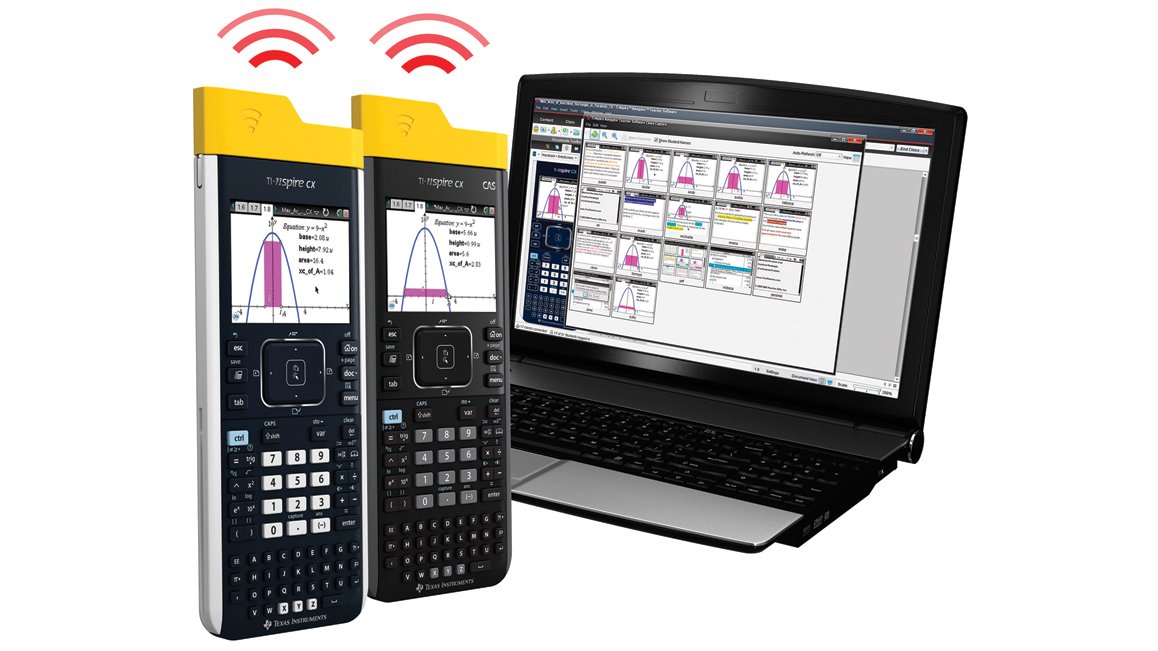
To connect a TI-Nspire to your laptop, plug the calculator into a USB port with its cable and open the TI software that matches your model. If you have a TI-Nspire CX II or CX II CAS, you do not install anything. You open a web app in the Chrome browser and connect there. If you have an older TI-Nspire CX, CX CAS, or the original black-and-white model, you download free software from Texas Instruments first, then connect.
That one split is the whole game. Most people who get stuck are running the wrong tool for their calculator. Sort out which model you own, pick the right software, and the connection takes about two minutes. Here is how to do it for every version.
What you need before you start
Three things, and you probably already have all of them:
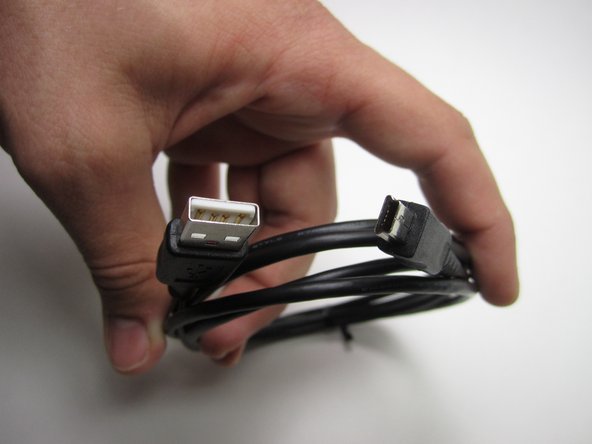
- The calculator and its USB cable. This is the same cable you charge a CX or CX II with. One end is a normal flat USB plug, the other is a small Mini-B plug that fits the top of the calculator.
- A laptop running Windows, macOS, or ChromeOS. All three work. The method differs a little by model, which is covered below.
- A few minutes and, on some laptops, a small adapter. Newer laptops that only have USB-C ports need a USB-A to USB-C adapter, since the calculator cable ends in the older flat USB-A plug.
Make sure the calculator is charged enough to turn on. A device with a dead battery may not show up on your laptop at all.
Which TI-Nspire do you have?
Flip the calculator over or look at the screen. This decides everything that follows.
- TI-Nspire CX II or CX II CAS. Color screen, and the model name printed on the front or back includes “CX II.” These are the newest and most common in classrooms today. They use a browser app, no install needed.
- TI-Nspire CX or CX CAS. Color screen, model name says “CX” with no “II.” These need software you download once.
- Original TI-Nspire or TI-Nspire CAS. Older gray, non-color screen, often with a swappable keypad. These also use downloaded software.
If you are not sure, the safe move is to read the next section for the CX II first. If the browser app does not see your calculator, you likely have an older model and should follow the download method instead.
One detail that does not matter for connecting: whether your model says “CAS.” CAS stands for Computer Algebra System, a feature that lets the calculator work with variables and exact answers like fractions and square roots instead of just decimals. A CX II CAS connects exactly like a CX II, and a CX CAS connects exactly like a CX. The CAS label changes what the calculator can do, not how it talks to your laptop, so you can ignore it for this.
How to connect a TI-Nspire CX II to a laptop
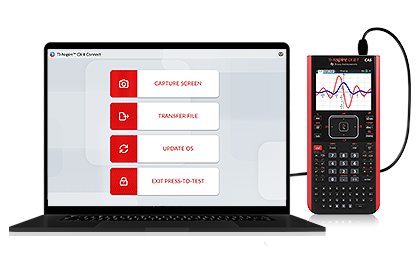
The CX II family uses a free web app called TI-Nspire CX II Connect. It runs in your browser, so there is nothing to install. It works in Chrome on Windows, Mac, and Chromebook computers. Follow these steps:
- Open Chrome. The app needs the Chrome browser to talk to the calculator. Other browsers will not connect.
- Go to nspireconnect.ti.com. Type it into the address bar. If a cookie notice or terms box pops up, accept it to continue. The app runs a quick check and tells you if anything is missing.
- Plug in your calculator. Connect the cable to the calculator and to a USB port on your laptop. Turn the calculator on if it is not already.
- Click “Connect to Calculator.” A small window appears listing devices.
- Pick your calculator and click Connect. Click the name of your TI-Nspire in the list, then confirm. The home page opens with four buttons: Capture Screen, Transfer File, Update OS, and Exit Press-to-Test.
That is the full connection. From the home page you can move files both ways, grab screenshots, or update the calculator. If you unplug and replug, or connect a different calculator, the app simply takes you back to the start page to reconnect.
Tip: If the device list is empty, push the cable firmly into the top of the calculator. It is a tight fit, and a loose plug is the number one reason a CX II does not appear.
How to connect a TI-Nspire CX or older model
Older calculators cannot use the browser app. They need software on your computer. The simplest free option is the TI-Nspire Computer Link Software, which transfers files, takes screenshots, and updates the calculator. If you also want a full on-screen version of the calculator, the TI-Nspire CX Student Software does the same connection work and more. Here is the basic path:
- Download the software from Texas Instruments. Get it from the official TI education site and choose the Windows or Mac version that matches your laptop. A free trial covers the student software if you go that route.
- Install it with the calculator unplugged. Run the installer first. Leaving the calculator disconnected during install helps the drivers set up cleanly.
- Open the software. Launch it and wait for the screen that asks you to select a handheld.
- Plug in the calculator. Connect the cable to both devices and turn the calculator on. On Windows you may see a short “installing device driver” message the first time. Let it finish.
- Select your calculator and click OK. If it does not show up right away, click Refresh in the software to make it look again, then select it.
Once connected, you will see your calculator’s files on one side and your computer’s folders on the other. Drag files between them to copy back and forth.
Which of the two tools should you pick? If all you want is to move files, grab a screenshot, or update the OS, the Computer Link software is smaller and does the job. If you also want a full version of the calculator running on your screen, the Student Software gives you that emulated calculator plus the same transfer features, which is useful for working on assignments at a real keyboard. Either one handles the connection itself the same way.
The cable and which laptops need an adapter
The TI-Nspire cable has a standard flat USB-A plug on one end and a small Mini-B plug on the other. The Mini-B end goes into the port on the top edge of the calculator. On a CX or CX II, this is the exact same cable you use to charge it, so you may not need to buy anything.
The plug type matters because of laptop ports. Here is how the common setups line up:
| Your laptop’s ports | What you need |
| Has a flat USB-A port | Nothing extra. Plug the cable straight in. |
| Only USB-C ports | A USB-A to USB-C adapter, or a USB-C to Mini-B cable. Many newer laptops fall here. |
| Lost the cable | Any USB-A to Mini-B cable that supports data, not charging only. |
One quick warning on spare cables. Some cheap cables only carry power, not data. They will charge the calculator but never show it to your laptop. If you buy a replacement, check that it lists data transfer or sync, not just charging.
It also helps to know what not to expect. A TI-Nspire does not show up as a regular USB drive in your file explorer the way a flash drive does. You will not see a calculator folder pop up in Windows Explorer or Finder. The calculator only becomes visible inside the TI software or the web app, which is exactly why having the right tool open matters. If you plugged in and went looking for a drive letter, that is why nothing appeared.
What you can do once connected
Connecting is the means, not the goal. Here is what the link actually lets you do, whichever method you used:
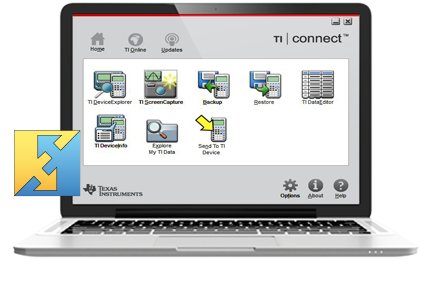
- Transfer files both ways. Move .tns documents from your laptop to the calculator, or pull your work off the calculator to back it up or hand it in. A .tns file is the TI-Nspire’s own document format, the same way a Word file ends in .docx.
- Take screenshots. Capture the calculator screen and paste it into a document, worksheet, or slide. Handy for teachers building handouts and for students showing their steps. The image formats the calculator accepts for importing are .jpg, .jpeg, .bmp, and .png.
- Update the operating system. Install the latest OS so the calculator runs the newest features and fixes. The software or web app walks you through it, and you keep your files during the update.
- Exit Press-to-Test mode. If a calculator is stuck in the locked exam mode, the CX II app can clear it without finding a second calculator, which used to be the only way out.
File transfer is the one most people are really after, so it is worth seeing the exact clicks.
Moving a file to the calculator on a CX II
- From the connected home page, click Transfer File.
- Choose the direction that sends a file from the computer to the calculator.
- Pick the .tns file on your laptop, confirm, and wait for it to finish. It then appears in the calculator’s My Documents.
On the older desktop software there is no wizard. You see two panels, your computer on one side and the calculator on the other, and you drag a file from one to the other to copy it. Pulling work off the calculator is the same move in reverse. This is the easiest way to back up a document before an exam or before an OS update, so a stray reset never costs you your work.
Tip: Keep a backup folder on your laptop and drop a copy of important .tns files there each week. Calculators get reset, lost, and swapped, and a file on your computer survives all three.
Why won’t my TI-Nspire connect?
If your laptop is not seeing the calculator, work through these in order. The first two fix most cases, and almost every problem comes down to the cable, the browser, or a software mismatch rather than a broken calculator.
- Seat the cable fully. The Mini-B plug fits tightly into the calculator. Press until it stops. A half-seated plug looks connected but carries no data.
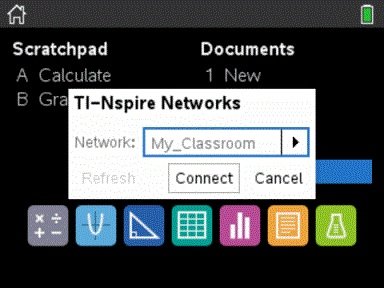
- Hit Refresh, or unplug and replug. In the older software, the Refresh button makes it scan again. In the web app, reconnecting sends you back to the start page where you can click Connect once more.
- Try a different USB port. Plug straight into the laptop rather than a hub or dock. On a desktop, the ports on the back tend to be more reliable than the front ones.
- Swap the cable. Test with a cable you know carries data. A charge-only cable is a common hidden cause.
- Use Chrome for a CX II. The web app only connects in the Chrome browser. If you opened it in Safari, Edge, or Firefox, switch to Chrome.
- Check your software matches your model. An older calculator will never appear in the CX II web app, and that mismatch trips up a lot of people. Older models need the downloaded software instead.
- Reinstall or update the software. If the desktop software still cannot find the calculator, close it, reinstall the latest version with the calculator unplugged, then open it and connect again. This refreshes the drivers it needs.
After an OS update, the desktop software sometimes loses sight of the calculator. Close the software, open it again, select the calculator, and refresh. That usually brings it back. If the calculator still does not respond at all, a reset can help: there is a small reset button on the back of the unit, and pressing it restarts the calculator without erasing your documents. Give it a moment to boot, then try connecting again from a fresh start.
Frequently asked questions
Do I need to install software to connect a TI-Nspire CX II?
No. The CX II and CX II CAS use a free web app at nspireconnect.ti.com that runs in Chrome. You just plug in the calculator and connect in the browser, with nothing to download.
What cable does a TI-Nspire use?
A USB-A to Mini-B cable, the same one that charges a CX or CX II. The small Mini-B end plugs into the top of the calculator. Make sure any spare cable supports data, not charging only.
Can I connect a TI-Nspire to a laptop with only USB-C ports?
Yes. Use a USB-A to USB-C adapter with the standard cable, or a USB-C to Mini-B cable. Both let the older flat plug reach a USB-C laptop.
Why won’t my computer detect my TI-Nspire?
Usually a loose cable or a charge-only cable. Push the plug in firmly, try another USB port, and click Refresh. Also confirm you are using the right software: older models will not show in the CX II web app.
Does the TI-Nspire connection work on a Chromebook?
Yes, for the CX II family. The web app runs on ChromeOS in the Chrome browser. Older non-CX-II models rely on Windows or Mac software and will not connect on a Chromebook.
Conclusion
Connecting a TI-Nspire to a laptop comes down to two things: a data USB cable and the right software for your model. A CX II connects through the Chrome web app at nspireconnect.ti.com with nothing to install, while a CX or older model needs free TI software downloaded first. Plug in, pick your calculator, and click connect. When it works, you will see your calculator’s files on screen and can transfer, screenshot, or update in a couple of clicks.
Related Post: