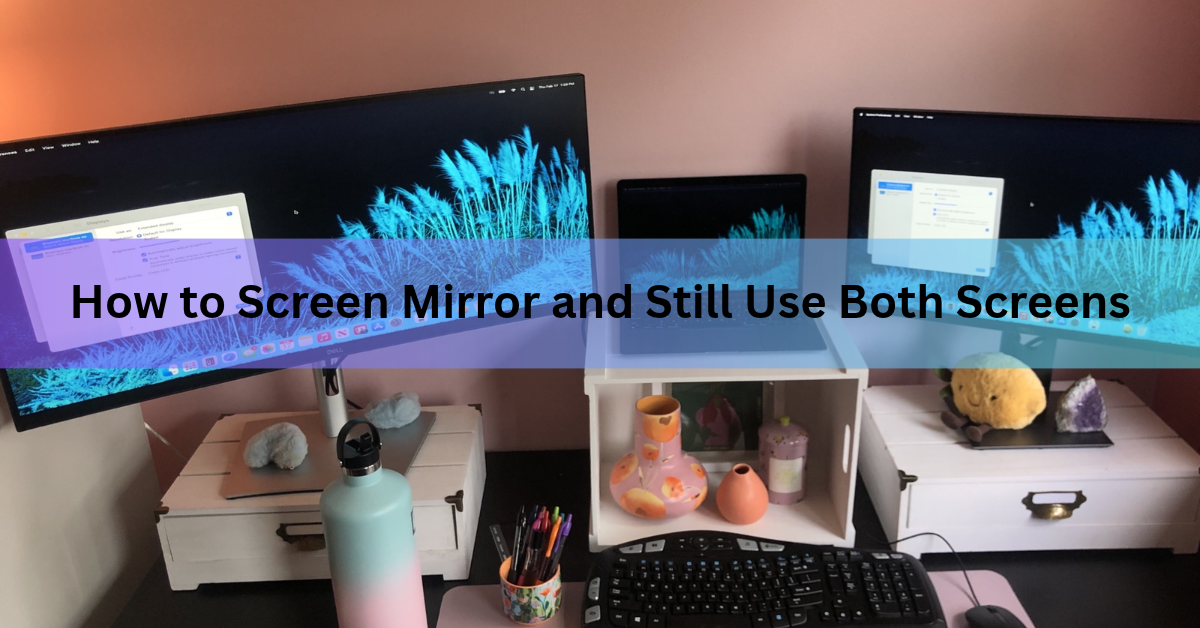
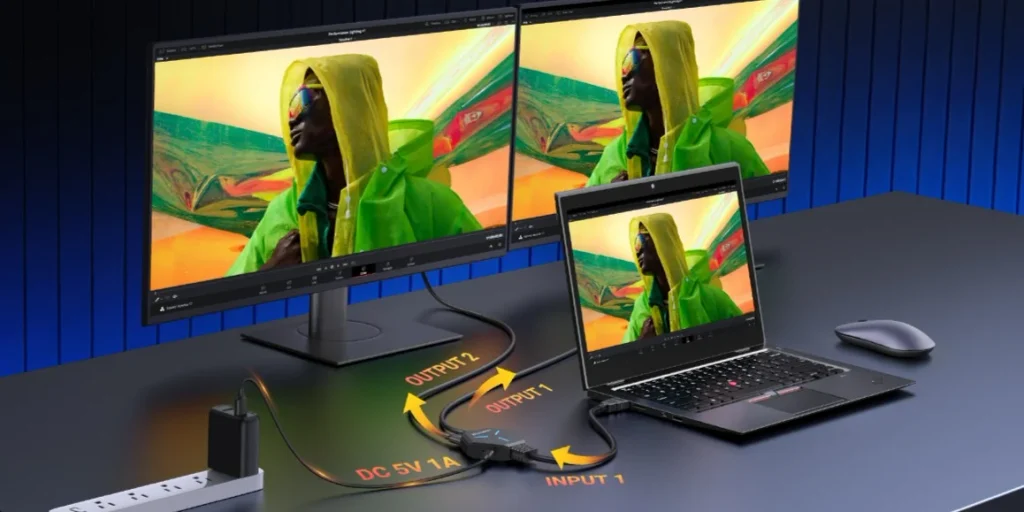
A mirrored screen shows exactly what the other screen shows, so you can’t use the two for different jobs at the same time. To work on both, switch from mirror to Extend mode. If you want a copy on one screen and a workspace on another, you can also mirror only some displays, or send just one window or browser tab to the second screen.
Which option is right depends on what you want from each screen. The table below sorts it out, and the steps that follow cover Windows, Mac, Chrome and phones.
Can you mirror a screen and still use both screens?
Not as two separate workspaces. In mirror mode both screens show one desktop, so whatever you do on one appears on the other. To use each screen for different work, you need to extend the desktop. A few setups sit in between.source: ikiwibird
| What you want | What to use |
| The same picture on both screens | Mirror (called Duplicate on Windows) |
| Different apps on each screen | Extend |
| The same picture on two screens and a third for your own work | Mirror two displays and extend the third |
| One window or tab on the big screen while you work on your own | Share one window (Mac) or cast a Chrome tab |
| A phone video on the TV while you use the phone | Cast from the app instead of mirroring |
What is the difference between mirror and extend?
Mirror shows the same thing on every display. Extend joins the screens into one big desktop, so you can drag windows from one screen to the other.
Mirror mode also forces one resolution. Windows 11 uses the lower of the two for both screens, so a sharp monitor can look softer next to an older TV. In Extend mode, each screen keeps its own resolution.
How do you use both screens on Windows?
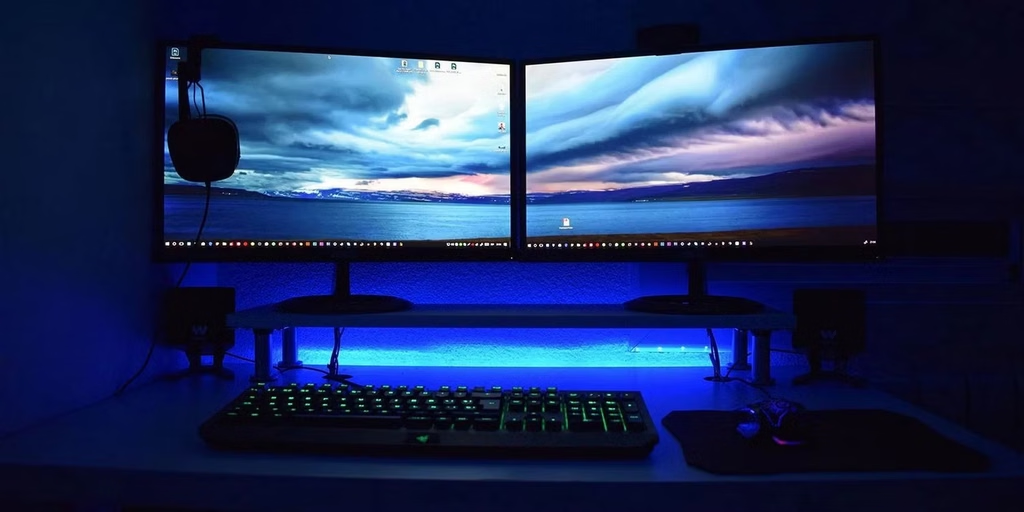
Press the Windows key + P and choose Extend. The second screen becomes empty desktop space beside the first. The Windows projection menu offers four choices: PC screen only, Duplicate, Extend and Second screen only.source: makeuseof
- Connect the second screen with a cable. For a TV or projector that supports Miracast (a wireless display standard), press the Windows key + K and pick it from the list.
- Press the Windows key + P.
- Choose Extend.
- Open Settings, then System, then Display. Drag the numbered screens so they match how your screens sit on the desk. Select Identify if you aren’t sure which number is which.
- Drag a window past the edge of one screen to move it to the other.
How do you mirror one screen and extend another on Windows?
Connect three or more displays, then open Settings, System, Display. Under Multiple displays, choose an option such as Duplicate desktop on 1 and 2. Those two screens show the same picture, and screen 3 stays a separate workspace.
Windows only offers these choices when it detects three or more displays. With two displays, you get the usual all-or-nothing choice between Duplicate and Extend.
How do you mirror and extend on a Mac?
A Mac lets you set each display on its own. Apple’s guide to extending or mirroring your Mac desktop covers the same steps.
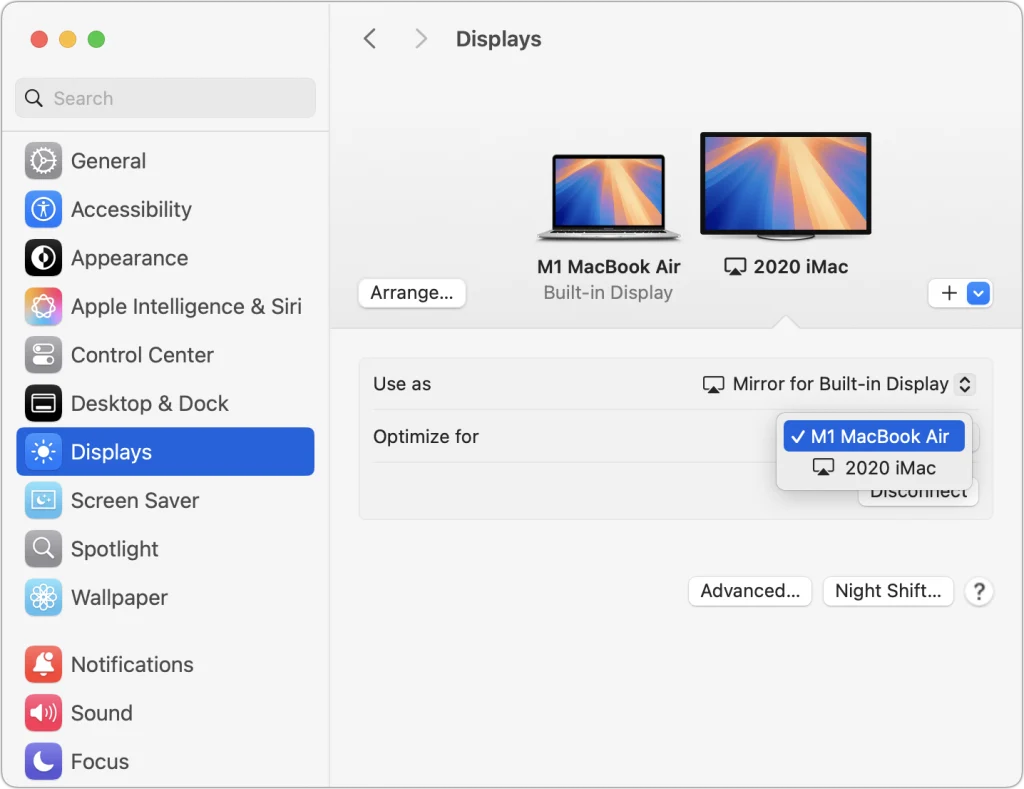
- Choose Apple menu, then System Settings, then click Displays in the sidebar.
- Click the name of a display, open the Use as menu and pick Extended display for a separate screen, or a mirror option to copy another display.
- With more than two displays, first set them all to extended. Then hold the Option key and drag one display icon onto another to mirror just those two.
When you connect a Mac to a TV or use AirPlay, you can also share only one window or app. The rest of your desktop stays off the TV.
How do you show one tab on the second screen and keep working?
Cast a Chrome tab to a TV with Chromecast or Google Cast built in. Only that tab goes to the TV, and your computer stays free for other work.
In Chrome, select More at the top right, then Save and share, then Cast, and pick your TV. The tab shows on your computer and the TV, and its sound plays on the TV only. Switch to other tabs and apps as you like, but keep the casting tab open.
Tip: If both screens show the same thing and you didn’t plan it, Duplicate mode is on. On Windows, press the Windows key + P and choose Extend.
How do you use your phone while it’s on the TV?
Cast from the app instead of mirroring the whole phone. Mirroring puts your entire phone screen on the TV, so everything you do shows up there.
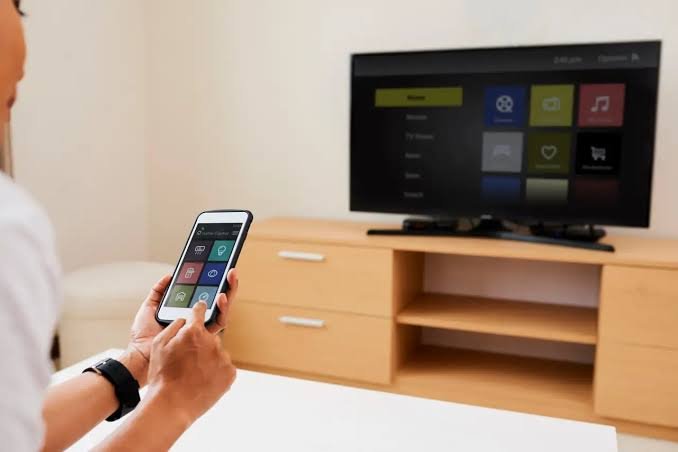
Casting a video from an app such as YouTube or Netflix sends only the video to the TV. Your phone stays free for messages, browsing or other apps.
What if the second screen isn’t detected?
Check the cable first, and make sure the TV or monitor is on the right input. If Duplicate or Extend does nothing on Windows, the PC hasn’t found the second display. Open Settings, System, Display and select Detect under Multiple displays if you see it. Then try a different cable or port.
Frequently asked questions
Can I mirror and extend at the same time?
Yes, with three or more displays. On Windows, pick Duplicate desktop on 1 and 2. On a Mac, extend all displays first, then hold Option and drag one display icon onto another. With only two displays, you must choose one mode.
Why does my second screen show the same thing as my main screen?
Duplicate (mirror) mode is on. Windows 11 starts a two-display setup in this mode. Press the Windows key + P and choose Extend to give each screen its own space.
Does mirroring lower my screen quality?
It can. In Duplicate mode, Windows 11 uses the lower resolution of the two screens for both. Extend mode lets each screen keep its own resolution, so a sharp monitor stays sharp.
Can I mirror my phone to a TV and still use my phone?
Not while mirroring, because the TV shows whatever the phone shows. Cast a video from the app instead. The TV plays the video and your phone stays free for other things.
Can I share only one window with the second screen on a Mac?
Yes. When you connect your Mac to a TV or use AirPlay, you can share only a window or an app. The rest of your desktop stays off the screen.
Conclusion:
A mirrored screen shows one picture on both screens, so to work on both, switch to Extend. Use the Windows key + P on Windows or the Use as menu on a Mac. If you want a copy on one screen and a workspace on another, mirror two displays and extend a third, or share just one window, tab or app. A good result is one screen showing what you choose while the other stays yours.
Recommended Articles:
Can You Connect a Firestick to a Laptop?
Why Does My Laptop Shut Off Randomly? Causes and Fixes
What Are Laptop Specifications? A Plain-English Guide