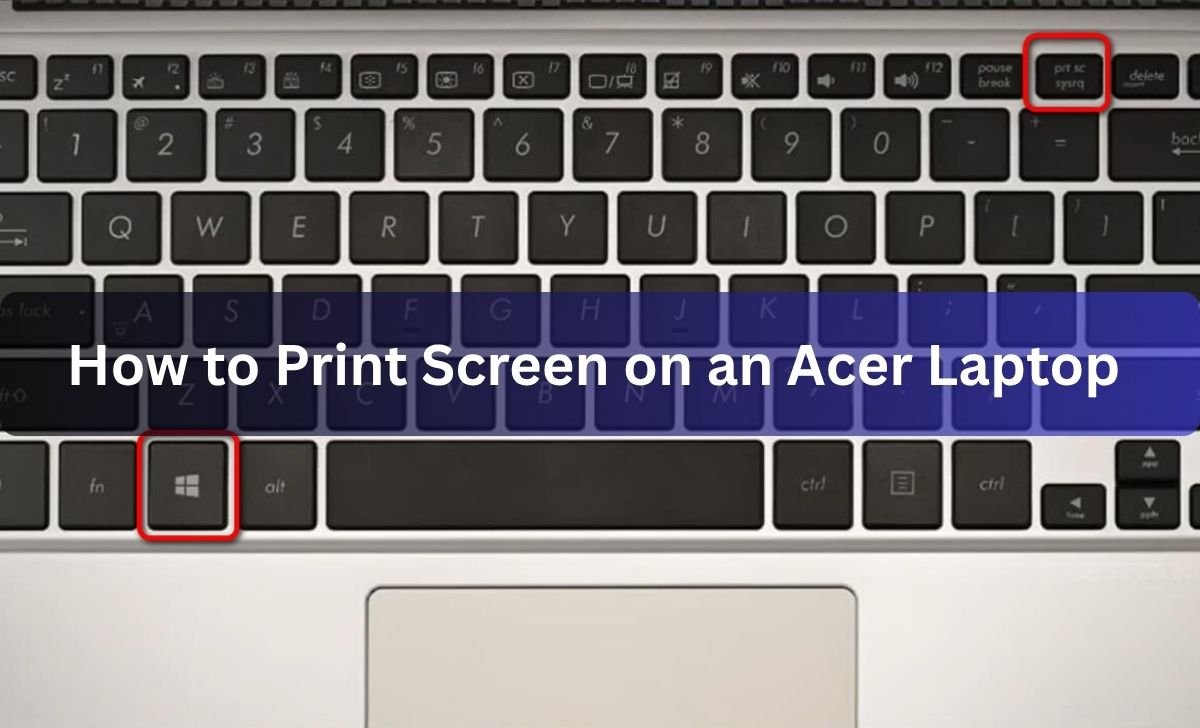
The fastest way to print screen on an Acer laptop is the PrtSc key, usually in the top right of the keyboard. Press it once and Windows copies your whole screen to the clipboard. Then open Paint, Word, or a chat box and press Ctrl + V to paste it. If you only want part of the screen, press Windows + Shift + S instead and drag a box around the bit you want.
That covers most people in two seconds. But Acer laptops capture screens in a few different ways, and some newer models don’t have a Print Screen key at all. Here is every method, from quickest to most flexible, so you can pick the one that fits.
Where is the Print Screen key on an Acer laptop?
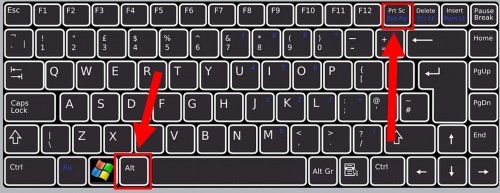
On most Acer keyboards the key sits in the top row, near the F12 key or the Delete key. It is usually labelled PrtSc, and sometimes Prt Scr or Print Screen. On compact Acer laptops it often shares a key with another function, printed in a second colour.
When the label is a second colour, you usually need to hold the Fn key while you press it. So the capture becomes Fn + PrtSc. If a plain tap doesn’t seem to do anything, try adding Fn first.
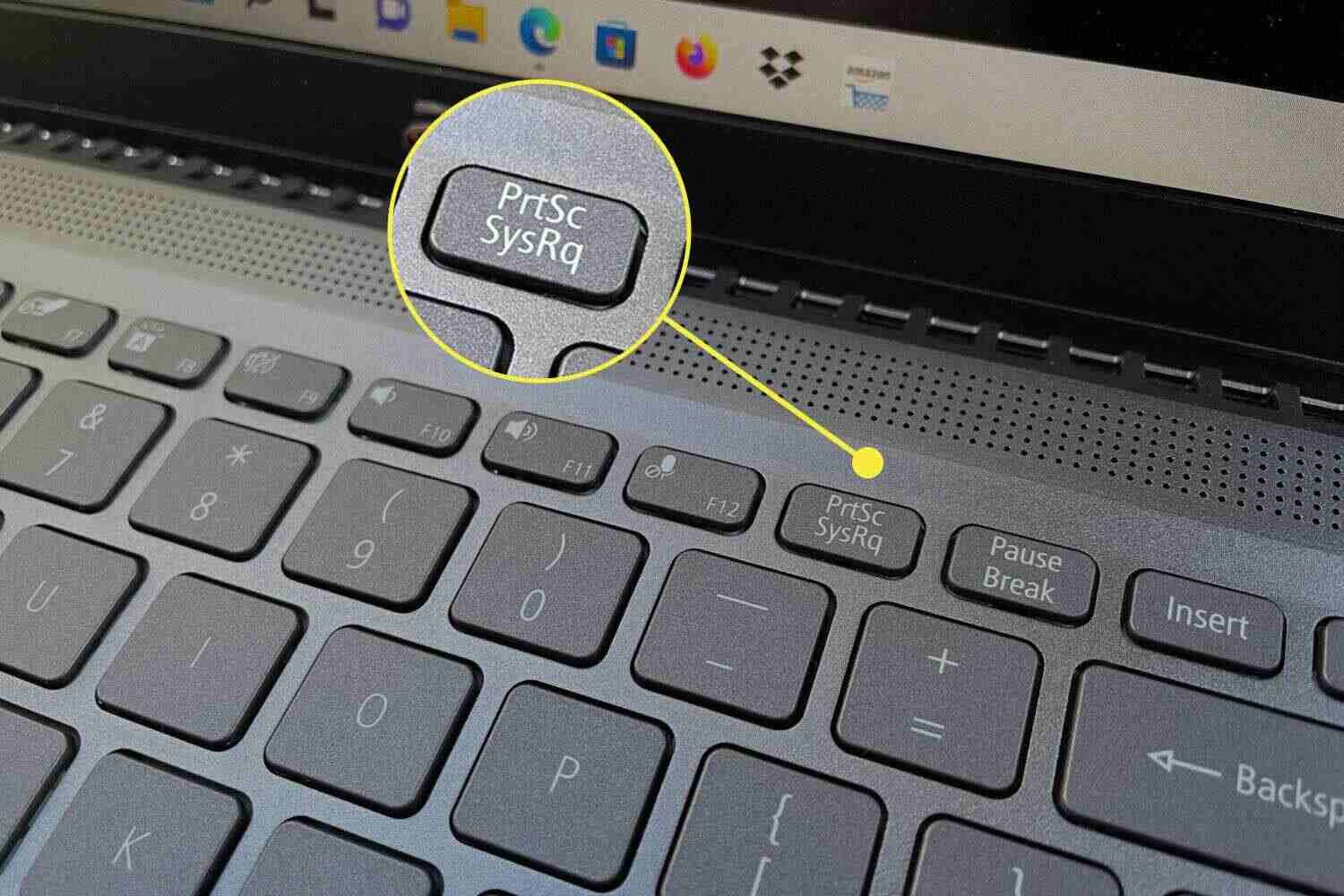
Newer Acer? You might not have the key. Several recent Acer Aspire and Aspire Lite models ship without a Print Screen key. If yours is missing one, skip to the Snipping Tool method below. It does the same job.
Method 1: The PrtSc key (capture the whole screen)
This is the classic print screen. It grabs everything on screen and holds it on the clipboard until you paste it.
- Get the screen looking exactly how you want it.
- Press PrtSc once. Nothing visible happens, which is normal.
- Open an app that takes images, such as Paint, Word, or an email.
- Press Ctrl + V to paste, then save the file where you want it.
Plain PrtSc only copies to the clipboard. It does not save a file on its own, so you have to paste it somewhere before you close the app or copy anything else.
Method 2: Alt + PrtSc (just the active window)
Use this when you want a clean shot of one window and not the whole desktop. It captures only the window you are using, so you skip the taskbar and anything behind it.
- Click the window you want so it is in front.
- Press Alt + PrtSc (add Fn if your key needs it).
- Paste with Ctrl + V into Paint, Word, or wherever you need it.
Like the first method, this one lives on the clipboard until you paste it.
Method 3: Windows + PrtSc (save a screenshot file automatically)
This is the one to learn if you hate the paste step. It captures the whole screen and saves it straight to a folder as a picture, with no pasting needed.
- Press Windows + PrtSc together. The screen dims for a moment to confirm the capture.
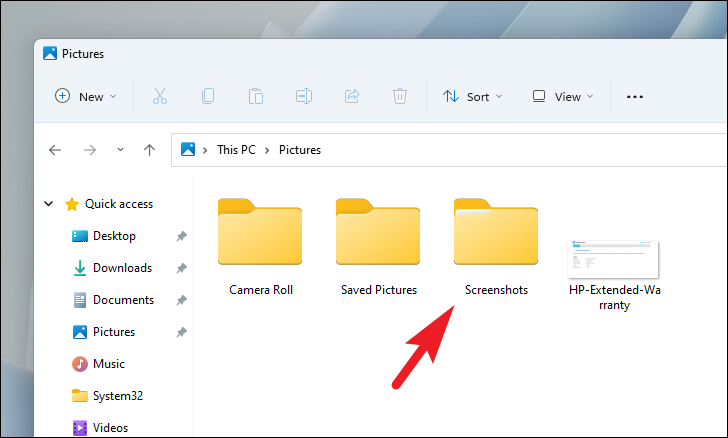
- Open File Explorer and go to Pictures > Screenshots.
- Your image is there as a PNG file, named Screenshot (1), Screenshot (2), and so on.
If your Print Screen key needs the Fn key for its normal job, this combo becomes Fn + Windows + PrtSc.
Method 4: Windows + Shift + S (snip part of the screen)
This is the most useful shortcut for everyday work, and it works on every Acer laptop whether or not it has a Print Screen key. It lets you grab a chosen area, a single window, or the full screen.
- Press Windows + Shift + S. The screen dims and a small toolbar appears at the top.
- Pick a shape: rectangle, freeform, window, or full screen.
- Drag a box around what you want. It copies to the clipboard.
- Click the little preview that pops up in the corner to mark it up or save it, or just paste it with Ctrl + V.
Tip: The rectangle option is the one most people want. Drag from one corner to the opposite corner of the area you care about, and let go.
Method 5: The Snipping Tool (no Print Screen key needed)
If your Acer has no Print Screen key, or you want more control, open the Snipping Tool app directly. Acer points to this exact method for its keyless models. You can read Acer’s own screenshot guide for laptops without a Print Screen key for the same steps.
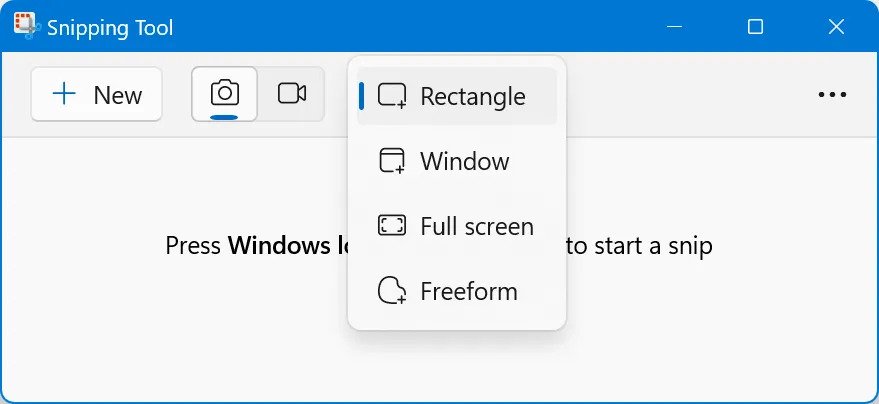
- Click the Start button and type snipping tool, then open the app.
- Click New to start a capture.
- Choose your snip type, then drag over the area you want.
- The shot opens in the Snipping Tool, where you can draw on it, crop it, then save it with Ctrl + S.
The Snipping Tool can also do a few extra tricks, like a short delay before it captures (handy for catching menus) and pulling text out of an image. Microsoft lists the full set of options in its Snipping Tool support page.
Quick comparison of the shortcuts
Here is each method side by side, so you can match the shortcut to what you need.
| Shortcut | What it captures | Saves a file? |
| PrtSc | The whole screen, to the clipboard | No, paste it yourself |
| Alt + PrtSc | Only the active window | No, paste it yourself |
| Windows + PrtSc | The whole screen | Yes, to Pictures > Screenshots |
| Windows + Shift + S | Any area, window, or full screen | No, unless you click Save |
| Snipping Tool app | Any area, window, or full screen | Yes, when you press Save |
Where do Acer screenshots get saved?
It depends on the method, and this trips up a lot of people. Only one shortcut saves a file by itself.
- Windows + PrtSc saves a PNG to C:\Users\[your name]\Pictures\Screenshots.
- PrtSc, Alt + PrtSc, and Windows + Shift + S only copy to the clipboard. The image is lost if you don’t paste or save it.
- The Snipping Tool saves wherever you choose when you press Save, and it remembers your last folder.
Lost a screenshot? Open File Explorer, press Windows + E, and type datemodified:today in the search box to find files you made today.
Print Screen not working? Quick fixes
If pressing the key does nothing, or it does the wrong thing, one of these is almost always the reason.
The key needs the Fn key
On many Acer laptops, Print Screen is a secondary label sharing a key. Hold Fn and press it, so Fn + PrtSc. Some Acer models have an Fn Lock (often Fn + Esc) that flips which job the key does by default.
PrtSc opens the Snipping Tool instead of copying
On current Windows 11, the Print Screen key is set to open the Snipping Tool by default rather than silently copying the screen. That is the intended behaviour now, not a fault. If you would rather it just copied to the clipboard, you can change it in Settings.
- Open Settings, then go to Bluetooth & devices > Keyboard.
- Turn off Use the Print screen key to open screen capture.
On older Windows 11 versions this toggle lived under Accessibility > Keyboard instead, so look there if you don’t see it.
Still nothing happens
Two quick things to try: update Windows in case a fix is waiting, and check whether a screenshot app like Lightshot or ShareX has taken over the Print Screen key. Those apps often grab the key and save shots to their own folder.
Frequently asked questions
Why doesn’t my Acer laptop have a Print Screen key?
Some newer Acer models, like certain Aspire and Aspire Lite laptops, ship without one to save keyboard space. You can still capture your screen with Windows + Shift + S or by opening the Snipping Tool app, which work the same way.
How do I screenshot just one window on my Acer?
Click the window so it is in front, then press Alt + PrtSc (add Fn if your key needs it). This copies only that window to the clipboard. Paste it into Paint, Word, or an email with Ctrl + V.
Where did my Acer screenshot go?
If you used Windows + PrtSc, it is in Pictures > Screenshots. If you used PrtSc, Alt + PrtSc, or Windows + Shift + S, it is only on the clipboard, so you need to paste it somewhere before it is gone.
Do I have to press Fn with Print Screen on my Acer?
Only if the Print Screen label shares a key and is printed in a second colour. In that case use Fn + PrtSc. If your laptop has an Fn Lock, you can flip the default so you don’t need to hold Fn each time.
How do I take a screenshot on an Acer Chromebook?
Acer Chromebooks use Chrome OS, not Windows. Press Ctrl plus the Show Windows key for a full screenshot, or add Shift to select an area. The images land in your Downloads or Screenshots folder.
Conclusion
To print screen on an Acer laptop, press PrtSc to copy the whole screen, then paste with Ctrl + V. For a chosen area, use Windows + Shift + S. To save a file with no extra steps, use Windows + PrtSc and find it in Pictures > Screenshots. If your laptop has no Print Screen key, the Snipping Tool does everything the same way. A good result is the exact image you wanted, saved where
Related Post: