To freeze a screen on a laptop, take a full-screen screenshot and open it in full screen view. Press Win + PrtScn on Windows or Shift + Command + 3 on a Mac, then open the saved image and make it fill the display. The picture holds still no matter what happens in the background. If your goal is to stop anyone from clicking or typing instead, lock the laptop with Win + L on Windows or Control + Command + Q on a Mac.
Laptops don’t have a single “freeze” key, so the right method depends on what you want the frozen screen to do. This guide covers all of them: the still-image trick, locking, the freeze button on projectors, and a setup that works well for tracing a picture straight off the screen.
The three things “freezing a screen” can mean
People reach for this phrase for three different reasons, and each one has its own best method. It’s worth ten seconds to pick the right row before you start pressing keys.
| What you want | Best method | Shortcut |
| A still image that cannot change | Full-screen screenshot, opened in full screen view | Win + PrtScn, or Shift + Command + 3 |
| A screen nobody can click or type on | Lock the laptop | Win + L, or Control + Command + Q |
| One image held on a projector while you work | Freeze button on the projector remote, or extend the displays | Freeze on the remote, or Win + P |
The still-image method is the one most people want, so let’s start there.
Freeze the screen on a Windows laptop
The fastest way to hold a still image on a Windows laptop takes about fifteen seconds and uses nothing but built-in tools.
- Set up the screen exactly how you want it to look while frozen.
- Press Win + PrtScn. The display dims for a moment, and Windows saves the shot to Pictures > Screenshots. If your keyboard has no PrtScn key, press Fn + Win + Spacebar instead.
- Open the screenshot. Double-click it and it opens in the Photos app.
- Press F11. Photos fills the whole display, and the image now looks exactly like your live screen did, minus anything moving.
- Press F11 or Esc when you want your normal screen back.
Tip: nudge the mouse pointer into a corner before you settle in, and turn on Do not disturb first. Notifications can still pop up over a frozen image, and a pointer parked mid-screen gives the trick away.
One small giveaway: the taskbar clock in the screenshot stops matching the real time within a minute, so retake the shot if that detail matters.
If you’d rather grab one window or a specific area instead of everything, press Win + Shift + S to open the Snipping Tool overlay and pick the window or rectangle mode. On recent versions of Windows 11, tapping the PrtScn key on its own opens this same overlay. Microsoft’s Snipping Tool guide covers every capture mode and shortcut if you want the full list.
Freeze the screen on a Mac
The Mac version works the same way, with Preview standing in for Photos.
- Press Shift + Command + 3. The screenshot saves to your desktop as a PNG file.
- Double-click the file to open it in Preview.
- Press Control + Command + F, or choose View > Enter Full Screen. The image now fills the display.
- Press Esc to exit when you’re done.
For a shot of one window only, press Shift + Command + 4, then tap the Space bar and click the window you want. Apple’s screenshot page lists a few more options, including a timer that gives you a few seconds to set things up before the capture fires.
Lock the screen so nothing can be touched
Locking is the right kind of freeze when you’re stepping away and want the laptop to ignore every click and keystroke until you’re back.
On Windows, press Win + L. The lock screen appears instantly and stays until someone enters your password, PIN, or fingerprint. Ctrl + Alt + Del followed by Lock does the same thing. On a Mac, press Control + Command + Q.
Everything keeps running behind the lock. Downloads continue, apps stay open, and your work sits exactly where you left it. The trade-off is that the display shows the lock wallpaper, not your work, so locking is no use when you want people to keep seeing what’s on the screen. For that, use the still-image method above or the projector freeze below.
Freeze the screen during a presentation
Most projector remotes have a button labeled Freeze. Press it and the projector keeps showing the current image while you do anything you like on the laptop: switch windows, check notes, or find the next file. Press it again and the live picture comes back. The audience never sees the mess in between.
No freeze button? Press Win + P and choose Extend. The projector becomes a second display. Put your slide or document on it, then do your private work on the laptop’s own screen. The projected image only changes when you drag something onto it.
Inside a PowerPoint slideshow, the B key turns the screen black and W turns it white. That’s blanking rather than freezing, but it does the same job when the goal is simply to pull attention away from the screen for a moment.
On a video call, the same problem has a built-in fix. Zoom’s sharing toolbar includes a Pause Share button that holds the last frame for everyone watching while you rearrange things on your end. Click Resume Share when you’re ready.
Freeze the screen for tracing
A frozen screen makes a decent light box. The trick is getting a bright, still image that won’t react when paper presses against it.
- Get the picture on screen at the size you want to trace, then take a full-screen screenshot and open it full screen using the steps above.
- Turn the screen brightness all the way up so the lines show through the paper.
- Tape the paper lightly at the corners rather than holding it, and keep your hands clear of the keyboard and trackpad.
- Trace with a light touch. LCD panels sit close to the glass and don’t take kindly to hard pressure, so use a soft pencil and rest your hand on the laptop’s frame, not the middle of the display.
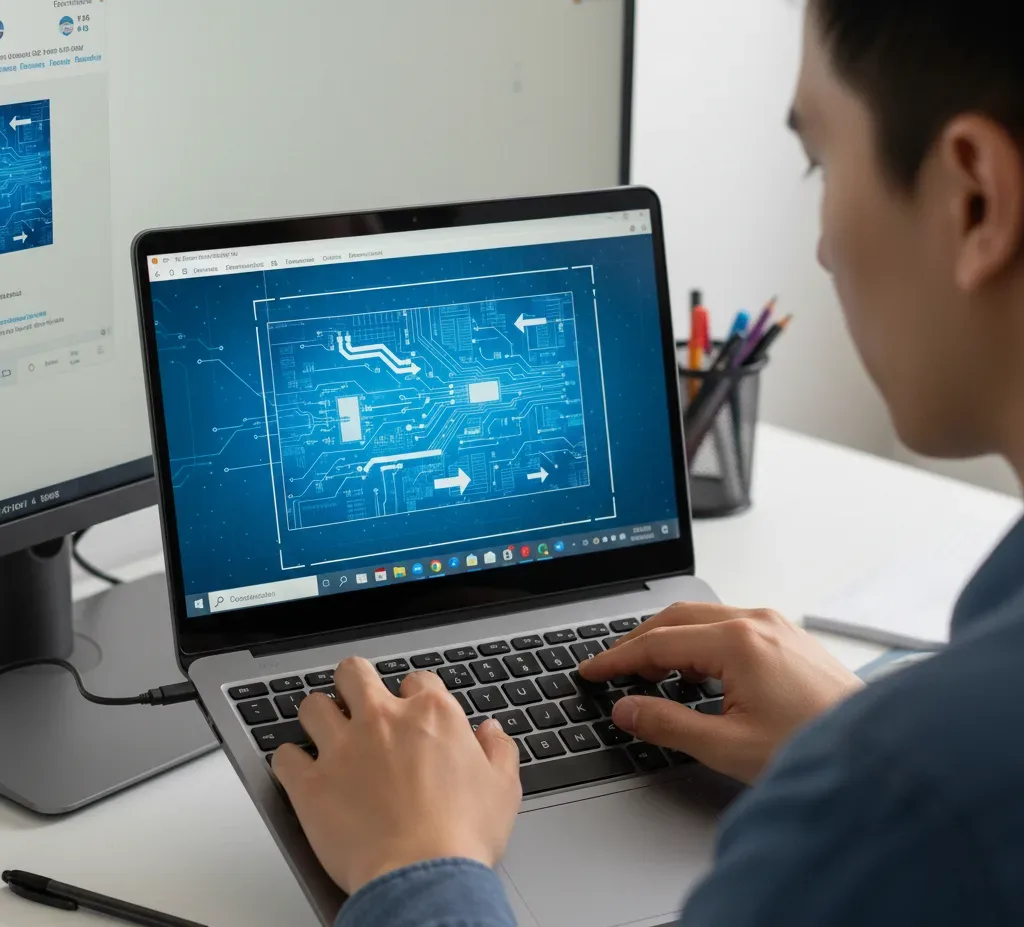
One extra step matters on touchscreen laptops: the paper itself can register as touches and send the image flying. Turn touch off first. Right-click the Start button, open Device Manager, expand Human Interface Devices, right-click HID-compliant touch screen, and choose Disable device. Enable it the same way when you’re finished.
Frequently asked questions
What is the keyboard shortcut to freeze a laptop screen?
There’s no dedicated freeze key. For a still image, press Win + PrtScn (Windows) or Shift + Command + 3 (Mac), then open the screenshot full screen. To lock all input instead, press Win + L or Control + Command + Q.
How do I freeze my screen without locking it?
Use the screenshot method. Capture the full screen, open the image, and put it in full screen view. Everything keeps running behind the picture, and nothing on the display changes until you press Esc.
Can I freeze just one window instead of the whole screen?
Yes. Capture only that window (Win + Shift + S and pick window mode on Windows, or Shift + Command + 4 then Space on a Mac), open the image, and size it to cover the original window.
How do I unfreeze the screen?
Press Esc or F11 to leave the full-screen image, enter your password to get past a lock screen, or press the projector remote’s Freeze button a second time. Each method reverses with the same control that started it.
What if my laptop screen froze on its own?
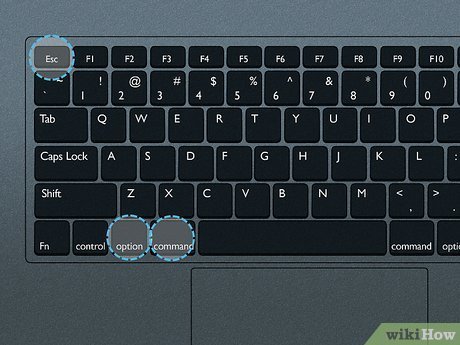
That’s a fault, not a feature. Press Ctrl + Alt + Del and close the stuck app in Task Manager, or Option + Command + Esc on a Mac to force quit. If nothing responds at all, hold the power button for about ten seconds to restart.
Conclusion
Freezing a laptop screen comes down to matching the method to the job. For a still image that can’t change, screenshot the screen with Win + PrtScn or Shift + Command + 3 and open it full screen. To block all input while you step away, lock with Win + L or Control + Command + Q. For presentations, the Freeze button on the projector remote holds the picture while you work. Each takes seconds, needs no extra software, and reverses with a single key press.
Recommended Articles:
How to Reset an Acer Laptop (Factory Reset, Step by Step)
Why Does My Laptop Shut Off Randomly? Causes and Fixes
White Spot on Laptop Screen: What It Is and How to Fix It
Does a Laptop Have a Lithium Battery? What’s Inside and Why It Matters
How to Print Screen on an Acer Laptop (Every Method That Works)