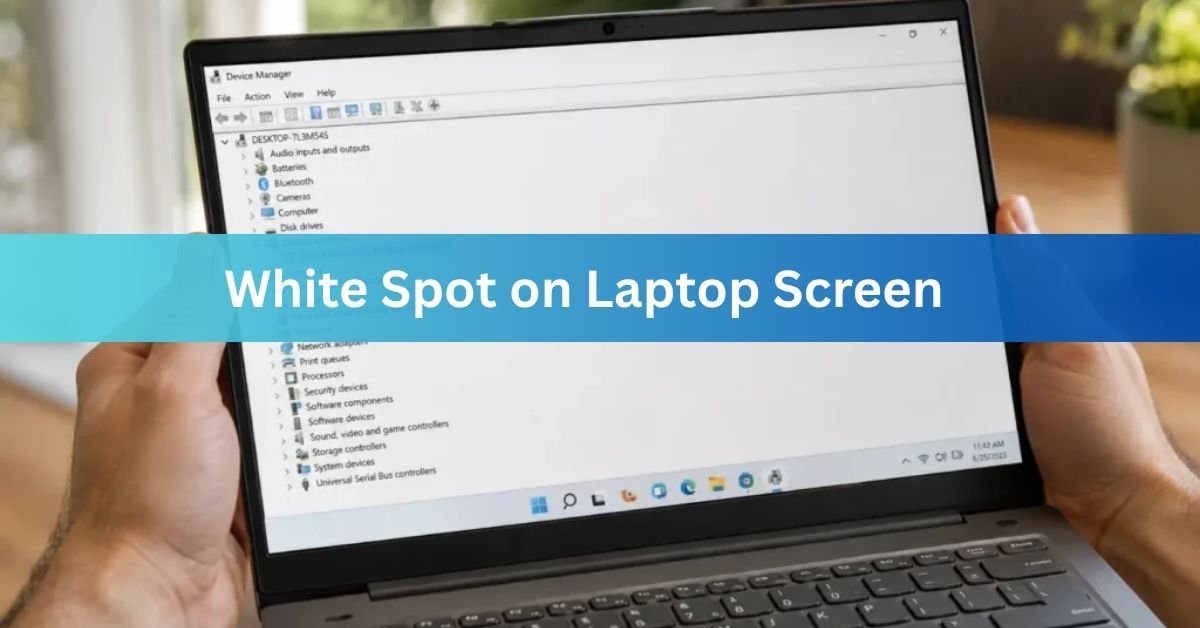
A white spot on your laptop screen is a bright patch that stays put no matter what’s on the display. It’s almost always one of two things: a stuck pixel, which software can sometimes coax back to life, or pressure damage to the layers behind the screen, which usually needs a new panel. The good news is you can tell which one you have in about two minutes, and that single answer decides everything else.
This guide walks you through what the spot actually is, a quick test to identify it, the fixes that match each cause, and when it’s time to stop trying at home. No guessing, no risky tricks that make things worse.
What is a white spot on a laptop screen?

A white spot is an area that looks brighter or lighter than everything around it, and it stays visible even as the picture changes. It can show up as a tiny dot, a soft glowing blob, or a larger washed-out patch. Most white spots stay in one place and don’t spread across the whole screen.
They’re easiest to see on dark backgrounds, since a bright fault stands out most against black or deep grey. On a white or light page they can almost vanish, which is why many people only notice the spot when watching a dark video or opening a black screen.
Here’s a useful clue most people miss. Turn the laptop fully off and tilt it under room light. If you can still faintly see the spot on the dead screen, the problem is physical, something inside the panel, not a software glitch. A pixel fault, by contrast, only exists when the screen is powered and lit.
What causes white spots on a laptop screen?
White spots come from a short list of causes, and they fall into two camps: problems with the pixels themselves and problems with the physical layers behind them. Knowing the camp matters more than knowing the exact name, because it tells you whether a fix is even possible at home.
Pressure damage to the diffuser (most common)
This is the number one cause on laptops, and it’s mechanical. An LCD screen is built from several thin sheets stacked together, including a diffuser layer that spreads the backlight evenly across the display. Press on that stack, even for a moment, and the diffuser can dent or shift. After that, light passes through unevenly and leaves a bright spot that never goes away.
The everyday culprits are simple. Closing the lid with a pen, earbud, or charging cable left on the keyboard. Stacking heavy books on a closed laptop. Carrying it loose in a tight bag that squeezes the lid. Even a short squeeze can do permanent harm. A pressure spot is usually bigger than a single pixel, has soft fuzzy edges, and sits wherever the force landed.
Backlight and reflector problems
Behind the screen, the backlight and a set of reflectors push light forward and keep it even. If a reflector comes loose or the backlight shifts after a drop or knock, light can pool in one area and read as a bright glowing patch. This often looks like a larger, softer halo rather than a crisp dot, and it tends to follow physical impact or aging.
Stuck pixels
A stuck pixel is a single dot that’s frozen showing one color while its neighbors change normally. Stuck pixels can be red, green, blue, or white, and they’re tiny, no bigger than a pinpoint. This is the one cause on the list that software has a real shot at fixing, because the pixel is alive but jammed rather than broken.
Don’t confuse a stuck pixel with a dead pixel. A dead pixel has lost power and shows up as a permanent black dot, not a white one. No app can revive a truly dead pixel, since the circuitry behind it has failed.
Dust, debris, or a factory defect
Now and then a speck of dust settles between the screen layers during manufacturing or repair and scatters light into a small bright mark. And some panels simply leave the factory with a flaw in the coating or a loose internal part. If a spot shows up on a brand-new laptop you never pressed or dropped, this is the likely reason, and it’s a warranty matter rather than a repair project.
Quick rule of thumb: a tiny, sharp, colored dot is probably a stuck pixel you might fix. A larger, soft, white blob is probably pressure or backlight damage you can’t fix with software.
How to tell what kind of white spot you have (the 2-minute test)
Before you try any fix, run this test. It sorts the spot into pixel problem or physical problem, and that tells you whether a software fix is worth your time.
- Take a screenshot of the spot. Capture the area showing the white spot, then open that image on another device, like your phone. If the spot appears in the screenshot, it’s a software or image problem. If the screenshot is clean and the spot only exists on the screen, it’s a hardware fault.
- Cycle through solid colors. Display full-screen black, white, red, green, and blue images one by one. If the spot changes color or disappears on some backgrounds, you’re likely looking at a pixel issue. If it stays a fixed bright spot through all of them, it’s a backlight or pressure mark.
- Check the size and edges. Look closely. A pinpoint dot with hard edges points to a pixel. A larger patch with soft, fuzzy edges points to diffuser or backlight damage
- Plug into an external monitor. Connect the laptop to a separate screen or TV. If the second screen is perfectly clean, your laptop panel is the problem. If the spot appears on the external screen too, the issue is with your graphics drivers or video output, not the panel.
- Two minutes of testing saves you from running pixel-repair tools on a pressure dent they can’t touch. Once you know which camp your spot is in, pick the matching fix below.
How to fix a white spot on your laptop screen

The right fix depends entirely on the cause you just identified. Start with the safe, free options. Skip straight past the pixel tools if your test pointed to physical damage.
If it’s a stuck pixel: try a pixel-repair tool
Stuck pixels respond to rapid color cycling, which can jolt the jammed pixel back into normal motion. The best-known free option is JScreenFix, which runs straight from a browser with nothing to install. Open it on the affected screen, drag the flashing box over the spot, and leave it running for at least 10 minutes, longer for a stubborn pixel. It works by flashing pure colors at high speed to wake the sub-pixels. A downloadable alternative called PixelHealer does the same job. These tools help with stuck pixels and won’t fix a dead pixel or a pressure mark, so manage your expectations based on the test result.
If it might be a software or driver glitch: reset the basics
If your screenshot showed the spot, or the spot appeared on an external monitor, the panel may be fine. Restart the laptop first, since a simple reboot clears many temporary display glitches. If it lingers, update or reinstall your display driver through Device Manager, then restart again. This costs nothing and rules out the easy fixes before you assume the worst.
If it’s surface dirt: clean it gently
Sometimes what looks like a spot is just grime sitting on the glass. Power down, then wipe the screen with a dry microfiber cloth using light circular strokes. If it needs more, lightly dampen the cloth with water or a screen-safe cleaner. Never spray liquid straight onto the screen, and never use paper towels, glass cleaner, or anything with ammonia, which can strip the screen coating.
If it’s a pressure mark: know your limits
This is the hard truth. A pressure dent in the diffuser is physical damage, and there’s no reliable home fix. You may have seen advice to rub or press the spot with a cloth and a blunt object. Skip it. Pressing a damaged panel almost always makes the mark bigger or cracks more of the layer, and it can void your warranty. If the test pointed to pressure or backlight damage, your real options are warranty service or a panel replacement, covered next.
Stop pressing, twisting, or stacking anything on a laptop with a growing spot. A worsening mechanical problem spreads when the panel keeps getting stressed.
When a white spot means you need a screen replacement
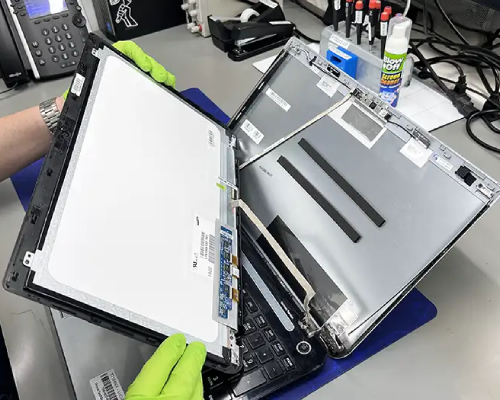
Some spots aren’t worth fighting, and a few are warning signs. Lean toward professional service or a screen swap when any of these are true.
- The spot is large or there are several. Bigger patches and clusters usually mean diffuser or backlight damage that only a new panel resolves. It’s growing. A spot that spreads over days of normal use signals active physical damage. Get it inspected before it takes over the screen.
- It survived every test and fix. If it stayed fixed through color cycling and ignored the pixel tools, software can’t help it The laptop is new. A spot on a device you never abused points to a factory defect. Contact the seller or maker for a warranty repair instead of paying out of pocket.
A white spot rarely stops a laptop from working, but it can spread if the panel keeps getting stressed, and it’s tiring to look at all day. If the screen is otherwise healthy and the laptop is worth keeping, a panel replacement restores it fully.
How much does it cost to fix?
Cost depends on what the fix actually involves, and it splits cleanly along the same line as everything else.
Software fixes are free. A pixel-repair tool, a driver reset, and a gentle clean cost nothing but time. If your spot is a stuck pixel and the tool works, you’re done without spending a cent.
A screen replacement is the real expense. Laptop panel replacements commonly run from around 80 to 300 US dollars depending on the model, screen size, resolution, and whether it’s a touchscreen. Premium, high-resolution, and touch panels sit at the top of that range, and bringing it to a repair shop adds labor on top of the part. If the laptop is still under warranty and the spot is a defect rather than accidental damage, the repair may be free, so check that before paying.
Before you spend anything on an older laptop, weigh the panel cost against the value of the machine. A 250-dollar screen on a five-year-old budget laptop may not be worth it.
How to stop white spots from coming back
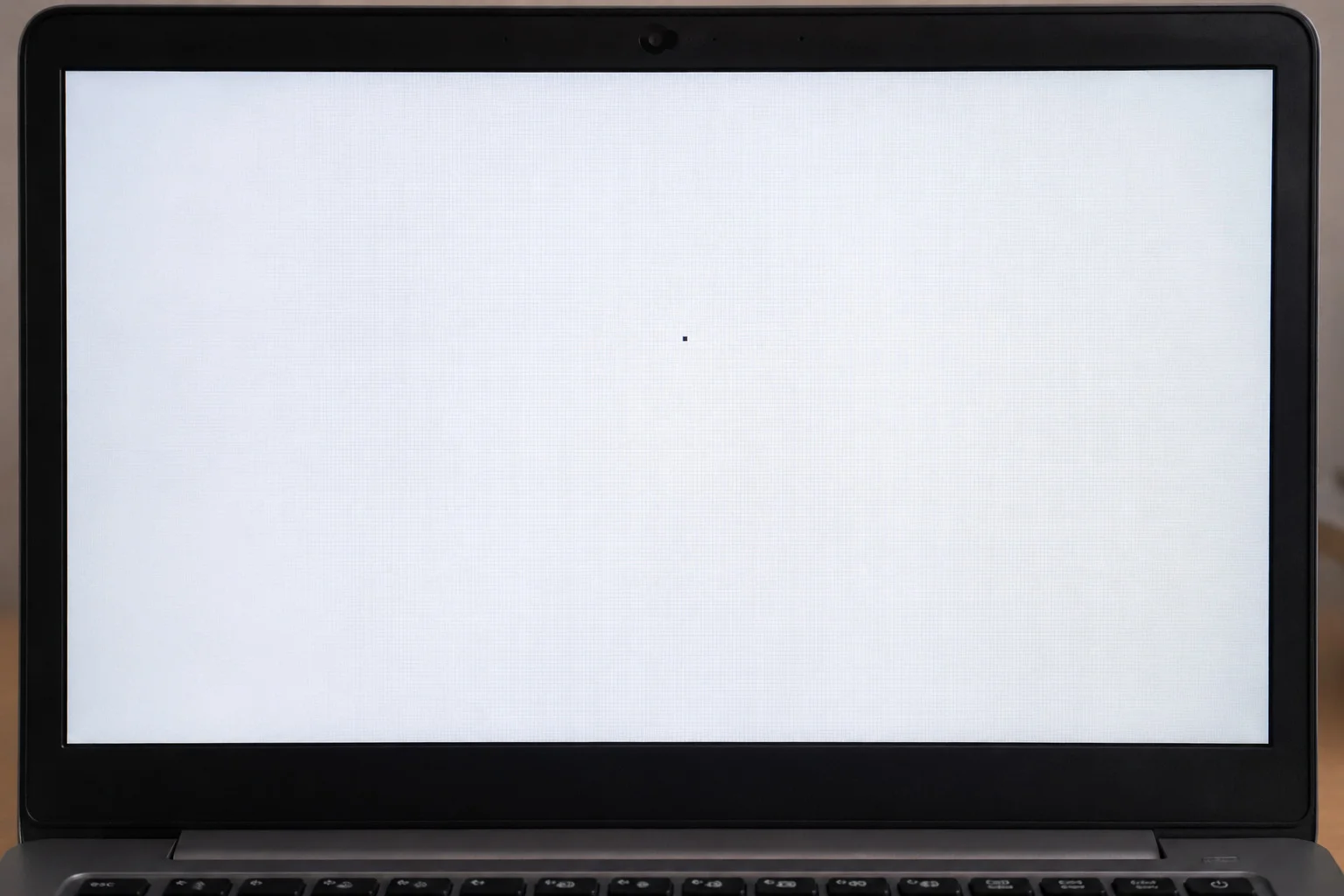
Since pressure is the leading cause on laptops, prevention is mostly about keeping force off the screen. A few habits go a long way.
- Clear the keyboard before closing the lid. Pens, earbuds, and cables are the classic offenders. One forgotten object is all it takes.
- Never stack heavy things on a closed laptop. Books, bags, and other devices all press the lid into the screen.
- Carry it in a padded sleeve. A snug case absorbs knocks and stops the lid from being squeezed inside a packed bag.
- Lift and hold by the base, not the screen. Gripping or twisting the display stresses the panel layers directly.
- Keep it cool and dust-free. Good airflow slows backlight aging, and a clean environment keeps debris from working its way inside.
None of this helps a spot you already have, but it’s the difference between a one-time annoyance and a recurring repair bill.
Frequently asked questions
Can a white spot on a laptop screen be fixed?
Sometimes. A stuck pixel can often be fixed for free with a pixel-repair tool. A pressure or backlight spot can’t be fixed with software and usually needs a screen replacement.
Will a white spot on my laptop screen spread?
Most stay in one place. But a spot caused by pressure or internal damage can grow if the panel keeps getting squeezed or twisted, so stop stressing the lid and get a growing spot checked.
Is a white spot covered by warranty?
Often yes if it’s a factory defect on a new laptop you didn’t damage. Accidental pressure damage usually isn’t covered. Check with the seller or maker before paying for any repair.
What’s the difference between a stuck pixel and a white spot?
A stuck pixel is a tiny, sharp, single dot that may change color across backgrounds. A white spot from pressure is larger, softer-edged, stays bright on every background, and won’t respond to pixel tools.
Is it safe to press on a white spot to fix it?
No. Pressing a damaged screen usually makes the mark larger or cracks more of the panel, and it can void your warranty. Avoid the rub-and-press tricks you may have seen.
Conclusion
A white spot on a laptop screen is almost always a stuck pixel or pressure damage, and a two-minute test tells you which. If it’s a stuck pixel, a free tool like JScreenFix may clear it. If it’s a soft, growing patch that survives the test, it’s physical damage, so stop pressing the screen and look at warranty service or a panel replacement. Diagnose first, try the free fixes, and a good result is a clean screen or a clear answer on what it’ll take