If your Acer laptop screen is black but the laptop still has power, most of the time it’s a software or power glitch, not a broken screen. Start with a hard reset, check the brightness, and press Windows + Ctrl + Shift + B to restart the display driver. Then plug in an external monitor. That one test tells you whether the fault is fixable at home or needs a repair. Here’s the full path, from the quickest fixes to the hardware checks.
Why is my Acer laptop screen black but the laptop is on?
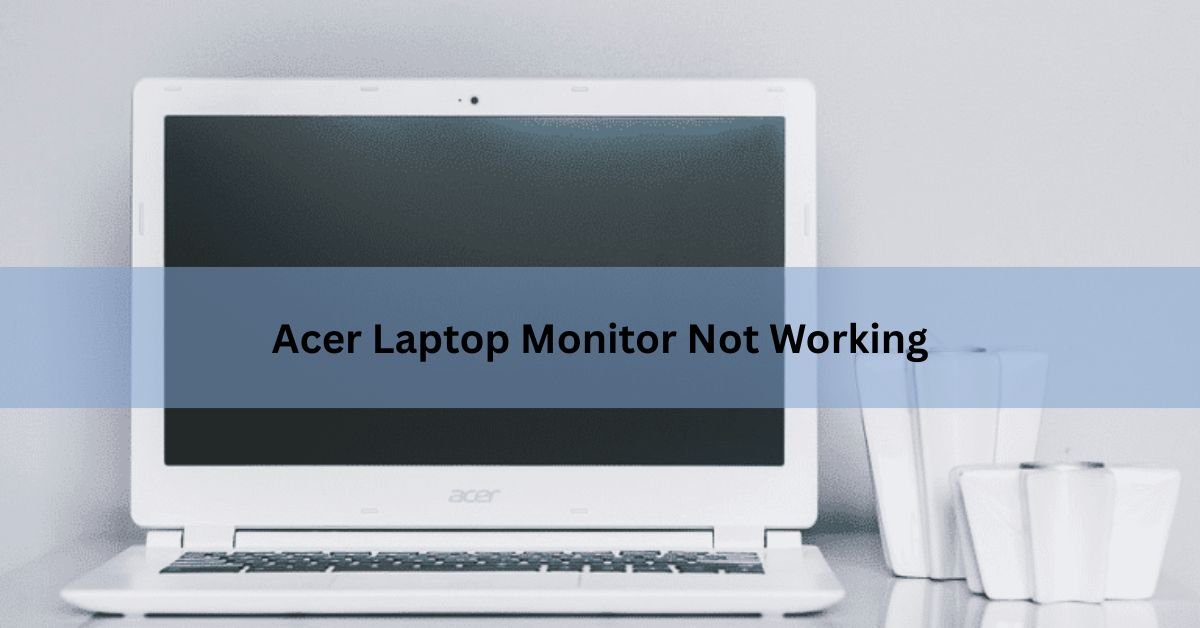
A black screen with the power light on usually means the laptop is running fine and only the display path has failed. You might hear the fan spin, see the keyboard light up, or feel the machine get warm while the screen shows nothing.
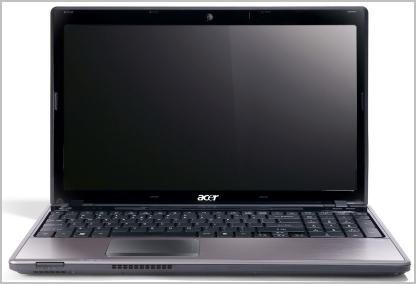
Displays more bl to the common causes fall into a few groups. Brightness is turned all the way down. The display output is set to an external screen that isn’t there. The graphics driver has crashed or timed out. A recent Windows update or driver went wrong. Or, less often, the screen panel, the ribbon cable behind the hinge, or the backlight has failed.
The good news: the first four are all software or settings problems, and you can fix them yourself in a few minutes. Work through the checks below in order and stop as soon as the screen comes back.
First checks that fix most black screens
Start here. These take two minutes and clear the most common causes.
1. Turn up the brightness.
It sounds obvious, but brightness can drop to zero after a sleep or a bump of the keyboard. Press the brightness-up key, usually F6 or F5 on Acer laptops, a few times and watch for the picture. On some models you hold the Fn key while pressing it.
2. Do a hard reset (power drain).
This clears static charge and stuck power states, which is the single most effective fix for a sudden black screen.
- Hold the power button for 30 seconds to force a full shutdown.
- Unplug the charger and remove any USB drives, docks, and SD cards.
- If your model has a removable battery, take it out. If it has a small battery-reset pinhole on the underside (marked with a battery icon), press it with a straightened paperclip for 30 seconds.
- Plug the charger back in, then press the power button to turn it on.
| Quick tip: Disconnecting everything except the charger also rules out a faulty USB device or dock that’s blocking startup. If the screen returns, plug your devices back in one at a time to find the culprit. |
3. Wake a stuck display.
If the machine seems on but the screen stays dark, tap the Caps Lock key and see if its light toggles. If it does, Windows is running and the display just isn’t showing, which points straight to the driver restart in the next section.
Restart the graphics driver without rebooting
Windows has a built-in shortcut that resets the entire display driver stack while the computer stays on. It fixes a crashed or hung graphics driver, a frequent cause of a black screen after waking from sleep or after a game.
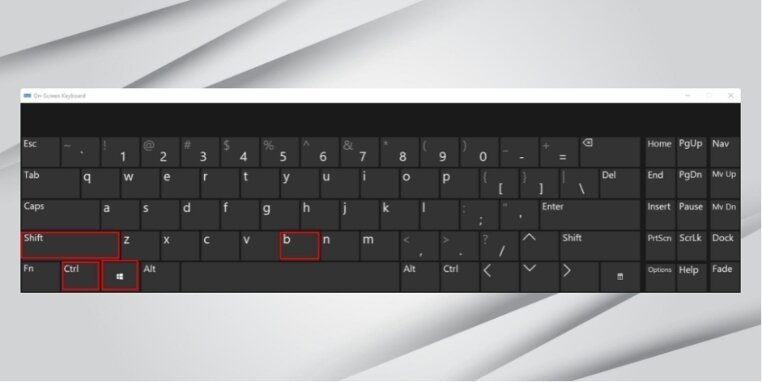
Press Windows + Ctrl + Shift + B all at once.
You’ll hear a short beep and the screen may flash or go black for a second, then come back. This doesn’t close your programs or lose your work. It’s the fastest fix worth trying whenever the screen is black but you think Windows is still running.
Is it the screen or the software? Test an external monitor
This is the most important step, because it tells you exactly where the problem is. Connect your Acer laptop to an external monitor or a TV using HDMI, USB-C, or DisplayPort, whichever your model has.
- Plug in the cable and turn the external screen on.
- Press Windows + P. You won’t see the menu, so press it once, then press the down arrow and Enter, or just tap P a few times to cycle through the modes: PC screen only, Duplicate, Extend, Second screen only.
- Pause a few seconds on each mode and watch the external monitor.
Now read the result:
| What you see | What it means |
|---|---|
| External monitor shows your desktop | The laptop is working. The fault is the built-in screen, its backlight, or the display cable behind the hinge. |
| External monitor is also black | The problem is deeper: graphics chip, RAM, motherboard, or a Windows startup failure. Move to the driver and recovery steps. |
If the external screen works, you can keep using the laptop that way while you sort out the internal display. It also confirms the expensive parts of the machine are fine.
Fix a black screen caused by Windows or drivers
If the built-in screen and an external monitor both stay black, or if the picture only appears once Windows has loaded, the cause is likely software. Try these in order.

Check the BIOS to split hardware from software
Restart the laptop and tap F2 repeatedly as soon as you press power, before the Acer logo. If the blue BIOS setup screen appears, your display hardware works and the problem is with Windows or a driver. While you’re there, look under the Exit tab for Load Setup Defaults, apply it, and save. If the BIOS screen is also black, the fault is hardware.
Boot into Safe Mode and roll back the driver
Safe Mode starts Windows with basic drivers, which gets you a picture when a bad graphics driver is the cause.
- Hold the power button for 10 seconds to shut down. Do this three times in a row (power on, then force off as Windows starts) to trigger the recovery menu.
- Choose Troubleshoot, then Advanced options, then Startup Settings, then Restart.
- Press 5 or F5 for Safe Mode with Networking.
- Once in, open Device Manager, expand Display adapters, right-click your graphics card, and choose either Roll Back Driver (if the trouble started after an update) or Update driver.
From the same recovery menu you can also run Startup Repair or use System Restore to undo a recent change. Acer laptops include a recovery partition too: tap Alt + F10 at startup to reach it.
Update graphics drivers from Acer
Once you have a working display, get the correct driver for your exact model from Acer’s Drivers and Manuals page. Enter your serial number or model, download the graphics and chipset drivers, and install them. Matching the driver to your model avoids the mismatch that causes many black screens in the first place.
When the external monitor is the one not working
If your Acer laptop is fine but an external monitor plugged into it shows nothing or says “No Signal,” the fix is usually the connection or the display output setting.
- Press Windows + P and choose Duplicate or Extend, so the laptop actually sends a picture to the second screen.
- Reseat the cable at both ends. A loose HDMI, USB-C, or DisplayPort plug is the most common reason a second screen drops out.
- Try a different cable and port. Cables fail quietly. If your laptop has more than one video output, switch to the other one.
- Power-cycle the monitor. Turn it off, unplug it from the wall for 30 seconds, then plug it back in to clear its own detection glitch.
- Skip adapters if you can. An HDMI-to-VGA or USB-C-to-HDMI adapter can be the weak link. Connect straight through to test.

If a known-good monitor and cable still show nothing from the laptop, update the graphics driver as described above, since a driver fault can stop the laptop sending an external signal.
When it’s a hardware fault (and what to do)
If an external monitor works but the built-in screen stays black, the internal panel, backlight, or the ribbon cable behind the hinge is the likely problem. This is common after a drop, a spill, or a hard knock to the lid.
The flashlight test confirms a dead backlight.
Shine a bright light at an angle onto the black screen while the laptop is on. If you can just make out a faint desktop image, the panel is fine but the backlight has failed, which is a repairable part.
| Quick tip: If the laptop was dropped, smells burnt, clicks, overheats, or shuts off on its own, stop restarting it. Save your files if you can reach them through an external screen, then contact Acer support or a technician. |
A cracked panel, a failed backlight, or a disconnected internal cable all need a repair. If both screens stay black through every step above, the issue may be the graphics chip, RAM, or motherboard, which also calls for a professional. Reseating RAM is an option only if you’re comfortable opening the chassis and your warranty allows it.
Frequently asked questions
Why is my Acer laptop screen black but I can hear it running?
The laptop is working and only the display has failed. This usually means low brightness, a crashed graphics driver, or a wrong display-output setting. Press Windows + Ctrl + Shift + B to restart the driver, then do a 30-second hard reset.
What is the Acer black screen key combination?
Press Windows + Ctrl + Shift + B together to restart the graphics driver without losing your work. Use Windows + P to switch display output, and tap F2 at startup to open the BIOS and check whether the hardware works.
How do I know if my Acer laptop screen is broken or just the software?
Plug in an external monitor and press Windows + P. If the external screen shows your desktop, the built-in panel or its cable is the problem. If both screens stay black, the cause is deeper software or hardware.
My Acer external monitor says “No Signal.” How do I fix it?
Press Windows + P and pick Duplicate or Extend, then reseat the cable at both ends. Try a different cable or port, power-cycle the monitor by unplugging it for 30 seconds, and remove any adapter to test a direct connection.
Will a hard reset erase my files?
No. A hard reset just drains static charge by holding the power button for 30 seconds with the power removed. It doesn’t touch your files or settings. A factory reset is different, and that one does erase data.
Conclusion
A black Acer laptop screen is usually a software or power glitch, not a dead machine. Do a 30-second hard reset, turn up the brightness, and press Windows + Ctrl + Shift + B to restart the display driver. Then plug in an external monitor: if it works, the fault is the built-in screen and the rest of the laptop is fine; if it doesn’t, move to Safe Mode and driver fixes. A good result is a working picture within a few minutes, with a repair needed only if the panel itself has failed.
Recommended Article:
Toshiba Laptop Display Problem? How to Find the Cause and Fix It
How to Remove a Stripped Screw From a Laptop (Without Wrecking It)
How to Restore a Toshiba Satellite Laptop to Factory Settings
How to Reset a Toshiba Laptop to Factory Settings (3 Ways)
How to Print Screen on an Acer Laptop (Every Method That Works)