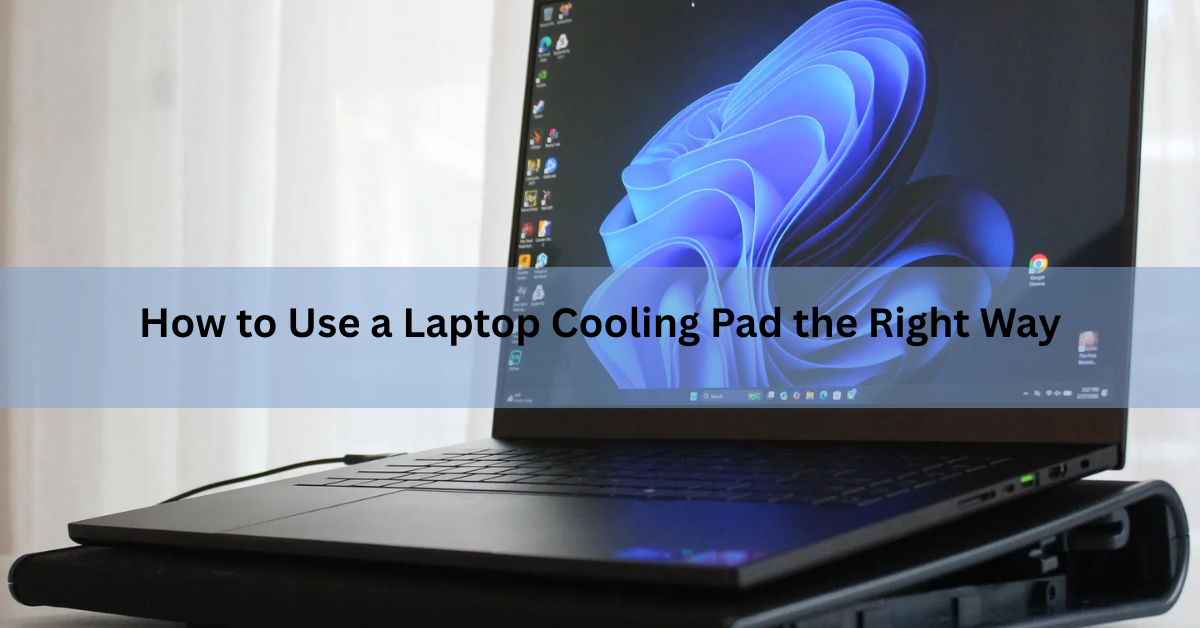
To use a laptop cooling pad, set it on a hard flat surface, place your laptop on top so the pad’s fans sit under your laptop’s air intake vents, then plug it in and switch it on. That’s the whole idea. The tricky part, and the reason a lot of pads seem to do nothing, is getting the fans lined up with the right vents and blowing air the right way.
A cooling pad is a flat board with one or more built-in fans that pushes fresh air toward the underside of your laptop. More air moving under the machine means heat escapes faster, so your laptop can hold its speed instead of slowing itself down to cool off. Used well, a good pad can drop CPU and GPU temperatures by a noticeable margin during gaming or other heavy work.
How to set up and use a cooling pad
Here’s the full process, start to finish. It takes about two minutes.
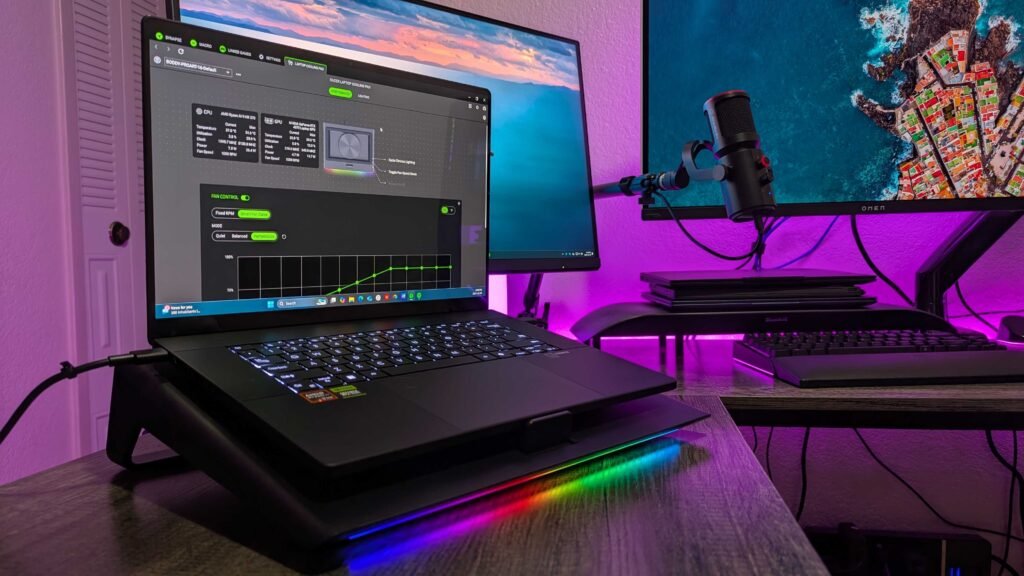
- Find your laptop’s intake vents. Flip the laptop over. The slots that pull air in are usually on the bottom, often near the middle or back, close to where the fans sit inside. Side and rear slots that blow warm air out are the exhaust, not the intake. You want the pad’s fans under the intake slots.
- Put the pad on a hard, flat surface. A desk or table is ideal. The pad has its own intake underneath, so a bed, couch cushion, or blanket chokes it before it can help. If you’re on the sofa, rest the pad on a tray or lap desk first.
- Sit the laptop on the pad, lined up. Center the laptop so the pad’s fans land under your intake vents. Most pads have a lip or raised edge at the front to stop the laptop sliding off when the pad is tilted.
- Connect the power. Most pads run off a USB cable. Plug it into a spare USB port on your laptop, or into a wall charger or powered USB hub if you don’t want to drain the battery. Many pads include a pass-through port so you don’t lose the USB slot you used.
- Switch it on and set the tilt. Turn on the fans. If the pad has speed control, start low and turn it up only when the laptop gets busy. Pick a tilt height that feels comfortable to type on and keeps the screen at a good angle.
- Turn it on before the heat, not after. Start the pad when you begin gaming, editing, or any heavy task, rather than waiting for the laptop to already be hot. Getting ahead of the heat keeps temperatures steadier.
| Quick tip: If your pad has a speed dial, run it low for browsing and email, and only crank it up for games or rendering. Lower speed means far less fan noise, and you rarely need full power for light work. |
Which way should the fans blow?
The pad’s fans should blow up and into your laptop’s bottom intake vents. Those bottom slots pull air in, so the pad’s job is to feed them a stronger supply of cool air. Blowing air away from the laptop, or lining the fans up under the exhaust slots, works against the internal fans and cools nothing.
Not sure which slots pull air in and which push it out? There’s a simple test. Run something demanding so the laptop’s own fans spin up, then hold a thin strip of tissue near each vent. If the tissue gets pulled toward the slot, that’s an intake, and that’s where you want a pad fan underneath. If the tissue blows away, that’s the exhaust, and you should leave it clear.
Which type of pad fits your laptop
Not every pad suits every laptop. The best match depends on how hot your machine runs and where its vents are. Here’s a quick guide to the main types.
| Pad type | How it cools | Best for |
|---|---|---|
| Multi-fan pad | Several small fans spread air across the whole underside | Everyday work, quiet rooms, mixed use |
| Turbo (blower) pad | One strong fan pushes a focused stream of air | Gaming and heavy loads that run hot |
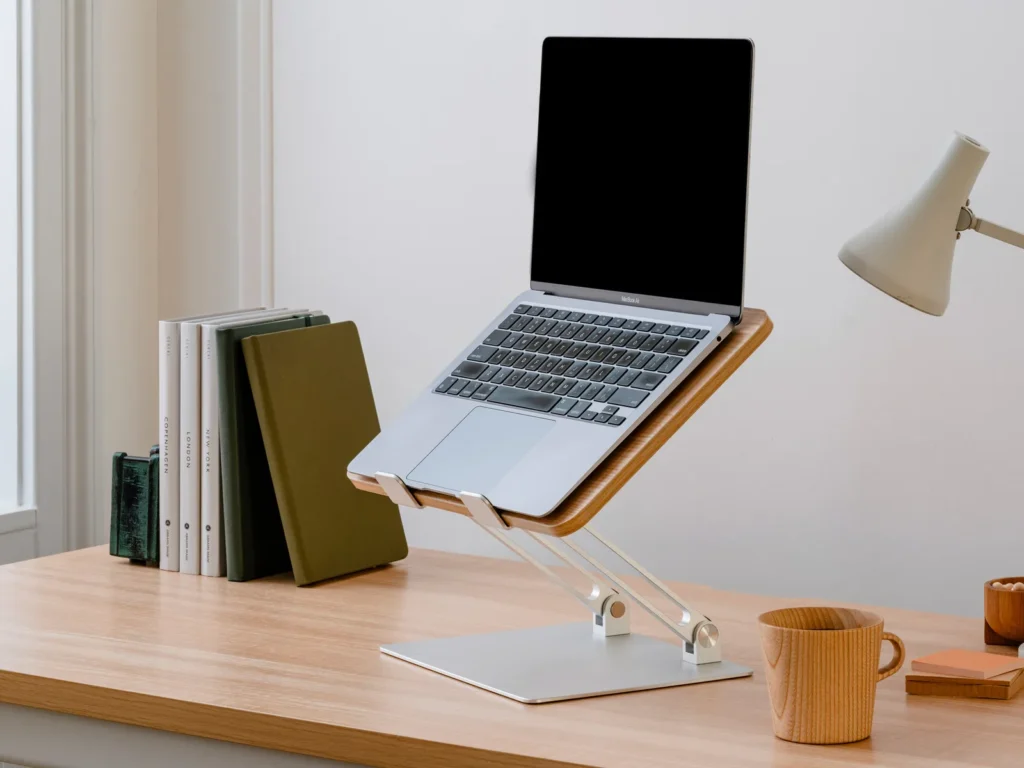
| Passive stand | No fans; just lifts the laptop so air can move | Thin laptops with no bottom vents |
| Thermoelectric pad | Active cooling tech, not just airflow | Niche high-heat setups, higher cost |
A quick rule of thumb: if you game or run heavy software, a turbo or strong multi-fan pad earns its keep. If you mostly browse, write, and watch video, a quiet multi-fan pad or even a simple ventilated stand is plenty. Very thin laptops that vent from the sides rather than the bottom often gain more from lift and airflow than from fans aimed at a sealed underside.
Getting the fans lined up with your vents
This is the step people skip, and it’s the one that decides whether the pad helps at all. If the fans sit under a solid part of the laptop’s base instead of the vents, the air has nowhere useful to go. Worse, a pad that’s the wrong size can partly cover the intake slots and trap heat, which leaves the laptop hotter than with no pad at all.
Before you buy, measure your laptop and check it against the pad’s supported size, usually somewhere between 12 and 17 inches. Once the pad arrives, hold your laptop over it and eyeball where the fans land against your bottom vents. If they don’t match, nudge the laptop forward or back until the strongest fans sit under the biggest intake slots. Pads with a sealed edge or foam lip do this best, because they funnel nearly all the air through the vents instead of letting it leak out the sides.
Habits that make the pad work harder
A pad helps most when the rest of your setup isn’t fighting it. A few easy habits go a long way.
- Keep the vents clean. Dust and pet hair clog the intake slots over time and choke airflow no matter how strong the pad is. Give the vents a quick clean with compressed air every month or two.
- Stay on hard surfaces. The laptop and the pad both need open air underneath. Beds, rugs, and cushions block both.
- Close what you’re not using. Dozens of open tabs and background apps push the processor harder, which makes more heat for the pad to deal with.
- Mind the room. A hot room makes everything work harder. Direct sun on the laptop or a warm, stuffy space cuts how much the pad can do.
- Watch the numbers if you’re curious. Free tools like Core Temp or HWiNFO show your CPU and GPU temperatures. Note them without the pad, then with it, to see the real difference on your machine.
When a pad won’t fix the heat
A cooling pad adds airflow from the outside, but it can’t fix what’s wrong inside. If your laptop still overheats with a good pad running, the cause is usually internal: dust packed around the fans, a failing internal fan, or old thermal paste that’s stopped doing its job. On gaming and high-performance laptops, that paste is worth refreshing every one to two years.
For the deeper details on matching a pad to your machine, HP’s guide to laptop cooling pads walks through vent layouts and fan types, and Lenovo’s cooling pad overview covers how the different designs work. If cleaning and repasting don’t help, the fans themselves may be worn out and due for replacement.
Frequently asked questions
Do laptop cooling pads actually work?
Yes, for laptops that run hot under load. A good pad commonly lowers CPU and GPU temperatures by several degrees, sometimes more on gaming laptops. The gain is small on cool-running machines and depends on lining the fans up with your intake vents.
Should the cooling pad fans blow up or down?
Up, into your laptop’s bottom intake vents. Those slots pull air in, so the pad should feed them more cool air. Test a vent with a thin strip of tissue: if it’s pulled toward the slot, that’s an intake and where a fan should sit.
Can I use a cooling pad on my lap or bed?
You can rest the laptop on the pad there, but the pad needs open air under its own base to work. On a bed or your lap, put the pad on a tray or lap desk first so its intake isn’t blocked by soft material.
Will a cooling pad drain my laptop battery?
A little, since most pads draw power over USB. To avoid it, plug the pad into a wall charger or powered USB hub instead of the laptop. Power draw is modest, roughly half a watt for basic pads up to a few watts for strong ones.
Does the cooling pad size need to match my laptop?
Yes. Check that the pad supports your laptop’s size, usually 12 to 17 inches. A pad that’s too small can cover part of the intake vents and trap heat, leaving the laptop hotter than with no pad at all.
Conclusion
Using a laptop cooling pad comes down to three things: put it on a hard flat surface, line the fans up under your laptop’s bottom intake vents, and switch it on before the heavy work starts. Point the airflow up into those intake slots, keep the vents clean, and stick to hard surfaces. Do that, and a good pad should shave several degrees off your temperatures and keep your laptop from slowing itself down when you need it most.
Recommended Articles:
Toshiba Laptop Display Problem? How to Find the Cause and Fix It
3.5 mm Jack Not Working on Laptop? Here’s How to Fix It
How to Measure Laptop Dimensions: Full Step-by-Step Guide
Can You Pack a Laptop in Checked Luggage? What the Rules Actually Say
How Many Watts Does a Laptop Use? Real Numbers by Type and Task