A Fire TV Stick can’t plug straight into a laptop and just work, because the HDMI port on both devices sends video out rather than taking it in. The stick needs a screen that accepts a signal, and a laptop’s HDMI port is built to send your screen to something else, like a monitor or projector. That doesn’t mean you’re stuck. You can still get your Fire Stick’s picture onto a laptop with a small piece of hardware called a capture card, or you can skip buying anything and mirror your laptop’s screen onto the Fire Stick instead.
Both routes work well once you know which one fits what you’re trying to do. This guide walks through the real technical reason plug-and-play fails, then gives clear steps for the capture card method, the mirroring method, casting a single browser tab, and what actually happens when you try to install the Fire TV app on a Windows or Mac computer.
Can you plug a Firestick straight into a laptop?
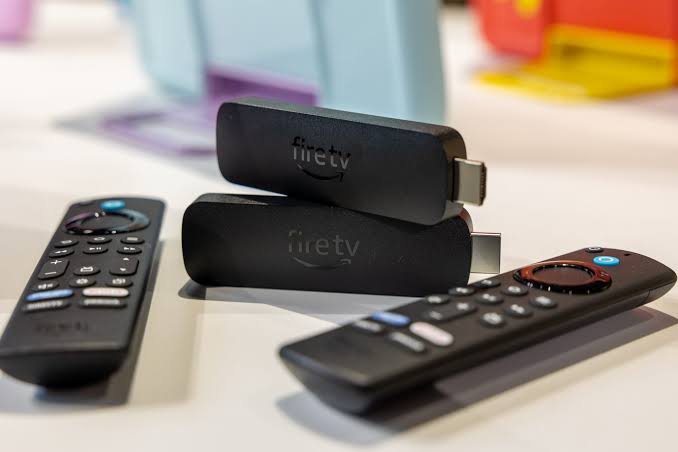
No. Every HDMI port has a direction built into it, either source (sends video out) or sink (receives video in). A Fire TV Stick’s HDMI connector is a source. It’s designed to push picture and sound out to a display, the same way a Blu-ray player or game console does.
The problem is that a laptop’s HDMI port is also a source. It’s built to send your laptop’s screen out to an external monitor, TV, or projector, not to pull in a signal from something else. Plugging one source into another does nothing, because neither side is listening for an incoming picture. This is the same reason you can’t plug two TVs together with an HDMI cable and expect one to show the other’s screen.
A very small number of specialty laptops, mostly older gaming or media-editing models, were built with a true HDMI input port. If yours is one of them, you can plug the Fire Stick straight in and it will just work, the same as connecting it to a TV. Check your laptop’s spec sheet or the manufacturer’s support page for the exact port list, since HDMI input ports look identical to output ports from the outside. For everyone else, and that’s nearly every laptop sold in the last decade, you need one of the workarounds below.
It also explains a related question people run into: why a laptop’s HDMI cable can’t just be plugged into the Fire Stick’s HDMI port to “send” the picture the other way. The Fire Stick’s port is fixed as a source too, so reversing the cable direction doesn’t change anything. Both ends need one side that sends and one side that receives, and a laptop and a Fire Stick both only send.
What you actually need: the capture card method
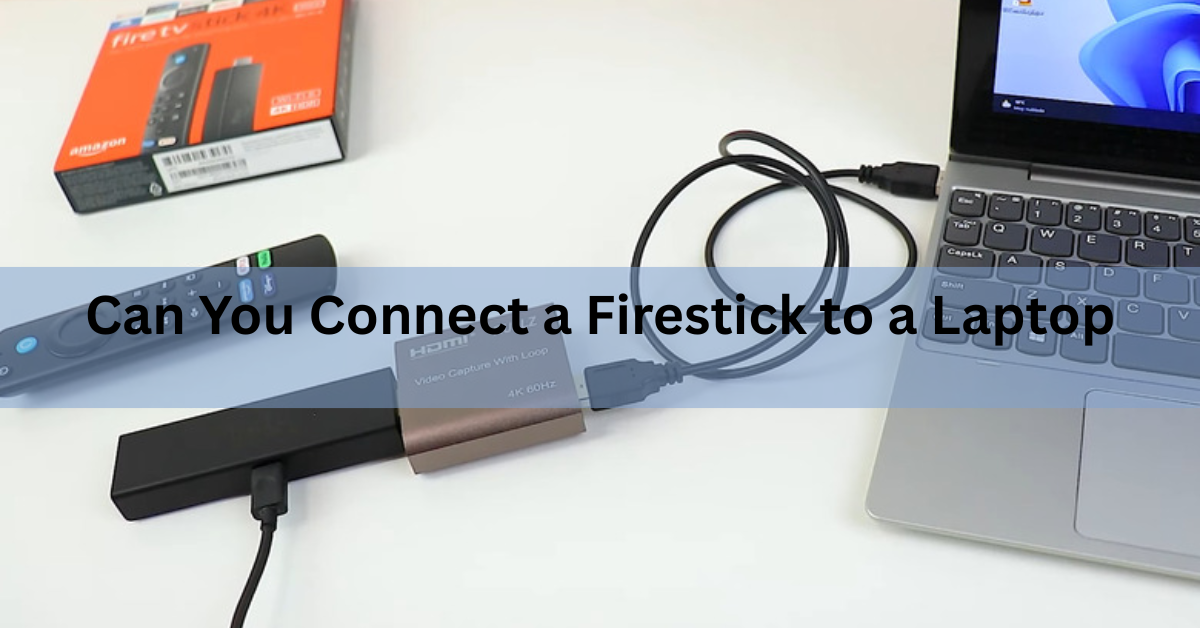
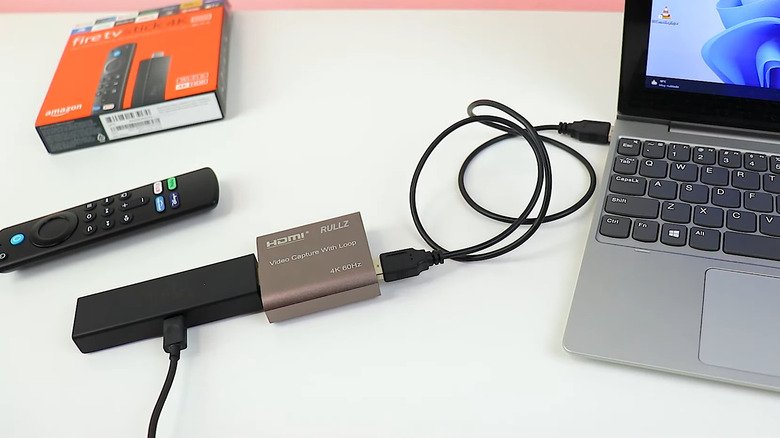
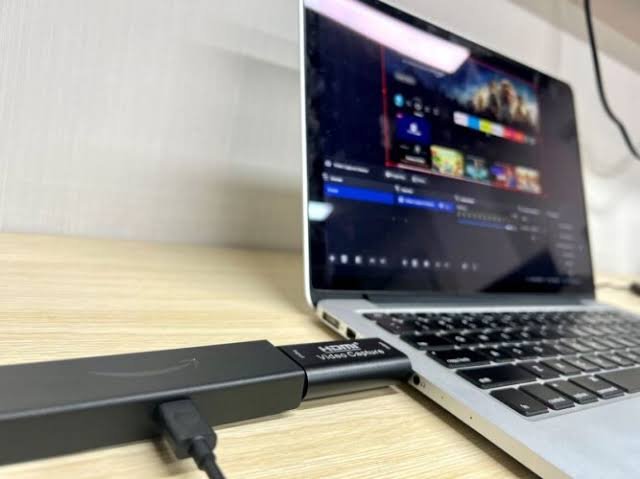
A video capture card is a small USB device that takes an HDMI signal in on one end and turns it into something your laptop can read as a webcam-style video source on the other. Plug the Fire Stick’s HDMI output into the capture card, plug the capture card into your laptop’s USB port, and your laptop treats the whole thing like a plugged-in camera. Free software then displays that feed full-screen.
This is the same trick streamers use to show a game console’s picture on their computer while they record or broadcast it, so the hardware is cheap, common, and easy to find. A basic USB 3.0 capture card that handles 1080p video typically costs somewhere between $15 and $40, and a step up to 4K passthrough models from brands built for streaming runs higher. You don’t need 4K capture to watch Fire Stick content comfortably; most Fire Stick content tops out at 1080p or 4K30 anyway, so an inexpensive 1080p60 card is plenty for everyday viewing.
Before you buy anything, gather what you’ll need:
- Your Fire TV Stick, already set up with Wi-Fi and your Amazon account
- A USB video capture card (USB-A or USB-C, matching your laptop’s port)
- A short HDMI cable if your Fire Stick model doesn’t have a built-in HDMI connector
- A USB power adapter for the Fire Stick, since it draws more power than a laptop’s USB port reliably supplies
- Free capture software, such as OBS Studio
A quick note on USB ports: capture cards draw enough power that a cheap or damaged USB hub can cause a flickering or unstable picture, even when every cable and setting is correct. Plugging the card directly into a USB port on the laptop itself, rather than through a hub, clears up most of these issues before you even open the software.
Step-by-step: watching your Firestick on a laptop with a capture card
Once you have the capture card in hand, the setup takes about ten minutes.
- Power the Fire Stick separately. Plug its USB power cable into a wall adapter, not your laptop, so it has stable power while you set everything else up.
- Connect the Fire Stick to the capture card. Plug the Fire Stick’s HDMI connector into the HDMI input side of the capture card.
- Plug the capture card into your laptop. Use a USB port that matches the card’s connector. If your laptop only has USB-C ports and the card is USB-A, you’ll need an adapter.
- Install capture software. The free OBS Studio works on Windows, Mac, and Linux and is the most common choice for this.
- Add a video source. Open OBS, go to Sources, click the plus icon, and choose Video Capture Device.
- Select your capture card. Give the source a name, click OK, then pick your capture card from the Device drop-down menu in the Properties window that appears.
- Resize and go full screen. Right-click the video in the preview and choose Fit to Screen, then double-click the preview or use OBS’s Fullscreen Projector option to fill your whole laptop screen with the Fire Stick’s picture.
If the picture doesn’t show up right away, unplug the capture card and plug it back in with the Fire Stick already running. Most capture cards only detect a signal that’s already active when they’re connected.
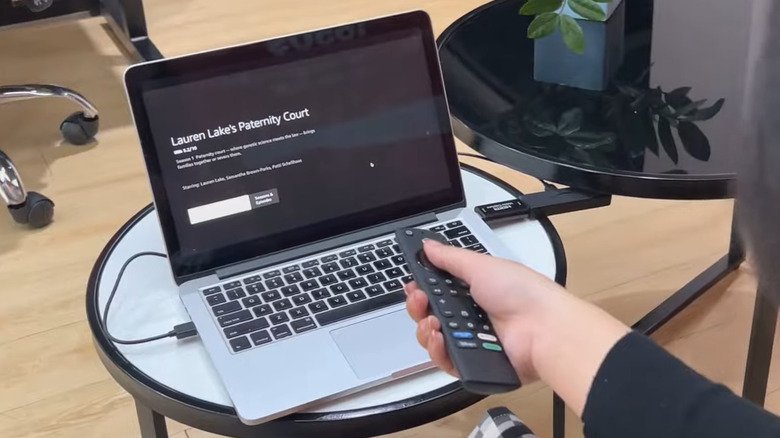
Once it’s running, your laptop’s trackpad and keyboard won’t control the Fire Stick. That box is still being operated by its own remote, or by the Fire TV mobile app on your phone if you’d rather skip the physical remote. The laptop is just acting as the screen, so any Fire Stick remote or the phone app continues to work exactly as it would with a TV.
Sound usually comes through your laptop’s speakers automatically once the capture card is recognized as an audio device, but if you get picture with no sound, open your laptop’s sound settings and check that the capture card, not just your laptop’s built-in microphone or speakers, is selected as the active input and output device. Some cards register as two separate devices, one for video and one for audio, and only the video half gets picked up by default.
What if you don’t want to buy anything? Mirroring your laptop to the Firestick
If buying a capture card isn’t worth it for you, you can flip the whole setup around. Instead of pulling the Fire Stick’s picture onto your laptop, you send your laptop’s screen out to the Fire Stick, so anything open on your laptop, including a movie streaming site, photos, or a presentation, shows up on whatever screen the Fire Stick is plugged into.
This only works if the Fire Stick is already connected to a TV or monitor, since it’s the Fire Stick doing the receiving, not your laptop. It’s the right fit when you actually just want your laptop’s content on a bigger screen and don’t care whether the picture is technically coming “from” the Fire Stick or your laptop.
Windows laptops use a wireless display standard called Miracast:
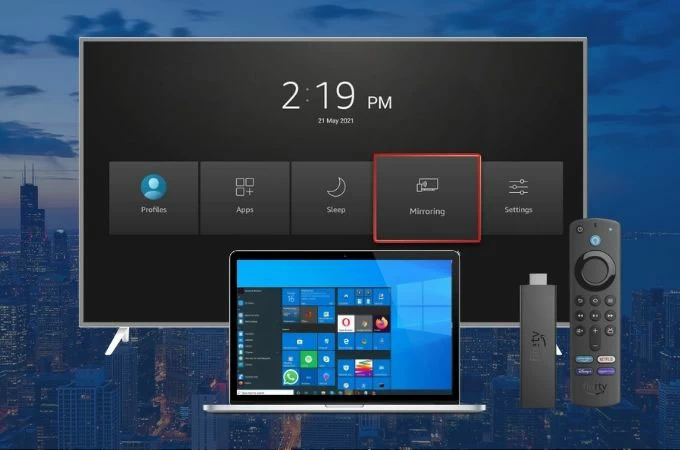
- Turn on mirroring on the Fire Stick. On the Fire Stick, go to Settings, then Display & Sounds, then Enable Display Mirroring. You can also press and hold the Home button on the remote for a shortcut menu with a Mirroring option.
- Open the connect panel on your laptop. On Windows, press the Windows key plus K to open the Cast panel, or search for “Connect to a wireless display” in the Start menu.
- Select your Fire Stick. It should appear in the list of nearby wireless displays within a few seconds. Click it to start mirroring.
Mac laptops don’t support Miracast natively, so mirroring an actual MacBook screen to a Fire Stick needs a third-party AirPlay receiver app installed on the Fire Stick, since macOS only broadcasts over AirPlay. Once an AirPlay receiver app is running on the Fire Stick, a Mac can mirror to it through the standard Control Center screen mirroring option.
Amazon documents the mirroring feature and its device requirements on its own screen mirroring support page, including which Fire TV models support it and what to check if the option doesn’t appear in your settings menu.
Keep in mind that this method sends your entire laptop desktop to the screen, not just a video window, so notifications, background apps, and anything else on your screen become visible too. Closing unrelated tabs and apps before you start mirroring avoids an awkward pop-up appearing mid-movie.
Casting a browser tab or app to your Firestick
If all you want is to watch a video that’s already playing on your laptop, full screen mirroring is overkill. Most Fire TV Sticks also support casting from apps that have a built-in cast button, similar to Chromecast, which sends just that one video rather than your entire desktop.
Streaming apps that support this, along with the YouTube and Netflix desktop sites, show a small cast icon near the video player. Clicking it lists nearby cast-ready devices, and a Fire Stick with the right receiver app installed can appear on that list. This uses far less of your laptop’s processing power than full mirroring, since your laptop is just telling the app what to play rather than streaming its whole screen.
Does the Fire TV app work on a laptop?
Not as a way to watch content on your laptop screen. The Fire TV companion app is built for phones and tablets and works as a remote control and content browser you use alongside a Fire Stick that’s already plugged into a TV. It lets you search, launch apps, and type with your phone’s keyboard, but it has never streamed video onto the device it’s installed on.
Amazon’s Appstore for Windows, which some laptop owners used to sideload Android apps including this one, was discontinued, so a native path to run Fire TV apps directly on a Windows laptop no longer exists. Android emulator programs can technically load the mobile app on a computer, but they still only give you remote-control functions, not a way to display the Fire Stick’s actual picture, so they don’t solve the core problem this guide is about.
Which method should you actually use?
The right method depends on what you’re trying to watch and whether the Fire Stick is already plugged into a screen somewhere else.
| Method | Best for | Cost | Setup time |
| Capture card + OBS | Watching the Fire Stick itself on a laptop with no TV around | $15 to $40 | 10 to 15 minutes |
| Mirror laptop to Fire Stick | Putting your laptop screen on a bigger display that already has a Fire Stick | Free (Windows); AirPlay app on Mac | 2 to 5 minutes |
| Cast a single tab or app | Sending one video to the big screen without mirroring everything | Free | Under a minute |
If your goal is genuinely to see your Fire Stick’s home screen and apps on your laptop, with no TV in the picture at all, the capture card is the only method that actually does that, so it’s worth the small cost. If a TV or monitor is already hooked up to your Fire Stick and you just want your laptop’s content up there too, mirroring or casting gets you there for free and faster.
Fixing common problems
A few issues come up often enough with both methods that it’s worth knowing the fix before you start.
How to Use a Firestick on a Laptop
Make sure the Fire Stick is powered by a wall adapter, not the laptop’s USB port. A Fire Stick that’s underpowered will boot partway, or not push out a stable signal, and a capture card will show a black screen even though the connections are correct.
Capture card not showing up as a device
Unplug and reconnect the card after the Fire Stick is already displaying its home screen. Most inexpensive capture cards only recognize a signal that’s already active, rather than detecting a device that powers on after the card is plugged in.
Mirroring option missing from the Fire Stick settings menu
Older or lower-end Fire TV Stick models don’t support display mirroring at all. Check the model name against Amazon’s list of supported devices before assuming a setting is just hidden somewhere.
Mirroring is laggy or drops audio
Both devices need a strong Wi-Fi signal, ideally on the same 5GHz network rather than 2.4GHz, since mirroring sends a continuous video stream. Moving the laptop or Fire Stick closer to the router usually clears up stutter and audio drift.
The Fire Stick keeps restarting or won’t boot while connected to the capture card
This almost always comes back to power. A Fire Stick pulls more current at startup than most laptop USB ports can reliably provide, so if it’s being powered through the capture card’s USB pass-through rather than its own wall adapter, it can loop through a restart cycle. Switching the Fire Stick to a dedicated wall charger, the same one it would use plugged into a TV, usually fixes this immediately.
Frequently asked questions
Why won’t my Firestick show up when I plug it into my laptop’s HDMI port?
Both the Firestick and your laptop’s HDMI port only send video out. Neither one is built to receive a signal, so plugging them together produces nothing on screen no matter how the cable is connected.
Do I need a special capture card, or will any USB capture card work?
Any basic USB video capture card that supports 1080p works fine for Firestick content, since most of it plays at 1080p or 4K30. You don’t need an expensive 4K60 gaming capture card for everyday streaming.
Can I use my laptop’s keyboard and trackpad to control the Firestick?
No. The capture card only displays the picture; it doesn’t send any input back to the Firestick. You still need the physical remote or the Fire TV app on your phone to navigate.
Is there a way to do this without buying any extra hardware?
Yes, if your Firestick is already connected to a TV or monitor. Mirror your laptop’s screen to the Firestick using Miracast on Windows or an AirPlay receiver app on Mac, or cast a single browser tab if you only want to send one video.
Can I install the Fire TV app on my Windows or Mac laptop to watch content?
The Fire TV app is a remote control and browsing tool for phones and tablets, not a video player, so installing it on a laptop won’t display Firestick content even if you get it running through an emulator.
Conclusion
A Fire Stick can’t plug into a laptop directly because both HDMI ports only send video, never receive it. A capture card with free software like OBS solves that by turning the Fire Stick’s output into something your laptop can display, while mirroring or casting flips the direction and sends your laptop’s screen to a Fire Stick that’s already hooked up to a TV. Pick the one that matches what screen you actually want to watch, and you’ll be set up in a few minutes either way.
Recommended Articles:
How to Find Out How Old Your Laptop Is (Windows and Mac)
Do Laptops Give Off Radiation? What’s Real and What Isn’t
How Many Amps Does a Laptop Use?
How to Connect an Epson Projector to a Laptop
Average Laptop Lifespan by Brand: What Each One Really Gives You