When the 3.5 mm jack on your laptop stops working, the cause is almost always one of three things: lint packed into the port, the wrong output device selected in your sound settings, or an audio driver that got swapped out during an update. Each one takes about two minutes to check. Real hardware failure is the least common answer, and you should only land on it after you have ruled the others out.
Work through the checks below in order. They go from free and instant to slightly more involved, so most people never reach the end.
Why does a laptop headphone jack suddenly stop working?
The jack itself is a mechanical part with a small switch inside it. When you push a plug in, that switch closes and tells the laptop to cut the speakers and send sound down the cable instead. Everything that can go wrong falls into one of two groups: the switch never gets triggered, or the software on the other side ignores it.
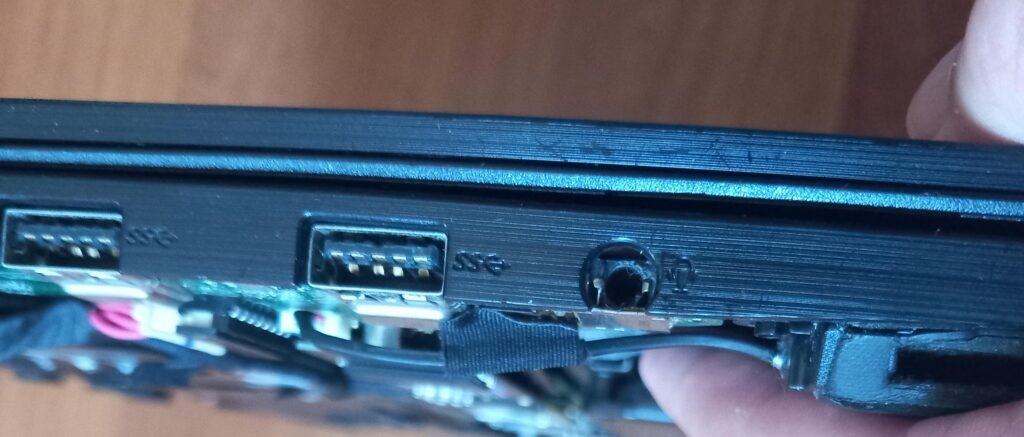
The physical side fails for boring reasons. Pocket lint, dust, and skin oil build up inside a port that sits open all day. The debris compresses into a soft plug at the bottom, so your headphone jack looks fully inserted but is actually stopping a millimetre or two short of contact. The switch never closes and the laptop never notices anything happened. On laptops that live in bags, this is the single most common cause.
The software side fails for a different reason. Windows decides which device gets your audio, and it does not always pick the one you just plugged in. Feature updates also have a habit of replacing the audio driver your laptop shipped with. The replacement plays sound through the internal speakers just fine, which is why nothing seems wrong until you reach for headphones. Jack detection is the part it usually loses.
Is it the headphones or the laptop?
Test the headphones on a phone before you change a single setting. This takes fifteen seconds and it saves you from an hour of driver work on a problem that lives in a frayed cable.
- Plug the same headphones into a phone, tablet, or another laptop and play something.
- If they are silent there too, the headphones are the problem. Stop here.
- If they work, plug a different pair into your laptop.
- If the second pair also fails, the fault is in your laptop, and everything below applies.
While you are at it, wiggle the plug gently while sound is playing. Crackling, cutting out, or sound in one ear only that changes as you move the cable points at a worn plug or a broken wire near the connector, not at anything on your laptop.
Match your symptom to the likely cause
The exact way it fails narrows things down fast. Find your row, then jump to that fix.
| What you notice | Most likely cause | Where to start |
|---|---|---|
| Sound keeps playing from the laptop speakers when you plug in | The laptop never registered the plug, or the plug is not fully seated | Reseat the plug, then clean the port |
| Headphones appear in the sound list but say “Not plugged in” | Jack detection is off or the audio driver is the wrong one | Reinstall the maker’s audio driver |
| Sound cuts from the speakers but nothing comes through the headphones | Windows switched output but the plug is only halfway in, or the port is dirty | Reseat and clean, then check the output picker |
| Music plays fine but the headset mic is dead | Wrong plug type or wiring standard for that port | Check the plug’s rings and use an adapter |
| Only one ear works, or the sound crackles when you move the cable | A worn plug, a damaged cable, or debris on the contacts | Test the same headphones on a phone |
| It broke the same day an update installed | A generic driver replaced the one your laptop shipped with | Roll the driver back |
Fix 1: reseat the plug and clean the port
Start here even if the port looks clean, because compacted lint is dark, sits flat against the bottom, and is genuinely hard to see. Shine a phone flashlight straight into the port first. A clean port shows bare metal contacts on the walls and an open space at the back. A blocked one looks flat and grey.
Push the plug in firmly until you feel it stop. Most laptop jacks give a small click. If yours seats with no click and can still rock side to side, it is not all the way in.
To clean it properly:
- Shut the laptop down completely. Do not do this with the power on.
- Use a can of compressed air with the straw attached. Hold the can upright, aim into the port, and give it two or three short bursts. Holding the can at an angle can spray liquid propellant into the port.
- For packed debris, use a wooden or plastic toothpick to lift it out gently. Never use a paper clip, pin, or anything metal, because the contacts inside are thin and bend easily.
- If it still looks dirty, dampen a thin cotton swab with isopropyl alcohol of 70 percent or higher, squeeze out the excess, and twist it slowly inside the port. It should be damp, not wet.
- Wait at least fifteen minutes for the alcohol to evaporate before switching the laptop back on.
Never push a dry cotton swab into the port. The cotton snags on the metal contacts and leaves fibres behind, which turns a small problem into a bigger one.
One more physical check worth doing: if your laptop thinks headphones are plugged in when nothing is, and audio has stopped coming out of the speakers entirely, the detection switch is stuck closed. Insert and remove a plug slowly five or six times. That often frees it.
Fix 2: check what Windows is actually sending sound to
Windows can be playing perfectly, just to something else. This is common on laptops connected to a monitor, a dock, or a Bluetooth speaker that is still paired from yesterday.
Click the speaker icon in the taskbar, then click the arrow next to the volume slider to see the list of output devices. Pick your headphones. If they are not listed at all with the plug inserted, that is a detection failure, which points at Fix 3.
If they are listed but greyed out or marked as not plugged in, open the full sound panel. Press Windows key and R together, type mmsys.cpl, and press Enter. On the Playback tab, right-click in the empty space and switch on both Show Disabled Devices and Show Disconnected Devices. Anything hidden there will now appear. Right-click your headphones, choose Enable, then choose Set as Default Device.
Two smaller things worth ruling out in the same trip. Open the volume mixer and check that the specific app you are testing with is not muted on its own, because Windows keeps a separate level for each app. And if you have an external monitor plugged in, make sure it has not quietly become your default output, which happens more often than you would think.
Fix 3: reinstall or roll back the audio driver
If the port is clean and your headphones still do not appear when plugged in, the driver is the next suspect. This is the fix for anyone whose audio broke the same week an update installed.
Open Device Manager, expand “Sound, video and game controllers,” and look at what is listed. If you see something generic like “High Definition Audio Device” rather than a named driver from Realtek, Conexant, or your laptop brand, Windows has replaced the original. The generic driver handles plain playback but frequently drops the jack detection logic that tells your laptop something has been plugged in.
Try these in order:
- Right-click the audio device, choose Properties, open the Driver tab, and click Roll Back Driver. This is the fastest fix when sound worked last week and stopped after an update. The button is greyed out if there is no earlier version stored.
- If rollback is not available, right-click the device, choose Uninstall device, tick the box to remove the driver software, and restart. Windows reinstalls a driver on boot.
- If that still leaves you with a generic driver, go to your laptop maker’s support site, enter your exact model number, and download the audio driver they list for it. The manufacturer package includes the jack detection component that the generic Microsoft driver often lacks.
If you have Realtek hardware, open Realtek Audio Console and look under Device advanced settings for a connector or jack detection option. Both states cause problems for different people, so try flipping whatever it is currently set to, apply, and restart.
Windows 11 also ships an automated audio troubleshooter that runs diagnostics and fixes common faults on its own. It is worth a run before you start uninstalling things. Microsoft walks through the full sequence, including the service restarts covered next, in its guide to fixing sound problems in Windows.
Fix 4: turn off enhancements and restart the audio services
Audio enhancements are the processing effects that sit between your music and your headphones. They break playback on some hardware combinations, and the symptom is silence rather than bad sound.
Go to Settings, then System, then Sound. Click your headphones under Output, scroll to Advanced settings, and set Audio enhancements to Off. Test again.
If that does nothing, restart the services that run audio. Type “services” into the search box and open the Services app. Find Windows Audio, right-click it, and choose Restart. Do the same for Windows Audio Endpoint Builder. This clears the kind of stuck state that a full reboot also fixes, without the reboot.
One more setting in this area: back in mmsys.cpl, right-click your headphones, choose Properties, open the Advanced tab, and change the default format to a different sample rate. Some drivers refuse to play a rate the hardware does not support, and the result is silence with no error message anywhere.
Fix 5: when sound works but the microphone does not
This is a different problem with a different cause, and no amount of driver work will fix it. It comes down to the plug on your headset.
Nearly every laptop made in the last decade has a single combo jack that handles both headphones and a microphone. Which plug you insert decides what you get. Count the black bands on the metal part of your plug. Two bands means three sections, which carries stereo sound and no microphone. Three bands means four sections, which carries stereo sound plus a microphone.
If you plug a three-section plug into a combo jack, you get sound and no mic, every time. That is the design working as intended, not a fault. You need a four-section plug for microphone input.
There is a second, less obvious version of this. Four-section plugs come in two wiring layouts that swap the microphone and ground positions. The common one is CTIA, used on iPhones, current Android phones, game consoles, and most laptops. The older one is OMTP, which turns up on some legacy phones and cheaper headsets. Plug an OMTP headset into a CTIA port and you get audio that works with a microphone that does not, sometimes with a hum. A small inline CTIA to OMTP adapter converts between the two.
If your laptop has two separate round ports rather than one, marked with a headphone icon and a microphone icon, a modern headset with one four-section plug needs a splitter to reach both.
What to check on a Mac
The Mac version of this problem has one cause you will not find on Windows. On older MacBooks, the headphone port doubles as an optical output, and a tiny switch inside it selects between the two. That switch can stick in the optical position.
Look into the port in a dark room. A faint red glow means it is stuck in optical mode, which is why you have no sound from the speakers or the headphones. Insert and remove a plug slowly several times, wiggling it slightly, to free the switch. A short burst of compressed air often works too.
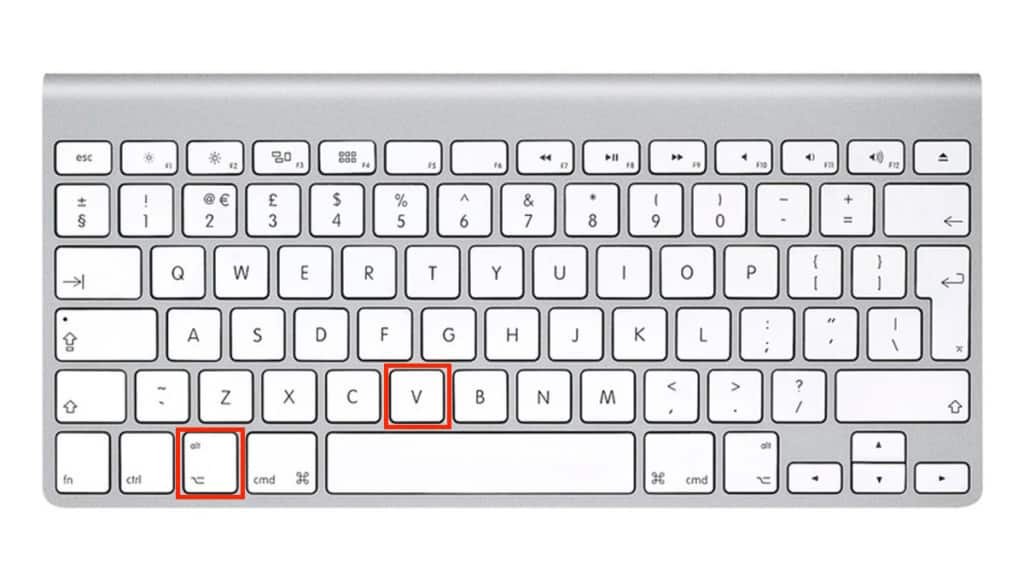
If there is no red light, go to the Apple menu, then System Settings, then Sound, and open the Output tab. Anything in the headphone port shows up as “Headphones.” Select it, make sure the volume slider is up, and check that Mute is off. Apple documents this sequence in its notes on notes on Mac speakers and audio output. On Intel Macs, an NVRAM reset sometimes clears a stubborn audio fault: restart and hold Option, Command, P, and R together for about twenty seconds. Apple silicon Macs handle this on their own at every boot, so a plain restart does the same job.
When the jack is genuinely broken
You are looking at real hardware failure when all of these are true: the port is clean, a second pair of known-good headphones fails in it, the driver has been reinstalled from your laptop maker’s site, and nothing appears in the sound list when you plug in.
A few other signs point the same way. A plug that feels loose and falls out under the weight of the cable means the internal contacts have worn. Sound that cuts in and out as you move the plug, after cleaning, means a cracked solder joint on the board. Any liquid that got into the port is likely to have corroded the contacts.
On most laptops the jack is soldered to the mainboard, so replacing it is a repair-shop job rather than a home one. Before you book that in, ask whether you need the port at all. A USB or USB-C audio adapter costs very little, plugs into any spare port, and carries its own sound card, which bypasses the broken jack and the flaky driver in one move. For a laptop that is otherwise fine, that is usually the sensible answer. Bluetooth headphones and an HDMI connection to a monitor or receiver both work as alternatives too.
Frequently asked questions
Why does my laptop still play through the speakers when I plug in headphones?
The laptop has not registered the plug. Either it is not seated all the way in, lint is blocking it, or the driver lost its jack detection. Push the plug in until it clicks, clean the port with compressed air, then reinstall the audio driver.
How do I know if my headphone jack is broken or if it is a driver problem?
Plug a second pair of known-good headphones in. If those work, the first pair is faulty. If neither pair appears in your sound settings after cleaning the port and reinstalling the driver, the jack itself has likely failed.
My headphones work but the microphone does not. What is wrong?
Your plug probably has two black bands instead of three, which means it carries no microphone signal. A combo jack needs a four-section plug. If it already has three bands, you may have a CTIA and OMTP wiring mismatch, which a small inline adapter fixes.
Can I clean my laptop headphone jack with a cotton swab?
Only if it is damp with isopropyl alcohol and squeezed out first. A dry swab snags on the contacts and leaves cotton fibres inside. Compressed air is safer, and a wooden toothpick handles anything packed in. Never use metal.
My headphone jack stopped working right after a Windows update. How do I undo it?
Open Device Manager, expand Sound, video and game controllers, right-click your audio device, choose Properties, open the Driver tab, and click Roll Back Driver. If that button is greyed out, download the audio driver for your exact model from your laptop maker.
Conclusion
Start with the port itself: reseat the plug, shine a light in, and clean out any lint with compressed air before you touch a single setting. Then check that Windows is sending audio to your headphones and not to a monitor or an old Bluetooth pairing. If the headphones still never appear when plugged in, roll back or reinstall the audio driver from your laptop maker’s site. Most jacks come back to life somewhere in that sequence. If none of it works and a second pair of headphones fails too, a cheap USB audio adapter gets you working again the same day.
Recommend Article:
Which Gaming Laptops Last the Longest on Battery?
Can You Bring a Laptop on a Plane? Yes — Here’s What to Know
Acer Laptop Won’t Turn On? Here’s How to Fix It (Step by Step)
How to Work on the Couch with a Laptop Comfortably
How to Optimize Your Gaming Laptop for 4K (Without Buying a New One)