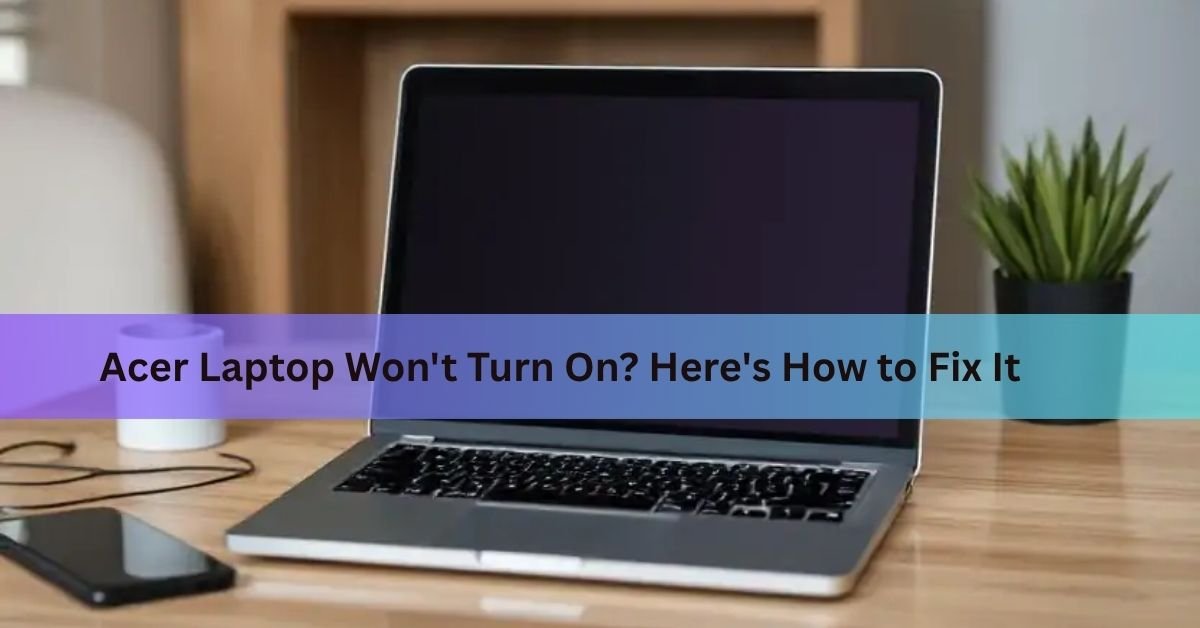
Your Acer laptop goes dark, and nothing happens when you press the power button. Before you assume the worst, know that the vast majority of cases come down to a drained or glitching power system, not a failed motherboard. Most Acer laptops can be revived in under ten minutes without opening a single screw.
This guide walks you through every fix in order, starting with the ones that take thirty seconds and ending with the ones that need a screwdriver. Work through them in sequence. If your laptop shows some lights but a black screen, jump straight to the section on screen issues.
Why your Acer laptop won’t turn on

- The first thing to figure out is how much life the laptop still shows. The answer changes what you should do next.
- Symptom Most likely cause Start here
- No lights, no fan, nothing Dead battery, bad charger, or static charge buildup Steps 1, 2, 3
- Power light on, screen black Display glitch, loose RAM, or corrupt boot Steps 3, 6, 7, 8
- Fan spins, Acer logo appears, then stops Boot failure, Windows corruption, or SSD fault Step 8
- Shuts off seconds after powering on Overheating or battery fault Step 5, then Step 4
- Work through the table above to identify your symptom, then use the steps that match. If you’re not sure, just start at Step 1 and go in order.
Step 1: Check the power supply
A dead battery or a faulty charger is the single most common reason an Acer laptop won’t respond. Check these before anything else.
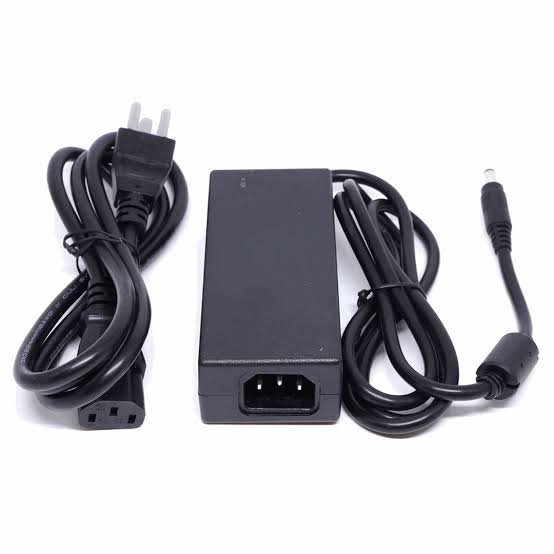
- Plug the charger directly into a wall outlet (not a power strip or surge protector). Some strips have failed fuses that cut power silently.
- Test the outlet with another device, like your phone charger, to confirm it’s live.
- Look at the charging LED on your Acer. Most models show an orange or white light while charging. No light at all suggests the charger or charging port is the issue.
- Swap in a different charger if you have one. Acer sells replacement adapters through its online store. For models that use USB-C charging, try a different USB-C cable and a quality wall adapter rated at the correct wattage.
- Inspect the charging port and cable end for bent pins or damage. Barrel-style connectors (the round plug) are especially prone to bent center pins after a few years of daily use.
Tip: If the battery indicator light blinks orange or flashes in a pattern, that usually means the battery is critically low rather than dead. Plug in and wait five to ten minutes before pressing the power button.
Step 2: Disconnect all external devices
A USB drive, external hard disk, or docking station can sometimes confuse the boot process and prevent the laptop from starting. This takes ten seconds to rule out.
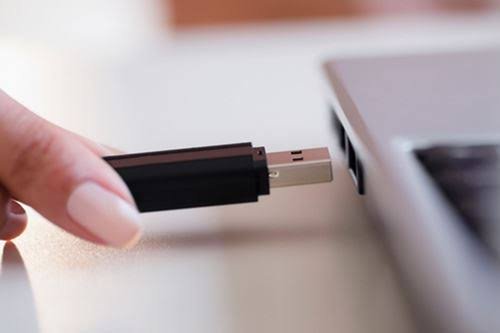
- Unplug everything from your Acer: USB drives, mice, keyboards, external monitors, docking stations, SD cards, headphone adapters, everything.
- Leave only the power cable connected.
- Press the power button and wait thirty seconds.
If it starts, one of those peripherals was the problem. Reconnect them one at a time to find the culprit.
Step 3: Perform a power reset (this fixes most cases)

Over time, electrical charge builds up in your laptop’s capacitors. This can lock the machine in a state where it won’t respond to the power button. A power reset drains that residual electricity and clears the issue. It’s the fix that works most often.
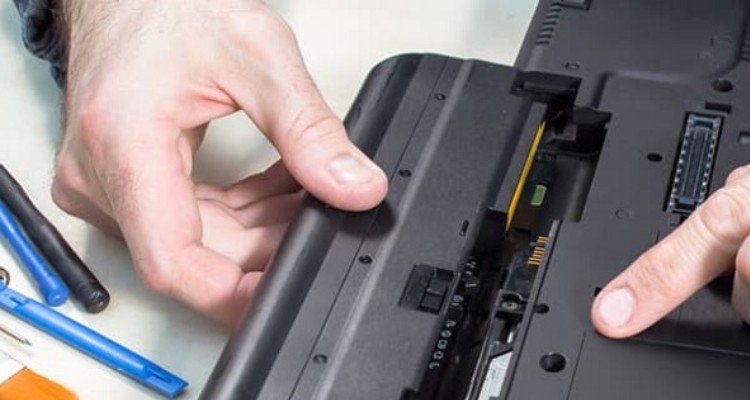
If your Acer has a removable battery:
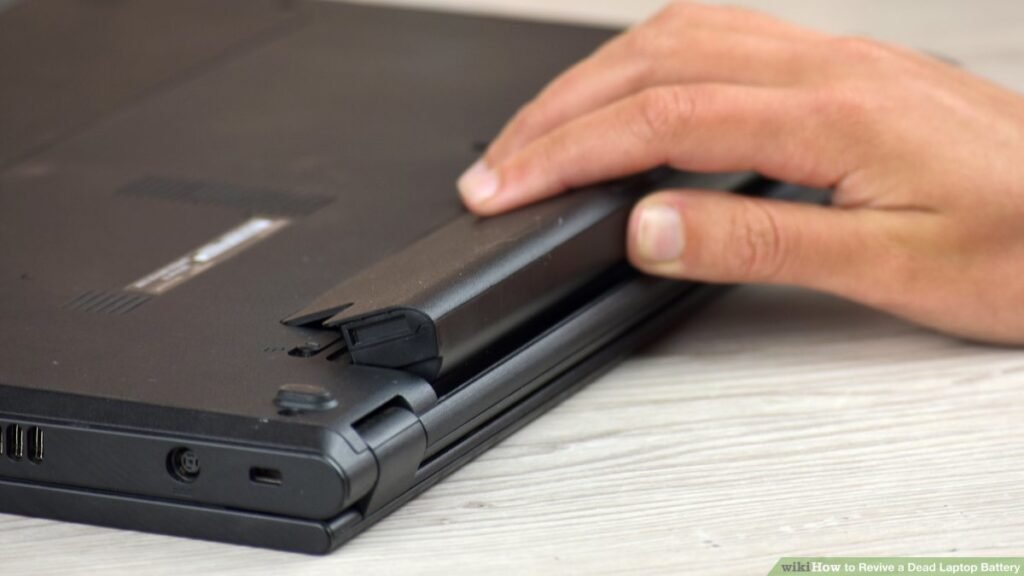
- Shut the laptop down and unplug the charger.
- Slide out the battery.
- Press and hold the power button for 30 seconds.
- Reinsert the battery, plug in the charger, then power on.
If your Acer has a sealed (non-removable) battery:
- Unplug the charger and disconnect all peripherals.
- Press and hold the power button for 30 seconds.
- Reconnect the charger and try powering on.
Most Acer laptops since 2018 have sealed batteries. The Acer Aspire, Swift, Spin, and Predator lines all use sealed designs. If this step doesn’t work, move on to the battery reset pinhole in Step 4.
Step 4: Use the battery reset pinhole
Many Acer models have a small pinhole on the underside labeled with a battery icon. Pressing it briefly disconnects the internal battery, which gives the power system a deeper reset than holding the power button alone.
- Power off the laptop and unplug the charger.
- Flip the laptop over and look for a small circular hole near the battery compartment area, often near the cooling vents or between the speaker grilles.
- Straighten a paperclip and insert the tip into the hole.
- Press and hold for 10 seconds, then release.
- Wait another 30 seconds, then plug in the charger and power on.
Not all models have this pinhole. Acer Predator and Nitro gaming laptops generally do not have an external pinhole. If yours doesn’t, the battery reset requires opening the back panel and physically disconnecting the battery connector. If your laptop is still under warranty, contact Acer support rather than opening it yourself.
You can find the official instructions for the battery reset procedure on Acer’s support knowledge base.
Step 5: Let the laptop cool down
Acer laptops have a built-in thermal protection system. If the processor gets too hot, the laptop shuts itself off and refuses to start again until it cools to a safe temperature. This often happens after heavy gaming, video editing, or after the cooling vents get blocked by a soft surface like a couch cushion.
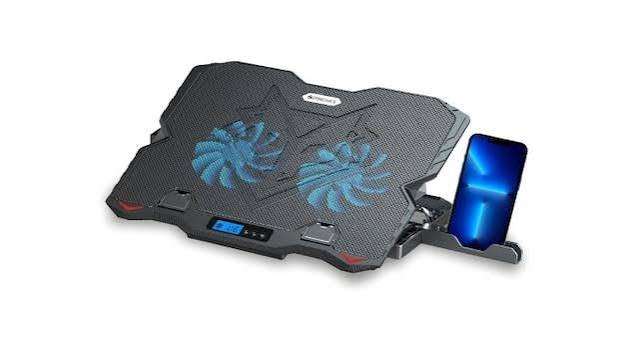
- Move the laptop to a hard, flat surface so the vents on the underside aren’t blocked.
- Let it sit, unpowered, for 20 to 30 minutes.
- Try powering it on again.
If overheating keeps happening, the cooling vents may be clogged with dust. Turn the laptop off, unplug it, and blow compressed air through the vents in short bursts. This is one of the most overlooked maintenance tasks and can make a real difference in how reliably a laptop boots.
Step 6: Check the screen if there’s a black screen but power is on
If you can hear the fan spin, see the power indicator light, or feel the laptop warm up, but the screen stays black, the problem is the display rather than the power system. These are different issues with different fixes.
Try brightening the screen first

Acer’s screen dimming shortcut is Fn + F6 (or Fn + the key with a sun icon). It’s possible the brightness got turned all the way down, which looks identical to a dead screen.
Connect an external monitor
- Get an HDMI or DisplayPort cable and plug your Acer into a TV or monitor.
- Turn on the external display.
- Press Fn + F5 (or the key showing two rectangles) to switch the video output.
- If the image appears on the external screen, the laptop’s built-in display panel is the problem, not the whole machine. The fix is usually a screen replacement.
- If no image appears on the external display either, the issue is deeper, and you should move on to Step 7.
The screen flickers or shows lines
A flickering screen on startup usually points to a loose display cable or a failing screen. If you’re comfortable opening the laptop, check that the display ribbon cable is firmly seated. Otherwise, a repair shop can do this quickly and inexpensively.
Step 7: Reseat the RAM
RAM that has shifted slightly in its slot can cause the laptop to show power indicator lights but produce no image and no boot. This happens more often than people expect, especially if the laptop has been dropped or carried around a lot. Reseating the RAM means removing it and pressing it back into place.
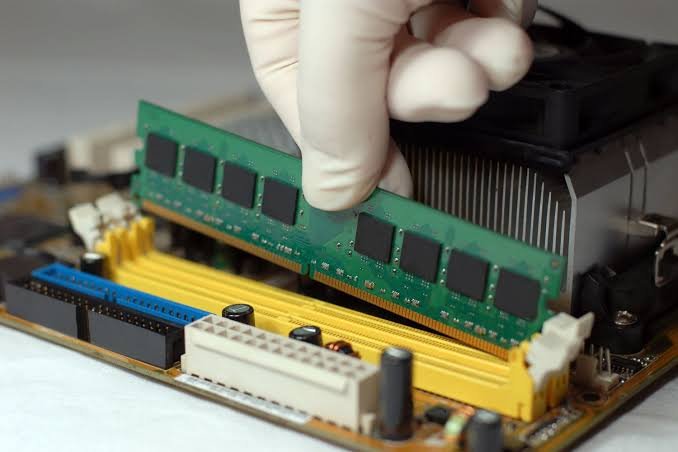
You’ll need a small Phillips screwdriver and about ten minutes.
- Power off the laptop and unplug it.
- Remove all screws from the bottom panel and gently lift it off.
- Locate the RAM module or modules (silver rectangles in angled slots).
- Press the two metal clips on the sides of each RAM stick outward. The stick will pop up at an angle.
- Pull the stick out, wait 30 seconds, then reinsert it firmly at the same angle until it clicks back into the slot.
- If you have two RAM sticks, try starting with just one installed to check whether one is faulty.
- Reattach the bottom panel and try powering on.
- If the laptop beeps when you press the power button, those beep codes can point to the fault. One long beep followed by two short beeps typically signals a RAM or memory issue on most Acer models.
Step 8: Try Windows Startup Repair
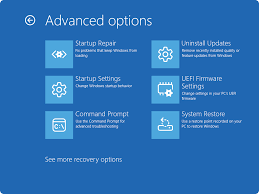
If your Acer powers on, the fan spins, and you see the Acer logo, but the laptop then stops or restarts in a loop, the problem is almost certainly a software or operating system issue, not a hardware failure. Windows Startup Repair can fix corrupted boot files automatically.
Let Windows trigger Automatic Repair
If the laptop fails to boot three times in a row, Windows 10 and 11 automatically launch Automatic Repair mode on the next startup. You’ll see a blue screen with options. From there, go to Troubleshoot, then Advanced options, then Startup Repair.
Access it manually
- Turn the laptop on. The moment you see the Acer logo, hold down F2 to enter BIOS, or press F12 to open the boot menu.
- In BIOS, confirm the boot order shows your SSD or HDD first. If the boot device is missing from the list, the drive may have failed and needs professional diagnosis.
- If the drive is listed, exit BIOS and let the laptop attempt to boot. Force it off (hold the power button for five seconds) before it fully loads, then power it on again. Do this twice. On the third restart, Windows should enter Automatic Repair mode automatically.
- Choose Troubleshoot > Advanced options > Startup Repair and follow the prompts.
If Startup Repair doesn’t fix it, the next option is a System Restore to a date when things worked, or a full Windows reinstall using a USB recovery drive. Microsoft’s Windows recovery documentation walks through creating a recovery drive on a working computer.
When to contact Acer support
Hardware failures do happen, and some require professional repair. Contact Acer support or an authorised service centre if:
- None of the steps above produced any change in behaviour.
- The laptop makes grinding, clicking, or persistent beeping noises that aren’t RAM-related.
- The battery is visibly swollen or the casing is warping (this is a safety issue; stop using the laptop immediately).
- The charging port is broken or bent and won’t hold a cable.
The laptop is under warranty. Opening it yourself can void the warranty.
Acer offers support through its website at support.acer.com, where you can check your warranty status, find a service centre, and open a support ticket. Most Acer consumer laptops carry a one-year warranty, and some models come with two years.
Frequently asked questions
1. Why won’t my Acer laptop turn on even when it’s plugged in?
The charger may not be delivering power, or the charging port may be loose or damaged. Try a different outlet, a different cable, and if possible a different charger. If the laptop still shows no response, do a power reset (Step 3) to clear any residual charge that’s blocking the startup sequence.
2. My Acer laptop has a blue light on but the screen is black. What’s wrong?
A blue light means the laptop is receiving power but the display isn’t working. Try pressing Fn + F6 to raise screen brightness first. Then connect an external monitor. If the image shows on the external screen, the built-in display is faulty. If nothing shows externally, reseat the RAM (Step 7) or run Startup Repair (Step 8).
3. Where is the battery reset pinhole on my Acer laptop?
It’s a small circular hole on the underside of the laptop, usually near the cooling vents or between the speaker grilles, often marked with a small battery icon. Not all models have one. Predator and Nitro gaming laptops typically don’t. Check your model’s manual or search for the pinhole on Acer’s support site.
4. My Acer laptop turns on and then shuts off immediately. What’s causing that?
Immediate shutdown after powering on usually means the laptop is overheating or the battery is critically failing. Let it cool for 20 to 30 minutes on a hard flat surface, then try again. Clean the vents with compressed air if they look blocked. If the shutdown happens every time even when cool, the battery likely needs replacing.
5. How do I fix my Acer laptop if it won’t boot after a Windows update?
Force the laptop to shut down three times in a row before Windows fully loads. On the fourth startup, Windows should enter Automatic Repair mode automatically. From there, choose Troubleshoot, then Advanced options, then Startup Repair. If that doesn’t work, System Restore can roll the laptop back to the state it was in before the update.
Conclusion
When an Acer laptop won’t turn on, the solution is usually one of the first four steps: verify the charger, disconnect peripherals, do a power reset, or use the battery reset pinhole. Work through the fixes in order, and most people find the answer before they ever need to open the laptop. If the screen is black but the power light is on, that’s a different problem with its own set of checks. And if Windows is corrupting the boot, Startup Repair handles it without requiring a reinstall. Only reach out to Acer if the hardware itself is clearly damaged.
Related Post:
White Spot on Laptop Screen: What It Is and How to Fix It
How to Optimize Your Gaming Laptop for 4K (Without Buying a New One)
Does a Laptop Have a Lithium Battery? What’s Inside and Why It Matters
Can You Pack a Laptop in Checked Luggage? What the Rules Actually Say