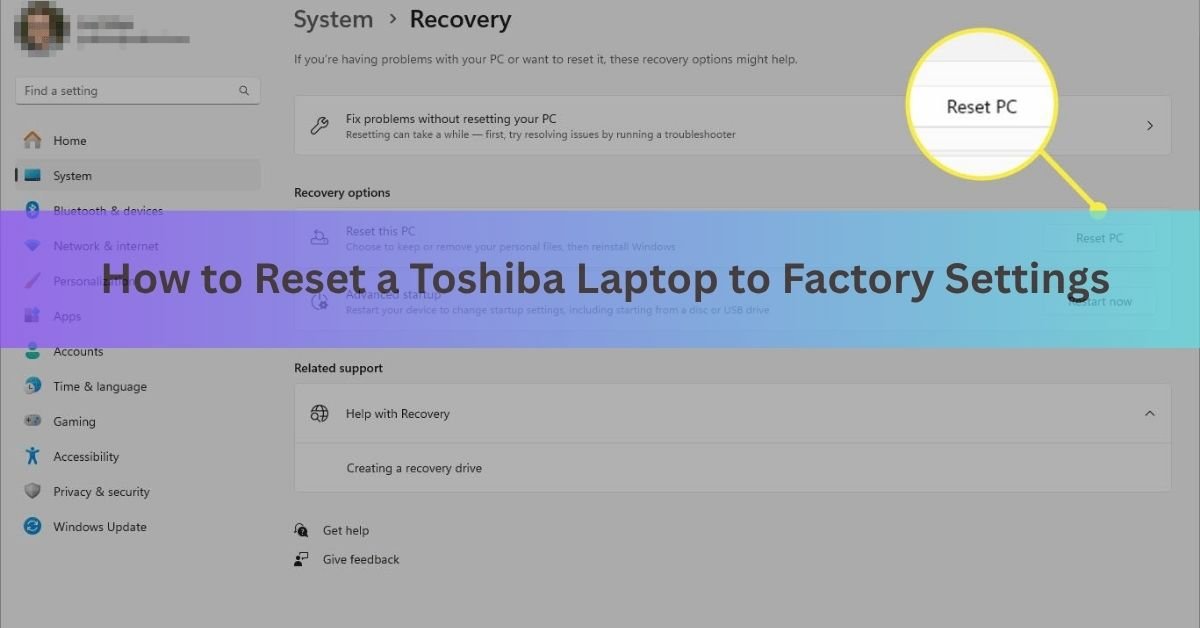
You can reset a Toshiba laptop to factory settings in three ways: from inside Windows under Settings > System > Recovery, by tapping the 0 (zero) key as the laptop starts to open the built-in recovery wizard, or by booting from a recovery disc or USB drive. All three wipe the machine and reinstall a clean copy of Windows.
A factory reset returns the laptop to the state it was in out of the box. It removes your files, your installed apps, and your settings, then puts Windows back to default. People do this to fix a slow or buggy machine, clear out malware, or scrub personal data before selling or giving the laptop away.
Which method works for you depends on your laptop’s age and whether Windows still starts. Pick the one that fits your situation below, then follow the steps.
| Heads up: A factory reset erases everything on the main drive. Back up anything you want to keep before you start. Once the reset runs, those files are gone for good. |
Which reset method should you use?
Start here so you don’t waste time. Your choice comes down to one question: does Windows still open?
- If Windows starts normally, use Method 1 (Windows Settings). It is the cleanest and easiest path on any Toshiba running Windows 10 or 11.
- If Windows won’t boot, or you’re locked out and can’t sign in, use Method 2 (the 0 key) to reach recovery before Windows loads.
- If both of those fail, or the recovery files on the drive are damaged, use Method 3 (recovery media).
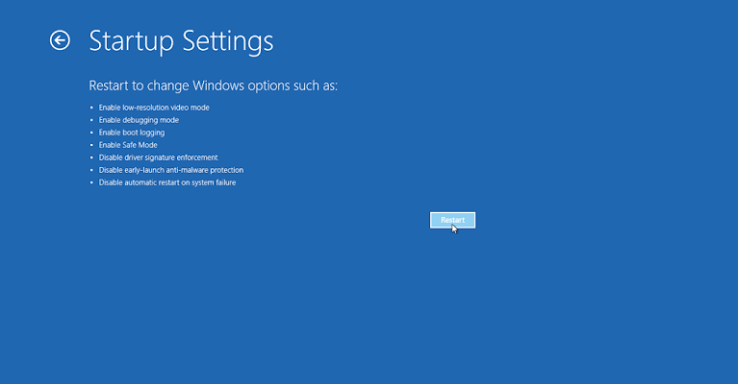
| Method | Best for | Need Windows to open? |
| 1. Windows Settings | Most people, laptop works fine | Yes |
| 2. The 0 key | Won’t boot or locked out | No |
| 3. Recovery media | Recovery partition is damaged | No |
Back up your files first
This step is not optional if your files matter to you. A reset cannot be undone, and a half-finished reset can leave the drive unreadable, so copy your data somewhere safe before you touch any reset button.
The quickest options are to drag your important folders onto an external hard drive or USB stick, or to sign in to OneDrive and let your Documents, Desktop, and Pictures folders sync to the cloud. Also jot down any software licence keys and the passwords saved in your browser, since those go too.
Make sure the laptop is plugged into power for the whole process. A reset can take 30 minutes to a couple of hours, and if the battery dies partway through, you can end up with a machine that won’t start.
Method 1: Reset from Windows Settings (Windows 10 and 11)
If your Toshiba boots into Windows, this is the way to go. The tool is called Reset this PC, and it is built into Windows itself, so it works the same on a Toshiba as on any other brand.
On Windows 11:
- Open the Start menu and click Settings (the gear icon).
- Click System in the left panel, then scroll down and click Recovery.
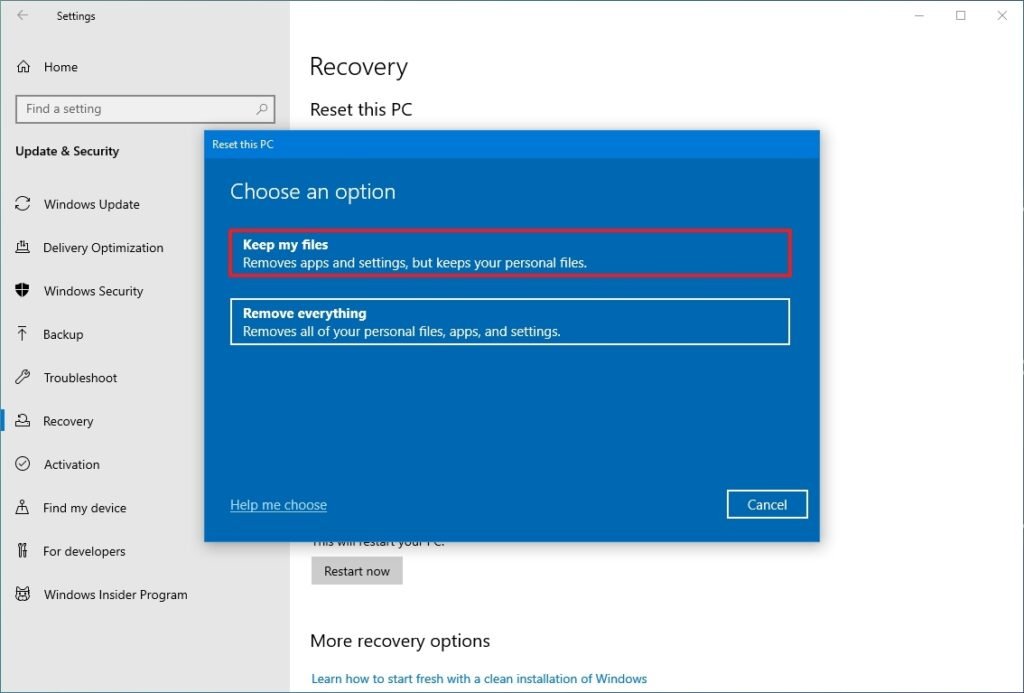
- Next to Reset this PC, click the Reset PC button.
- Choose Keep my files to refresh Windows while saving your documents and pictures, or Remove everything for a full wipe before selling.
- Pick how to reinstall Windows: Cloud download pulls a fresh copy from Microsoft (needs internet, around 4 GB), or Local reinstall rebuilds from files already on the laptop.
Follow the prompts, then click Reset. The laptop restarts a few times and finishes on its own.
On Windows 10:
The steps are nearly the same, but the menu path is Settings > Update & Security > Recovery. Under Reset this PC, click Get started and choose the same options. Worth knowing: Microsoft ended free support and security updates for Windows 10 on 14 October 2025, so after a reset it’s a good idea to move to Windows 11 if your laptop can run it.
If you’d like Microsoft’s own walkthrough with screenshots, see their Reset your PC guide.
| If your laptop is encrypted: Some machines have BitLocker turned on. A reset can ask for your BitLocker recovery key, so find it (it’s saved to your Microsoft account) before you begin, or you could get locked out. |
Method 2: Reset with the 0 key (Toshiba recovery wizard)
This is the classic Toshiba method, and it’s the one to use when Windows won’t start or you’re locked out of your account. It opens a recovery tool stored on a hidden part of the drive, before Windows loads. It works on most older Toshiba models, including the popular Satellite range.
- Shut the laptop down fully. If it’s frozen, hold the power button for about 10 seconds to force it off.
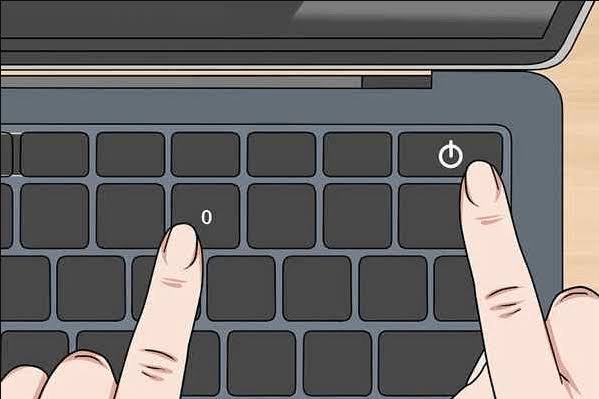
- Press and hold the 0 (zero) key at the top of the keyboard. Use the number row, not the keypad on the right.
- While still holding 0, press the power button once to switch the laptop on.
- Keep holding 0 until you hear a beep or the Toshiba logo appears, then let go.
- When the warning screen shows up, click Yes to start the recovery.
- Choose Recovery of Factory Default Software, click Next, then pick Recover to out-of-box state and click Next again.
- Confirm to begin. The laptop wipes the drive and reinstalls the original Windows. Leave it plugged in and don’t interrupt it.
A few models respond to F8, F11, or F12 instead of 0, and a small number won’t open recovery from the keyboard at all if the hidden recovery partition has been removed or locked. If 0 does nothing after a couple of tries, move to Method 3.
Method 3: Reset using recovery media
Recovery media is a disc or USB drive that holds a clean copy of your laptop’s original software. This is your fallback when Windows won’t load and the 0 key brings up nothing, usually because the recovery files on the drive are damaged or missing.
If you made Toshiba recovery discs when the laptop was new, or created a USB recovery drive in Windows, you already have what you need. Insert the disc or plug in the USB drive, restart the laptop, and tap F12 as it powers on to open the boot menu. Choose the disc or USB drive from the list, then follow the on-screen recovery steps, which mirror Method 2.
No media and no working recovery? You can still rebuild the laptop with a free Windows installer. On another working computer, download the Media Creation Tool from Microsoft, use it to make a bootable USB drive, then boot your Toshiba from that drive and install a clean copy of Windows. This skips the Toshiba recovery wizard but gets you back to a fresh, working system, which is the main goal.
What to do if the reset won’t start
Resets sometimes stall or refuse to run. Here are the usual culprits and quick fixes.
- The 0 key does nothing: the recovery partition may be gone. Try F8 or F12 instead, or switch to recovery media.
- The reset freezes or the fan just spins: hold the power button to force a shutdown, plug into power, and restart the attempt. A frozen screen for up to 15 minutes during a reset is normal, so give it time before forcing a restart.
- It asks for a BitLocker key you don’t have: sign in to your Microsoft account on a phone to find the recovery key, then enter it.
What happens after the reset
When the reset finishes, the laptop boots to the same first-time setup screen it showed when it was new. You pick a region, language, and keyboard, connect to Wi-Fi, and create a user account. After that you’re on a clean copy of Windows with none of your old files or programs.
Run Windows Update next so the system is patched and secure. Then reinstall your apps and copy your files back from wherever you backed them up. One thing to know about Toshiba specifically: Toshiba left the laptop business in 2020, and the PC line is now Dynabook, owned by Sharp. New driver downloads for old Toshiba models largely stopped in 2023, so a part that isn’t working after the reset may need a driver you track down yourself.
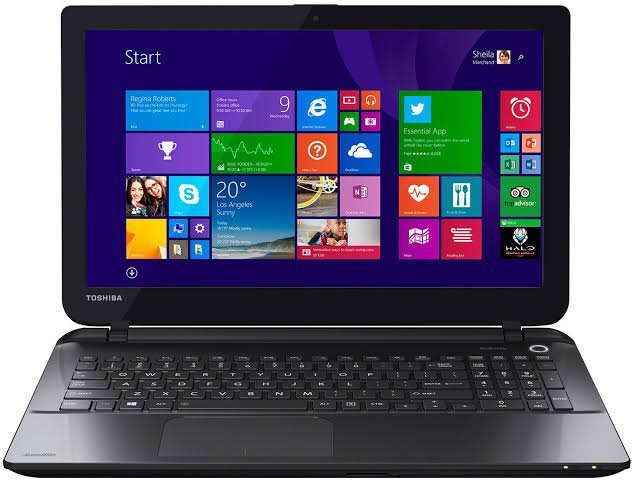
To find any missing drivers, the Dynabook driver support site is the place to look, since it still hosts archived files for many older Toshiba laptops.
If you reset the laptop to sell it, stop at the setup screen. Don’t create an account. Power it off there and let the new owner set it up as their own, the way a brand-new machine would arrive.
Frequently asked questions
Does a factory reset delete everything on my Toshiba laptop?
Yes, if you choose Remove everything. It wipes your files, apps, and settings and reinstalls Windows. The Keep my files option saves your personal documents and pictures but still removes installed programs and settings.
Why is the 0 key not working on my Toshiba?
Usually the recovery partition has been removed, locked, or damaged. Make sure you’re holding the 0 on the number row, not the keypad. If it still fails, try F8 or F12, or reset using recovery media instead.
How long does a Toshiba factory reset take?
Most resets take 30 minutes to two hours, depending on the method and your laptop’s speed. Cloud download adds time for the download. Keep the laptop plugged in and don’t interrupt it, even if the screen looks stuck.
Can I factory reset my Toshiba without the password?
Yes. Use the 0 key method to open the recovery wizard before Windows loads, which doesn’t need your sign-in password. From there you can wipe the laptop and start fresh without ever logging in.
Do I need to update drivers after resetting a Toshiba laptop?
Run Windows Update first, which handles most drivers automatically. If something like Wi-Fi or sound still isn’t working, download the driver from the Dynabook support site, which hosts archived files for older Toshiba models.
Conclusion
To factory reset a Toshiba laptop, back up your files first, then choose your path: use Settings > System > Recovery if Windows opens, tap the 0 key at startup if it doesn’t, or boot from recovery media as a last resort. Keep the laptop plugged in and let it finish without interruption. A good result is a clean Windows setup screen, just like the day the laptop came out of the box, ready for you or a new owner.
Related Post
Which Gaming Laptops Last the Longest on Battery?
How to Optimize Your Gaming Laptop for Cloud Gaming
Acer Laptop Screen Not Working? Fix It Step by Step