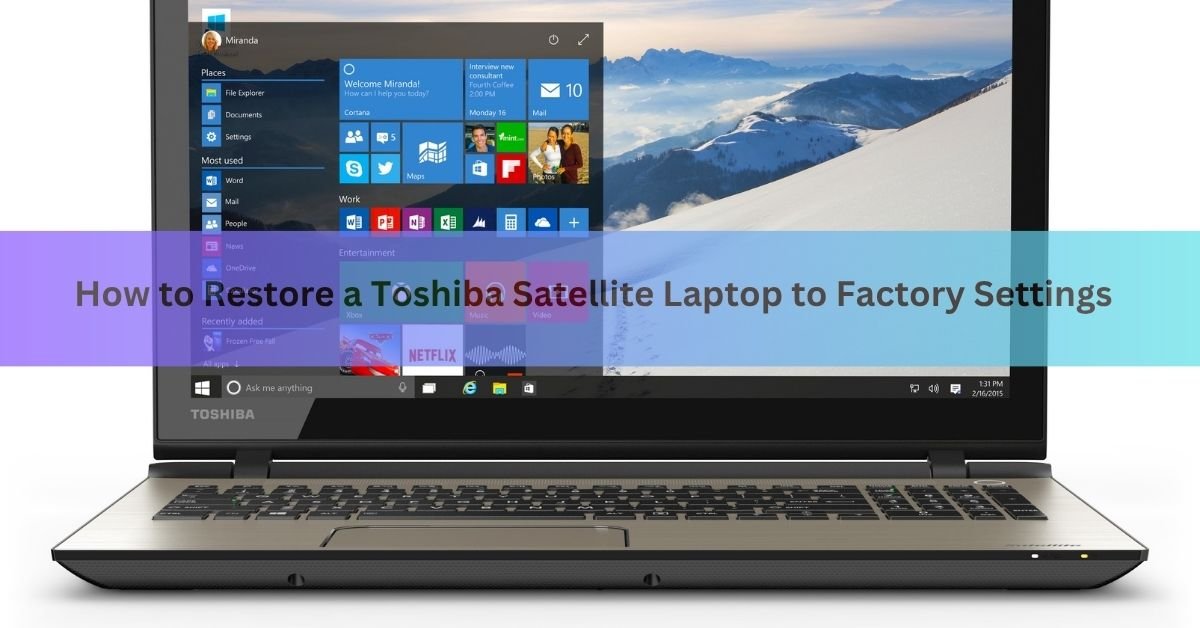
There are two reliable ways to reset a Toshiba Satellite to factory settings. If Windows still starts, open Settings and use Reset this PC. If Windows will not boot, or you just want the cleaner route, hold the 0 (zero) key while you power the laptop on to launch the Toshiba Recovery Wizard from the hidden recovery partition. Both wipe the machine and rebuild it the way it left the factory.
Below you get all three real methods, how to pick the one that fits your Satellite, and the option choices that trip people up. First, a quick word on what a reset actually does, then the one step you cannot skip.
What a factory reset actually does
A factory reset returns the laptop to the exact state it was in when it left the factory. It removes everything you added, then reinstalls a clean copy of Windows from an image the manufacturer stored on the machine. People also call this a system recovery, a system restore, or a full wipe. They all mean the same thing here.
It is worth knowing when a reset is the right tool and when it is not:
- Good for a laptop that has grown slow over years of use, one that crashes or freezes often, or a machine you are about to sell or give away.
- Good for clearing out a stubborn software problem or most malware, since the whole system is rebuilt.
- Not the fix for a hardware fault. If the screen, keyboard, or hard drive is physically failing, a reset will not help.
If your only goal is to undo a recent change, a full reset is heavier than you need. Windows also has System Restore, which rolls settings back to an earlier point without touching your files. A factory reset is the bigger step, so reach for it when you genuinely want a clean slate.
Back up your files first, because a reset erases everything
A full factory reset wipes the C: drive and reinstalls Windows. Your documents, photos, downloads, browser bookmarks, saved passwords, and installed programs all go. None of it comes back on its own, so copy anything you want to keep before you start.
Move your files to one of these:
- A USB flash drive or external hard drive
- Cloud storage like OneDrive, Google Drive, or Dropbox
- Another computer on your network
It is easy to remember your obvious files and forget the small things. Before you start, check that you have saved browser bookmarks and saved logins, email set up in a desktop app, product keys for software you paid for, and anything sitting on the desktop or in the Downloads folder. Those are the items people miss most often.
Tip: If your Satellite is set up with a separate D: drive, files stored there usually survive a standard reset. Even so, back them up. Some recovery options reformat the whole disk and take the D: drive with them.
Also plug the laptop into its charger and leave it plugged in. A reset can run for an hour or more, and if the battery dies partway through, you can end up with a half-installed system that will not boot.
Which method fits your Toshiba Satellite
The right path depends on whether Windows still works and which version you have. Match your situation to the method:
| Your situation | Best method | Why |
| Windows 10 or 11 still boots | Reset this PC (Method 1) | Simplest, all on-screen, no key timing |
| Windows will not start, or older model | 0-key Recovery Wizard (Method 2) | Works without loading Windows |
| 0 key does nothing on your model | Advanced Startup / media (Method 3) | F12 boot menu or recovery drive instead |
| Selling or giving the laptop away | Any method, choose Remove everything | Fully clears your personal data |
Not sure which Windows version you have? On a working laptop, press the Windows key, type winver, and press Enter. A small box tells you the version. If you cannot get into Windows at all, go straight to Method 2.
Method 1: Reset this PC from Windows Settings
This is the easiest route and the one to use if your Satellite runs Windows 10 or 11 and still starts normally. Everything happens through menus, so there is no key timing to get right.
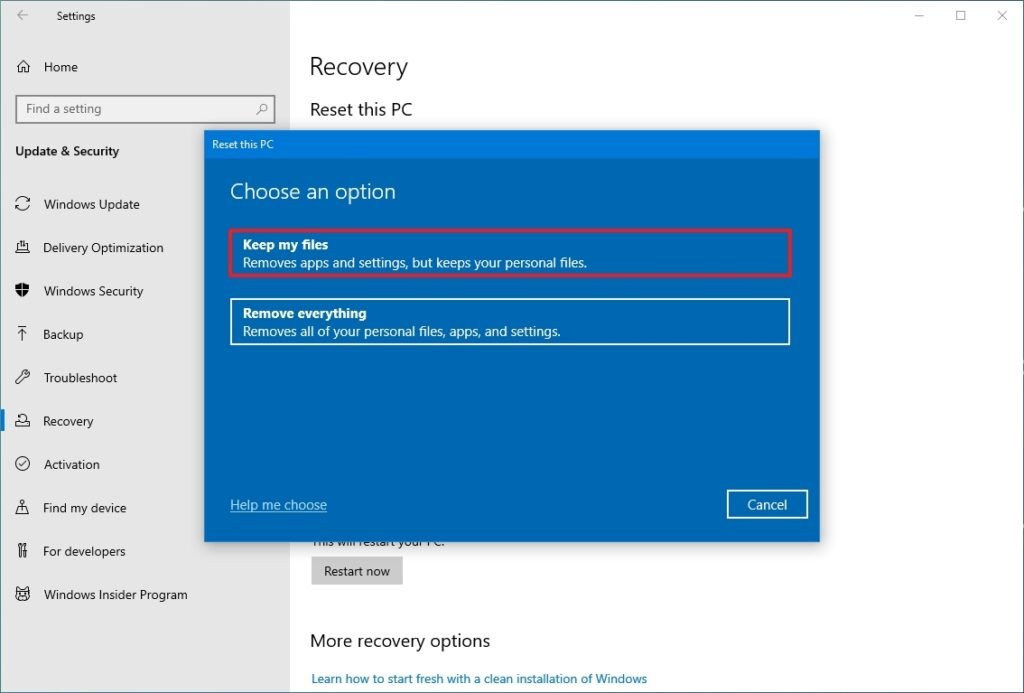
- Plug in the charger and disconnect any USB drives or accessories, then:
- Press the Windows key and open Settings (the gear icon).
- In Windows 10, go to Update & Security, then Recovery. In Windows 11, go to System, then Recovery.
- Under Reset this PC, click Get started (in Windows 11 it says Reset PC).
- Choose an option. Keep my files removes apps and settings but leaves your personal files. Remove everything wipes the lot, which is what you want before selling the laptop.
- Pick Cloud download or Local reinstall. Local reinstall uses files already on the laptop. Cloud download pulls a fresh copy of Windows over the internet, handy if the local files are damaged.
- If you chose Remove everything and you are selling the laptop, turn on Clean the drive when it is offered. This overwrites the data so the next owner cannot recover it. It takes longer.
- Review the summary, then click Reset. The laptop restarts and handles the rest on its own.
The screen will show progress as a percentage and the machine will reboot a few times. When it finishes, you land on the Windows setup screens, exactly like a brand-new laptop.
One difference worth knowing: a local reinstall keeps the Windows version already on the laptop, while a cloud download can bring a slightly newer build. If the reset itself keeps failing, cloud download often works because it does not rely on the possibly damaged files sitting on the drive. It does use a few gigabytes of data, so use a stable connection.
Method 2: The 0-key Toshiba Recovery Wizard
Use this if Windows will not boot, if you have an older Satellite, or if you want to rebuild the machine from the factory image stored on its own hidden partition. The Toshiba Recovery Wizard lives on that partition and does not need Windows to load.
Start with the laptop fully shut down and plugged into power. Remove any USB drives or external devices, then:
- Press and hold the 0 (zero) key on the keyboard. The number-row zero, not the numpad.
- While still holding 0, press the power button once to turn the laptop on.
- Keep holding 0 until the laptop beeps or a recovery warning screen appears, then let go.
- A warning tells you all data will be erased. If you have backed up, click Yes to continue.
- When the Toshiba Recovery Wizard opens, select Recovery of Factory Default Software and click Next.
- Choose a recovery method. The default, Recover to out-of-box state, is the one to pick for a clean factory reset. Click Next and follow the prompts.
From here the wizard does the work. It will restart the laptop several times. Do not switch it off or unplug it while the bar is moving.
Note on newer models: Some Dynabook-branded Satellites do not respond to the 0 key. On those, press F12 at the first Toshiba logo to open the boot menu, then choose HDD Recovery. If the 0 key still does nothing, see Method 3.
Method 3: Advanced Startup and recovery media
Reach for this when the 0 key does nothing and you still need to reset, or when the recovery partition is missing or damaged. There are two ways in.
Option A: Advanced Startup from the sign-in screen
If you can get as far as the Windows sign-in screen but no further, you can still trigger a reset without your account working normally.
- At the sign-in screen, hold Shift and click the power icon, then choose Restart while still holding Shift.
- The laptop reboots into a blue menu. Choose Troubleshoot.
- Select Reset this PC, then pick Keep my files or Remove everything and follow the same on-screen steps as Method 1.
On some older Satellites, the Troubleshoot menu also shows a Toshiba Maintenance Utility that leads back to the Recovery Wizard. Either path gets you to a clean install.
Option B: Boot from recovery media
If the hidden partition is gone (common on a machine where the drive was replaced or wiped), you need recovery media: a DVD or USB drive with the factory image, ideally made earlier from that laptop.
- Insert the recovery DVD or USB drive and power on the laptop.
- At the first Toshiba screen, press F12 to open the boot menu.
- Use the arrow keys to select the DVD or USB option and press Enter.
- When the Recovery Wizard loads, choose Recovery of Factory Default Software and follow the prompts.
On older Satellites (roughly pre-2015), plug the USB drive into a standard black or blue USB-A port rather than a USB-C port, or the boot menu may not detect it.
Choosing the right recovery option
When the Toshiba Recovery Wizard offers a list of recovery methods, the wording matters. It decides whether your other partitions survive. Here is what each one does:
- Recover to out-of-box state: rebuilds the whole drive exactly as it shipped. This is the standard full factory reset and the safe default.
- Recover without changing the hard drive partitions: restores only the C: drive and leaves other partitions, like a D: drive, untouched.
- Recover to a custom size partition: lets you set the C: drive size, then rebuilds it. This one deletes all other partitions, so use it only if you understand that.
If you are unsure, take the default. On Toshiba’s wizard the pre-selected option is almost always the one most people want.
How long it takes and what happens after
Set aside real time. A Toshiba Satellite factory reset usually runs anywhere from 15 minutes to 2 hours, depending on the method, the size of the drive, and whether you told it to clean the drive. The clean-the-drive option is the slowest because it overwrites every sector.
When the reset finishes, the laptop restarts into the Windows first-run setup, the same screens you saw when it was new. You will pick a region, connect to Wi-Fi, and create a user account. There is no password at this stage, which is why a factory reset also clears a forgotten Windows password.
Two things to do once you are back on the desktop:
- Run Windows Update. The factory image is old, so let it download the latest updates and security patches.
- Update drivers. Check Dynabook’s official support and downloads page for the newest drivers for your exact model number.
Keeping the machine? A reset gives it back the speed it had when new. Reinstall only the programs you actually use, and it will stay quick.
When the reset will not start
If nothing happens when you follow the steps, work through these common causes.
The 0 key does nothing
Two things usually block it. First, Fast Boot in the BIOS can skip past the key press, so the wizard never triggers. Second, some newer Dynabook models use F12 and HDD Recovery instead of the 0 key. Try the F12 boot menu, and if that fails, use Method 3.
There is no recovery option in the menu
If the Recovery Wizard or HDD Recovery choice is missing, the hidden recovery partition has probably been deleted, often when the hard drive was swapped or the machine was wiped before. You will need recovery media (Option B above) or a fresh Windows install from Microsoft.
If you are keeping the laptop and Windows still works, it is worth making recovery media now, before you ever need it. Older Satellites include a Recovery Disc Creator tool that copies the factory image to a DVD or a FAT32-formatted USB flash drive. On Windows 10 and 11 you can also create a USB recovery drive through the built-in Recovery Drive tool. Either one saves you if the partition ever disappears.
The reset fails partway or freezes
A stalled reset is usually a failing hard drive or a bad power connection. Make sure the charger is firmly plugged in and the battery is not dead. If it fails repeatedly at the same point, the drive itself may be worn out and worth replacing.
You are worried about malware surviving
A standard reset clears the vast majority of infections because it rebuilds Windows from scratch. In rare cases something can hide in the recovery partition or the firmware and return afterward. If a machine is badly infected, the surest fix is to wipe the drive fully and install a clean copy of Windows from Microsoft rather than restoring the old factory image.
Frequently asked questions
How do I factory reset a Toshiba Satellite without a password?
You do not need your Windows password. Hold the 0 key while powering on to open the Toshiba Recovery Wizard, or Shift-click Restart at the sign-in screen and choose Troubleshoot, then Reset this PC. Both wipe the machine and clear the old password.
Will a factory reset delete my files?
Yes. A full reset erases the C: drive, including documents, photos, and installed programs, then reinstalls Windows. Back up anything you want to keep first. Choosing Keep my files spares personal files but still removes apps and settings.
How long does a Toshiba Satellite factory reset take?
Usually 15 minutes to 2 hours. The time depends on the method, the drive size, and whether you turn on the clean-the-drive option, which overwrites data and takes the longest. Keep the laptop plugged in the whole time.
The 0 key does not work on my Toshiba. What now?
Try pressing F12 at the Toshiba logo and selecting HDD Recovery, since some newer models use this instead. Disabling Fast Boot in the BIOS can also help. If neither works, use Reset this PC from Windows Settings or Advanced Startup.
Does a factory reset remove viruses?
In most cases, yes, because it rebuilds Windows from scratch. Rarely, malware in the firmware or recovery partition can survive. For a badly infected laptop, wipe the drive fully and install a clean copy of Windows rather than restoring the factory image.
Conclusion
To restore a Toshiba Satellite to factory settings, back up your files, keep it plugged in, then use Reset this PC in Windows Settings if Windows still boots, or hold the 0 key at power-on to open the Toshiba Recovery Wizard if it does not. Choose Remove everything before selling, and Recover to out-of-box state for a full rebuild. Expect one to two hours, then run Windows Update. A good result is a laptop that starts up clean and fast, just like new.
Related Post
How to Reset a Gateway Laptop to Factory Settings
How to Prolong the Life of a Laptop Battery
How to Measure Laptop Dimensions: A Simple Guide
Heat Damage to a Laptop Screen: What It Looks Like and What to Do