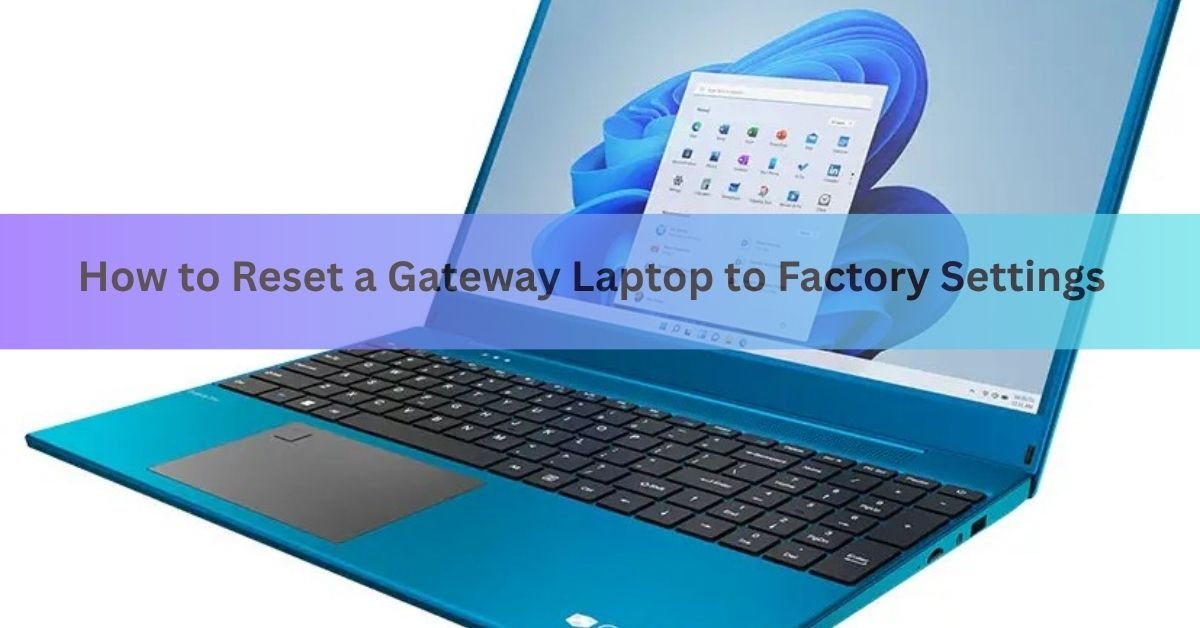
To reset a Gateway laptop to factory settings, go to Settings, then System, then Recovery, and choose Reset this PC. That works as long as Windows still starts up. If your laptop won’t boot, freezes at the sign-in screen, or you’re locked out entirely, restart it and hold Alt and F10 as it powers on instead. That opens the built-in recovery partition and wipes the drive from outside Windows.
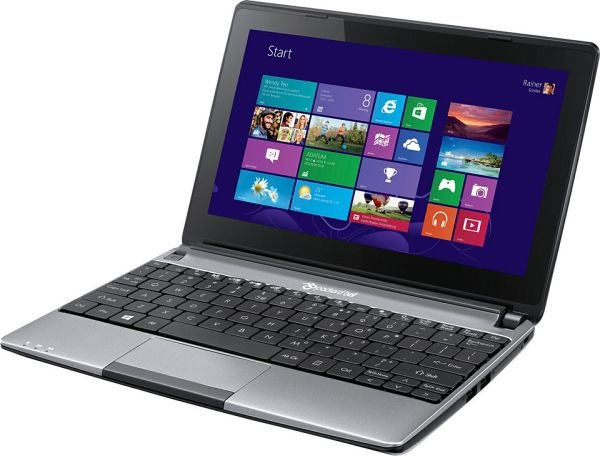
Gateway laptops are built and supported by Acer, which bought the Gateway brand in 2007, so both of these tools work the same way they do on an Acer machine. Which one you use just depends on whether Windows still loads.
A factory reset also clears out malware, since it wipes the entire drive and reinstalls Windows from scratch instead of trying to clean individual infected files. If slow performance or a virus is what brought you here rather than a forgotten password, either method below fixes it just as well.
What to do before you reset a Gateway laptop
A factory reset erases everything on the main drive: your files, your installed programs, and any settings you’ve changed. Before you start, take a few minutes to get ready.
Back up anything you care about. Copy documents, photos, and other personal files to a USB drive or a cloud service like OneDrive or Google Drive. If the laptop still boots, this part is easy. If it doesn’t, you’ll need to pull the files off with recovery software or a second computer first, since a reset erases them before you get another chance.
Plug in the charger. A reset can take anywhere from thirty minutes to a couple of hours, and a battery that dies partway through can leave the system in a broken state that’s much harder to fix.
Write down your Wi-Fi password and have your Microsoft account sign-in ready, since setup after the reset asks for both. You don’t need to hunt down a product key sticker. The Windows license on a laptop that shipped with Gateway is stored in the motherboard firmware and reactivates on its own.
Check which version of Windows you’re running, since the exact menu names differ slightly between them. Open Settings and go to System, then About, and look for Windows specification near the bottom. If the laptop won’t boot at all, you can skip this and go straight to the recovery partition method further down, since it works the same regardless of version.
How do you reset a Gateway laptop that still starts normally?
If Windows loads and you can reach the desktop, use the built-in Reset this PC tool. It’s faster and less likely to run into trouble than booting into recovery.
On Windows 11:
- Open Settings by pressing the Windows key and I together.
- Select System, then Recovery.
- Next to Reset this PC, select Reset PC.
- Choose Keep my files or Remove everything.
- Choose Cloud download or Local reinstall.
- Review the list of changes, then select Reset.
- Let the laptop restart and finish on its own. Don’t close the lid or turn it off partway through.
On Windows 10, the path is slightly different: open Settings, go to Update & Security, then Recovery, then select Get started under Reset this PC. The choices that follow, keep files or remove everything, then cloud or local, are the same.
Keep my files or remove everything, and cloud download or local reinstall?
Two decisions come up partway through the reset, and it helps to know what each one actually does before you pick.
| Option | What it does |
| Keep my files | Removes apps and settings but leaves your personal files in place. |
| Remove everything | Deletes files, apps, and settings, and returns the laptop to a clean state. |
| Cloud download | Downloads a fresh copy of Windows from Microsoft’s servers. Needs a stable internet connection and takes longer, but avoids reusing any corrupted local files. |
| Local reinstall | Rebuilds Windows from files already on the drive, along with Gateway’s original drivers and tools. Faster, and the better pick on slow internet. |
If you’re selling, donating, or trading in the laptop, choose Remove everything. Keep my files is only useful when you’re fixing a problem on a laptop you’re keeping.
How do you use the Gateway recovery partition (Alt+F10)?
When Windows won’t start, or you want to wipe the laptop without going through the Windows interface at all, the recovery partition does the job directly from the hard drive.
- Shut the laptop down completely. If it’s frozen, hold the power button for about ten seconds until it turns off.
- Turn it back on, and as soon as you see the Gateway or Acer logo, start tapping Alt and F10 together, repeatedly, rather than holding them down. Timing matters, so a few attempts is normal.
- When the recovery environment loads, choose your keyboard layout if it’s asked for.
- In the Recovery Management window (sometimes labeled Acer Recovery Management), select the option to restore the system to its factory default, often shown as Completely Restore System to Factory Defaults.
- Confirm the warning that this erases everything, then let it run. This step alone can take well over an hour.
- When it finishes, the laptop restarts into the same out-of-box setup you saw the first time you turned it on.
Recovery Management usually offers two other options alongside the factory restore: creating recovery discs from the hidden partition, and reinstalling drivers without touching your personal files. Only the factory restore option performs a full reset, so make sure you select that one rather than the driver tool by mistake.
Older Gateway models sometimes use F11 or F8 instead of Alt+F10 to open the same recovery tool, so try those if the first combination does nothing.
How do you reset a Gateway laptop that won’t start or that you’re locked out of?
A locked-out laptop, one stuck in a boot loop, or one that never gets past the loading screen can still be reset without a password.
If you can reach the sign-in screen, hold the Shift key and select Restart from the power button in the bottom corner. This drops you straight into the Advanced startup menu.
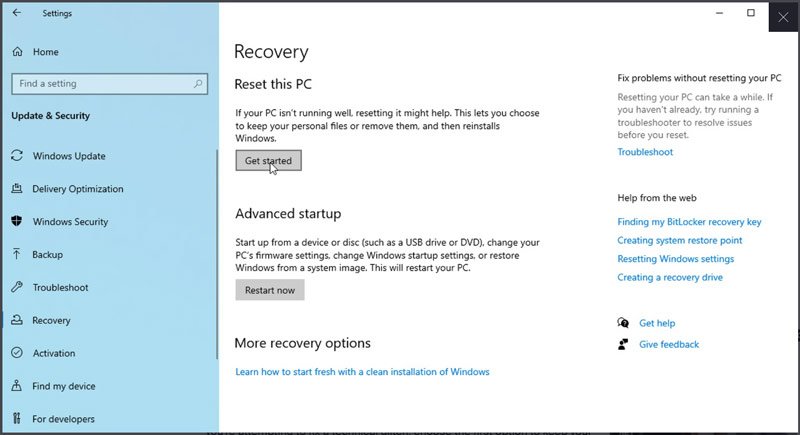
If the laptop won’t even get that far, force a shutdown by holding the power button for ten seconds, turn it on, and force another shutdown the moment it starts loading Windows again. Doing this two or three times in a row triggers Windows Automatic Repair, which offers its own way into Advanced startup.
From Advanced startup, select Troubleshoot, then Reset this PC, and choose Remove everything, since Keep my files usually needs a working sign-in to confirm. From here, the process matches the on-screen steps described earlier.
What if Alt+F10 or Reset this PC won’t work?
Sometimes the recovery partition has been deleted, resized, or corrupted, often after an earlier reinstall or a disk cleanup that removed hidden partitions. If Alt+F10 does nothing and Reset this PC fails partway through with an error, the factory recovery image is likely gone. In that case, build a Windows installation drive on a different computer using Microsoft’s Media Creation Tool, then boot the Gateway laptop from that USB drive, usually by pressing F12 at startup to pick the boot device. From the Windows Setup screen, choose Install now, then select the option to erase everything during setup rather than upgrading. This reinstalls Windows cleanly even without the original recovery partition, though you may need to download a few Gateway-specific drivers, like Wi-Fi or webcam drivers, from Acer’s support site afterward. Microsoft’s Recovery options in Windows support page walks through when a reset is enough and when a full reinstall is the better call.
What happens after the reset?
Once the reset finishes, the laptop restarts into the same setup screen it showed the very first time it was turned on. You’ll pick a language and keyboard layout, connect to Wi-Fi, sign in with a Microsoft account or set up a local one, and choose privacy settings. This part usually takes ten to fifteen minutes, much shorter than the reset itself.
After that, reinstall the programs you use and copy back the files you backed up earlier. If you used cloud download or a USB installer instead of the recovery partition, check Acer’s support site for your exact Gateway model number and grab any drivers that didn’t come back automatically, most often for Wi-Fi, the touchpad, or the webcam. If Alt+F10 stopped responding partway through an earlier attempt, Acer’s guide to the Alt+F10 restore key covers a few timing and keyboard issues worth ruling out before you assume the partition itself is damaged.
Frequently asked questions
What is the recovery key for a Gateway laptop?
Alt+F10, pressed repeatedly right after the Gateway or Acer logo appears at startup. Some older models use F11 or F8 instead if Alt+F10 doesn’t respond.
Does a factory reset delete everything on a Gateway laptop?
Only if you choose Remove everything. Choosing Keep my files removes apps and settings but leaves your personal documents and photos in place.
How long does it take to factory reset a Gateway laptop?
Usually thirty minutes to two hours, depending on whether you use cloud download, local reinstall, or the recovery partition, and how fast the drive and internet connection are.
Can I factory reset a Gateway laptop without knowing the password?
Yes. Hold Shift and select Restart from the sign-in screen’s power button, or force two or three shutdowns during startup to trigger Advanced startup, then choose Troubleshoot, Reset this PC, and Remove everything.
What should I do if Alt+F10 doesn’t open the recovery partition?
Try tapping the keys repeatedly instead of holding them, or try F11 or F8 on older models. If none of those work, the recovery partition may be damaged, and a USB installation drive is the more reliable option.
Conclusion
A Gateway laptop resets the same way most Acer-made machines do: through Settings if Windows still loads, or through the Alt+F10 recovery partition if it doesn’t. Back up your files first, keep the charger plugged in, and pick Remove everything if you’re passing the laptop on to someone else. Done right, the laptop restarts looking and running exactly like it did the day it arrived.
Related Post
Acer Laptop Screen Not Working? Fix It Step by Step
How to Connect a Canon Printer to a Laptop
Can You Bring a Laptop on a Plane? Yes — Here’s What to Know
Acer Laptop Won’t Turn On? Here’s How to Fix It (Step by Step)