To take a screenshot on a Gateway laptop, press Windows + Shift + S to grab any part of the screen, or press Windows + Print Screen to save the whole screen as an image file. That covers most needs. But Gateway laptops have a couple of quirks worth knowing, like the Print Screen key sometimes needing a second key to work, and screenshots landing in a folder you might not expect.
Gateway is now part of Acer, and its current laptops sold through Walmart run Windows 11 or Windows 10. Older Gateway machines run everything back to Windows 7 and XP. The good news is that every method below works across those versions, with only small differences. Here are five ways to do it, from the quickest to the most flexible.
1. Windows + Shift + S (the fastest way)
Press Windows + Shift + S together to capture exactly the part of the screen you want. This is the method most people should reach for. It opens a small capture bar and lets you pick precisely what to grab.
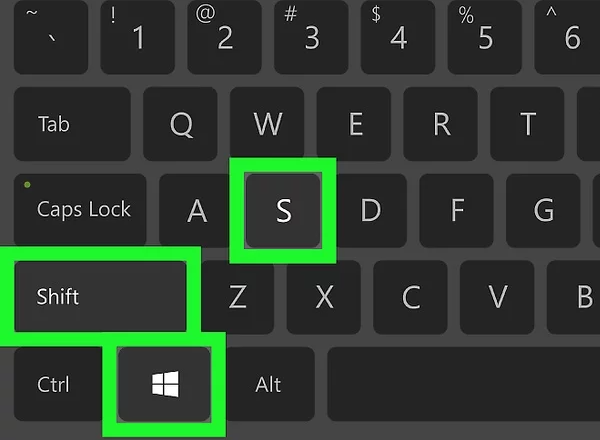
- Press Windows + Shift + S at the same time. The screen dims and a small toolbar appears at the top.
- Pick a mode from the toolbar: rectangle, freeform, window, or full screen.
- Drag your cursor across the area you want. When you let go, the image is copied.
- Click the notification in the bottom-right corner to open the Snipping Tool editor, where you can crop, draw on it, or save.
The shortcut copies your shot to the clipboard, so you can paste it straight into an email, a chat, or a document with Ctrl + V. To keep the file, open it from the notification and click the save icon. This is built into Windows through the Snipping Tool, so there is nothing to download.
2. Windows + Print Screen (save the whole screen instantly)
Press Windows + Print Screen to capture the entire screen and save it as a file right away, no pasting needed. This is the only shortcut that drops a finished image into a folder by itself.
- Press Windows + Print Screen (the key may read PrtScn, PrtSc, or PrntScrn).
- The screen dims for a moment. That flash means it worked.
- Find the image in Pictures > Screenshots. Each file is a PNG with a number in the name.
Tip: If nothing happens, your keyboard may need the Fn key too. Try Fn + Windows + Print Screen. More on that below.
3. Print Screen and Alt + Print Screen
Press Print Screen on its own to copy the whole screen, or Alt + Print Screen to copy just the window you are using. Both put the image on your clipboard, not in a folder, so you have to paste it somewhere to keep it.
- Print Screen alone: copies the full screen. Nothing looks like it happened, which is normal.
- Alt + Print Screen: copies only the active window, leaving out everything behind it.
After either one, open Paint, Word, or any image or chat box and press Ctrl + V to paste. In Paint you can then save it as a PNG or JPG. This is the old-school method, and it still works on every Windows version a Gateway has ever shipped with.
4. Xbox Game Bar (great for games and video)
Press Windows + G to open the Xbox Game Bar, then use its capture button to take a screenshot. This one is handy when Print Screen does not behave inside a game or a full-screen app. It works on Windows 10 and 11.
- Press Windows + G to open the Game Bar overlay.
- Click the Capture widget, then the camera icon. You can also press Windows + Alt + Print Screen to skip straight to a shot.
- Your image saves to Videos > Captures, and a small notice confirms it.
The Game Bar can also record video, so it is worth knowing if you ever want to capture a short clip instead of a still image.
The Fn key catch on Gateway laptops
On many newer Gateway laptops, the top row of keys controls brightness and volume by default, so Print Screen only works when you also hold the Fn key. This trips up a lot of people who press Print Screen and see nothing happen.
If a plain Print Screen does nothing, try Fn + Print Screen. To make the key work without Fn every time, you can flip the setting. Some Gateway keyboards have an Fn Lock you toggle with Fn plus the key that shows a small lock icon. On others you change it in the BIOS: shut down, turn the laptop on and tap F2 right away, find the Function Key Behavior setting, switch it to function keys, then save and exit.
Not sure if the key even exists? On compact Gateway keyboards, Print Screen sometimes shares a key with Insert or sits as a small second label. Look for a key marked PrtSc near the top-right.
Where do screenshots go on a Gateway laptop?
It depends on the method you used. This is the part that confuses most people, so here is the simple rule: only two shortcuts save a file on their own. The rest copy to the clipboard, and you have to paste and save yourself.
- Windows + Print Screen saves to Pictures > Screenshots.
- Xbox Game Bar saves to Videos > Captures.
- Windows + Shift + S, Print Screen, and Alt + Print Screen copy to the clipboard. Paste with Ctrl + V, then save.
Can’t find a screenshot you know you took? Open the Pictures folder and sort by date, or press Windows + V to open your clipboard history and pull it back if it is still there.
Which method should you use?
For everyday use, Windows + Shift + S gives you the most control and is quick to reach. If you just want the whole screen saved with zero fuss, use Windows + Print Screen. Here is how they compare at a glance.
| Method | What it captures | Saved as a file? | Best for |
| Windows + Shift + S | Any area, window, or full screen you pick | No, goes to clipboard first | Grabbing part of the screen |
| Windows + PrtScn | The whole screen | Yes, straight to a folder | Quick full-screen saves |
| PrtScn on its own | The whole screen | No, clipboard only | Pasting into another app |
| Alt + PrtScn | Just the active window | No, clipboard only | One window, no background |
| Xbox Game Bar | Full screen or a game | Yes, to a folder | Games and video |
If you take screenshots often and want extras like arrows, blur, or scrolling captures, a free tool such as Microsoft’s Snipping Tool already covers most of that on Windows 11, so try the built-in options before installing anything new.
Frequently asked questions
Why isn’t the Print Screen key working on my Gateway laptop?
The top-row keys likely default to brightness and volume, so Print Screen needs the Fn key. Press Fn + Print Screen, or change Function Key Behavior in the BIOS so it works on its own.
Where is the Print Screen key on a Gateway keyboard?
It sits in the top-right area and may read PrtSc, PrtScn, or PrntScrn. On smaller Gateway keyboards it can share a key with Insert, shown as a second, smaller label.
How do I screenshot just one window?
Click the window to make it active, then press Alt + Print Screen. That copies only that window to your clipboard. Paste it into Paint or any app with Ctrl + V to save it.
Do these methods work on older Gateway laptops?
Yes. Print Screen and Alt + Print Screen work on Windows 7, 8, 10, 11, and even XP. The Snipping Tool and Xbox Game Bar shortcuts need Windows 10 or 11.
How do I take a screenshot without the Print Screen key?
Use Windows + Shift + S to capture with your mouse, no Print Screen needed. You can also open the Snipping Tool from the Start menu and click New.
Conclusion
Taking a screenshot on a Gateway laptop comes down to two shortcuts. Use Windows + Shift + S to grab part of the screen and paste it anywhere, or Windows + Print Screen to save the whole screen straight to your Pictures folder. If a key seems dead, add the Fn key. Get those down and you can capture and find any screenshot on your Gateway in seconds, on any version of Windows it runs.
Related Post
How to Reset a Gateway Laptop to Factory Settings
How to Prolong the Life of a Laptop Battery
How to Measure Laptop Dimensions: A Simple Guide
Heat Damage to a Laptop Screen: What It Looks Like and What to Do