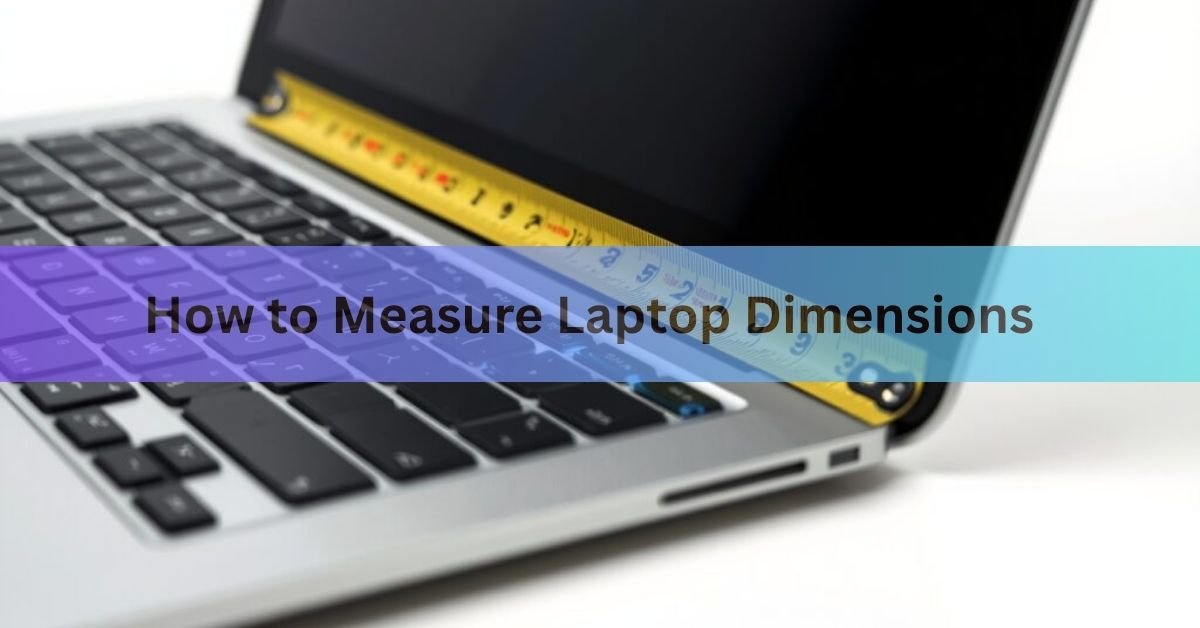
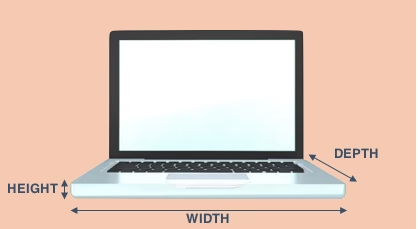
To measure your laptop’s dimensions, close the lid and measure four things with a tape measure: the width (left to right), the depth (front to back), the height or thickness (bottom to top), and the screen size (diagonally, corner to corner across the display). Those four numbers tell you almost everything you need, from buying a sleeve to checking if the laptop fits a drawer or comparing two models.
The whole job takes about two minutes. The tricky part is not the measuring, it is knowing which number to use for what. A bag listed as “15.6 inch” is talking about the screen, not the body, and those can be very different sizes. This guide walks through each measurement, then shows you how to turn the numbers into the right purchase.
What counts as a laptop’s dimensions?
A laptop has two separate sets of measurements, and mixing them up is where most people go wrong.
The first is screen size, the diagonal distance across the display. This is the number printed on the box and used in product names, like a 13.3-inch or 15.6-inch laptop. It measures only the glowing part of the screen, not the plastic or metal frame around it.
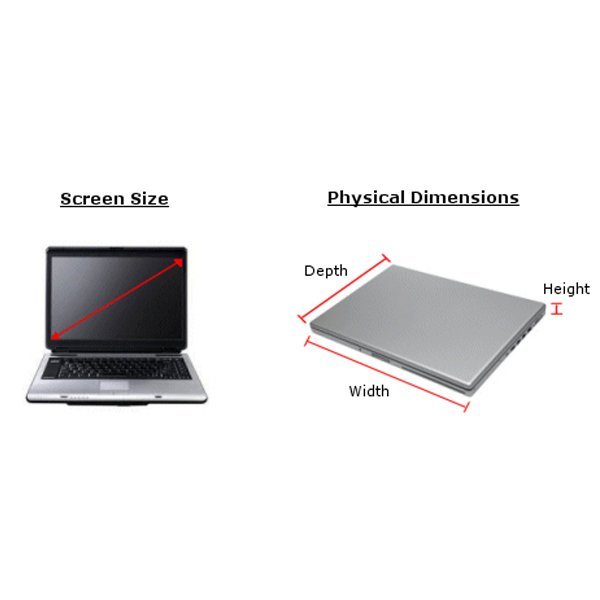
The second is the physical size, also called the footprint or chassis size. This is the actual width, depth, and thickness of the closed device. It is what decides whether the laptop fits in your bag, on a shelf, or inside an overhead bin.
You need the physical size for anything to do with fit, and the screen size for anything to do with the display or matching a manufacturer’s spec sheet. Most buying mistakes come from using one when you needed the other.
What you need before you start
You do not need anything fancy. A few household items cover it:
- A tape measure. A soft, bendable cloth or vinyl tape works best because it sits flat against the laptop and wraps around rounded edges. The kind used for sewing is ideal.
- A ruler, if that is all you have. A stiff ruler is fine for a small laptop, but it can be too short for a 15-inch or 17-inch model, so you may have to measure in two steps and add the numbers.
- A flat surface. A table or desk gives you a steady base, which matters most when you measure thickness.
- Something to write with. Four numbers are easy to mix up once you start shopping, so jot them down as you go.
Decide on your unit before you start. Bag and sleeve makers usually list interior sizes in both inches and centimetres, so pick whichever matches the product you are looking at and stick with it. To switch later, one inch equals 2.54 centimetres.
How to measure your laptop dimensions (step by step)
Close the laptop fully and rest it flat on the table. A closed laptop gives you the true outer size, which is the size that has to fit inside a bag. Then work through these four measurements in order.
- Measure the width. Lay the tape across the front edge of the closed laptop and measure from the far left side to the far right side. Include the rounded corners and any rubber feet or hinges that stick out. This is the longest of the three body measurements, usually somewhere between 12 and 16 inches (about 30 to 41 cm) on common laptops.
- Measure the depth. Turn the tape ninety degrees and measure from the front edge (where your wrists would rest) straight back to the rear edge near the hinge. This is the front-to-back number, and it will always be shorter than the width. On most laptops it lands between 8 and 11 inches (about 20 to 28 cm).
- Measure the height (thickness). Stand the tape upright against the side of the closed laptop and measure from the table surface to the top of the lid. This is the thickness. Thin-and-light laptops are often around 14 to 18 mm (roughly 0.6 to 0.7 inches), while chunkier gaming laptops can be 25 to 30 mm or more. If your laptop is thicker at the back than the front, measure the thickest point.
- Measure the screen size. Open the laptop and measure the screen diagonally, from one corner of the display to the opposite corner. Measure only the lit area of the screen, not the frame around it. This diagonal is the inch number you see in product listings, such as 14 inches or 15.6 inches.
Measure each one twice. It is easy to start the tape a little off the edge or read the wrong line, and a second pass catches it. Two minutes of care here saves you from a bag that arrives too small.
Why screen size and physical size are not the same number
Here is the part that trips people up. The 15.6 inches in a laptop’s name is the diagonal of the screen, not the size of the body. The body is always larger than the screen, because the frame, hinge, and casing add length on every side.
Screen size has been measured on the diagonal since the early days of television and CRT monitors, and laptops kept the same convention. So when you read “15.6-inch laptop,” you are reading a diagonal screen measurement, and the physical width and depth are separate numbers the maker lists elsewhere in the spec sheet.
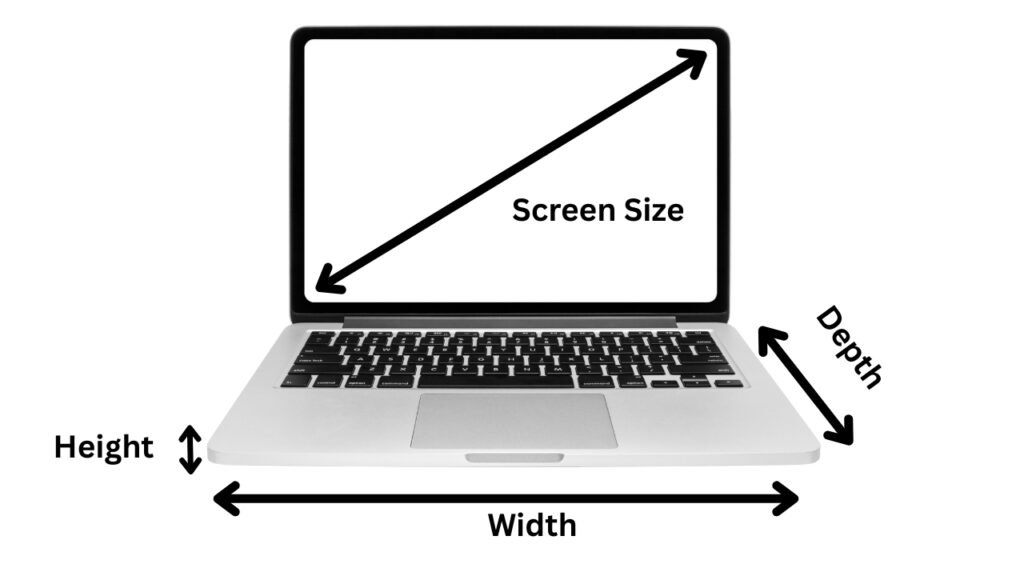
The frame around the screen, called the bezel, is the reason two laptops with the same screen size can have very different bodies. A laptop with a slim bezel packs a big screen into a small chassis. A laptop with a thick bezel needs a larger body for the same screen. Thin bezels have become common, so a 16-inch laptop today can be physically smaller than a 15.6-inch laptop from several years ago.
| The takeaway: never buy a bag based only on the screen-size name. The screen diagonal tells you which category a laptop falls into, but the width, depth, and thickness of the closed device are what actually have to fit. Measure the body and compare those numbers directly to the bag’s interior size. |
Measuring laptops with an unusual shape
Not every laptop is a simple flat slab, and a few designs need a little extra care. The goal is the same, the true outer size of the closed device, but the shape changes where you place the tape.
- Tapered or wedge laptops. Many thin laptops are thicker at the hinge and slope down to a thin front lip. Measure the thickness at the thickest point, usually the back edge, because that is the part that has to clear the opening of a sleeve.
- 2-in-1s and convertibles. Fold the device shut into laptop shape before measuring, not into tablet mode. Measure it as you would carry it, since a 360-degree hinge does not change the closed footprint.
- Rugged and older laptops. Tough laptops and older models often have rubber bumpers, large feet, or a thick battery that sticks out at the back. Run the tape over the widest and deepest points, bumpers included, so nothing gets left out of the number.
- Laptops with feet or a raised hinge. If rubber feet or a hinge lift the back of the lid above the table, measure thickness to the highest point, not just the flat part of the lid.
In every case, measure to the outermost edge of whatever sticks out. A bag has to swallow the whole device, bumps and all, so the largest reading is the one that counts.
Standard laptop sizes (quick reference)
Most laptops cluster around a handful of screen sizes. These categories drive how bags and sleeves are labelled, so knowing where your laptop sits helps you shop. The body sizes below are rough ranges, since the exact footprint depends on the bezel and design.
| Screen size | Typical use | Rough body width |
| 11 to 12 inch | Very portable, basic laptops and small Chromebooks | About 11 to 11.5 in (28 to 29 cm) |
| 13 to 13.3 inch | Lightweight ultraportables for travel | About 12 in (30 cm) |
| 14 inch | The popular all-rounder, balance of size and screen | About 12.5 in (32 cm) |
| 15 to 15.6 inch | Everyday and work laptops, more screen room | About 14 in (36 cm) |
| 16 inch | Larger screen in a slim-bezel body | About 14 in (36 cm) |
| 17 to 17.3 inch | Desktop replacements and gaming laptops | About 15.5 in (39 cm) |
Treat these as a starting point, not a guarantee. Two 15.6-inch laptops from different brands can differ by an inch or more in width, which is exactly why your own measurements matter more than the category name.
How to find your dimensions without measuring
If you cannot reach a tape measure, or you want the official numbers, you can look them up. This works well when you want the exact figures the maker published, which can be handy for tight-fitting cases.
Start by finding your laptop’s model. On a Windows laptop, you can open Settings, then System, then About to see the device and model name. Microsoft also walks through this on its guide to finding your device info. On a Mac, click the Apple menu in the top corner and choose About This Mac to see the model.
The model name is also printed on a sticker on the underside of most laptops, and on the original box if you still have it. Once you have the exact model, search the manufacturer’s website for that model’s specifications page, which lists the official width, depth, height, and weight.
Each brand has its own way of finding the model. Dell, for example, publishes a guide to locating your product model, which points you to the service tag and the System Information tool. Other makers offer similar lookup pages.
One caution with published specs: makers often state the thinnest point of a tapered laptop, and they may leave out feet or bumps that add a millimetre or two. For a snug case, your own tape measure is the safer source.
How to use your measurements to buy a bag or sleeve
This is what most people are really after. Bags and sleeves are almost always labelled by the largest screen size they hold, like “fits up to 14 inch” or “fits up to 15.6 inch.” That label is a rough proxy for the body size of laptops in that category, which is why your actual body measurements beat the label every time.
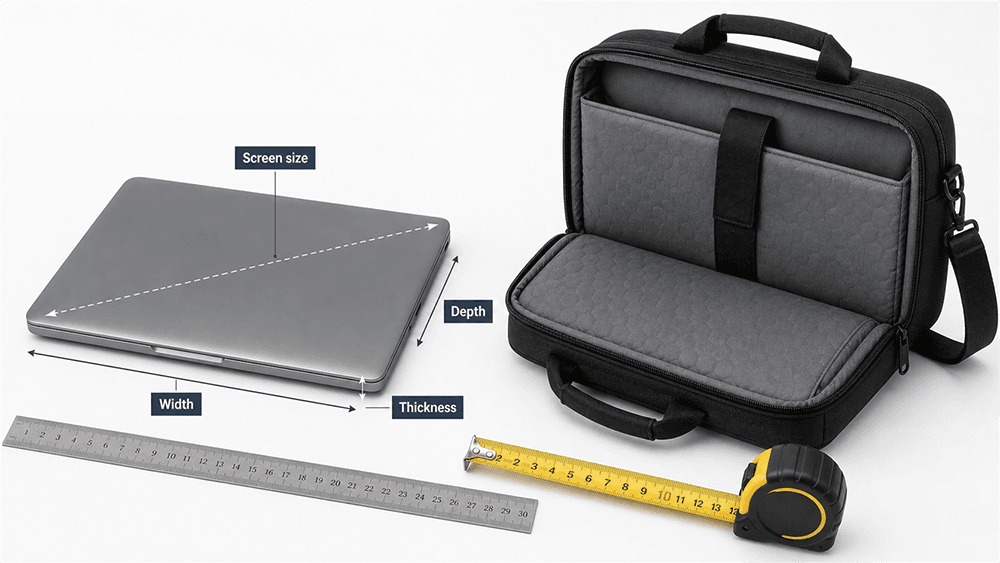
Here is how to match your numbers to a bag:
- Compare body to interior. Look for the bag or sleeve’s interior dimensions in the product description, not just the screen-size label, and compare them to your width, depth, and thickness.
- Leave a little room. Add about half an inch to an inch (1 to 2 cm) to your width and depth so the laptop slides in and out easily and has room for a little padding. A case that matches your laptop exactly will be a tight squeeze.
- Mind the thickness. Add at least half an inch to your thickness measurement. A sleeve that fits the width and depth can still refuse a thick laptop, which catches a lot of people out.
- Check the orientation. Backpack laptop pockets are usually tall (the laptop slides in upright), while briefcases and messenger bags are usually wide (the laptop lies flat). Make sure the compartment shape suits how you carry.
Aim for snug, not tight. A sleeve that holds the laptop firmly without forcing protects it far better than one with inches of empty space, where the device can slide around and knock against the sides.
Common mistakes that lead to the wrong size
A few small slip-ups account for most ill-fitting bags. Watch for these:
- Measuring the laptop open. Always measure with the lid closed for width, depth, and thickness. An open laptop gives you the wrong footprint.
- Buying by the screen-size name alone. The screen diagonal is not the body size. Two laptops with the same screen can have bodies an inch apart in width.
- Including the bezel in screen size. When you measure the screen, measure only the lit display, not the frame. Counting the bezel inflates the number.
- Forgetting thickness. It is the easiest measurement to skip and a frequent reason a laptop will not slide into a sleeve that otherwise looks right.
- Ordering an exact-fit case. Skipping the small allowance for room leaves you with a case you have to fight with every day.
Frequently asked questions
How do I measure my laptop screen size?
Open the laptop and measure diagonally from one corner of the display to the opposite corner, counting only the lit screen and not the frame around it. The result in inches is the screen size used in product names, such as 14 or 15.6 inches.
Is a 15.6-inch laptop actually 15.6 inches wide?
No. The 15.6 inches is the diagonal of the screen, not the width of the body. A 15.6-inch laptop is usually about 14 inches (36 cm) wide, since the frame and casing add size around the screen.
What dimensions do I need to buy a laptop bag?
You need the width, depth, and thickness of the closed laptop. Compare those to the bag’s interior dimensions and add about half an inch to an inch of room so the laptop fits comfortably and has space for padding.
Should I measure my laptop open or closed?
Closed, for the width, depth, and thickness. A closed laptop gives the true outer size that has to fit a bag. Only the screen is measured with the lid open.
How do I find my laptop’s exact dimensions online?
Find your model name in Windows Settings under System then About, on a sticker under the laptop, or on the box. Then search the maker’s website for that model’s specifications page, which lists the official width, depth, and height.
Conclusion
To measure a laptop, close the lid and take four numbers: width, depth, and thickness of the body, plus the screen diagonal. Use the body measurements for anything to do with fit, and remember the screen-size name is not the body size. When buying a bag or sleeve, compare your body numbers to the interior dimensions and add about an inch of room. Get that right and your laptop slides in snugly and stays protected.
Related Post
Can I Charge My Laptop With a Phone Charger?
How to Remove a Hard Drive From a Laptop (Without Wrecking the Drive or Your Data)
What does laptop screen size actually mean?