A laptop battery lasts longest when you keep its charge roughly between 20% and 80%, keep it away from heat, avoid leaving it sitting at 100% for long stretches, and let your laptop’s built-in power settings do some of the work. None of these habits are dramatic on their own, but stacked together over a couple of years, they’re the difference between a battery that still gets you through most of a workday and one that dies by lunchtime.
What actually wears down a laptop battery?
Two things do most of the damage: heat and time spent at a full or empty charge. Almost every laptop built in the last decade uses a lithium-ion battery, and that chemistry degrades a little every time it’s stressed, whether by a hot case, a full charge sitting untouched, or a deep drain down to zero.

Battery makers describe this in terms of charge cycles. One full cycle equals 100% of the battery’s capacity used, but it doesn’t have to happen in one sitting. Using 50% today and another 50% tomorrow adds up to one cycle, same as running it from full to empty in a single day. Most laptop batteries are rated for somewhere between 300 and 1,000 full cycles before you notice a real drop in runtime, and Apple states that a normal MacBook battery should still hold about 80% of its original capacity after 1,000 cycles.
The depth of each discharge matters too. A battery pushed from 100% down to near 0% wears out faster than one that’s topped up from, say, 60% to 90%. In a study that tracked more than 10,000 student laptops, machines that were only ever shallow-discharged still held 80% of their original capacity after 500 charge cycles, while ones that were routinely run down deep hit that same 80% mark after just 350 cycles. That gap, 150 extra cycles, came down to one habit: how far the battery was drained before it got plugged back in.
Is it bad to keep your laptop plugged in all the time?
No, not on a modern laptop. Manufacturers built smart charging systems specifically to solve this. Once your laptop reaches full charge, the battery essentially steps out of the circuit and the machine runs on wall power, so it isn’t cycling the battery at all while you work at a desk.
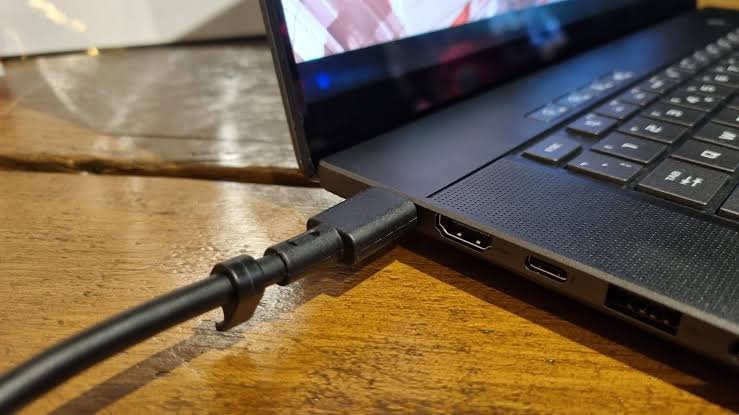
Apple’s battery health management feature on MacBook notebooks tracks your charging habits and temperature history, then adjusts how and when it tops up the battery to slow chemical aging. Many Windows laptops from Lenovo, Dell, and others offer a similar “conservation mode” or charge limit in their control software, usually capping charge at 60% or 80% when you tell it you’ll be plugged in for a while.
The one thing worth avoiding is heat buildup while plugged in, especially under a heavy workload like gaming or video editing. That combination of full charge and high temperature is the single hardest thing you can do to a lithium-ion cell.
What charge range should you aim for day to day?
Keep the battery between about 20% and 80% when you can, and treat 100% and 0% as places to pass through, not places to sit. This single habit does more for long-term battery health than almost anything else on this list.
| Charge habit | Effect on the battery |
| Staying between 20% and 80% | Lowest chemical stress, slowest capacity loss |
| Running to 100% occasionally | Fine once in a while, and needed for accurate percentage readings |
| Sitting at 100% for days | Accelerates capacity loss, especially if warm |
| Draining to 0% regularly | Deep discharges wear the cell faster than shallow ones |
| Letting it die completely and sit | Risk of the battery entering a deep-discharge state it can’t recover from |
If your laptop has a charge limiter, a setting that stops charging at 80% or 60%, turn it on for everyday use and switch it off only when you actually need a full charge, like before a flight. If it doesn’t have that option, simply unplugging once you’re comfortably above 80% and plugging back in once you dip toward 20% gets you most of the same benefit.
You don’t need to chase this obsessively. Charging to 100% before a long trip or a big work session is completely fine. The goal is to avoid the battery living at the extremes for days at a time, not to panic every time it crosses 85%.
How does heat affect the battery, and what can you do about it?
Heat accelerates every form of battery aging, more than almost any charging habit does. Apple recommends keeping devices in ambient temperatures of 50 to 95°F (10 to 35°C), and running or storing a battery well above that range speeds up capacity loss noticeably.

A few habits make a real difference:
- Use a hard, flat surface. Beds, sofas, and pillows block the vents underneath a laptop and trap heat, forcing the fans to work harder while the internal temperature climbs.
- Clean the vents periodically. Dust buildup restricts airflow over months of use, and a laptop that runs hotter than it should will quietly shorten its own battery life.
- Avoid direct sunlight and hot cars. A laptop left on a dashboard or windowsill can reach internal temperatures well past what any lithium-ion cell tolerates well.
- Take it out of thick cases while charging. Some sleeves and cases trap heat during charging even though they’re fine for everyday carrying.
- Plug in during heavy workloads. Gaming or rendering video on battery power alone pushes both the processor and the battery harder than doing the same task plugged in, since many laptops throttle performance on battery anyway.
Which power and display settings actually help?
Screen brightness and background activity draw more power than almost anything else in a laptop, so trimming both extends each individual charge and means fewer cycles over the life of the machine.
Start with the display. Dropping brightness to the lowest comfortable level, shortening the time before the screen sleeps, and switching a high refresh rate screen down to 60Hz for everyday work all add meaningful runtime with almost no effort.
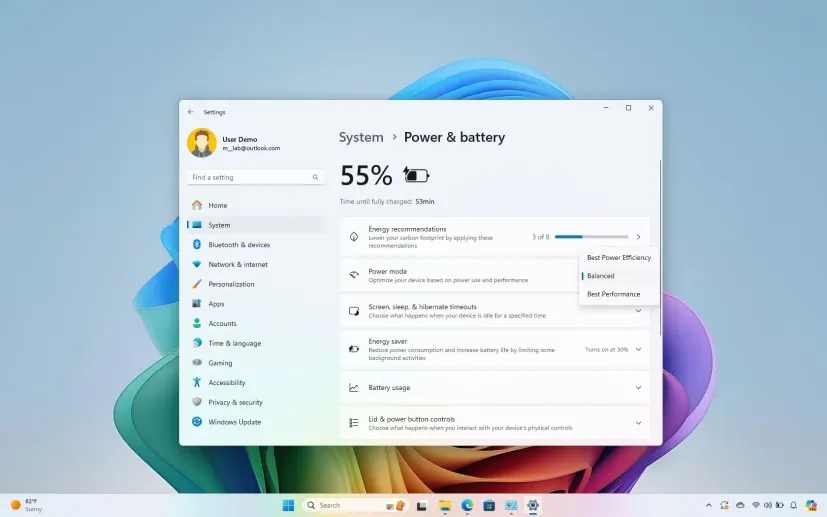
From there, turn on your operating system’s built-in power saver. On Windows, this lives under Settings > System > Power & battery, where Microsoft’s battery saver settings let you trim background syncing, animations, and other processes automatically, and you can set it to switch on at a battery level you choose. On a Mac, Low Power Mode does the same job from Settings > Battery.
It’s also worth checking which apps run at startup and which ones stay active in the background. A browser with a dozen open tabs, a cloud sync client checking for changes every few minutes, or a game launcher idling in the system tray all draw power even when you’re not looking at them. Closing or disabling the ones you don’t need daily reduces the load on the battery every single time you unplug.
If your laptop has both an integrated graphics chip and a separate, more powerful graphics card, that discrete GPU is often the single biggest drain when it kicks in unnecessarily. On Windows, searching “graphics settings” lets you assign individual apps to the power-saving integrated GPU instead, reserving the discrete card for the handful of programs that actually need it, like games or video editing software.
Does fast charging damage a laptop battery?
Not meaningfully, as long as you’re using the charger that came with the laptop or an official replacement. Fast charging does generate more heat than a slow trickle charge, and heat is what actually damages the battery, but manufacturers design their charging circuits to manage that heat safely within the charger’s rated limits.
The bigger risk comes from cheap, uncertified third-party chargers that don’t regulate voltage properly. Sticking with the manufacturer’s charger, or one certified for your laptop’s specific charging standard, avoids that risk entirely. If you’re plugging into a shared power strip or dock, a small, one-time check that it delivers the correct wattage for your laptop is worth the two minutes it takes.
How should you store a laptop you won’t use for a while?
If you’re putting a laptop away for more than a couple of weeks, charge it to around 50%, power it down completely, and keep it somewhere cool and dry. Storing it fully charged for months slowly eats into capacity, and storing it fully drained risks the battery dropping into a deep-discharge state it may not recover from.

A cool closet or drawer at normal room temperature works better than a garage, car trunk, or anywhere that swings between hot and cold. If you’re storing it for several months, it’s worth powering it on every month or two, checking the charge hasn’t drifted too low, and topping it back up to around 50% before putting it away again.
When should you replace the laptop battery?
Once a battery’s maximum capacity drops below about 80% of what it shipped with, most people notice the difference in daily use: shorter runtime, faster drain under load, and sometimes the laptop shutting down unexpectedly at what looks like 20% remaining. Most operating systems will tell you this directly. Windows generates a full battery report through the command powercfg /batteryreport, and Mac notebooks show a battery condition status of “Normal” or “Service Recommended” under System Settings > Battery.
A battery that’s swollen, visibly bulging the case, or causing the trackpad to lift is a safety issue, not just a performance one, and should be replaced right away rather than left in use.
Frequently asked questions
Is it bad to leave my laptop plugged in overnight?
No. Modern laptops stop drawing from the battery once it’s full and run on wall power instead, so an overnight charge doesn’t add wear the way a full discharge cycle would.
Should I let my battery fully drain before charging it again?
No. Deep discharges down to 0% stress the cell more than shallow ones. Charging from around 30% or 40% up to 80% is easier on the battery than waiting for it to die.
How many charge cycles does a laptop battery typically last?
Most laptop batteries are rated for 300 to 1,000 full charge cycles before capacity noticeably drops, with many modern batteries holding around 80% of their original capacity at the high end of that range.
Does using my laptop while it’s charging damage the battery?
Not under normal conditions. The main risk is heat, so using a laptop plugged in during a demanding task like gaming is fine as long as airflow around the vents isn’t blocked.
How can I check my laptop’s battery health?
On Windows, run powercfg /batteryreport from the command line for a detailed report. On a Mac, go to System Settings > Battery > Battery Health to see maximum capacity and cycle count.
Conclusion
The habits that protect a laptop battery are small and easy to keep up: stay roughly between 20% and 80% charge, avoid heat, use your power saver settings, and store the laptop at half charge if it’s going to sit unused. Follow these consistently and a battery that would otherwise fade within two years can often stay reliable for four or five, with a full charge still meaning most of a real workday.
Related Post
Can I Charge My Laptop With a Phone Charger?
How to Remove a Hard Drive From a Laptop (Without Wrecking the Drive or Your Data)
What does laptop screen size actually mean?