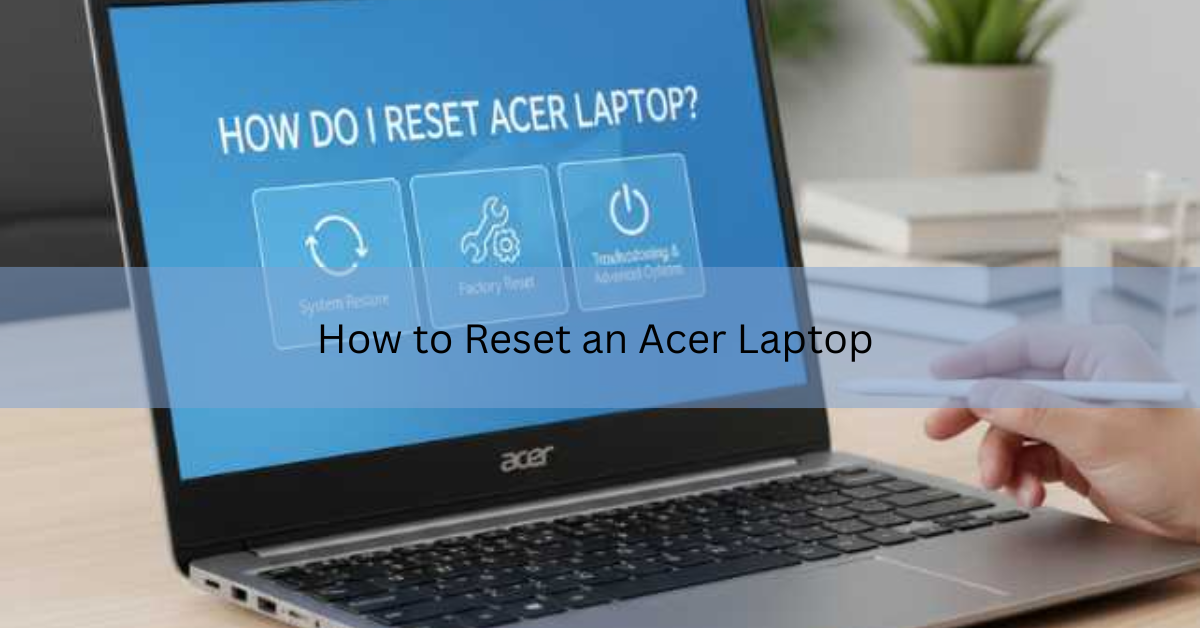
To reset an Acer laptop, open Settings, go to System, then Recovery, click Reset PC, and choose Keep my files or Remove everything. That is the main way, and it works on almost every current Acer running Windows 11. If you cannot sign in, you can still reset using a startup shortcut. Both routes are below.
A reset reinstalls Windows and takes your laptop back to a clean state. It clears out slowdowns, broken updates, and stubborn junk software. Pick the right option and you either keep your personal files or wipe the machine completely.
Back up first, because a full reset deletes your files
Before you start, copy anything you care about somewhere safe. A Remove everything reset erases every document, photo, and installed program on the drive. Even the Keep my files option removes your apps and settings, so it pays to have a backup either way.
- Copy documents, photos, and videos to an external drive or USB stick.
- Sign in to your browser so bookmarks and passwords sync back later.
- Note down any software licence keys you will need to reinstall.
- Make sure the laptop is plugged in. A reset should never run on battery alone.
If Windows is encrypted with BitLocker, keep your recovery key handy. You can find it in your Microsoft account online under your devices.
How to reset an Acer laptop from Windows Settings
This is the method to use when Windows still opens normally. It is the same tool Microsoft builds into every copy of Windows 11, so it works whether or not you have any Acer software installed.
- Click the Start button and open Settings (the gear icon).
- Select System, then click Recovery.
- Under Recovery options, click the Reset PC button next to “Reset this PC”.
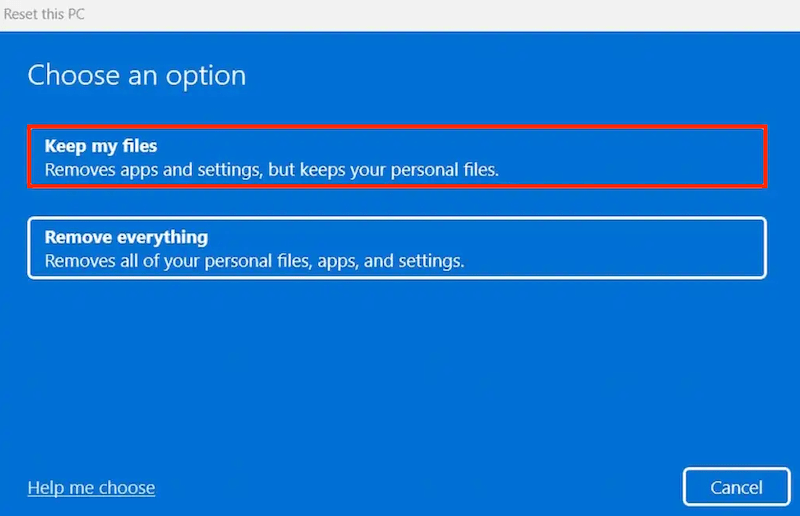
- Choose Keep my files or Remove everything.
- Choose Cloud download or Local reinstall (see the table below to pick).
- Review the summary, then click Reset to begin.
The laptop will restart a few times on its own. Do not close the lid or cut the power while it works. When it finishes, you either land back on your desktop or at the fresh Windows setup screen, depending on the option you chose.
Keep my files or Remove everything? Pick by why you are resetting
The right choice depends on what you plan to do with the laptop afterwards. Use this table to match your reason to the option.
| Option | What it does | Use it when |
|---|---|---|
| Keep my files | Reinstalls Windows but leaves your documents and photos in place. Apps and settings are removed. | The laptop is slow or buggy and you are keeping it. |
| Remove everything | Wipes files, apps, and settings, then reinstalls Windows from scratch. | You are selling, giving away, or fully clearing the laptop. |
| Cloud download | Pulls a fresh copy of Windows from Microsoft. Needs a steady internet connection. | Your local Windows files may be damaged. |
| Local reinstall | Rebuilds Windows from the copy already on your drive. No download needed. | Your connection is slow or capped. |
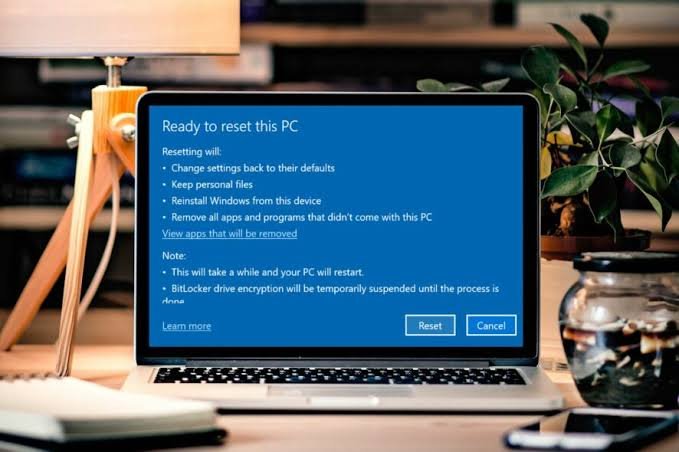
If you are selling or handing the laptop to someone else, choose Remove everything and, when asked, pick the option to clean the drive fully. That makes your old files much harder to recover. If you are simply fixing a sluggish machine you plan to keep, Keep my files with a local reinstall is the fastest fix.
How to reset an Acer laptop when you are locked out
If you forgot your password or Windows will not load, you can still reset from a screen that appears before you sign in. Acer laptops also have a built-in recovery shortcut.
Use the Alt + F10 recovery shortcut
Many Acer models let you jump straight into recovery as the laptop starts up.
- Turn the laptop fully off.
- Press the power button, then immediately start tapping Alt + F10 together.
- Keep tapping until the recovery or “Reset this PC” screen appears.
- Choose Troubleshoot, then Reset this PC, then Remove everything.
- Follow the prompts to finish.
If Alt + F10 does nothing, the hidden recovery setting may be switched off. Restart and tap F2 to open the BIOS setup, find the D2D Recovery line on the Main tab, set it to Enabled, then press F10 to save and exit. The shortcut should work on the next restart.
Or reset from the Windows recovery screen
From the sign-in screen, hold Shift and click the power icon, then Restart. Windows loads a blue recovery menu. Go to Troubleshoot, then Reset this PC, and pick Remove everything. Because this wipes the account and its password, it is a clean way to get back into a locked laptop you own.
Only reset a laptop you actually own. A work or school laptop may be controlled by IT, and you should ask them to release it first.
If the reset gets stuck or fails
Sometimes you see a message that says there was a problem resetting your PC. Try these fixes in order:
- Run Windows Update first, then try the reset again. A pending fix can clear the error.
- If Cloud download stalls, switch to Local reinstall (or the reverse). Changing the source often works.
- Turn off any VPN and check your internet, since Cloud download needs a steady connection.
- As a last resort, reset from a Windows 11 installation USB, which bypasses a damaged recovery partition.
You can build that USB with Microsoft’s official Windows 11 installation media tool, then boot from it and choose Repair your computer to reach the reset menu. Acer also keeps model-specific recovery guides on its own Acer support site if a step looks different on your machine.
How long does an Acer reset take?
Most resets finish in 30 minutes to a couple of hours. Keep my files with a local reinstall is usually the quickest. Remove everything with a full drive clean takes longest, especially on older laptops with a spinning hard drive. A cloud download adds time based on your internet speed. Leave the laptop plugged in and let it run.

Frequently asked questions
Does resetting an Acer laptop delete everything?
It depends on the option. Remove everything deletes all files, apps, and settings. Keep my files leaves your documents and photos but still removes installed apps and settings. Back up first either way.
How do I factory reset an Acer laptop without a password?
Turn it off, power on, and tap Alt + F10 to reach recovery, or hold Shift and click Restart from the sign-in screen. Then choose Troubleshoot, Reset this PC, Remove everything.
Why is Alt + F10 not working on my Acer?
The hidden recovery setting is likely off. Restart, tap F2 to open BIOS, set D2D Recovery to Enabled on the Main tab, press F10 to save, and try the shortcut again.
Will a reset make my slow Acer faster?
Usually yes. A reset clears out broken updates, background clutter, and buggy software that build up over time. If it stays slow afterward, the cause may be aging hardware like a full or failing drive.
Should I choose Cloud download or Local reinstall?
Use Cloud download if your local Windows files may be damaged and you have good internet. Use Local reinstall for a faster reset that needs no download, ideal on slow or capped connections.
Conclusion
Resetting an Acer laptop comes down to one path: Settings, System, Recovery, Reset PC, then Keep my files or Remove everything. Back up your data first, choose Keep my files to fix a slow machine you are keeping, or Remove everything to wipe one you are selling. Locked out? Use Alt + F10 or the Shift + Restart recovery screen. A good result is a laptop that boots clean and runs like new.
Recommended Articles:
Acer Laptop Monitor Not Working? Here’s How to Fix It
Why Does My Laptop Shut Off Randomly? Causes and Fixes
How to Remove a Stripped Screw From a Laptop (Without Wrecking It)
How to Replace a Laptop CPU (and How to Tell If Yours Can Be)
How to Print Screen on an Acer Laptop (Every Method That Works)