On almost every laptop, the built-in microphone sits in the top of the display, right around the webcam. Look at the thin frame above your screen (the bezel) and you will usually spot one or two tiny pinholes next to the camera lens. Those little holes are the mic.
If you came here from an IT Essentials or CompTIA A+ test, the answer to “where is an integrated microphone normally located on a laptop?” is the same: in the top of the display. The rest of this guide shows you what it looks like, where different brands put it, and how to check that yours works.
Why the microphone lives at the top of the screen
Makers put the mic up there for one simple reason: that spot faces you while you use the laptop. When you sit in front of the screen for a video call, your voice travels straight to a microphone placed near eye level, so it picks up clear speech and less of the room.
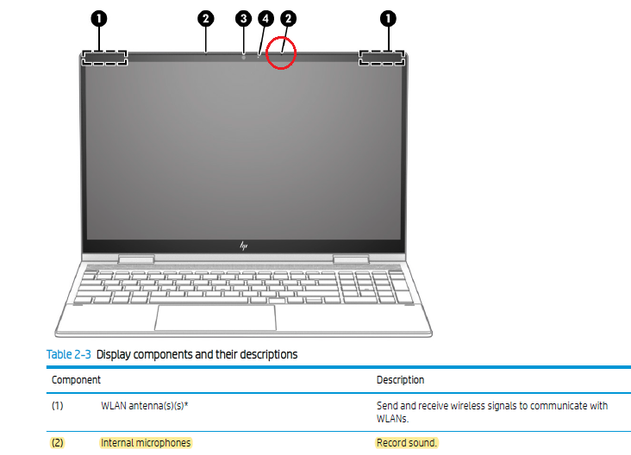
Grouping the mic with the webcam also keeps the camera and audio close together, which helps calls feel natural. Many laptops now use two mics, one on each side of the camera, so software can compare the two signals and cut background noise. This is often called a dual-array or beamforming setup.
What the microphone actually looks like
Do not expect an obvious grille. A laptop mic is usually a single pinprick hole, or a small cluster of them, sitting flush in the bezel. On many models the two mics sit an inch or two apart on either side of the camera.
A quick trick helps if you cannot spot it. Shine a phone flashlight across the top bezel at a low angle. The tiny holes catch the light and stand out. Some laptops also print a small microphone icon or the word “mic” beside the opening.
Tip: cover one hole at a time with your fingertip while recording a test clip. When your voice suddenly sounds muffled, you have found the active mic.
Where common brands hide the mic
The top of the display is the norm, but the exact spot shifts a little by brand and model. Here is a quick guide to the usual placements.
| Brand | Usual microphone location |
|---|---|
| Dell (XPS, Inspiron, Latitude) | Tiny holes on one or both sides of the webcam, top bezel |
| HP (Spectre, Envy, Pavilion) | Dual pinholes beside the webcam; a few models add one above the keyboard |
| Lenovo (ThinkPad, Yoga, IdeaPad) | Near the webcam; some IdeaPads place it up on the keyboard deck |
| Acer (Aspire, Swift, Nitro) | Dual mics just above the screen |
| MacBook (recent Pro / Air) | Built into the side near the speaker grilles, next to the keyboard |
Notice the MacBook difference. Recent MacBook Pro and Air models tuck the mics along the side by the speakers rather than in the screen bezel, so avoid covering that edge during a call. When in doubt, your model’s spec sheet on the maker’s support site lists the exact number and place.
How to find the mic on your own laptop
If a visual sweep does not settle it, let the software point you to the right device. Here is the fastest way on Windows.
- Look at the top bezel first. Scan both sides of the webcam for pinholes, using the flashlight trick if needed.
- Open sound settings. Right-click the speaker icon in the taskbar and choose Sound settings, or go to Start, then Settings, then System, then Sound.
- Check the Input section. Any built-in mic shows up there, often named something like “Microphone Array.” That name is a strong hint your laptop has dual mics near the camera.
- Confirm the hardware. Right-click Start, open Device Manager, and expand “Audio inputs and outputs” to see the mic listed.
How to test the microphone once you find it
Finding the hole is only half the job. Test it so you know it captures sound before your next call.
On Windows 11, open Start, then Settings, then System, then Sound. Under Input, pick your microphone and select the arrow to open its properties. Choose Start test, speak normally for a few seconds, then Stop test. A result percentage means it is picking up sound. Microsoft’s own guide to setting up and testing microphones walks through the same steps with screenshots.
If the test shows no activity, your mic is not broken half as often as it seems. Check that the right input device is selected, nudge the input volume slider up, and make sure app permissions allow microphone access. If nothing helps, updating the audio driver from your laptop maker’s support page usually clears it.
What about the other exam answer choices?
The test question lists a few tempting wrong options. Here is why the top of the display beats them.
- By the exterior ports: those edges are for plugs and cables, too far from your mouth to catch clear speech.
- Under the keyboard near the touchpad: your hands and typing would muffle and thump all over the audio.
- On either side of the keyboard by the plastic frame: possible on a handful of designs, but far less common and more prone to picking up fan and key noise.
So the reliable answer, on your laptop and on the exam, is the top of the display near the webcam.
Frequently asked questions
Where is an integrated microphone normally located on a laptop?
In the top of the display, near the webcam. Most laptops show it as one or two tiny pinholes in the screen bezel on either side of the camera lens.
How do I know if my laptop even has a microphone?
Open Start, type Sound, and check the Input section, or open Device Manager and expand Audio inputs and outputs. If a microphone is listed, your laptop has one built in.
Can a laptop have more than one microphone?
Yes. Many laptops use two mics, one on each side of the webcam. The pair works together to cut background noise and make your voice clearer on calls.
Why can’t I see the microphone hole on my laptop?
The holes are pinprick-sized and blend into the bezel by design. Shine a phone flashlight across the top frame at an angle to make the tiny openings catch the light.
My mic is in the right spot but not working. What now?
Check that the correct input device is selected in Sound settings, raise the input volume, confirm app permissions, and update your audio driver from your laptop maker’s support page.
Conclusion
Your laptop’s built-in microphone almost always sits in the top of the display, as one or two tiny pinholes next to the webcam, though recent MacBooks move it to the side by the speakers. To find yours, scan the bezel with a flashlight, then confirm it in Windows sound settings. Run a quick input test before any call. A good result is simple: the meter moves when you speak, and playback sounds like you.
Recommended Articles:
Why Does My Laptop Drain Battery So Fast? How to Find the Real Cause
How Many Watts Does a Laptop Use? Real Numbers by Type and Task
What Is Inside a Laptop? Every Component Explained
How to Use a Laptop Cooling Pad the Right Way