Your laptop battery drains fast because something is pulling more power than you realise. In most cases it is one of five things: a background app working hard without showing it, a bright screen, sleep mode that never really sleeps, heat forcing the fans to run, or a battery that has simply worn out with age.
The trick is knowing which one is yours. A worn battery and a runaway app look identical from the outside, and the fixes are completely different. So instead of trying twenty random tips, spend ten minutes finding the actual cause. Here is how.
First, find out what is actually eating your battery
Windows and macOS both keep a record of which apps used the most power. Start there, before you change any settings.
On Windows, press Ctrl + Shift + Esc to open Task Manager and click the Processes tab. Right-click on any column heading and turn on Power usage and Power usage trend. The first column shows what is drawing power right now, rated from Very low to Very high. The second shows what has been draining you consistently, which is the one that matters. Sort by it and look at the top few rows.
You will often find one culprit. A browser is the usual answer, and it is rarely the browser itself. It is one tab: a video call, a live dashboard, a page with an autoplaying ad. Click the arrow next to the browser to expand its processes and you can usually spot the offender.
On a Mac, click the Apple menu, open System Settings, then Battery, and look at the usage history for the last 24 hours or 10 days. For live detail, open Activity Monitor and click the Energy tab. The Energy Impact column tells you what is costing you right now.
Both systems also show a per-app breakdown in Settings. On Windows it is under System, then Power and battery, then Battery usage.
If one app sits at Very high or has a high Energy Impact while you are not using it, that is your answer. Close it, or stop it from running in the background, and check again tomorrow.
Is the battery still holding a charge?
The second check tells you whether this is a software problem or a hardware one. Every rechargeable battery loses capacity as it ages, so a five-year-old laptop that runs for two hours may be perfectly healthy. It just is not new any more.
On Windows, open Command Prompt or PowerShell as an administrator and type:
powercfg /batteryreport
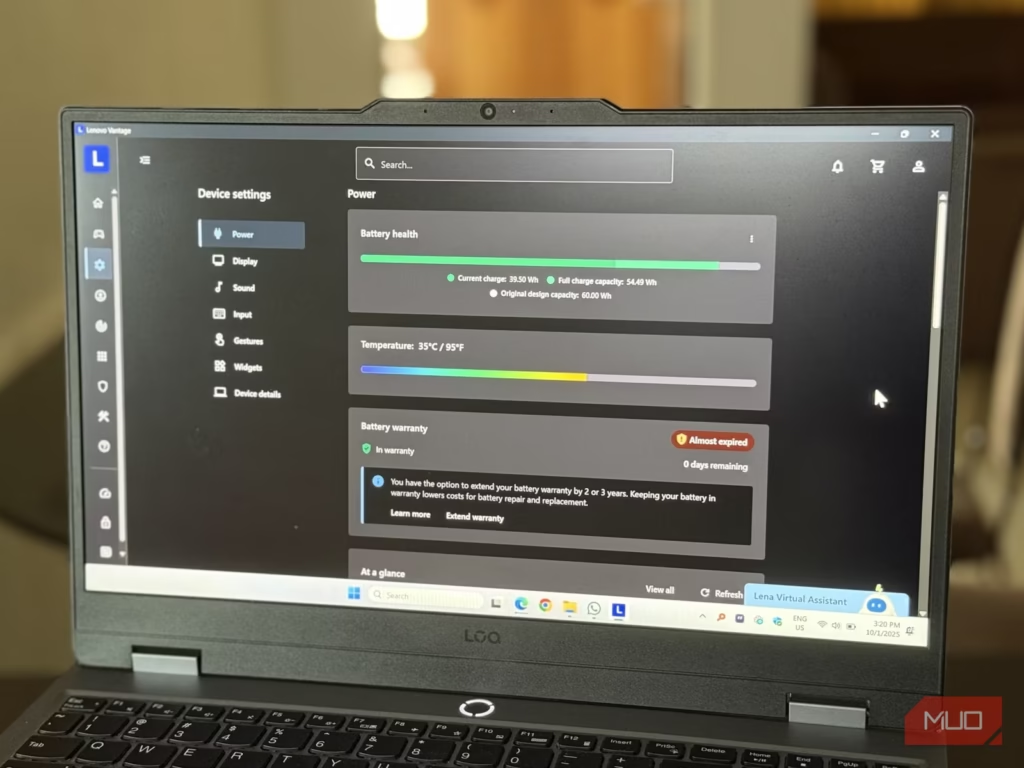
Windows saves an HTML file and prints the location. Open it in your browser and find the Installed batteries section at the top. Two numbers matter. Design Capacity is what the battery held when it was new. Full Charge Capacity is what it holds today. Divide the second by the first and multiply by 100 to get the health percentage. A battery at 34,000 mWh against a design of 43,000 mWh is running at about 79 percent, and it will give you roughly four fifths of the runtime it once did.
On a Mac, hold Option, click the Apple menu, choose System Information, and select Power under Hardware. You will see Cycle Count and Condition. A cycle means using up 100 percent of the charge, though not necessarily in one sitting. Apple’s cycle count page lists the limit for every model. Most MacBooks made since 2010 are rated for 1,000 cycles, and Apple designs them to still hold about 80 percent of their original capacity when they get there. Older models were rated for 300 or 500.
The five things that drain a laptop battery fastest
Once you know whether the battery is healthy, match your symptom to the cause.
| What you notice | Most likely cause | Where to look first |
|---|---|---|
| Drains fast only when you use it | A heavy app or browser tab | Task Manager, Power usage column |
| Drains overnight in your bag | Sleep mode staying half awake | Sleep Study report; use hibernate |
| Fans loud, base is hot | Something pinning the processor | Task Manager, CPU column |
| Runs out even when idle | Worn battery, or a stuck driver | Battery report; check capacity |
| Dies suddenly at 30 or 40 percent | Cells too weak to hold voltage | Battery report; plan a replacement |
1. Background apps you never asked for
This is the most common cause and the easiest to miss. Cloud sync tools like OneDrive or Dropbox wake up to upload a big folder. An antivirus scan starts. Windows Update quietly downloads in the background. Teams and Zoom keep a camera, a microphone and a network connection alive at the same time. None of these are visible, and all of them cost you real runtime.
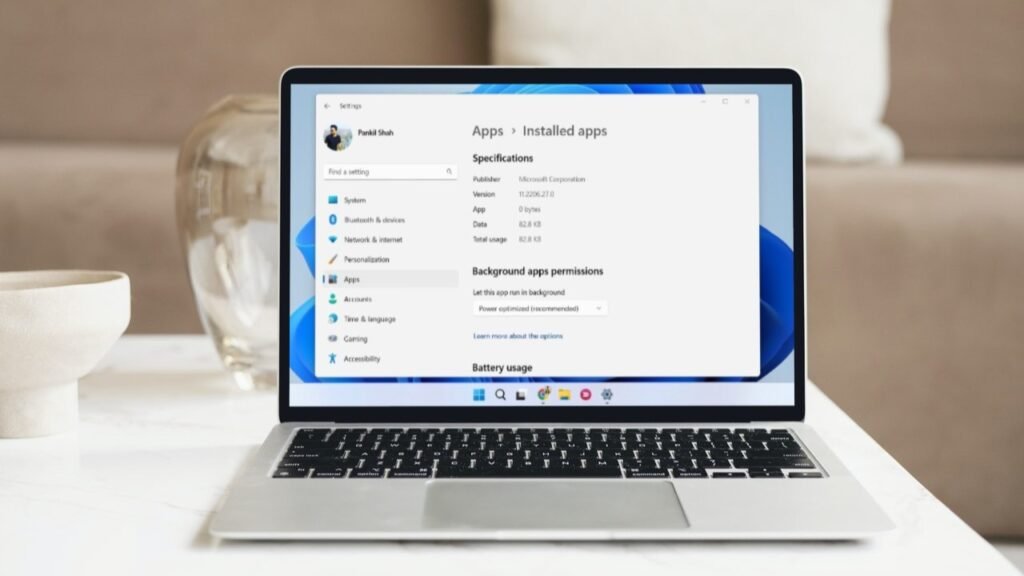
Fix it by closing what you are not using, then cutting the list of things that start automatically. On Windows, go to Settings, then Apps, then Startup, and turn off anything you do not need from the moment you log in. Under Settings, Apps, Installed apps, you can also open an app’s advanced options and set background permission to Never.
2. The screen
Your display is usually the single biggest consumer of power on a laptop, and brightness is not a small lever. Dropping from full brightness to somewhere around half can add a noticeable stretch of runtime on its own, and costs you nothing except a slightly dimmer picture.
If your laptop has a high refresh rate screen, at 120Hz or above, dropping it to 60Hz while unplugged also helps. Shorter screen timeouts help too. So does dark mode on an OLED panel, where black pixels are actually switched off.
3. Sleep mode that never really sleeps
If you close the lid at 90 percent and open it the next morning at 30, this is almost certainly your problem. Most modern Windows laptops use a sleep state called Modern Standby, where the machine does not fully shut down. It stays lightly awake so it can pull in email and notifications, the way a phone does.
When everything behaves, the drain is tiny. When one driver or one connected device misbehaves, the laptop keeps waking up, the fans run, and the battery empties into a closed bag. Windows 11 version 24H2 added a safeguard that blocks wake sources when it detects abnormal drain, so being on a current version genuinely helps here.
If it is still happening, use hibernate instead of sleep when you put the laptop away. Hibernate saves everything to the drive and switches the machine off, so it uses no power at all. Turn it on by running powercfg /hibernate on as administrator, then enable it under Control Panel, Power Options, Choose what the power buttons do. Turning Wi-Fi off before you close the lid also removes a large chunk of the background activity.
4. Heat, and the fans that answer it
Heat is both a symptom and a cost. When the processor works hard, the laptop gets warm and the fans spin up, and fans are motors that draw their own power. Blocked vents make it worse: put the laptop on a bed or a cushion and it cannot breathe, so it runs hotter and the fans run harder.
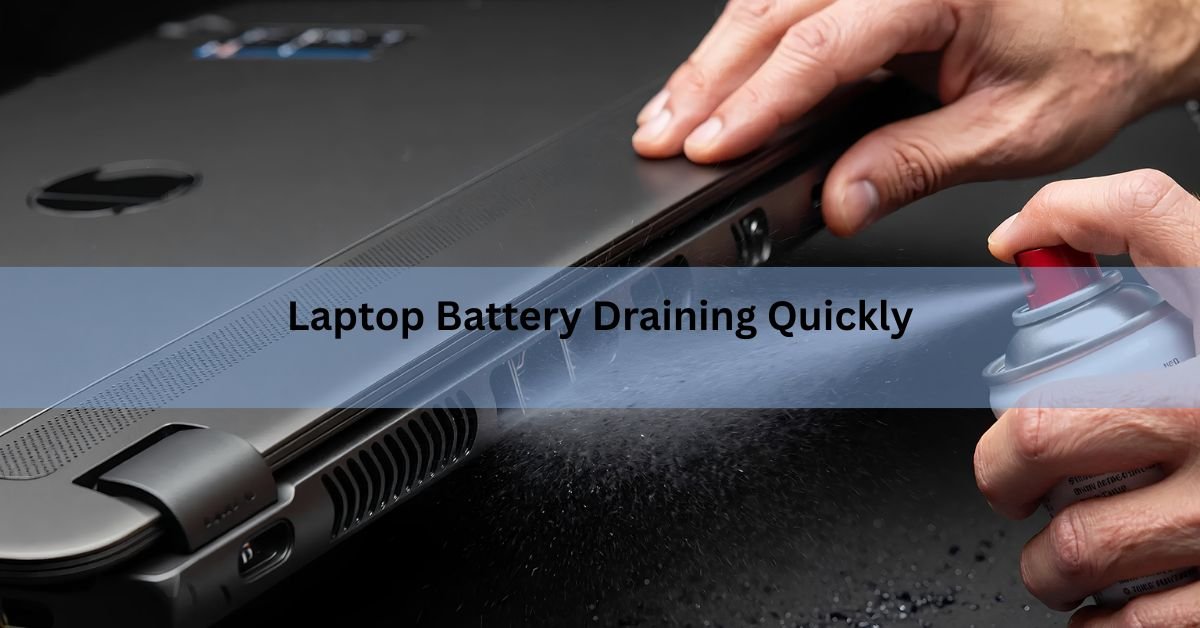
Keep it on a hard surface, and blow the dust out of the vents with compressed air every few months. Heat also ages the battery permanently, so this is worth doing even when runtime feels fine.
5. Power mode and everything plugged into it
If your power mode is set to Best performance, you are telling the machine to spend battery for speed even when you are not doing anything demanding. On Windows, go to Settings, System, Power and battery, and set Power mode to Balanced or Best power efficiency when you are unplugged. Turn on Energy saver as well, which dims the screen and pauses background syncing.
Then unplug what you are not using. An external mouse, a webcam, a portable drive, a phone charging off your USB port: all of them draw power from your battery. The drive spinning up on your desk is running on your laptop’s charge. Bluetooth and the keyboard backlight are small, but they are not free.
How much battery life should you actually be getting?
Advertised battery life is measured in gentle conditions: dim screen, light browsing, nothing else running. Your day is not that. Video calls, dozens of tabs and photo editing can easily cut the advertised number in half, and that is normal rather than a fault.
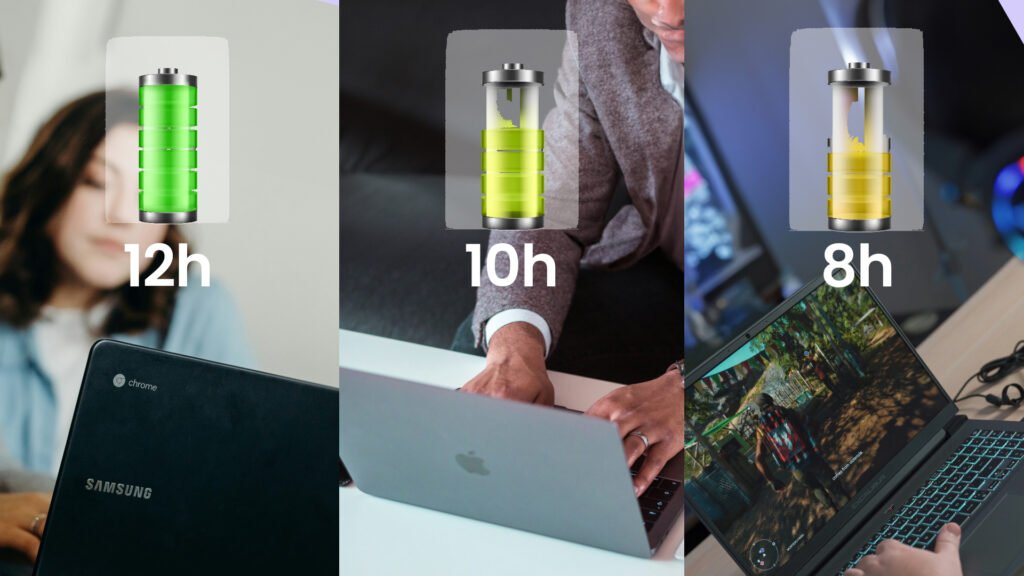
What is not normal is a sharp change. If a laptop that reliably gave you six hours now gives you two, and nothing about your work has changed, something specific has gone wrong, and the two checks above will usually find it.
When it is time to replace the battery
Once full charge capacity drops to around 80 percent of design capacity, the loss is real and permanent. No setting will bring it back. At that level most people can still work around it. Below roughly 60 percent, the laptop stops being portable in any useful sense and a replacement is the honest answer.
A few signs mean stop and get it looked at now, whatever the numbers say. A laptop that shuts down suddenly at 30 or 40 percent has cells too weak to hold voltage under load. A trackpad that has started to lift, or a case that no longer sits flat, points to a swollen battery, which is a safety issue: stop using it and take it in.
On a Mac, macOS will tell you directly. If Battery Health shows Service Recommended, the battery has either dropped below its capacity threshold or has a fault. On Windows, your manufacturer’s own tool, such as Dell Power Manager, HP Support Assistant or Lenovo Vantage, will give you the same verdict in plainer language than the report does.
Rule of thumb: healthy battery plus terrible runtime means a software problem. Worn battery plus terrible runtime means a hardware problem. Check which one you have before you spend anything.
Frequently asked questions
Why does my laptop battery drain when it is turned off?
It is usually not fully off. Fast Startup keeps part of the system loaded, and some USB ports keep supplying power on standby. Turn off Fast Startup in Power Options, and disable Always On USB in your BIOS if your laptop offers it.
Does leaving my laptop plugged in all the time ruin the battery?
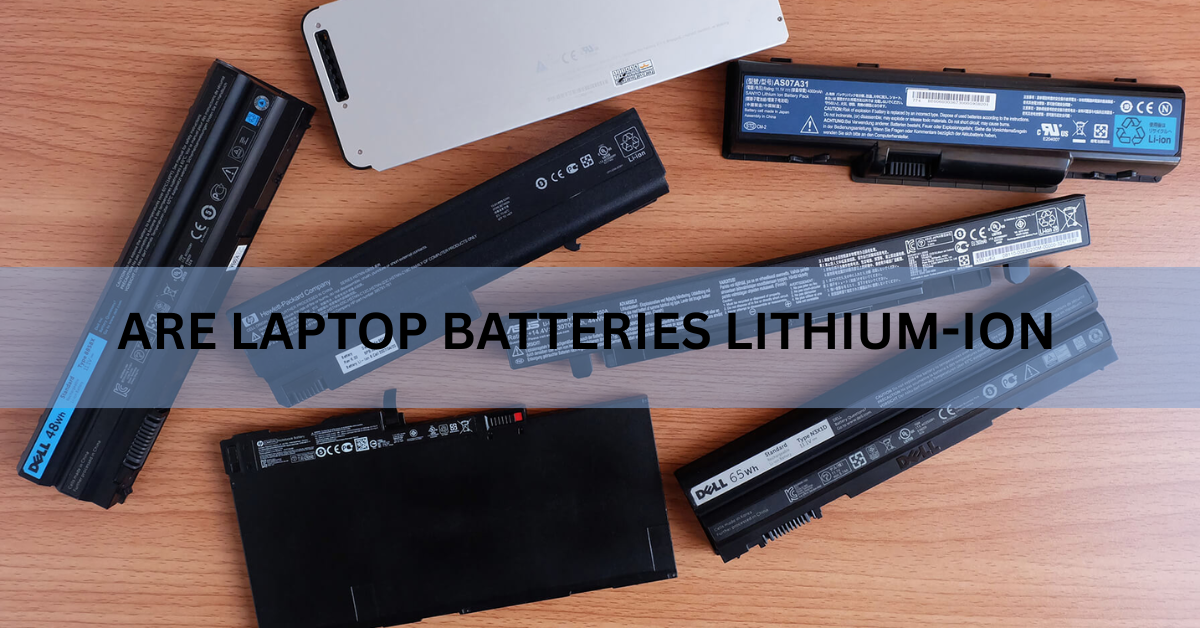
It wears it faster, because sitting at 100 percent and warm is hard on lithium-ion cells. Most laptops now include a charge limiter that stops around 80 percent. Turn it on if you mostly work at a desk.
Is it normal for a new laptop battery to drain quickly?
Sometimes, for the first week or two, while Windows indexes your files, syncs your cloud storage and installs updates. If it is still draining fast after that, run a battery report and check Task Manager rather than assuming it will settle.
How long should a laptop battery last before it needs replacing?
Roughly three to five years of normal use, or until full charge capacity falls to around 80 percent of the original. Heat and constant charging to 100 percent both shorten that. Cycle count matters more than age alone.
Will resetting or calibrating my battery fix the drain?
Calibration only corrects the percentage reading, so the meter matches reality. It cannot restore lost capacity. If your battery genuinely holds less charge than it used to, calibration will not change how long the laptop runs.
Conclusion
Fast battery drain almost always comes down to a background app, the screen, sleep mode staying half awake, heat, or a battery that has aged out. Check Task Manager or Activity Monitor to see what is drawing power, then run a battery report to see whether the battery still holds its charge. If capacity is above 80 percent, fix the software and expect your hours back. If it is well below that, a replacement is the only thing that will help.
Recommended Articles:
Acer Laptop Screen Not Working? Fix It Step by Step
How Much Does a Laptop Weigh? A Complete Guide by Type
How to Connect a Canon Printer to a Laptop
Acer Laptop Won’t Turn On? Here’s How to Fix It (Step by Step)