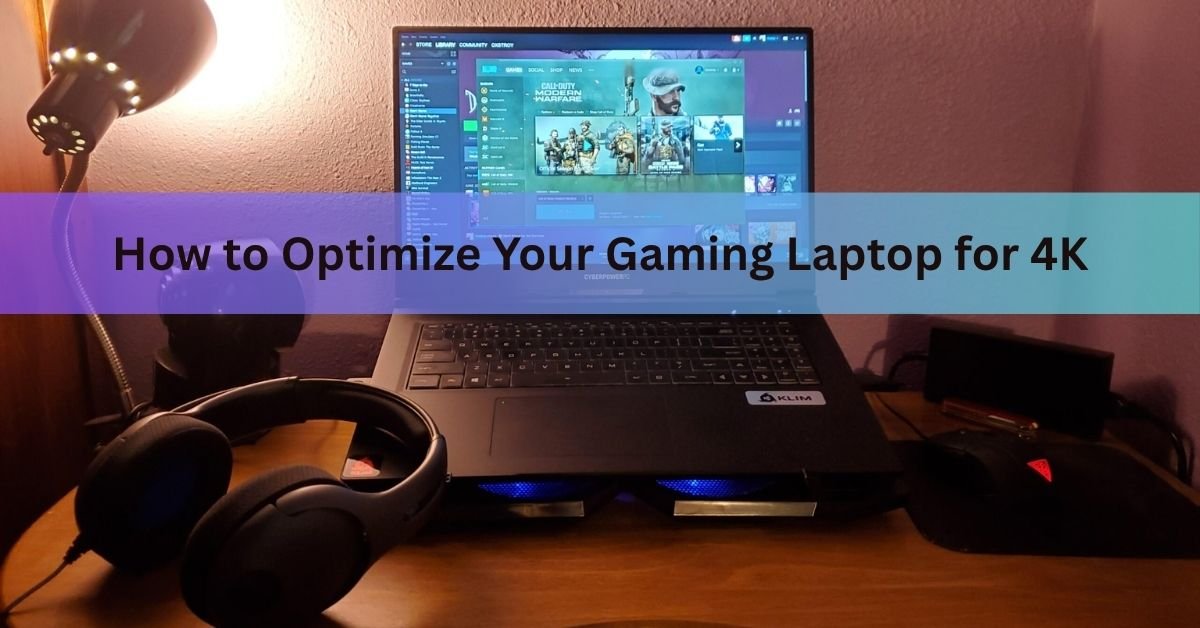
To get smooth, sharp 4K gaming out of a laptop, do four things in order: force the laptop to use its dedicated GPU through the MUX switch, turn on upscaling like DLSS or FSR, switch to a performance power profile, and stop the machine from overheating. Those four changes do more than any others. Lowering in-game settings comes after that, not before.
4K means a screen that is 3840 by 2160 pixels. That is four times the pixels of a 1080p screen, so your GPU has four times as much to draw every single frame. A laptop GPU runs at a lower power limit than the same chip in a desktop, which makes that workload even harder. The good news is that most laptops ship with settings that hold performance back, and fixing them is free. Here is how to do it.
Can a laptop really game at 4K?
Yes, but the honest answer depends on the game and your GPU. A current high-end laptop with an RTX 5080 or 5090 class chip can hit well over 100 frames per second at 4K in many titles once upscaling is on. A mid-range laptop will do better aiming for a stable 60 frames per second instead of chasing a high refresh number.
The smart target at 4K is steady frame times, not a big average. A run that sits at 60 frames per second with no dips feels far better than one that bounces between 90 and 40. So before you change anything, set a realistic goal: 60 frames per second for single-player games, and only push higher in fast competitive games if your GPU has the headroom.
It also helps to know where most slowdowns come from. On a laptop, poor 4K performance almost always traces back to one of four things: a power limit holding the chips back, overheating that forces them to throttle, the wrong GPU doing the work, or a shortage of VRAM and memory. The steps below tackle each of these in turn. Work out which one is hurting you first, and you will not waste time changing settings that were never the problem.
Step 1: Force the dedicated GPU with the MUX switch
This is the single most overlooked fix, and it costs nothing. Most gaming laptops have two graphics chips. One is the weak integrated GPU built into the processor, used to save battery. The other is the powerful dedicated GPU you bought the laptop for. By default, the frames your dedicated GPU draws are routed through the integrated chip before they reach the screen, and that chip acts as a bottleneck.
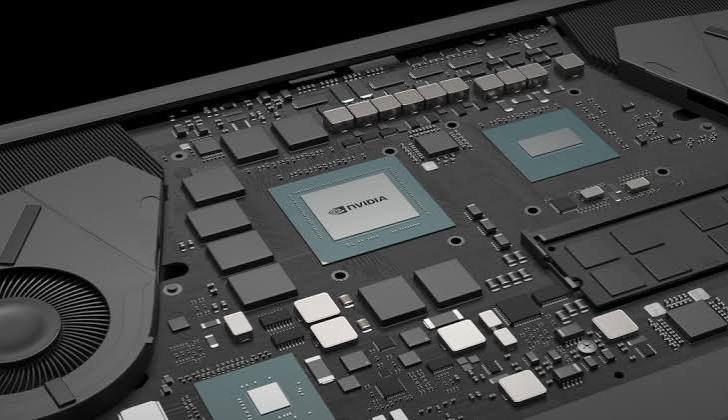
A MUX switch (short for multiplexer) lets the dedicated GPU send frames straight to the display and skip the integrated chip. Turning it on raises frame rates by around 9 percent on average in testing, and some games gain more than 30 percent. It also cuts input lag sharply, in some tests from about 11 milliseconds down to under 3.
How to turn it on:
- Open your laptop’s control app: Armoury Crate on Asus, Lenovo Vantage on Legion, MyAsus, or Alienware Command Center on Dell.
- Look for a GPU mode or graphics mode setting. Choose the discrete or “Ultimate” option that disables the integrated GPU.
- Reboot if asked. A plain MUX switch needs a restart to apply.
If your laptop has NVIDIA Advanced Optimus, open the NVIDIA Control Panel, go to Manage Display Mode, and set it to Automatic Select or NVIDIA GPU only. Advanced Optimus switches without a reboot.
| Tip: Not every laptop has a MUX switch, and it cannot be added later. If your control app has no GPU mode option, plugging into an external monitor through the HDMI or USB-C port often bypasses the integrated chip on its own, which is a handy workaround. |
Remember to switch back to the integrated GPU when you are away from a wall socket, since direct GPU mode drains the battery fast.
Step 2: Turn on upscaling
Upscaling is the closest thing to free performance at 4K. Instead of drawing all 8.3 million pixels, the GPU renders the frame at a lower resolution and uses AI to rebuild it at 4K. You get most of the sharpness for a fraction of the work. This is the difference between a game that stutters and one that runs smoothly.
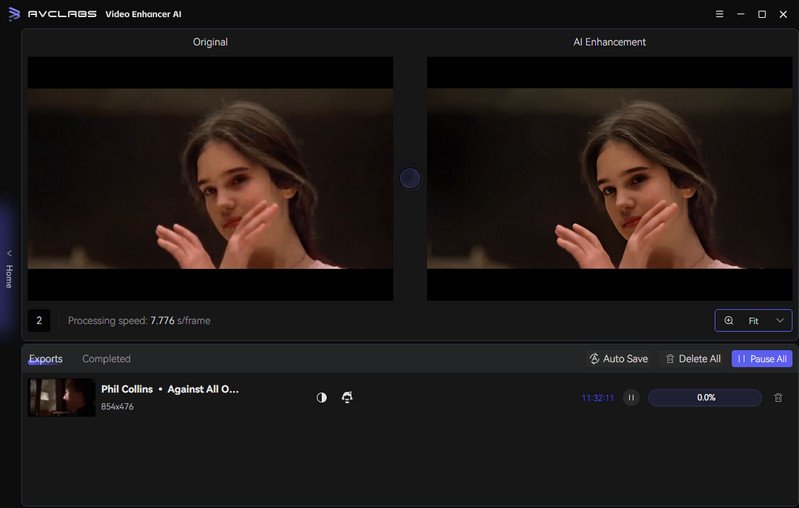
There are three main versions, one per GPU brand:
- DLSS runs on NVIDIA RTX cards. The current DLSS 4.5, shown at CES 2026, uses a second-generation AI model that makes even Performance mode look close to native 4K. It is supported in over 400 games.
- FSR runs on AMD cards and works on most GPUs, including older ones.
- XeSS is Intel’s version, useful on Intel Arc graphics.
Find the upscaling option in the game’s graphics menu and start at the Quality preset, which renders closest to native and looks best at 4K. Drop to Balanced or Performance only if you still need more frames. You can read NVIDIA’s own breakdown of the modes on its DLSS technology page.
Here is how the common modes compare at 4K:
| Mode | Renders at | Best for |
| Quality | 1440p | Sharpest image; first choice at 4K when your GPU can manage it |
| Balanced | ~1253p | A middle ground when Quality is a few frames short |
| Performance | 1080p | Big frame gains; now very usable at 4K on the latest DLSS |
| Ultra Performance | 720p | Last resort for the heaviest path-traced games |
A note on Frame Generation. On RTX 40 and 50 series cards, Frame Generation inserts extra AI frames to lift the number on screen. It makes motion look smoother, but it does not lower input lag, so it feels best when your real frame rate is already past about 40 to 50 before you switch it on. Use it as a finishing touch, not as a rescue for a game that already runs poorly.
Step 3: Set the right power profile
A laptop on battery, or on a balanced power plan, caps its own performance hard. This alone solves a huge share of sudden frame rate drops. Two quick changes make sure the hardware is allowed to run full speed.
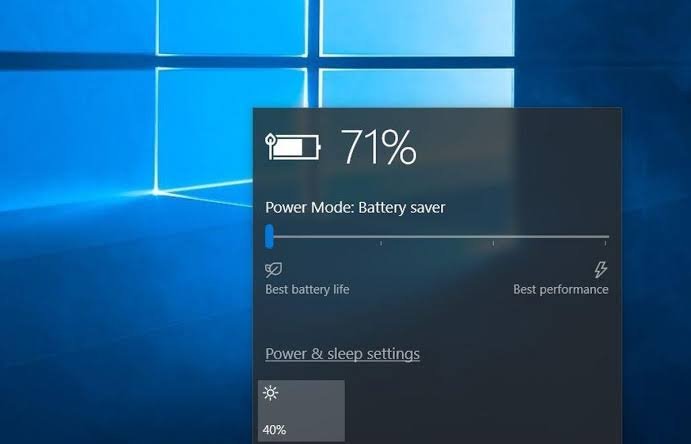
- In Windows: go to Settings, System, then Power & battery, and set the power mode to Best performance. Always keep the charger plugged in while you game, because GPUs throttle heavily on battery.
- In your GPU control panel: open the NVIDIA Control Panel (or AMD software), find Power Management Mode, and set it to Prefer Maximum Performance. AMD users can also enable Radeon Anti-Lag to cut input delay.
- In your laptop’s control app: most have a performance profile such as Turbo, Performance, or Game Shift. Pick the highest one. It raises the power limit and fan speed so the chips can hold their clock speeds under load.
Step 4: Keep the laptop cool
Heat is the quiet killer of laptop performance. When the CPU or GPU gets too hot, usually around 85 to 90 degrees Celsius under load, it throttles, meaning it drops its own speed to protect itself. The result is a frame rate that starts strong and sags after ten minutes. At 4K, where the GPU is already working flat out, this matters even more.
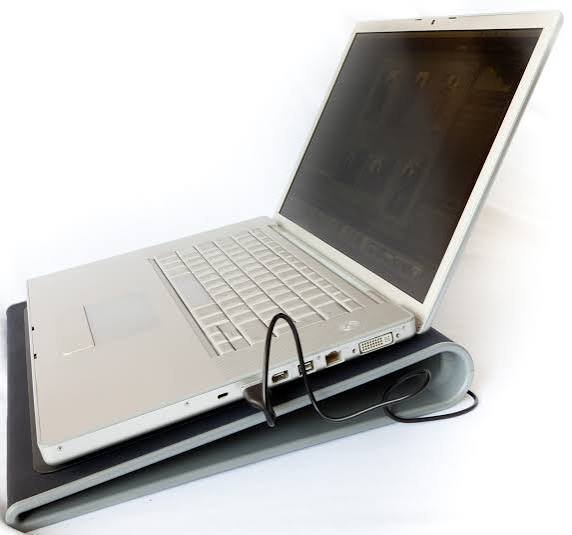
Simple ways to keep temperatures down:
Raise the back of the laptop with a stand or even a small book, so the fans can pull in air freely.
- Clean dust out of the vents. Dust buildup is the most common cause of a laptop that used to run cooler.
- Use a cooling pad for long sessions. It is a cheap way to shave several degrees.
- Set a more aggressive fan curve in your control app if it allows one. More noise, but steadier frames.
| Watch your temps: Use a free monitor like HWiNFO or your control app’s overlay to check CPU and GPU temperatures while you play. If either sits near 90 degrees and your frame rate is dropping over time, throttling is your problem, not your settings. |
Step 5: Tune the heavy in-game settings
Once the hardware is running properly, you can claw back more frames by lowering a few settings that cost a lot at 4K while barely changing how the game looks. The trick is to cut the expensive ones and leave the cheap ones alone.
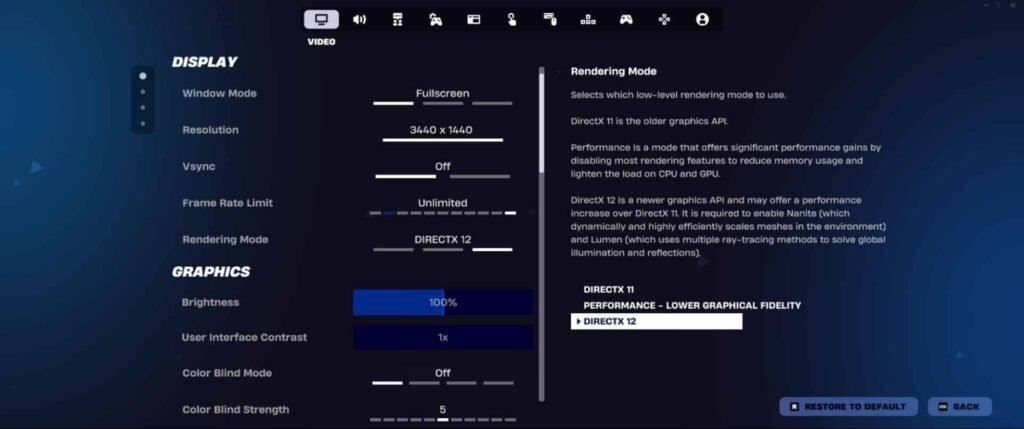
Turn down or off first:
- Ray tracing. This is the most demanding setting in any game. Dropping it from Ultra to High, or turning it off, frees up a large chunk of performance instantly.
- Shadows. Shadow quality eats frames for a difference most people never notice in motion. High instead of Ultra is a safe trade.
- Anti-aliasing. At 4K the picture is already sharp because the pixels are so small, so heavy anti-aliasing does little. You can lower it with little visible loss.
- Motion blur and depth of field. Turn these off. They cost performance and many players prefer the cleaner look anyway.
- Leave these high: textures (as long as you have enough VRAM, covered next), anisotropic filtering, and draw distance. These shape how the world looks and are cheap on a modern GPU.
Use High rather than Ultra as your default. The jump from High to Ultra often costs a third of your frame rate for a difference you would need screenshots to spot. There is no single perfect setting list, because the same option behaves differently from game to game, so change one thing at a time and watch the frame counter.
Many games now include a built-in benchmark or an automatic settings tool. Run the benchmark after each change so you can see the effect in numbers rather than guessing. If a game has an auto-detect or optimization button, treat it as a starting point and then adjust by hand, since these tools tend to play it safe and leave performance on the table at 4K.
Step 6: Free up VRAM and memory
4K is hungry for VRAM, the dedicated memory on your graphics chip. Textures and effects at 4K can push usage well past 12GB, and modern games with ray tracing have been measured using over 17GB. When a game runs out of VRAM, it spills data into slower system memory and you get stutter and texture pop-in, even if your average frame rate looks fine.
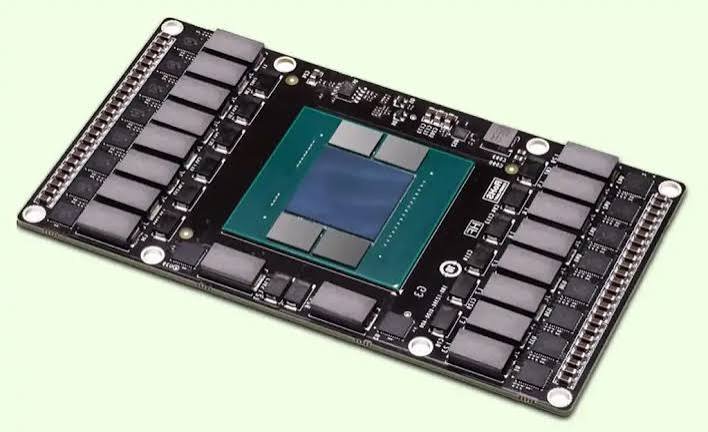
For smooth 4K, 16GB of VRAM is the comfortable target. A 12GB GPU can still do 4K, especially with upscaling, but you may need to keep textures at High rather than Ultra in the heaviest games. You cannot add VRAM to a laptop, so the move is to manage what you have.
Ways to ease memory pressure:
- Close background apps before playing. Browsers with many tabs, Discord overlays, and recording software all eat memory. Use Task Manager to spot the heavy ones.
- Lower the texture setting one notch if you see stutter or pop-in. This is the setting most tied to VRAM use.
- Keep some free space on your SSD. Games can stutter when the drive they are installed on is nearly full, and install your games on the SSD rather than any hard drive.
- Turn on Windows Game Mode (Settings, Gaming, Game Mode) so Windows holds back background tasks while you play.
System RAM matters too. 16GB is the floor for 4K gaming and 32GB gives you breathing room. Make sure your RAM runs in dual channel, meaning two sticks rather than one, which can noticeably lift performance on laptops.
Step 7: Update drivers, and undervolt if you want more
Out-of-date graphics drivers are a common and easily fixed cause of poor performance and bugs. Download the latest driver straight from NVIDIA, AMD, or Intel, or let your control app fetch it. When you install, choose the clean install option so old settings do not carry over. Update Windows in the same sitting.

If you have done everything above and still want more, undervolting is the advanced option worth knowing. It lowers the voltage fed to the CPU or GPU so the chip makes less heat, which lets it hold higher speeds for longer instead of throttling. On many laptops it gives you cooler temperatures and steadier frames at the same time. NVIDIA RTX cards let you do a mild version through a custom curve in MSI Afterburner, and AMD chips can be tuned with the Ryzen Master utility. Go slowly, test for crashes, and undo your change if the laptop becomes unstable. Skip overclocking on a laptop; the cooling is rarely there to support it, and some makers, like Dell, do not support it at all.
Frequently asked questions
Can my gaming laptop run games at 4K?
Most modern gaming laptops can, especially with upscaling on. High-end RTX 5080 and 5090 laptops handle 4K above 60 frames per second in many games, while mid-range models do best aiming for a stable 60 rather than a high refresh rate.
Does DLSS make 4K look worse?
Barely, and often you cannot tell. At the Quality preset, DLSS renders at 1440p and rebuilds it to 4K, keeping most of the sharpness. The latest DLSS 4.5 makes even Performance mode look close to native 4K.
How do I know if my laptop has a MUX switch?
Check your laptop’s control app, such as Armoury Crate or Lenovo Vantage, for a GPU or graphics mode setting. You can also look at the spec sheet on the maker’s website. If there is no option, the laptop likely does not have one.
How much VRAM do I need for 4K gaming?
16GB is the comfortable target for smooth 4K. A 12GB GPU still works, especially with upscaling, but you may need to keep textures at High instead of Ultra in the most demanding games to avoid stutter.
Why does my laptop slow down after a while when gaming?
That is almost always thermal throttling. When the CPU or GPU reaches about 85 to 90 degrees Celsius, it lowers its own speed to cool off. Clean the vents, raise the back of the laptop, and use a cooling pad to fix it.
Conclusion
Getting good 4K out of a gaming laptop is mostly about removing the brakes the laptop puts on itself. Force the dedicated GPU with the MUX switch, turn on DLSS or FSR upscaling, set a performance power plan, and keep temperatures under control. Then trim the heaviest settings like ray tracing and shadows, and watch your VRAM. Do these in order and a good result looks like a stable 60 frames per second or more, with a sharp picture and no stutter, on the laptop you already own.