The setup is the same no matter which method you pick. Gather these four things first.
- An iPad. Almost any modern iPad works. For the best drawing feel, you want one that supports the Apple Pencil.
- An Apple Pencil or a compatible stylus. The Pencil is what gives you pressure sensitivity, the thing that lets a line go from thin to thick as you press harder.
- A laptop. Either a Mac or a Windows laptop. The method changes depending on which one you have.
- A connection. A USB-C cable, or a shared Wi-Fi network. Wired is steadier, and we’ll come back to why.
You also need a drawing app on the laptop. That can be Photoshop, Krita, Clip Studio Paint, Blender, or any program you already use. The iPad becomes the pen; the laptop runs the software.
The ways to connect your iPad to a laptop
There are three main routes. The right one depends on your laptop and your budget. Here’s how they compare.
| Method | Works with | Cost | Best for |
| Sidecar | Mac only | Free | Mac users who want zero setup and tight, low-lag drawing. |
| Spacedesk | Windows | Free | Windows users who want to try this without paying anything. |
| Duet Display | Mac + Windows | From about $5/month | People who want a polished app and use it across both systems. |
| Astropad Studio | Mac + Windows | $14.99/month or $99.99/year | Working artists who want pro features built around drawing apps. |
Sidecar and Spacedesk cover most people for free. The paid apps add pressure curves, custom gesture shortcuts, and smoother performance, which matter more once drawing becomes daily work.
How to set up Sidecar on a Mac
If you have a Mac, start here. Sidecar is built into macOS and iPadOS, so there’s nothing to download. It lets you use your iPad as a second screen, and inside apps like Photoshop your Apple Pencil draws straight onto the canvas.
First, check the basics. Both devices need to be signed in to the same Apple Account with two-factor turned on. Both need Wi-Fi, Bluetooth, and Handoff switched on. Then follow these steps.
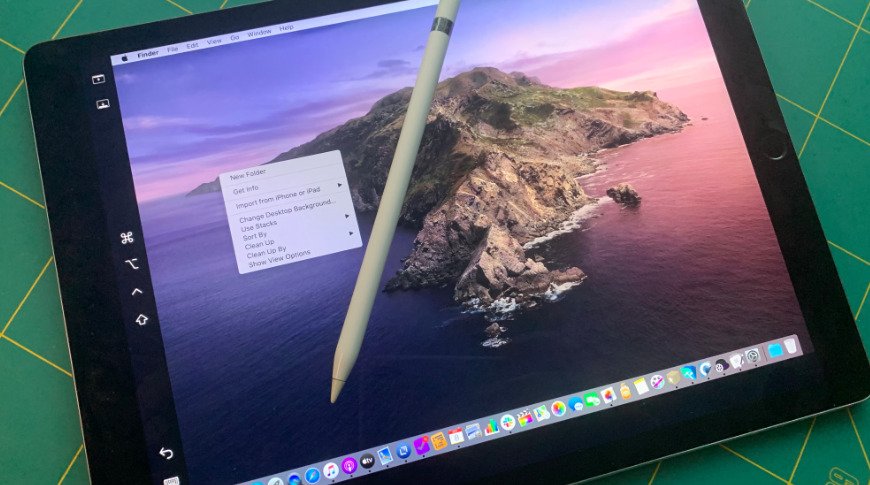
- On your Mac, open System Settings, then click Displays.
- Click the Add button (the plus icon) and choose your iPad from the list.
- Your iPad lights up as a second display. Drag your drawing app’s window onto it, or set it to mirror your Mac.
- Pick up your Apple Pencil and start drawing. The sidebar on the iPad gives you quick access to modifier keys like Command and Shift.
Tip: connect the iPad to your Mac with a USB-C cable while you work. It keeps the iPad charged and cuts down on any wireless lag.
Sidecar works with Macs from 2016 onward running macOS Catalina or later, paired with an iPad that supports the Apple Pencil. If your iPad doesn’t appear, update both devices to the latest software. Apple lists the full requirements on its Sidecar support page.
How to connect an iPad to a Windows laptop
Windows has no built-in version of Sidecar, so you need a third-party app. The good news is you don’t have to pay. The free route uses an app called Spacedesk.
The free way, with Spacedesk:
- Install the Spacedesk driver on your Windows PC from the official Spacedesk site, then install the Spacedesk app on your iPad from the App Store.
- Connect both to the same Wi-Fi network, or plug the iPad into the PC with a USB-C cable for a faster, steadier link.
- Open the app on the iPad. It finds your PC automatically. Tap your computer to connect.
- In Windows display settings, set the iPad to extend or mirror your screen, then open your drawing app and start sketching.
Spacedesk is free and supports pressure sensitivity with the Apple Pencil, especially over a USB connection. It’s the easiest no-cost way to test whether this workflow suits you.
The paid apps. If you want something more polished, Duet Display and Astropad Studio both work on Windows and Mac. Duet was built by former Apple engineers and starts at around $5 a month for its drawing tier, with a short free trial. Astropad Studio is made specifically for artists, with pressure curves and gesture shortcuts that map to your software, and it runs $14.99 a month or $99.99 a year after a free trial. Both let you connect over USB or Wi-Fi.
Wired or wireless: which to pick
Use a cable if you can. A wired USB-C connection is the single biggest thing you can do to make drawing feel good. It cuts lag, stays stable, and keeps your iPad charged while you work.
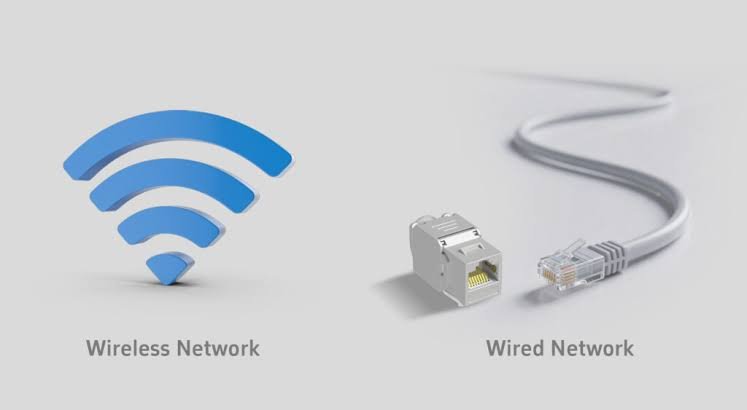
Wireless is more convenient and frees you from the cable, but it leans on your Wi-Fi. On a weak or busy network, you’ll notice a small delay between your pen moving and the line appearing. For quick sketching that’s fine. For detailed work over a long session, plug in.
Fixing lag and pressure sensitivity problems
Two issues come up again and again. Both have simple fixes.
Lag, the delay between your stroke and the line showing up, is almost always a connection problem. Switch from Wi-Fi to a USB cable first. If you’re already wired, update your laptop’s graphics drivers, since the mirroring relies on your GPU. Closing heavy background apps helps too.
Pressure sensitivity not working usually means the app and your drawing program aren’t talking to each other correctly. In Photoshop on Windows, this is a common one: go into the settings and switch the pen input from WinTab to Tablet PC, and make sure you’ve picked a brush that responds to pressure. In the connection app’s own settings, you can often adjust the pressure curve so light strokes stay light and hard strokes go dark.
Quick check: if every line looks the same thickness no matter how hard you press, the problem is pressure settings, not your Pencil. Start with the brush, then the app’s pen input mode.
Is it as good as a real drawing tablet?
For most people, yes, it’s close. Drawing on the iPad’s glass with an Apple Pencil feels natural, and you’re working on a screen with your own hand, which beginners often find easier than a screenless tablet where you look up at a monitor.
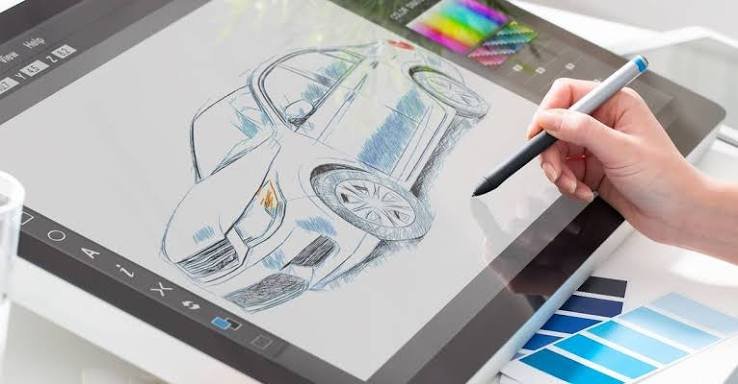
There are trade-offs. A wired drawing tablet built for the job, like a Wacom or Huion pen display, gives you rock-solid input with no app in the middle and no chance of wireless stutter. The iPad route adds a layer of software, so performance depends on your connection and your laptop. If you already own the iPad and Pencil, though, it costs little or nothing to set up, which makes it a smart way to start before spending on dedicated gear.
Frequently asked questions
Can I use my iPad as a drawing tablet for a Windows laptop?
Yes. Windows has no built-in feature, so you use an app. Spacedesk is free and supports the Apple Pencil. Duet Display and Astropad Studio are paid options that work on both Windows and Mac.
Do I need an Apple Pencil to draw?
You don’t strictly need one, but you want one. The Apple Pencil gives you pressure sensitivity and precision. A basic stylus or your finger works for rough sketching, but the results feel much less natural.
Is connecting my iPad to my laptop to draw free?
It can be. On a Mac, Sidecar is built in and costs nothing. On Windows, Spacedesk is free. Paid apps like Astropad run about $99.99 a year and add pro drawing features.
Why is there a delay when I draw?
That lag almost always comes from a wireless connection. Plug your iPad into the laptop with a USB-C cable to fix it. If you’re already wired, update your graphics drivers and close heavy background apps.
Can I use Photoshop on my iPad through my laptop?
Yes. The desktop version of Photoshop runs on your laptop while you draw on the iPad. Whatever method you use mirrors the app to the iPad, and your Pencil draws directly onto the Photoshop canvas.
Conclusion
Connecting your iPad to your laptop to draw is not only possible, it’s straightforward. On a Mac, turn on Sidecar and start drawing for free. On Windows, install Spacedesk for a no-cost setup, or pay for Duet or Astropad if you want extra polish. Use a USB cable for the steadiest experience, and if lines feel laggy or flat, check your connection and pressure settings first. A good result feels almost like pen on paper.
Related Post
Acer Laptop Screen Not Working? Fix It Step by Step
How to Connect a Canon Printer to a Laptop
Can You Bring a Laptop on a Plane? Yes — Here’s What to Know
Acer Laptop Won’t Turn On? Here’s How to Fix It (Step by Step)