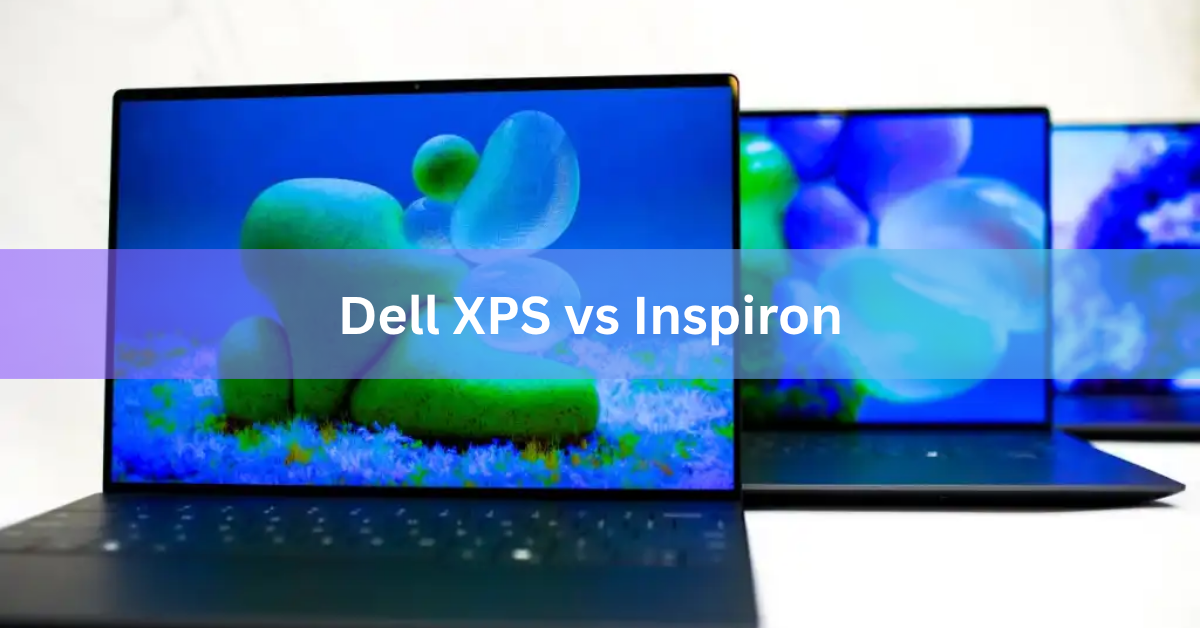
The choice between Dell’s XPS and Inspiron lines comes down to one simple split: XPS is Dell’s premium brand for professionals and creatives willing to spend $1000 or more, while Inspiron is the mainstream line aimed at students, casual users, and families looking for solid everyday performance at a lower price. Both can handle most computing tasks, but they target different budgets and priorities.
Here’s what you actually need to know to pick the right one.
The Price and Audience Divide
This is where the lines diverge most clearly. Inspiron laptops start well under $1000, with basic models around $400 and mid-range “Plus” versions landing in the $700 to $900 range. Most Dell XPS laptops cannot be purchased for less than $1000. You will find XPS 13 models starting around $1200 and prices climbing steeply from there, especially once you add higher-end processors or discrete graphics.

Because of this pricing gap, Inspiron targets cost-conscious shoppers, while XPS appeals to professionals, software developers, content creators, and anyone who wants the best Windows ultrabook money can buy. The question isn’t “which is better?” but “which fits your budget and workflow?”
Design and Build Quality
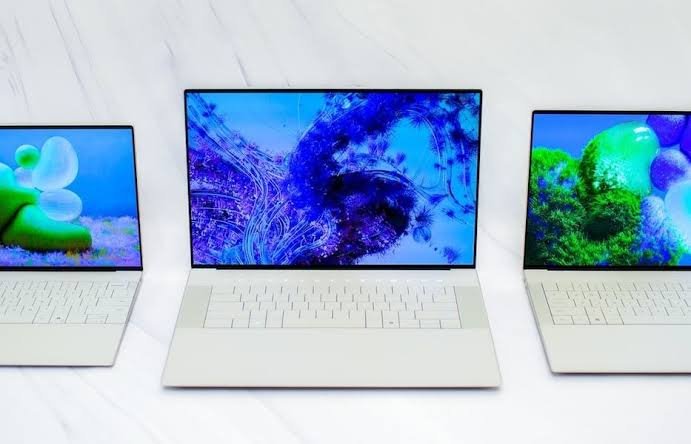
The materials tell the story. XPS laptops use machined aluminum, carbon fiber, and Corning Gorilla Glass. Every component feels deliberate and premium. The chassis is thinner and lighter than comparable Inspiron models, and the overall design is what you’d expect from a laptop positioned against the MacBook Pro.
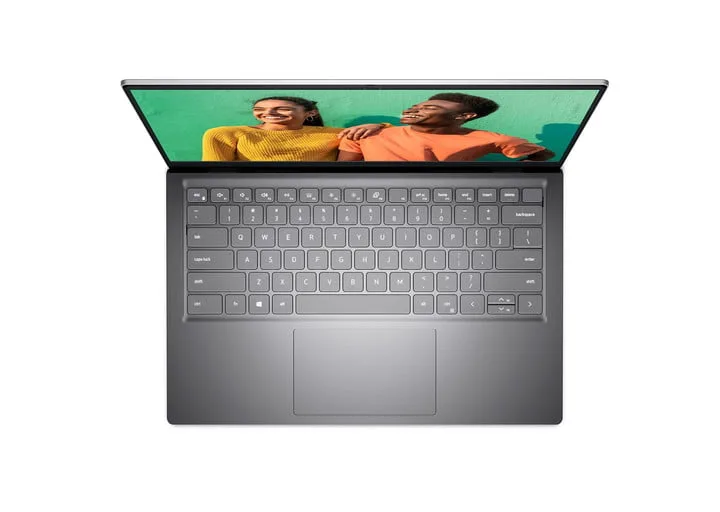
Inspiron laptops have evolved. Older models used plastic, but modern Inspiron 14 and Inspiron 16 units now feature aluminum chassis, bringing them much closer to XPS in durability. You will still notice a difference in finish quality and the weight of the materials, but Inspiron’s build quality has become genuinely solid for the price.
Where XPS really pulls ahead is in the details: diamond-cut edges, seamless keyboard design, and engineering refinement that Inspiron simply doesn’t prioritize. If the laptop sits in your office where people see it, XPS makes a visual statement. If it’s your workhorse that lives in a backpack, Inspiron’s practical aluminum build handles the job without the premium price tag.
Display: OLED vs IPS
This is one of the clearest dividing lines. XPS laptops come standard with OLED or high-end IPS options. The XPS 13 offers a 3K OLED display, the XPS 14 tops out at 3.2K OLED, and the XPS 16 reaches 4K OLED. All feature the InfinityEdge design, meaning the bezels are so thin they look nearly invisible. Color accuracy on OLED models reaches 100% DCI-P3, and contrast is exceptional.
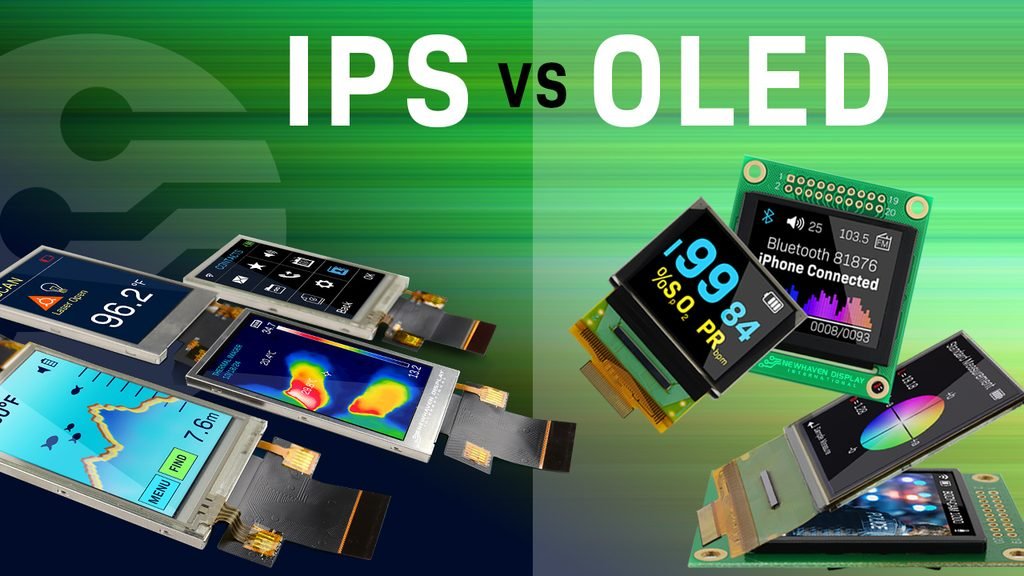
Inspiron laptops stick with IPS panels. Most current models offer 2.2K or 2.8K IPS displays with good brightness (around 300 nits) and solid color accuracy for the price, but they do not have OLED options available through Dell’s website today. Brightness and color accuracy are good enough for browsing, streaming, and everyday work, but they don’t match the punch of an OLED panel.
If you spend eight hours a day staring at your screen, the superior contrast, color accuracy, and brightness of an XPS OLED display makes a real difference. If you mostly work in email, spreadsheets, and browser tabs, an Inspiron IPS screen does the job fine. For photo or video editing, XPS’s OLED becomes the clear winner.
Performance: Processors and Graphics
Both lines now use modern Intel Core Ultra processors or AMD Ryzen options. The real gap is in the top configurations available and in discrete graphics.
Inspiron 14 and Inspiron 16 Plus models pack up to Intel Core Ultra 7 or Core Ultra 9 processors, which are powerful enough for everyday work, light creative tasks, and even some gaming. The integrated graphics handle web browsing, video streaming, and office work without strain. You can configure an Inspiron with an RTX 4060 GPU for gaming or creative work, though it’s not the standard offering.
XPS models come with higher-end processor options and standard discrete graphics on larger models. The XPS 14 includes NVIDIA RTX 4050 or RTX 4070 options, and the XPS 16 steps up to RTX 4060 or RTX 4090 depending on configuration. In real-world use, this matters if you do 3D rendering, video editing in 4K, or heavy machine learning work. For productivity, browsing, and streaming, even a base Inspiron performs admirably.
The Inspiron 14 Plus can match an XPS 13 in everyday performance, but if you need the discrete graphics and processing power that the larger XPS models offer, there’s no real Inspiron equivalent.
Portability and Size
XPS comes in 13, 14, and 16-inch options. The XPS 13 is Dell’s most portable ultrabook, weighing around 2.7 pounds. If you travel constantly and want maximum mobility in a high-end package, this is it.
Inspiron offers 14, 15, and 16-inch sizes. The 14-inch Plus model weighs about 3.5 pounds, still light enough to carry daily but noticeably heavier than the XPS 13. If you want a truly portable premium machine, XPS has the advantage. If portability matters less than screen real estate or a lower price, Inspiron’s 15 or 16-inch options give you more screen for the money.
Battery Life
Both lines deliver all-day battery life. XPS 13 models with Intel Lunar Lake or Snapdragon X Elite processors achieve exceptional battery performance, with some real-world tests pushing 20+ hours on a single charge. This is one of the signature strengths of the latest XPS lineup.
Inspiron laptops with Core Ultra processors also deliver solid battery life, typically 12 to 15 hours depending on the model and usage pattern. For most people, this is more than enough to get through a full workday without hunting for an outlet.
XPS edges ahead here, particularly in the 13-inch models, but both lines offer respectable endurance.
Keyboard and Trackpad
XPS laptops feature a seamless, edge-to-edge keyboard design as part of their ultra-modern aesthetic. Some people love it; others find the lack of key separation takes adjustment. The trackpad is large and glass-smooth.
Inspiron keyboards have more traditional key separation and raised keys, which many people find more comfortable for typing out long documents. The trackpad is also more conventional. If you type for hours every day, you should test both before buying.
When to Choose XPS
Pick XPS if you:
- Do creative work like video editing, photo processing, graphic design, or 3D modeling
- Want the best display available and need color accuracy
- Value premium design and materials
- Work with demanding software or large files
- Travel frequently and want the smallest, lightest option
- Have a budget of $1000+
When to Choose Inspiron
Pick Inspiron if you:
- Need a laptop for everyday work, school, or casual use
- Want to spend less than $800
- Browse the web, use email, and stream video most of the time
- Write documents and work in productivity software
- Prefer a more traditional keyboard and trackpad feel
- Want a larger screen without the premium price
Frequently asked questions
Can an Inspiron run the same software as XPS?
Yes. Both run Windows 11 and can handle the same applications. The difference is processing speed for demanding tasks. Video editing in 4K might tax an Inspiron’s integrated graphics, while an XPS with a discrete GPU handles it smoothly.
Is XPS worth the extra cost?
That depends on your work. If you do creative work or need premium display quality, yes. If you mostly use email and browsing, you’re paying for aesthetics and performance you won’t use.
Which Inspiron model is best?
The 14 Plus offers the best balance of price and performance. It’s powerful enough for most tasks, has an aluminum chassis, and costs significantly less than XPS.
Do Inspiron laptops have touchscreens?
Some models do, including certain Inspiron 14 Plus versions. Check the specific configuration before buying.
How long will each laptop last?
Both are built to last several years with normal use. XPS materials may feel more durable long-term, but modern Inspiron aluminum chassis are solid. Neither will feel outdated in two to three years unless your software needs change dramatically.
Conclusion
XPS and Inspiron serve different people at different price points. XPS is the premium choice for professionals, creatives, and anyone who wants the best Windows ultrabook available. Inspiron is the practical choice for everyday users and students who need reliable performance without the premium cost. Both deliver solid performance and good build quality in their respective categories. Match the laptop to your actual needs and budget, and you will be happy with either choice.
Recommended Article:
Laptop Radiation Protection: What Actually Works
How to Link Two Laptops Together: Every Method That Actually Works
How to Connect an Epson Projector to a Laptop
How to Reset an Acer Laptop (Factory Reset, Step by Step)
How Big Is an 11.6-Inch Laptop Screen? Real Dimensions and What Fits