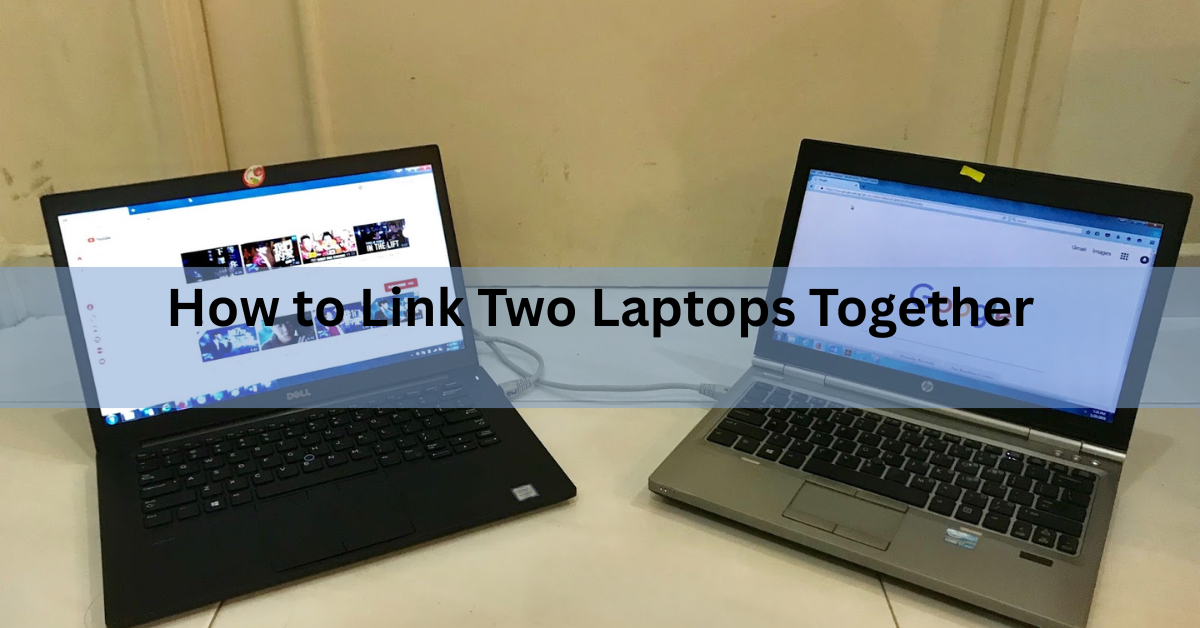
The quickest way to link two laptops is to put both on the same Wi-Fi network and switch on file sharing. That takes about two minutes and costs nothing. If you are moving hundreds of gigabytes, plug an Ethernet cable straight from one laptop into the other instead.
“Link” means different things to different people, though. You might want to move files, run both machines from one keyboard, or use the second screen as extra desk space. Pick the goal first, because each one needs a different setup.
Pick your goal first
Every method below does one job well and the others badly. Here is the short version.
| What you want to do | Best method | What you need |
|---|---|---|
| Send one or two files right now | Nearby sharing or AirDrop | Nothing extra |
| Browse the other laptop’s folders | Same Wi-Fi plus file sharing | Nothing extra |
| Move 100 GB or more | Ethernet cable between the two | One cable |
| Type on both from one keyboard | Mouse Without Borders or Universal Control | Free software |
| Use the second screen as a display | Wireless Display or a display app | Same Wi-Fi |
| Work inside the other laptop | Remote desktop software | Nothing extra |
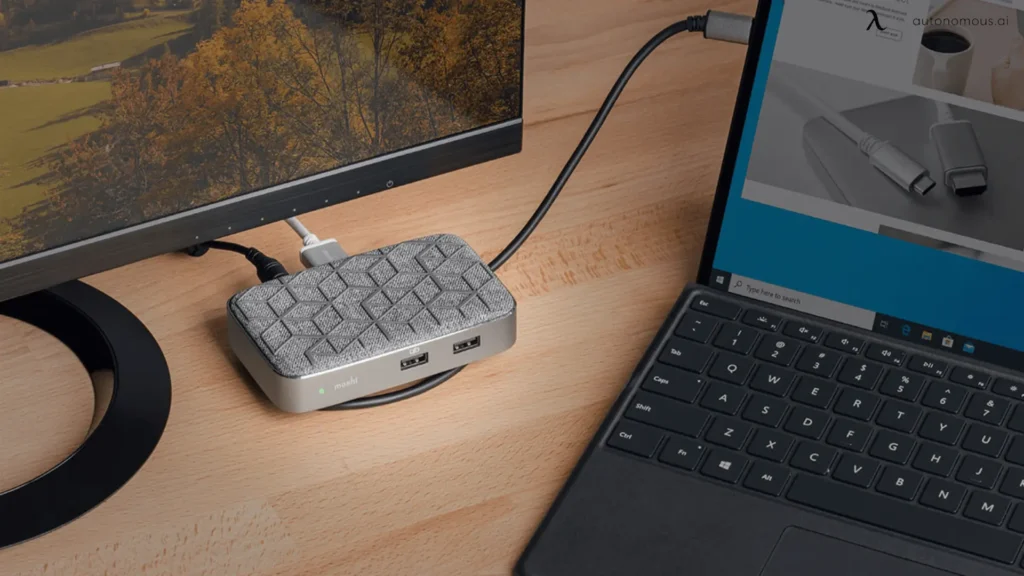
Two things are worth flagging now, because people try them first and they do not work. An HDMI cable between two laptops does nothing at all, and an ordinary USB cable between them can wreck both machines. Both are covered below.
How do you connect two laptops over Wi-Fi?
Put both laptops on the same Wi-Fi network, mark that network as private, then switch on sharing. After that, one laptop’s folders show up in the other’s file browser and you can drag files across as if they sat on a USB stick.
On Windows 11:
- On both laptops, open Settings, go to Network & internet, click your Wi-Fi network name, and set the network profile to Private. Windows blocks sharing on public networks by design.
- Search the Start menu for “manage advanced sharing settings” and open it. Under Private networks, switch on Network discovery and File and printer sharing. Do this on both laptops.
- On the laptop holding the files, right-click the folder you want to share. Choose Properties, open the Sharing tab, click Share, and add the user who should get access.
- On the other laptop, open File Explorer and click Network in the left sidebar. The first laptop appears by name. Double-click it and sign in with that laptop’s account details.
One detail trips people up at step four. If the laptop you are connecting to signs in with a Microsoft account, the username is the full email address, not the short name you see on the lock screen. If you plan to do this often, right-click the shared folder afterwards and pick “Map network drive” so it sits permanently under This PC.
On a Mac, the same idea lives in System Settings under General, then Sharing. Switch on File Sharing, add the folders you want to expose, then on the second Mac go to Finder, choose Go, then Connect to Server, and click Browse.
For a single file, skip all of that. Windows has nearby sharing built in: turn it on under Settings, System, Nearby sharing on both machines, then right-click a file and choose Share. Between two Macs, AirDrop does the same job. Nearby sharing uses Wi-Fi when both laptops sit on the same private network and drops back to Bluetooth when they do not, and Bluetooth is slow enough that you will notice on anything bigger than a few photos.
How do you connect two laptops with a cable?
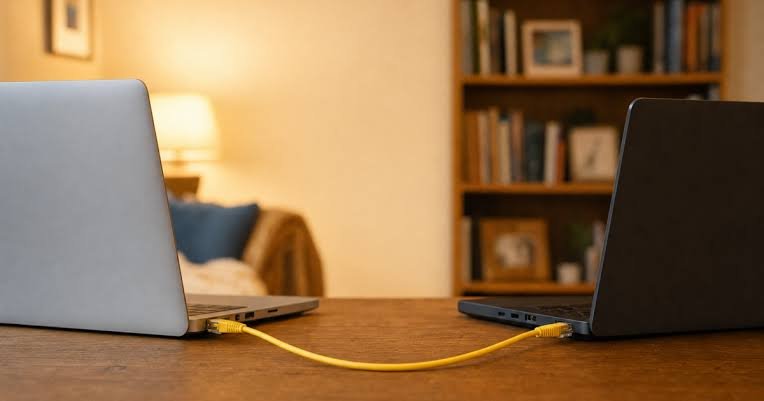
Run an Ethernet cable from the port on one laptop to the port on the other. No router, no switch, no crossover cable. Both machines give themselves an address automatically, and from there you share folders exactly as described above.
Gigabit Ethernet ports sort out the wiring swap internally, which is why old advice about crossover cables no longer applies. If neither laptop has an Ethernet port, and most thin ones do not, a pair of cheap USB-C to Ethernet adapters fixes that.
Speed is the reason to bother. A gigabit link runs at 1 Gbps, which works out to a little over 100 MB per second in practice, so a 100 GB folder lands in roughly twenty minutes. Wi-Fi in a busy building rarely holds that pace, and it drops out mid-copy.
Two Macs with Thunderbolt ports can do better. Connect them with a real Thunderbolt cable, then open System Settings, go to Network, and pick Thunderbolt Bridge. That gives you a 10 Gbps link, and File Sharing runs straight over it. Check the cable before you buy: a Thunderbolt cable has a small lightning bolt on both plugs, and a charge-only USB-C cable will not work.
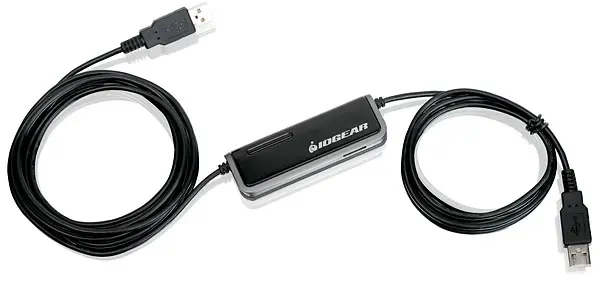
Skip the USB cable. A plain USB-A to USB-A cable joining two laptops can burn out the ports and the power circuitry on both. Purpose-built PC-to-PC transfer cables do exist, with a chip in the middle and software in the box, but a USB 2.0 bridge tops out at 480 Mbps, well under gigabit Ethernet. Buy the Ethernet cable.
Can you connect two laptops with an HDMI cable?
No. A laptop’s HDMI port sends a picture out. It cannot take one in. Plugging one laptop’s HDMI port into another’s does nothing, and no setting anywhere changes that. The same is true of DisplayPort and USB-C video output on laptops.
If you want the second laptop’s screen to act as a monitor, you need software that sends the picture over the network, or a hardware capture card that turns the video signal into something the second laptop reads as a camera feed. The software route is far cheaper and easier.
How do you use one keyboard and mouse for both laptops?
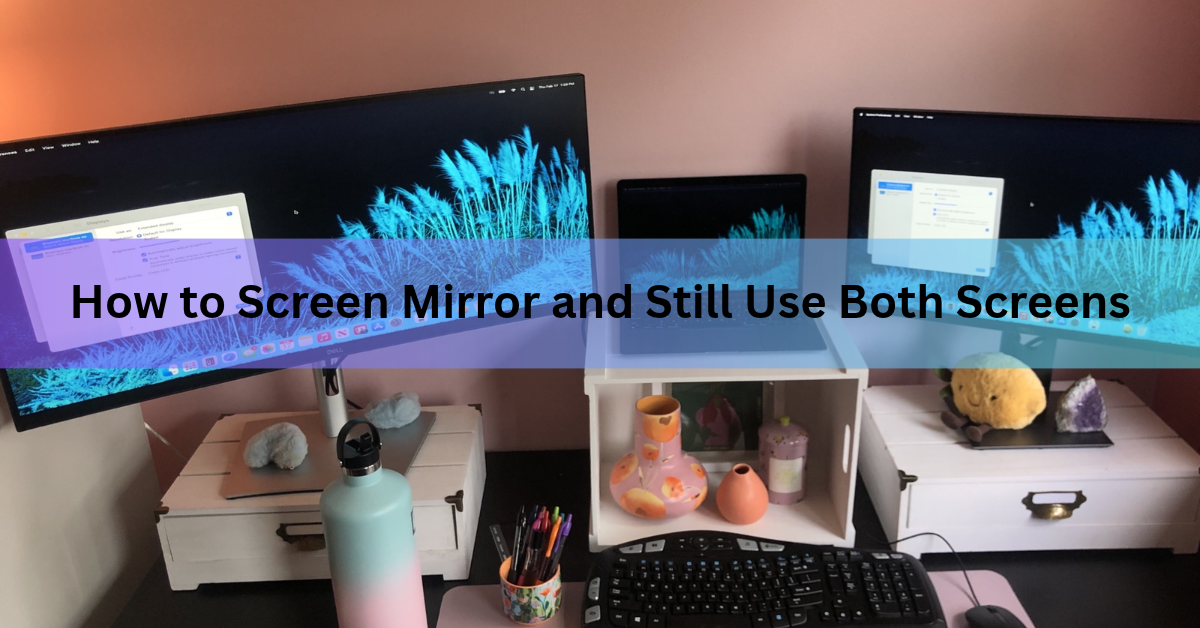
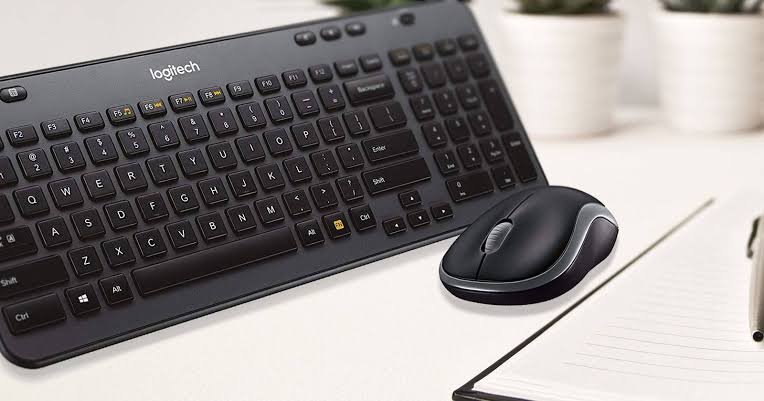
Install a software KVM. It watches for your cursor hitting the edge of one screen and hands control to the other machine, so two laptops on one desk start to feel like one computer with two displays.
On Windows, Mouse Without Borders is free and ships inside Microsoft PowerToys. Install PowerToys on both laptops, open the Mouse Without Borders panel, generate a security key on the first machine, then type that key and the first machine’s name into the second. Drag the on-screen layout so it matches where your laptops actually sit. You get a shared clipboard as well, and you can drag single files across up to 100 MB.
Between two Macs, Universal Control does the same thing with nothing to install. Both need macOS Monterey 12.4 or later, the same Apple Account with two-factor turned on, Bluetooth, Wi-Fi and Handoff switched on, and they have to sit within 10 metres of each other. Push the pointer off the edge of one screen toward the other machine and it pushes through.
For a Windows laptop next to a Mac, a hardware KVM switch handles it, or a cross-platform app such as Synergy. A hardware switch also covers the case where one laptop sits on a locked-down work network that blocks software like this.
Can you use one laptop as a second screen for the other?
Yes, over Wi-Fi. Windows can turn a laptop into a wireless monitor for another Windows laptop using Miracast, the wireless display standard built into most PC hardware.
On the laptop you want to use as the screen, open Settings, go to System, then Projecting to this PC. Windows points you at Optional features, where you add Wireless Display. Once that installs, set the drop-down to allow projection, then launch the Wireless Display app so the machine starts listening. On the main laptop, press Windows key + K, pick the other laptop from the list, and choose Extend rather than Duplicate.
Be honest with yourself about what this gives you. A wireless display shows visible lag and the image goes soft when things move, so it works for a chat window, a document, or a reference page, and poorly for video or anything you drag around. On a mixed Windows and Mac desk, apps like spacedesk and Duet Display fill the gap, with the same lag trade-off.
How do you control one laptop from the other?
Use remote desktop software, which shows you the other laptop’s whole desktop in a window and lets you drive it. This is different from a software KVM: here you are working inside the other machine, not beside it.
Windows 11 Pro has Remote Desktop built in, under Settings, System, Remote Desktop. Windows 11 Home can connect out to another PC but cannot accept incoming connections, which catches a lot of people out. Free tools such as Chrome Remote Desktop and RustDesk work on any edition and across operating systems. On a Mac, turn on Screen Sharing in System Settings under General, then Sharing, and connect from the other Mac through Finder.
What if one laptop is Windows and the other is a Mac?
They still talk, because both speak SMB, the standard file sharing protocol. On the Mac, switch on File Sharing in System Settings under General, then Sharing, and note the address it shows you. On the Windows laptop, open File Explorer, type that address into the bar at the top in the form \\192.168.1.20, and sign in with the Mac’s username and password.
Going the other way, share a folder in Windows first, then on the Mac choose Go, then Connect to Server, and enter smb:// followed by the Windows laptop’s IP address. AirDrop and nearby sharing do not cross between the two systems, so for a one-off file a cloud folder or a USB stick is usually quicker than setting any of this up.
The other laptop is not showing up. What now?
Nine times out of ten, the network profile is set to Public. Windows hides your machine from everything else on a public network, so switch both laptops to Private and look again.
If that does not fix it, work through these:
- Check they are on the same network. A dual-band router often hands out separate names for its 2.4 GHz and 5 GHz bands, and a guest network is walled off from the main one.
- Turn off any VPN. A VPN routes your traffic away from the local network and hides the other machine completely.
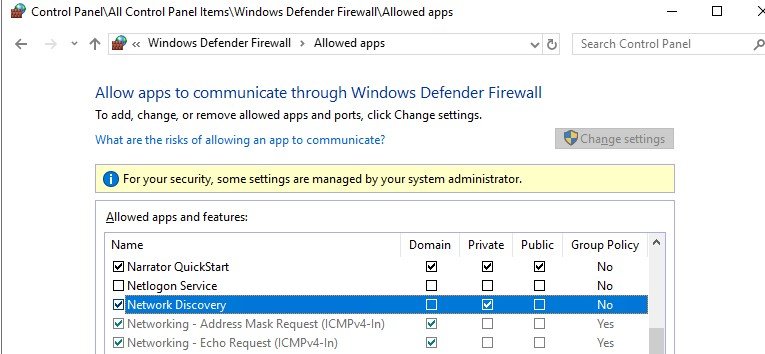
- Check the firewall. Windows Defender Firewall needs file and printer sharing allowed on private networks.
- Type the name directly. In File Explorer, enter \\LAPTOP-NAME in the address bar instead of waiting for the Network list to fill in, because discovery is slow and unreliable.
- Wake both machines. A sleeping laptop drops off the network entirely.
Frequently asked questions
Do I need a crossover cable to connect two laptops with Ethernet?
No. Gigabit Ethernet ports detect and correct the wiring themselves, so a standard Ethernet cable works fine between two modern laptops. Crossover cables were only needed for older 10/100 hardware.
Can I connect two laptops without any internet connection?
Yes. An Ethernet cable between them creates a private network with no router or internet involved. You can also turn on one laptop’s mobile hotspot and join the other to it, then share folders as usual.
What is the fastest way to move a large amount of data between two laptops?
A direct Ethernet cable, at roughly 100 MB per second on a gigabit link. Two Thunderbolt-equipped Macs joined by Thunderbolt Bridge are faster still. For very large libraries, copying to an external SSD twice is often quicker overall.
Can I share one laptop’s internet connection with the other?
Yes. On Windows, turn on Mobile hotspot under Settings, Network & internet. On a Mac, use Internet Sharing in System Settings under General, then Sharing. The second laptop joins it like any other Wi-Fi network.
Will connecting two laptops move my installed programs across?
No. File sharing copies documents, photos and folders, not applications. Programs have to be installed again on the second laptop, though you can copy licence keys and settings files across the same connection.
Conclusion
Name the job first, then pick the method. For everyday file swaps, put both laptops on the same private Wi-Fi network and switch on file sharing, then use nearby sharing or AirDrop for one-off files. For a big move, run an Ethernet cable straight between the two. Add Mouse Without Borders or Universal Control if you want one keyboard driving both. Done right, the second laptop simply appears in your file browser and files copy across with no USB stick involved.
Recommended Articles:
How to Reset an Acer Laptop (Factory Reset, Step by Step)
Does a Laptop Have a Lithium Battery? What’s Inside and Why It Matters
How to Optimize Your Gaming Laptop for Cloud Gaming
Acer Laptop Won’t Turn On? Here’s How to Fix It (Step by Step)
Can You Bring a Laptop on a Plane? Yes — Here’s What to Know