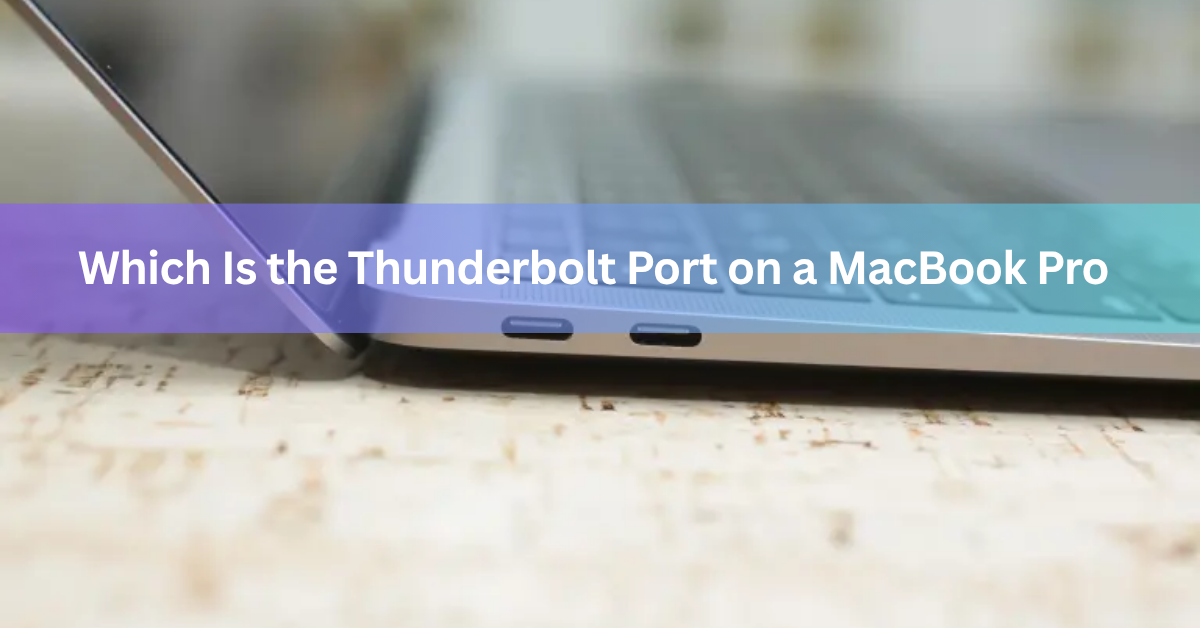
On a MacBook Pro made in 2016 or later, every USB-C-shaped port is a Thunderbolt port. They are the flat, oval slots on the sides, and each one is marked with a tiny lightning-bolt symbol. So you do not have to pick the right one. Plug your cable into any of them and it will carry data, video, and power all the same.
The thing worth knowing is not which port, but which version of Thunderbolt your Mac has and which cable to use with it. Here is how to tell at a glance, and how to confirm it in a few clicks.
What the Thunderbolt port looks like
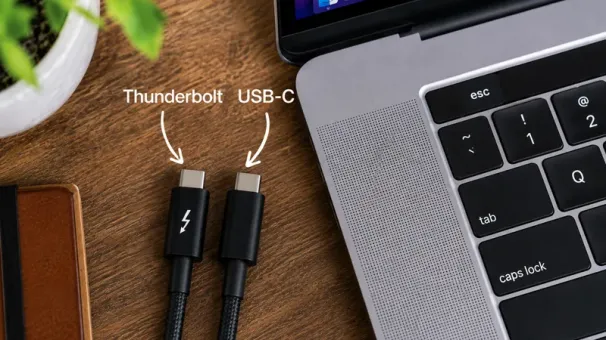
The Thunderbolt port is a small rounded rectangle, about a centimetre wide, with no pins showing inside. It is the same shape as a USB-C port because Thunderbolt 3 and later use the USB-C connector. Next to each one you will see a lightning-bolt icon. That symbol is the giveaway.
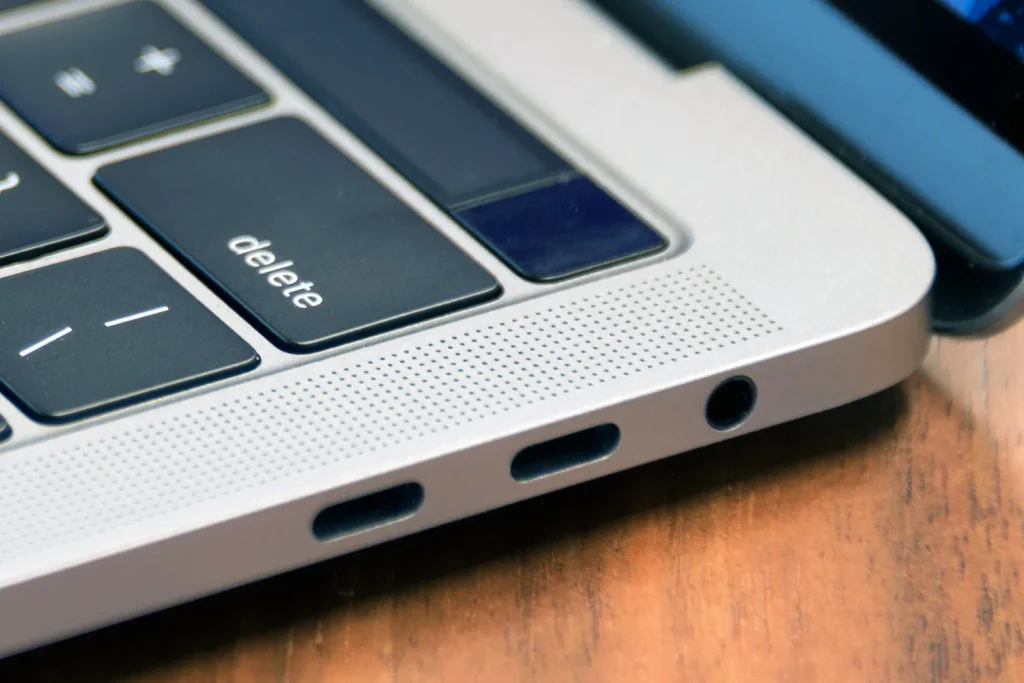
The plug is reversible, so it goes in either way up. On the 14-inch and 16-inch MacBook Pro, the ports sit in two groups: usually two on the left next to the MagSafe charging port and headphone jack, and one on the right next to the HDMI port and SD card slot.
Quick tip: the lightning bolt means Thunderbolt. The flat oval shape alone only tells you it is USB-C, which is not the same thing on every laptop.
Are all the USB-C ports on a MacBook Pro Thunderbolt?
Yes, on every MacBook Pro since the switch to USB-C in 2016. All of the flat oval ports on these machines support Thunderbolt, so there is no dud port that only does slow USB. This is different from some Windows laptops and even older 12-inch MacBooks, where a USB-C port might handle basic USB only.
Because they are all the same, you can charge from any of them, hook up a monitor from any of them, and run an external drive from any of them. The only reason to prefer one side is cable tidiness or which way your desk faces.
Which port on which MacBook Pro? A quick model guide
The port shape has stayed the same for years, but the speed behind it has jumped. Newer models moved from Thunderbolt 3 to Thunderbolt 4, and the latest high-end machines use Thunderbolt 5. The table below shows what each MacBook Pro carries.
| MacBook Pro model | Port version | Top data speed |
|---|---|---|
| 13-inch, 2016–2020 (Intel) | Thunderbolt 3 | 40 Gbit/s |
| 16-inch, 2019 (Intel) | Thunderbolt 3 | 40 Gbit/s |
| 13-inch, M1/M2 (2020–2022) | Thunderbolt / USB 4 | 40 Gbit/s |
| 14 & 16-inch, M1/M2/M3 Pro/Max | Thunderbolt 4 | 40 Gbit/s |
| 14-inch, M3 (2023) | Thunderbolt / USB 4 | 40 Gbit/s |
| 14 & 16-inch, M4 Pro/Max (2024) | Thunderbolt 5 | 120 Gbit/s |
| 14-inch, M5 (2025) | Thunderbolt 4 | 40 Gbit/s |
| 14 & 16-inch, M5 Pro/Max (2025) | Thunderbolt 5 | 120 Gbit/s |
A few notes on the table. Thunderbolt 3, Thunderbolt 4, and USB 4 all top out at 40 Gbit/s for data, so in daily use they feel the same. Thunderbolt 5 is the big step up, hitting 120 Gbit/s in the direction that needs it most, which matters for very fast external SSDs and multiple high-resolution displays.

One quirk: the plain M5 14-inch model from 2025 uses Thunderbolt 4, while the M5 Pro and M5 Max versions use Thunderbolt 5. So the exact chip in your Mac, not just the year, decides which version you get.
How to confirm the Thunderbolt version in System Information
If you want to be sure which version your ports run, macOS will tell you in under a minute. This is the reliable way, since the port shape and the lightning bolt do not reveal the generation.
- Click the Apple menu in the top-left corner, then choose About This Mac.
- Click More Info, scroll down, and select System Report.
- In the sidebar under Hardware, click Thunderbolt/USB4.
- The main panel lists each port and its Thunderbolt version, plus any device you have plugged in.
If you plug a Thunderbolt drive or dock into a port and it shows up in this panel with its speed, you have confirmed both that the port works and that your cable is up to the job. Apple explains the same steps on its Identify the ports on your Mac support page.
Thunderbolt vs plain USB-C: why the difference matters
USB-C is a connector shape. Thunderbolt is a set of abilities that runs over that shape. So a port can be USB-C but not Thunderbolt, though on a MacBook Pro they always come together.
Thunderbolt bundles high-speed data, video output, and power delivery into one port. In practice that means a single cable to a dock can drive two monitors, charge your laptop, and connect your keyboard, mouse, and drives at once. A basic USB-C port cannot always do all of that, and rarely at the same speed.
The gap shows up most with fast storage and multiple displays. A Thunderbolt SSD can hit read speeds that a plain USB-C drive cannot touch, and Thunderbolt can push more pixels to more screens.
Which cable do you need?
Here is the catch that trips people up: the cable matters as much as the port. A cable that fits your Thunderbolt port is not always a Thunderbolt cable. A cheap USB-C charging cable will fit perfectly and still cap you at slow speeds or refuse to carry video.
For full speed, use a cable rated for Thunderbolt or one that matches the standard you need. Look for the lightning-bolt symbol printed on the cable connector, or check the cable’s listed specs. Apple details the right adapters and cables on its Adapters for the Thunderbolt or USB-C port on your Mac page.
A simple rule of thumb: for charging and everyday accessories, almost any USB-C cable works. For a fast drive, a dock, or a high-resolution monitor, use a proper Thunderbolt cable so the port can stretch its legs.
If a drive or display connects but runs slower than expected, swap the cable before you blame the port. A weak cable is the most common cause.
Frequently asked questions
Which USB-C port on my MacBook Pro is Thunderbolt?
All of them. On every MacBook Pro since 2016, each USB-C-shaped port supports Thunderbolt and is marked with a lightning bolt, so any port works for displays, docks, and drives.
How do I know if my MacBook Pro has Thunderbolt 4 or 5?
Open the Apple menu, choose About This Mac, click More Info, then System Report, and select Thunderbolt/USB4 under Hardware. The panel lists each port’s exact version.
Does the lightning-bolt symbol mean the port is Thunderbolt?
Yes. The lightning bolt next to a USB-C-shaped port means it supports Thunderbolt. The symbol does not tell you the generation, though, so check System Information for that.
Can I charge my MacBook Pro through any Thunderbolt port?
Yes. Any Thunderbolt (USB-C) port can charge your MacBook Pro. The 14-inch and 16-inch models also include a separate MagSafe 3 port, but charging over Thunderbolt works fine too.
Why is my Thunderbolt device running slowly?
Usually the cable, not the port. A basic USB-C cable fits but limits speed and may block video. Swap in a Thunderbolt-rated cable to get full performance.
Conclusion
On any MacBook Pro from 2016 onward, all the flat oval ports are Thunderbolt, each marked with a lightning bolt, so you can use whichever one you like for charging, displays, docks, and drives. The only follow-up worth checking is which version your Mac has, Thunderbolt 3, 4, or 5, which you can confirm in System Information. Match that with a proper Thunderbolt cable and you will get the full speed your machine can deliver.
Recommended Articles:
Why Laptop Barrel Chargers Are Bigger Than USB-C
Wacom Cintiq 22HD Not Connecting to Your Laptop? Here’s How to Fix It
How Many Watts Does a Laptop Use? Real Numbers by Type and Task