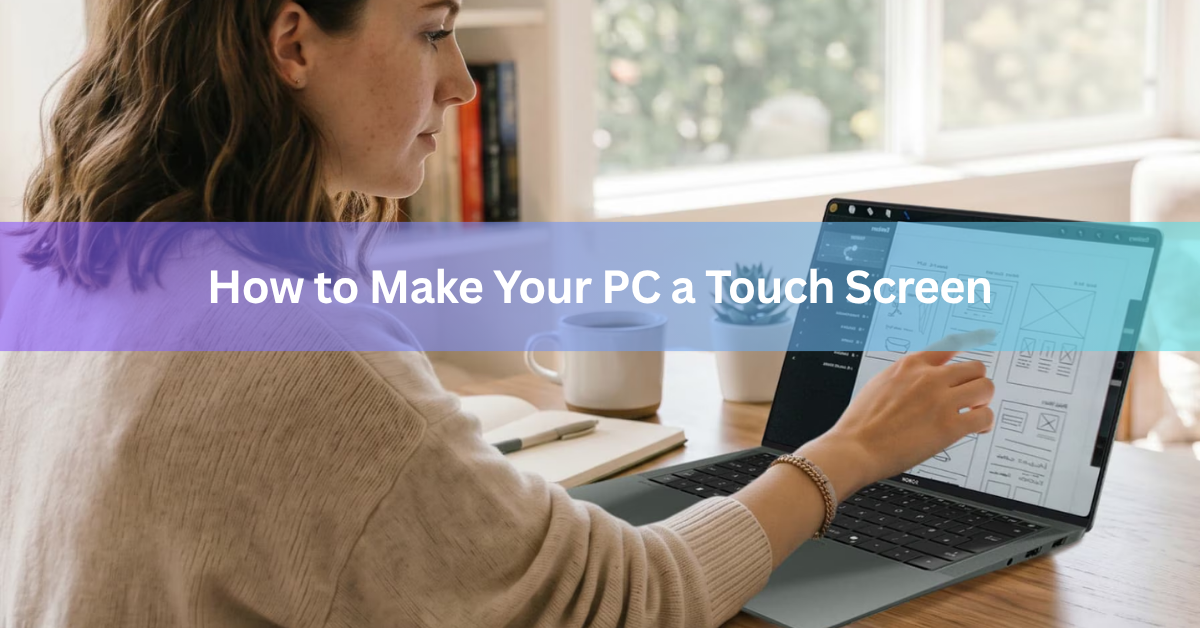
You can’t add touch to a screen that wasn’t built for it, but you can still get full touch control of your PC. The fix is to connect a touchscreen monitor or a portable touch display, then use that screen to tap, swipe, and pinch. It plugs in like any other monitor, and for most people it costs far less than buying a whole new touch laptop.
This guide walks through the methods that work today, which one fits your setup, and how to switch touch on once the hardware is connected.
Can you turn any PC into a touch screen?
Not the built-in screen itself. The glass on a normal monitor or laptop has no touch sensor inside it, and there is no setting, driver, or app that can add one. Software can only read a sensor that already exists.
What you can do is give your PC a screen that does sense touch. Windows treats a touch monitor like any other display, so once it is plugged in you can run everything on it by hand: open apps, scroll pages, drag windows, zoom photos, and draw. You keep your current computer and just add the touch surface.
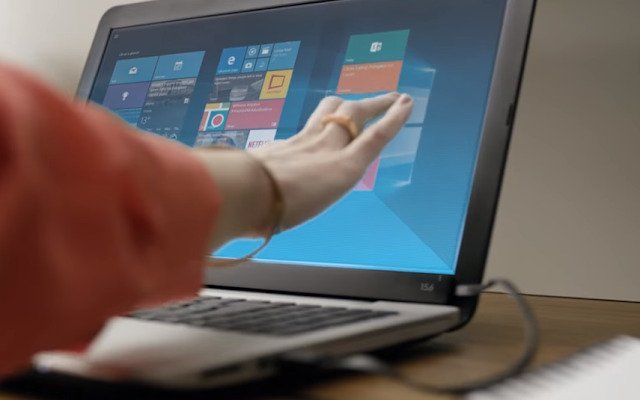
The short version: you are not converting your old screen. You are adding a new one that already understands touch.
First, check if your PC already has touch
Before you buy anything, make sure the feature isn’t already there and simply turned off. Plenty of 2-in-1 laptops and all-in-one PCs ship with touch, and it can get disabled by a driver update or a stray setting.
Here is the 60-second check on Windows 11 or 10:
- Right-click the Start button and open Device Manager.
- Expand the section called Human Interface Devices.
- Look for an entry named HID-compliant touch screen.
- If you see it, right-click and choose Enable device. If it is missing, your PC has no touch hardware.
A quick clean also helps. Dust, grease, and screen protectors can block touch on a screen that does work, so wipe it with a soft, dry cloth and try again. If there is no touch entry at all, move on to adding a touch screen below.
Option 1: Connect a touchscreen monitor (best for desktops)
For a desktop tower, a touchscreen monitor is the cleanest answer. It is a normal monitor with a touch layer built into the panel, so accuracy is high and setup is simple. You sit it on your desk, plug it in, and tap away.
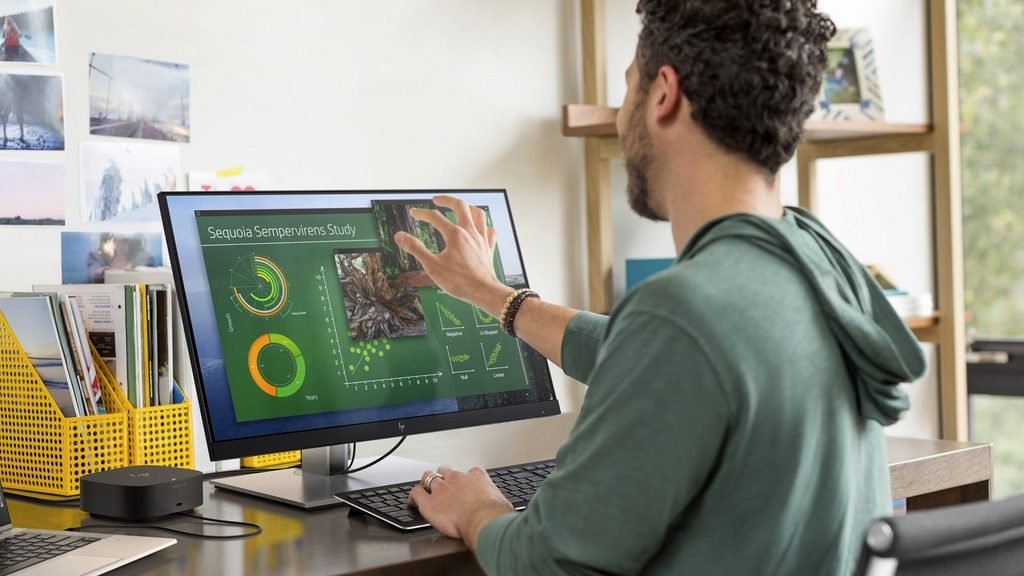
Most models connect with HDMI or DisplayPort for the picture, plus a USB cable that carries the touch signal back to the PC. Some newer monitors do both over a single USB-C cable. Prices start around $150 and climb with size and resolution.
How to set it up
- Connect the video cable (HDMI, DisplayPort, or USB-C) from the monitor to your PC.
- Connect the touch USB cable to any USB port on the PC. On USB-C monitors this is often the same cable as the video.
- Turn the monitor on. Windows detects it as a new display automatically.
- Press the Windows key, type “touch,” and open Calibrate the screen for pen or touch input to line up taps with what’s on screen.
Tip: if you have two screens, Windows needs to know which one accepts touch. The calibration tool has a Setup button that lets you tap the right display.
Option 2: Use a portable touch display (best for laptops)
If you want touch on a laptop, or you move around a lot, a portable touch display is the easier buy. These are slim 14 to 16 inch screens that weigh about a kilo, fold flat, and slip into a bag. Many run off a single USB-C cable that carries video, power, and touch all at once.
They work with laptops, desktops, phones, and even game consoles, as long as the port supports video output. Models from brands like ViewSonic and Verbatim offer 10-point multi-touch, which means you can use several fingers at once for gestures like pinch-to-zoom. The ViewSonic TD1655 is a common 16-inch example with two USB-C ports and a built-in stand.
The catch with USB-C is that your laptop’s port must support something called DisplayPort Alt Mode, which lets the port send a video signal. If it doesn’t, you use the included HDMI cable for the picture and a separate USB cable for touch. Check your laptop’s spec sheet for “USB-C DisplayPort” or a small DP logo next to the port.
Option 3: Add a touch overlay frame (best for big screens)
A touch overlay is a thin frame that fits over the front of a monitor or TV and adds touch to the screen underneath. Inside the frame, infrared sensors track where your finger breaks a grid of invisible light beams, then send that as touch input over USB. This is the one method that genuinely makes an existing screen respond to touch.
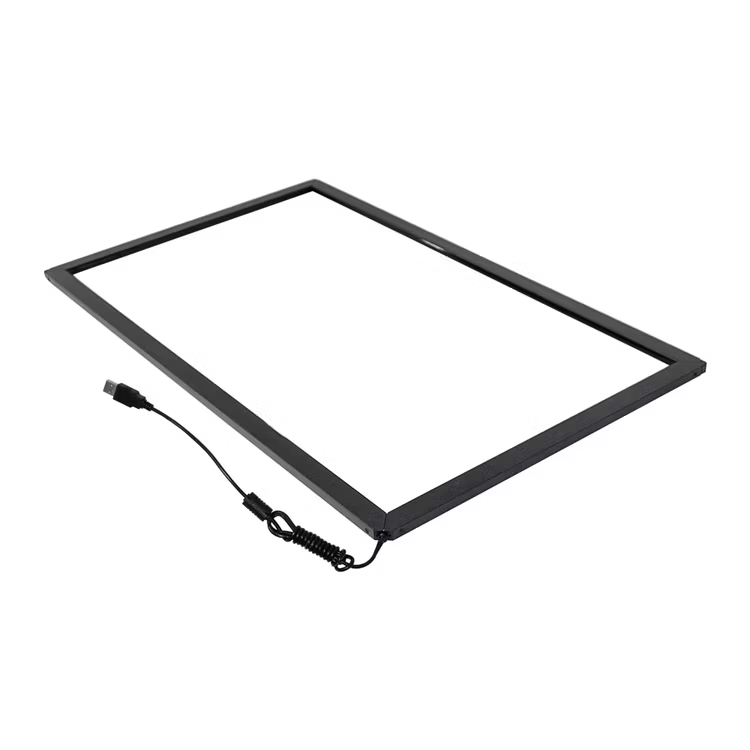
Overlays shine on large or wall-mounted displays, like a 40-inch screen in a shop, classroom, or meeting room, where buying a touch panel that size would cost a fortune. For a single home PC they are usually overkill. They cost more than a small touch monitor, need careful alignment with the screen edges, and only come in set sizes, so you have to match the frame to your display.
If you go this route, measure your screen’s exact diagonal and bezel depth first, and buy a frame made for that size. A loose or mismatched frame is the main reason overlays feel inaccurate.
Quick comparison of the three methods
Here is how the three routes stack up so you can match one to your setup and budget.
| Method | Touchscreen monitor | Portable touch display | Touch overlay frame |
|---|---|---|---|
| Best for | Desktop setups, permanent use | Laptops and travel | Large or fixed displays |
| Typical cost | $150 to $400+ | $120 to $300 | $300 to $1,000+ |
| Touch accuracy | High | High | Medium to high |
| Setup effort | Low, plug and play | Very low, one cable | Medium, needs alignment |
| Adds touch to your current screen? | No, it is a new screen | No, it is a new screen | Yes, sits over it |
For most people the choice is simple. Desktop at a desk, get a touch monitor. Laptop or travel, get a portable touch display. Big fixed screen you can’t replace, get an overlay.
What about touch bars and stick-on gadgets?
For years the popular suggestion was a small magnetic bar that clipped to the bottom of a laptop screen and beamed a light field across it to sense touch. The best-known one, the AirBar by Neonode, is no longer made or sold, and its newer Mac software was retired back in 2022. Neonode now puts the same sensor technology into business products instead of a consumer bar.
You may still see these bars listed secondhand, but support, drivers, and sizing (they only fit one screen size each) make them a shaky bet today. A portable touch display costs about the same and gives you a far more reliable result, which is why it has become the go-to choice.
How to set up and calibrate touch in Windows
Once your touch hardware is connected, Windows handles most of the work on its own. These steps make sure taps land exactly where you aim and that the right screen responds.
- Plug in the display and let Windows detect it. New touch monitors usually need no extra driver.
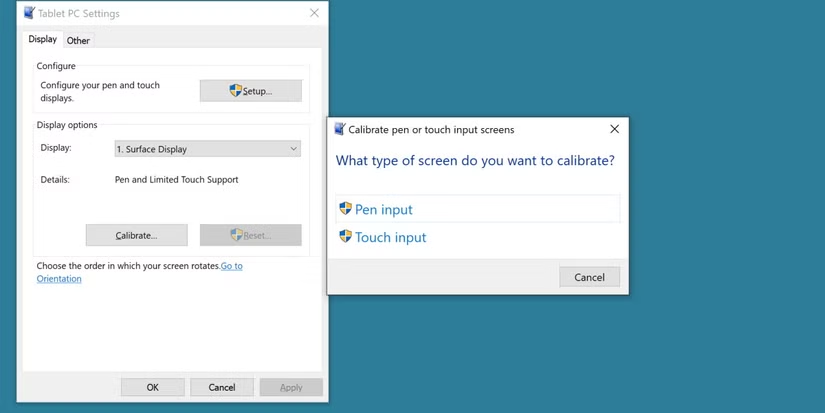
- Open the Start menu, type “Tablet PC Settings,” and open it.
- Click Calibrate, then Setup, and tap the screen you want to use for touch when prompted. This is the step that tells Windows which display is the touch one.
- Back on the Tablet PC Settings screen, run the calibration and follow the on-screen targets with your finger.
- If taps still feel off, click Reset in the same window and calibrate once more.
Windows also has an on-screen touch keyboard that pops up when you tap a text box, so you can type by hand without a physical keyboard.
For a deeper walkthrough of gestures and touch settings, Microsoft’s touch gestures guide for Windows covers the standard swipes and taps. If your monitor still isn’t responding, the maker’s own product page, such as the ViewSonic TD1655 page, lists the exact cable and port requirements for touch to work.
Frequently asked questions
Can I make my laptop’s own screen a touch screen?
No. The built-in panel has no touch sensor, and no software can add one. To get touch on a laptop, connect a portable touch display over USB-C, which is light, cheap, and works in one cable.
How much does it cost to add touch to a PC?
A basic portable touch display starts around $120, and a desktop touchscreen monitor around $150. Overlay frames for large screens run from $300 into the thousands, so they only make sense for big displays you can’t replace.
Do touchscreen monitors need special drivers?
Usually no. Windows 10 and 11 recognize most touch monitors as standard displays and enable touch automatically. If taps are off, open Tablet PC Settings and run the calibration. Some overlay frames do need a small driver.
Why isn’t my touch screen working after it used to?
Try three quick fixes: wipe the screen clean, restart the PC, and in Device Manager enable the HID-compliant touch screen entry. If that fails, update or reinstall the touch driver from the same Device Manager menu.
Does touch work on a Mac?
Apple laptops and desktops don’t support finger touch on their own screens, and support for add-on touch on Macs is very limited. If touch matters to you, a Windows setup with a touch monitor or portable touch display is the more reliable path.
Conclusion
You can’t make a plain screen touch-sensitive, but you can add touch to any PC by connecting a screen that already has it. For a desktop, a touchscreen monitor is the easy win. For a laptop or travel, a portable touch display over USB-C does the job in one cable. Overlays suit big fixed screens only. Plug the hardware in, run the Windows calibration, and you’ll have accurate, responsive touch for a fraction of the cost of a new machine.
Recommended Articles:
How Many Amps Does a Laptop Use?
How to Freeze a Screen on a Laptop: Every Method That Works
How to Reset an Acer Laptop (Factory Reset, Step by Step)
Where Is the Microphone on a Laptop? The Exact Spot and How to Find Yours
SSN Laptops and iPhone Repairs Inc.: A Complete Guide to the Jamaica, Queens Repair Shop