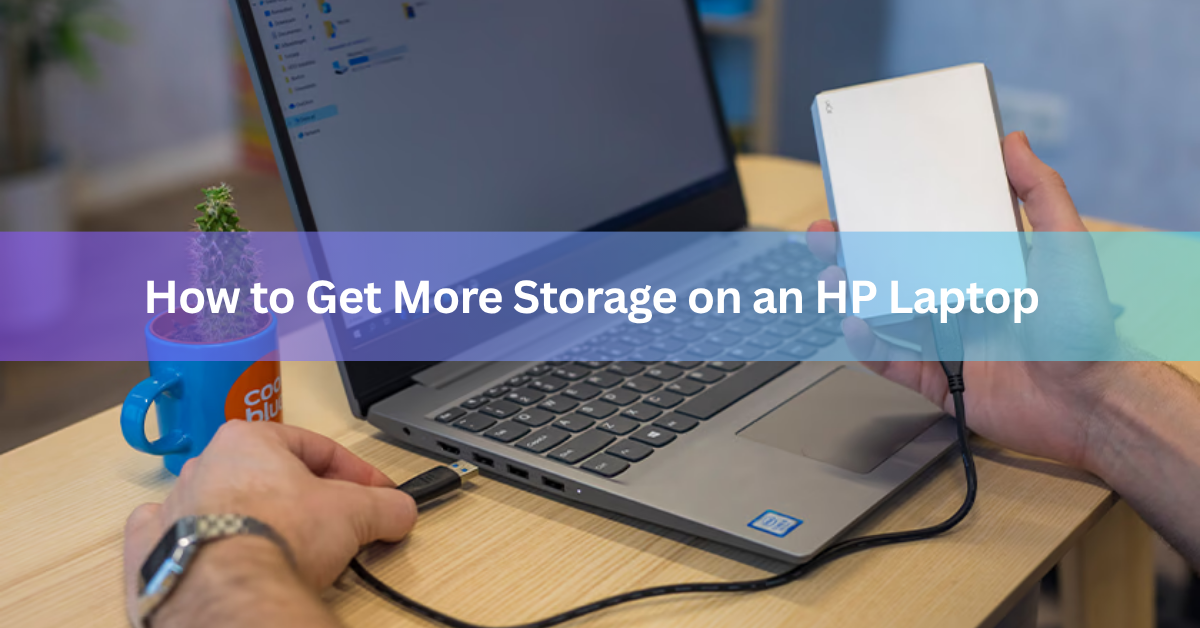
The fastest way to get more storage on an HP laptop is to free up the space you already have, then move to a real upgrade only if that is not enough. Start by checking exactly how much room is free, clear out the files and programs you no longer use, and offload photos and videos to the cloud. If you are still short on space after that, plug in an external drive or SD card for an instant fix, or open the laptop and swap in a bigger internal SSD for a permanent one. Which route makes sense depends on how much space you need and whether your specific HP model lets you get inside.
How much storage do you actually have free?
Open Settings, then System, then Storage, to see a full breakdown of what is using space on your HP laptop. Windows sorts the total into categories such as apps and features, temporary files, documents, and system files, so you can see at a glance what is eating your drive instead of guessing.
Pay attention to the free space number at the top. Once a drive drops below about 10 to 15 percent free, Windows updates can fail to install, apps can crash or refuse to open, and the whole system tends to feel slower, since Windows needs room to manage memory and temporary files. If your laptop shipped with a small 128GB or 256GB SSD, it does not take much before you hit that wall.
Click into any category in the Storage window for a closer look. The Apps and features list, sorted by size, usually turns up one or two programs you installed once and forgot about. The Temporary files category is almost always worth checking too, since it often hides several gigabytes of leftover installer files and cache.
How do you free up space without buying anything?
You free up space for free by removing what you do not need and letting Windows automate the cleanup going forward. This is the right first move for almost everyone, since it costs nothing and often solves the problem outright.
Start with these steps, in order:
- Run Disk Cleanup. Search for it in the Start menu, select your main drive, then check the boxes for Windows Update Cleanup, Temporary Internet Files, and Recycle Bin. On many laptops this alone recovers several gigabytes.
- Turn on Storage Sense. This built-in Windows tool automatically deletes temporary files and empties the Recycle Bin on a schedule you set, so clutter does not build back up.
- Uninstall programs you do not use. Go to Settings, then Apps, then Installed apps, sort by size, and remove anything you have not opened in months. Games and creative software are usually the biggest offenders.
- Clear your Downloads folder. This is one of the most overlooked space hogs on any laptop, since installers, PDFs, and email attachments pile up there for years without anyone noticing.
- Empty the Recycle Bin. Deleted files sit here using real disk space until you empty it, so this step is not optional if you actually want the space back.
- Delete duplicate and oversized files. Large video files, old backups, and duplicate photo folders are common culprits. Sort a folder by size, largest first, to spot them quickly.
A single 4K video file can run past 5GB, and a handful of old game installers or disc image files can quietly eat 20GB or more. Sorting your biggest folders by file size is often the fastest way to find easy wins.
Can moving files to the cloud free up real space?
Yes. Moving files to a cloud service and switching it to “files on demand” mode frees up local disk space while keeping every file a click away. OneDrive, Google Drive, and Dropbox all support this. The file shows up in File Explorer with a small cloud icon, but the actual data stays online until you open it, at which point it downloads temporarily.
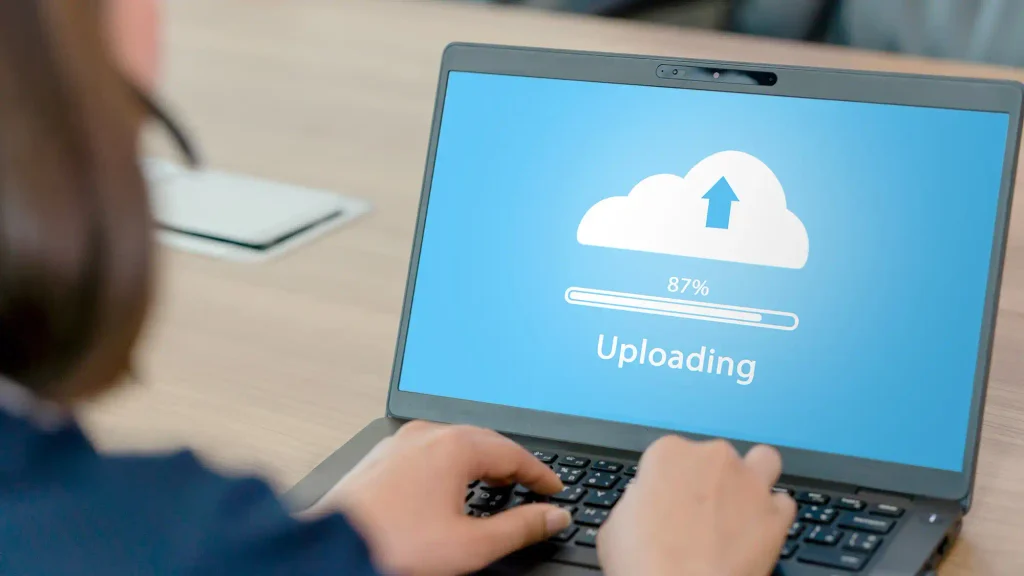
This works especially well for photo libraries, old project files, and anything you need to keep but rarely open. HP laptops bundled with Microsoft 365 usually already have OneDrive tied to the Microsoft account, so it is often the path of least resistance. If you are close to your plan’s limit, most providers sell extra cloud space for a few dollars a month, which is often cheaper than a hardware upgrade for someone who just needs a bit more breathing room.
Can you add external storage right away?
Yes. An external SSD or hard drive connected by USB adds storage instantly, with no tools and no risk to your existing setup. A 1TB external drive typically costs less than an internal upgrade kit and works the moment you plug it in, which makes it the simplest option when you need space today rather than next weekend.
If your HP laptop has an SD card slot, a memory card is another quick option. The SDXC card format supports capacities up to 2TB, and cards up to 1TB are widely available at reasonable prices. Keep in mind that a card left in the slot sits proud of the laptop’s edge on many models, so it is easy to snap off if you are not careful moving the laptop around.
External storage has two real limits. It only works while it is plugged in, so it will not help programs that need to be installed on your main drive, and drives connected over USB are usually slower than an internal SSD, which matters if you are storing games or editing video directly from it.
Can you upgrade the internal SSD on your HP laptop?
On most HP laptops, yes, you can replace the internal SSD with a larger one, though the process and the ceiling on capacity depend on your exact model. The first step is figuring out what you are working with, since HP uses several different storage setups across its lineup.
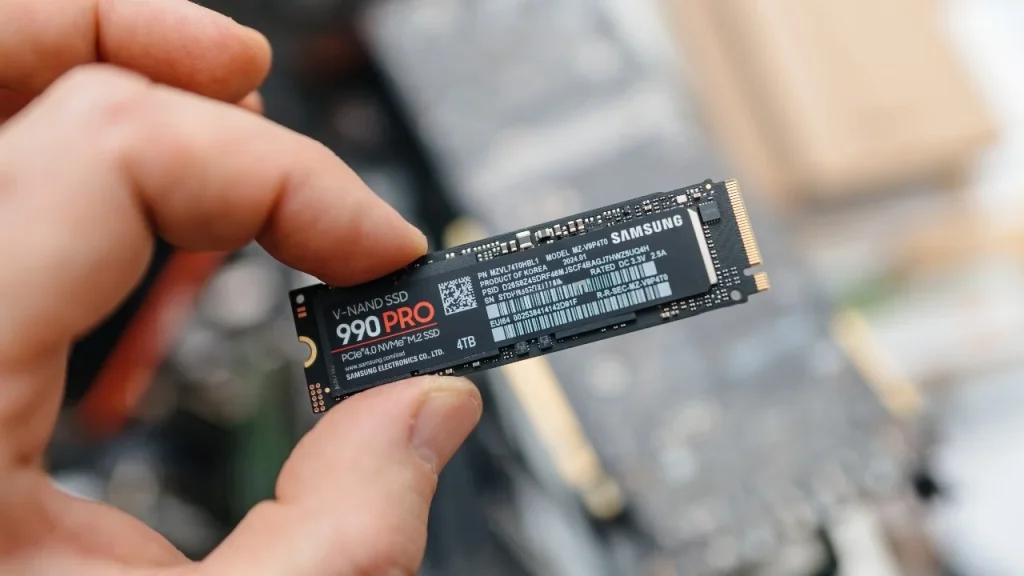
Open Device Manager, expand Disk drives, and note the exact model name listed there. You can also check Task Manager, under the Performance tab, then Disk, to confirm whether your drive is an SSD or a traditional hard drive. Most modern HP laptops use an M.2 NVMe SSD, a small stick-shaped drive that slots directly into the motherboard and offers the fastest speeds. Older or budget models sometimes use a 2.5-inch SATA drive instead, which looks and installs more like a small internal hard drive.
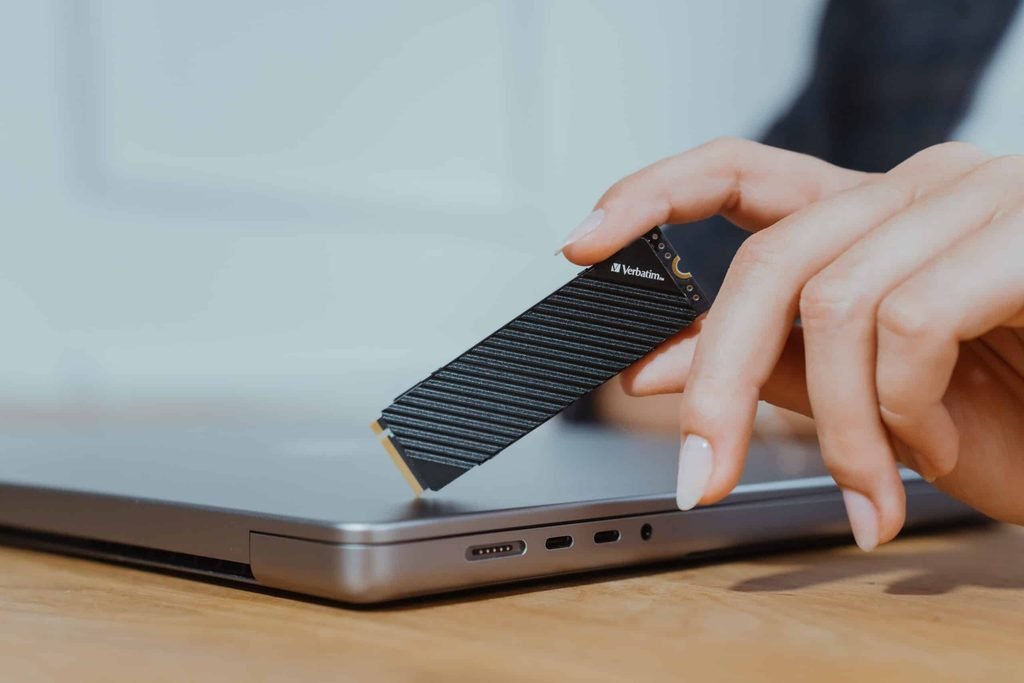
A few thin and light HP models solder the storage directly to the motherboard, the same way some of them solder RAM, which rules out any upgrade for that specific unit. If you do have a standard NVMe SSD, there is theoretically no limit to the capacity you can install, as long as the replacement drive is single-sided and fits the space inside the chassis. HP’s own laptop upgrade guide walks through checking your storage type and interface before you buy a replacement, which is worth doing before you order anything.
Once you have a compatible drive, the upgrade itself follows a consistent pattern:
- Back up everything first. Copy your files to an external drive or cloud storage, and note your Windows product key if it is not already tied to your Microsoft account.
- Clone the existing drive, or plan a fresh install. Cloning software copies your current Windows setup, apps, and files onto the new drive so you do not have to reinstall everything. A fresh install takes longer to set up but leaves you with a cleaner system.
- Power down and unplug the laptop, then remove the battery connector if it is accessible, to avoid any risk while working inside.
- Remove the back panel. Most HP consumer laptops use a handful of Phillips screws on the bottom panel, though some models tuck one or two screws under a rubber foot or the warranty sticker.
- Locate the M.2 slot or 2.5-inch bay, remove the single retaining screw, swap the old drive for the new one, and reverse the steps to close it back up.
Opening the back panel on a standard consumer HP laptop to swap a user-accessible drive does not typically void the warranty by itself, since HP designs many of these panels to be opened for RAM and storage upgrades. That said, always check your specific model’s documentation first, since sealed or unibody designs are handled differently and some HP business or convertible lines have their own service rules.
Should you add a second drive instead of replacing the first?
If your HP laptop has room for it, adding a second internal drive alongside your existing one gives you more storage without touching your current Windows setup at all. Certain models, including several HP Pavilion Gaming laptops, ship with support for dual storage: the primary M.2 NVMe SSD that holds Windows, plus an empty 2.5-inch bay ready for a second SSD or hard drive.
This is worth checking before you buy anything, since it lets you keep your operating system and installed programs exactly as they are while adding a dedicated drive for games, media, or work files. Not every HP model has the extra bay, cable, and mounting bracket needed, so confirm your exact model supports dual storage before ordering parts.
Which option is right for you?
Start at the top of the table below and work down only as far as you need to.
| Method | Space gained | Cost | Effort | Best for |
| Free up space (cleanup, uninstalls) | A few GB to 50GB+ | Free | Low | Anyone, as a first step |
| Cloud storage (files on demand) | Effectively unlimited | Free to a few $/mo | Low | Photos, rarely opened files |
| External SSD or HDD | 500GB to 5TB+ | $40 to $150+ | Low | Instant extra space, backups |
| SD or microSD card | Up to 2TB | $15 to $100+ | Low | Laptops with a card slot |
| Internal SSD upgrade | Often doubles or more | $50 to $200+ | Medium | A permanent, faster fix |
| Add a second internal drive | Full second drive’s capacity | $50 to $150+ | Medium | Dual-storage HP models |
Most storage complaints are solved by cleanup and cloud storage alone. If your laptop is genuinely too small for how you use it, an internal SSD upgrade is the option that fixes the problem for good instead of just buying you a few more months.
Frequently asked questions
How do I check how much storage is left on my HP laptop?
Go to Settings, then System, then Storage. Windows shows your total drive size, how much is free, and a breakdown of what is using the rest, updated in real time.
Can every HP laptop have its SSD upgraded?
No. Most mainstream HP laptops use a removable M.2 or SATA SSD you can swap, but some thin and light models solder storage to the motherboard, which rules out an upgrade entirely.
Is it better to add a second drive or replace the original SSD?
Add a second drive if your model supports dual storage and you want to keep your current setup untouched. Replace the original if you also need more speed, or your model only has one drive bay.
Will opening my HP laptop to upgrade storage void the warranty?
On most consumer HP laptops with a removable back panel, no, since HP designs them for user upgrades. Always check your specific model’s documentation, since sealed or business-line designs vary.
How much storage do I actually need on a laptop?
256GB suits basic browsing and office work, 512GB comfortably covers most everyday use with some games or media, and 1TB or more suits large game libraries, video editing, or big local file collections. Turning on Storage Sense from the start helps any of these sizes go further.
Conclusion
Getting more storage on an HP laptop almost always starts free: check what is using your space, clean it out, and move rarely used files to the cloud. When that is not enough, external drives and SD cards add space instantly, while an internal SSD upgrade, on models that support it, gives you a permanent fix with room to grow. Match the method to how short on space you actually are, and you will end up with a laptop that runs the way it did on day one.
Recommended Articles:
How to Choose a Notebook: Size, Paper, Ruling, and Binding
Can Your Employer Listen to You Through Your Laptop Microphone?
Laptop Battery Draining Quickly? Here’s Why and How to Fix It
Which Statement Is True About Laptops? The Answer, Explained