Your laptop runs out of storage because hidden system files, update leftovers, temporary files, cloud sync copies, and large apps quietly pile up, often faster than your own photos and documents. On top of that, a laptop never shows its full advertised capacity, so you start with less room than the box suggests.
Most of that space can be found and cleared with tools already built into Windows and macOS. Here’s what’s filling the drive, how to check it in about a minute, and how to get the space back without deleting anything you care about.
What is taking up space on my laptop?
Check the storage breakdown before you delete anything. It shows exactly where the gigabytes went, so you fix the real problem instead of guessing.
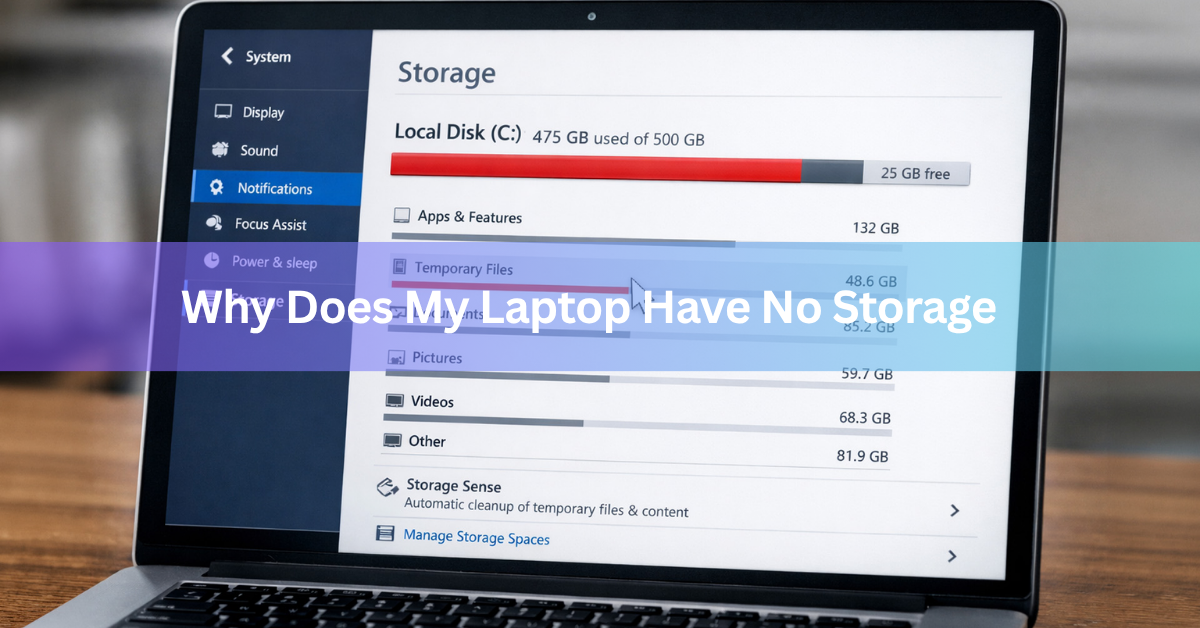
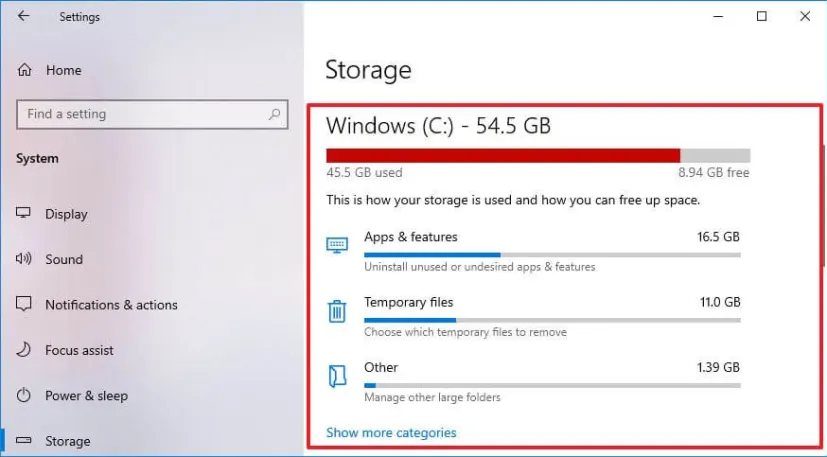
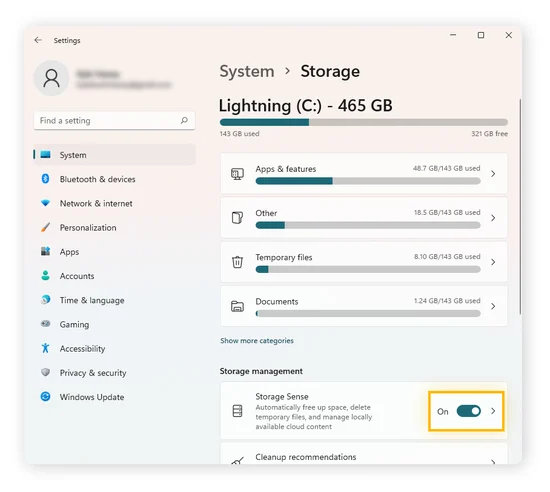
On Windows 11, open Start > Settings > System > Storage. Windows scans the drive and lists categories such as Apps & features, Temporary files, Documents, and System & reserved. Select “Show more categories” to see the full list, and click any category to open it.
On a Mac, open the Apple menu > System Settings > General > Storage (macOS Ventura or later). You’ll see a colored bar split into Applications, Documents, Photos, macOS, System Data, and more.
If the biggest category is vague, like “Other” or “System Data,” a free disk map tool helps. WinDirStat and TreeSize Free on Windows draw every folder as a block sized by how much space it uses. The giant blocks stand out straight away, and that’s usually where your storage went.
Why is my laptop storage full when I barely save anything?
Because a large share of the drive holds files you never made. These are the usual causes, roughly in the order they tend to matter.
Hidden system files
Windows keeps several large files out of sight. The hibernation file (hiberfil.sys) stores what’s in memory when the laptop hibernates, and on Windows 10 and 11 it’s set to 40 percent of your RAM by default. A laptop with 16 GB of RAM gives up about 6.4 GB to it.
The page file is a chunk of the drive Windows uses as overflow memory, and it often takes several more gigabytes. Windows also holds back about 7 GB as “reserved storage” so updates have room to install. System Restore points, which are saved snapshots you can roll back to, add more. Together these explain why “System & reserved” can top 20 or 30 GB on a laptop you’ve barely used.
Leftovers from Windows updates
After a major feature update, Windows keeps the old version in a folder called Windows.old so you can go back if something breaks. That folder is often 10 GB or more. Windows removes it on its own after about 10 days, but until then it sits on your drive. Updates also need free room to install: feature updates typically need 6 to 11 GB, and monthly quality updates 2 to 3 GB.
Temporary files and app caches
Browsers, Microsoft Teams, Spotify, Zoom, and many other apps save cached data so they load faster. Each cache looks small, but a year of it can add up to several gigabytes. The Windows Temp folder can also fill with app package files used by the Microsoft Store.
Downloads and the Recycle Bin
Installers, zip files, and video downloads stay in your Downloads folder long after you need them. Deleted files don’t free any space until you empty the Recycle Bin (or the Trash on a Mac), and it’s easy to forget it’s full.
Apps and games
A single modern game can take 100 GB or more, and creative apps like video editors pull in large libraries and cache folders. On a 256 GB laptop, two or three big games can use half the drive.
Cloud sync copies and phone backups
OneDrive, iCloud Drive, Dropbox, and Google Drive can keep a full local copy of everything you’ve stored online. If your Desktop and Documents folders are backed up to OneDrive, those files may be stored twice in practice: once in the cloud and once on the laptop. iPhone backups made through the Apple Devices app, iTunes, or Finder can each run to tens of gigabytes, and WhatsApp Desktop quietly saves every photo and video people send you.
Malware (less common)
A virus or runaway program can create files nonstop. It’s rare, but if your free space drops by gigabytes every day with no clear reason, run a full scan with Microsoft Defender or your antivirus.
Why does my laptop show less storage than advertised?
Laptop makers count 1 GB as 1,000,000,000 bytes, while Windows counts 1 GB as 1,073,741,824 bytes (a binary gigabyte). Same drive, different ruler, so the number Windows shows is always about 7 percent smaller.
| Advertised size | What Windows shows |
| 128 GB | about 119 GB |
| 256 GB | about 238 GB |
| 512 GB | about 476 GB |
| 1 TB | about 931 GB |
Then comes what’s already installed. Windows 11 needs at least 64 GB of storage just to install, and most laptops also have a hidden recovery partition, a separate section of the drive holding tools to reset the system. Add the maker’s preinstalled apps, and a new 128 GB laptop may have well under 90 GB free on day one.
If your laptop has 64 GB or 128 GB of storage, it will feel full quickly on Windows 11 no matter how careful you are. That’s a hardware limit, not something you did wrong.
How do I free up storage on a Windows laptop?
Work through these steps in order and check your free space after each one. Most people get back plenty of room by step 4. Microsoft’s own guide to freeing up drive space in Windows covers the same built-in tools with screenshots.
- Run Cleanup recommendations. Go to Settings > System > Storage > Cleanup recommendations. Windows lists temporary files, large or unused files, files synced to the cloud, and apps you haven’t opened in a while. Review each list and select Clean up.
- Remove temporary and update files. In Settings > System > Storage > Temporary files, tick Temporary files, Windows Update Cleanup, and Delivery Optimization Files. Tick Previous Windows installation(s) only if the laptop has been running fine since the last big update. Leave Downloads unticked until you’ve checked that folder yourself.
- Empty the Recycle Bin. Right-click it on the desktop and choose Empty Recycle Bin.
- Uninstall apps and games you don’t use. Open Settings > Apps > Installed apps, sort by size, and remove anything you no longer need. Games you might play again can be reinstalled later from your library.
- Make cloud files online-only. In File Explorer, right-click your OneDrive folder and choose Free up space. The files stay visible and open normally, but they only download when you open them.
- Turn on Storage Sense. In Settings > System > Storage, switch Storage Sense on. It clears temporary files and old Recycle Bin items automatically when space runs low, and you can set it to run on a schedule.
- Shrink the hibernation file. Open Command Prompt as administrator and type powercfg /h /type reduced. This cuts the file to about 20 percent of your RAM and keeps Fast Startup working. Typing powercfg /h off removes it completely, but also turns off hibernation and Fast Startup.
- Limit System Restore. Search for “Create a restore point,” select your C: drive, choose Configure, and lower the Max Usage slider to about 5 percent. Older restore points get deleted to fit the new limit.
Don’t delete files inside C:\Windows, Program Files, or AppData by hand. Removing the wrong file can stop apps or Windows itself from starting. The built-in tools above only remove files that are safe to lose.
How do I free up storage on a MacBook?
Open System Settings > General > Storage and start with the recommendations at the top. Store in iCloud moves files to the cloud and keeps only recent ones on the Mac. Optimize Storage removes Apple TV movies and shows you’ve already watched. Empty Trash Automatically deletes items that have been in the Trash for 30 days. Click the info button next to categories like Applications or Documents to sort files by size and delete the ones you don’t need. Apple’s page on how to free up storage space on Mac walks through each option.
A large System Data category is the most common Mac complaint. It holds caches, logs, and temporary files that macOS manages itself, so you can’t clear it directly. Two things tend to shrink it:
- Time Machine snapshots. When your backup drive isn’t connected, Time Machine saves local snapshots on the internal drive. Plug in the backup drive and let a backup finish, and macOS can clear them.
- Old device backups. iPhone and iPad backups count here too. Check the iOS Files entry in the Storage list and delete backups of devices you no longer own.
Restarting also helps, since macOS clears many temporary files during a reboot. Also note that macOS may show some space as “purgeable.” That’s space held by files it can remove on its own the moment you need the room.
Why does my storage fill up again after I clear it?
Because a lot of it is meant to come back. Caches rebuild as you use apps, Windows downloads the next update, and restore points get created before every major change. New phone photos syncing to the laptop, a cloud folder set to “Always keep on this device,” or a game patch can also eat gigabytes overnight.
The fix is to make cleanup automatic rather than a one-time job. Keep Storage Sense (or the Mac’s Empty Trash Automatically) switched on, point your Downloads and photo imports to an external drive or the cloud, and take a quick look at the storage page once a month.
Also aim to keep some breathing room. A good rule of thumb is to leave at least 15 to 20 percent of the drive free. Windows needs free space for updates and the page file, and many SSDs slow down noticeably once they pass 80 to 90 percent full.
When should I add more storage?
If you’ve cleaned up and still can’t keep 15 percent free, the drive is simply too small for how you use the laptop. You have a few options:
- An external SSD. A portable USB-C SSD is the easiest fix and works on any laptop. It’s ideal for photos, videos, and game libraries.
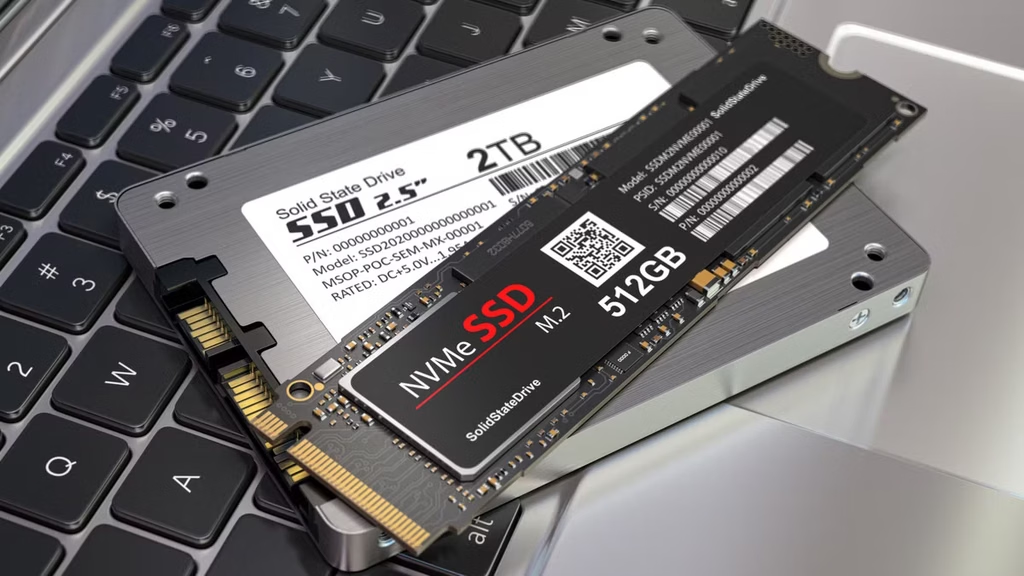
- A bigger internal SSD. Many Windows laptops use a replaceable M.2 drive, so you can swap in a larger one and move your system over. Check your model’s manual first, because many thin laptops and all current MacBooks have storage soldered to the board.
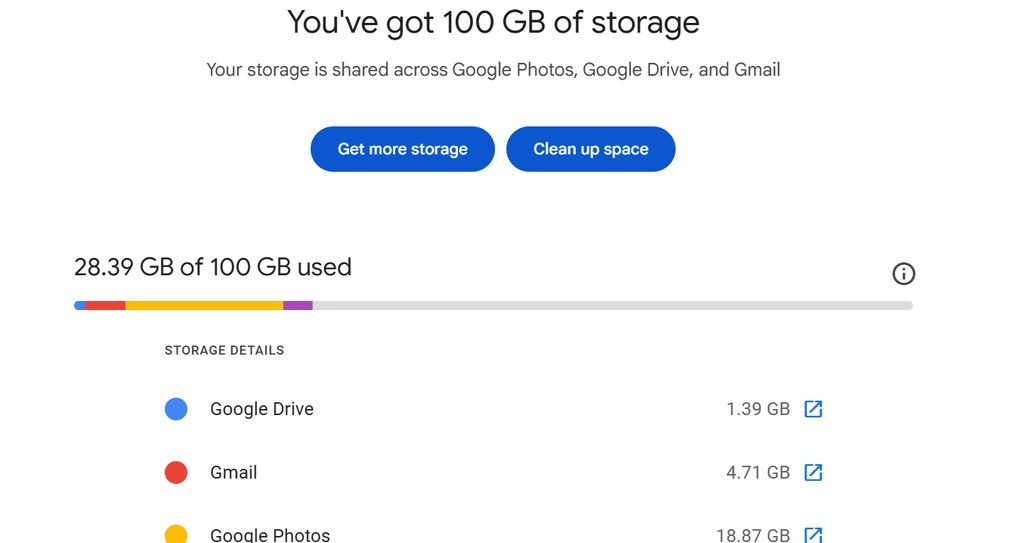
- Cloud storage. Paying for more OneDrive, iCloud, or Google Drive space and setting files to online-only frees room without new hardware, as long as you usually have internet.
If you’re buying a new laptop, 256 GB is a sensible minimum for Windows, and 512 GB gives you real room for apps and games.
Frequently asked questions
Is it safe to delete temporary files on my laptop?
Yes. Temporary files are working copies that apps and Windows can recreate when needed. Delete them through Settings > System > Storage > Temporary files rather than by hand, and leave the Downloads box unticked unless you’ve checked that folder first.
Why is System & reserved so big on Windows?
It includes the hibernation file, the page file, about 7 GB of reserved storage for updates, and System Restore points. On a laptop with plenty of RAM, this category can easily pass 20 GB. Shrinking hibernation and restore space can win back several gigabytes.
Is it safe to delete the Windows.old folder?
Yes, if your laptop has been working fine since the last major update. Deleting it only removes your ability to roll back to the previous version. Windows deletes it automatically after about 10 days anyway.
Does low storage slow down my laptop?
It can. With very little free space, Windows struggles to manage the page file and install updates, and many SSDs slow down once they’re 80 to 90 percent full. Freeing space often makes a nearly full laptop feel noticeably quicker.
How much free space should I keep on my laptop?
Keep at least 15 to 20 percent of the drive free. On a 256 GB laptop, that means about 40 to 50 GB. This leaves room for updates, temporary files, and normal day-to-day use without warnings.
Conclusion
Your laptop has no storage mainly because of files you never see: hibernation and page files, update leftovers, caches, cloud copies, and big apps, plus the gap between advertised and real capacity. Start by checking the storage breakdown, then use the built-in cleanup tools, empty the Recycle Bin or Trash, and remove apps you don’t use. Turn on automatic cleanup so it doesn’t come back. A healthy laptop keeps at least 15 to 20 percent of its drive free.
Recommended Articles:
Do Laptops Give Off Radiation? What’s Real and What Isn’t
Acer Laptop Won’t Switch On? Here’s How to Fix It
Average Laptop Lifespan by Brand: What Each One Really Gives You
Average Laptop Lifespan by Brand: What Each One Really Gives You
How Big Is an 11.6-Inch Laptop Screen? Real Dimensions and What Fits