Yes. Every Windows laptop and tablet with a touch screen lets you turn that feature off, even though the option isn’t sitting inside the main Settings app. The fastest route is Device Manager: open it, expand Human Interface Devices, find the HID-compliant touch screen entry, and disable it. That takes under a minute, and you can reverse it just as fast. If you want something that sticks around longer, PowerShell, the Registry, and, on a few laptops, the BIOS all offer their own version of the same switch. Here’s what each one actually does, and which one fits your situation.
What’s the fastest way to turn off the touch screen?
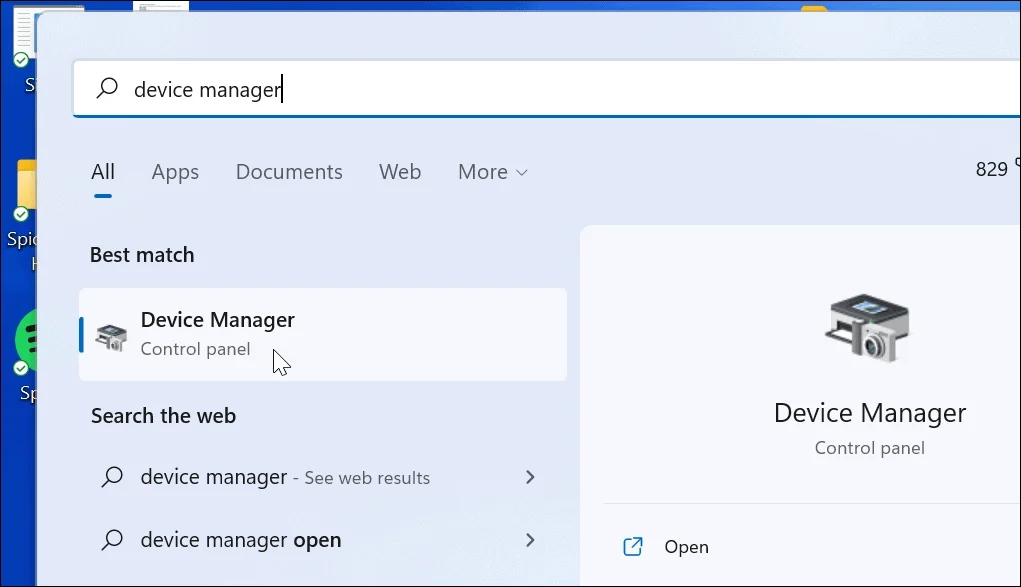
Device Manager is the fastest way, and it works the same on Windows 10 and Windows 11. It disables the touch driver without touching any system files, so it’s safe to try and easy to undo.
- Right-click the Start button, or press Windows key + X, and choose Device Manager.
- Click the arrow next to Human Interface Devices to expand it.
- Find HID-compliant touch screen in the list.
- Right-click it and select Disable device.
- Click Yes to confirm.
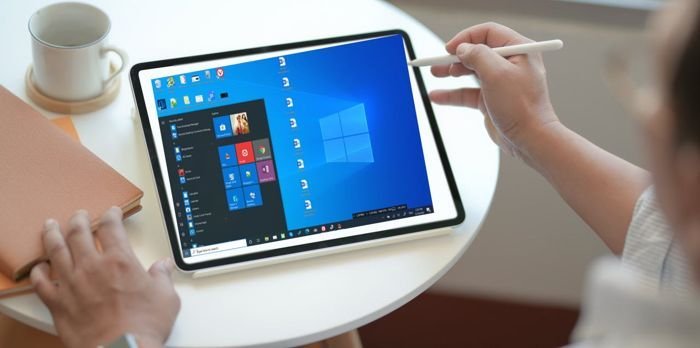
Your screen should stop responding to taps right away. If it doesn’t, restart the laptop and check again. Some machines list the touch screen twice, once as the main digitizer and once as a pen or stylus device. Disable both if you see more than one entry, or a stylus may still get through.
How do you disable it with PowerShell instead?
PowerShell does the same job as Device Manager but in a single line, which helps if you’re setting up a few machines the same way or just prefer typing to clicking. Open PowerShell as an administrator, then run:
Get-PnpDevice | Where-Object {$_.FriendlyName -like ‘*touch screen*’} | Disable-PnpDevice -Confirm:$false
This finds any device with “touch screen” in its name and switches it off without a confirmation prompt for each one. The command relies on the same Disable-PnpDevice cmdlet that Device Manager uses behind the scenes, so the result is identical, just quicker to repeat across devices. Swapping in Enable-PnpDevice, with the same filter, turns the touch screen back on.
Is there a Registry option that sticks around longer?
Yes, and it works at the account level rather than the hardware level. Open the Registry Editor with Windows key + R, type regedit, and press Enter. Go to HKEY_CURRENT_USER\Software\Microsoft\Wisp\Touch. If there’s no Touch key, right-click Wisp, choose New, then Key, and name it Touch. Inside, create or edit a DWORD value called TouchGate and set it to 0. Restart the computer, and touch input stops responding for that Windows account. Setting TouchGate back to 1 restores it.
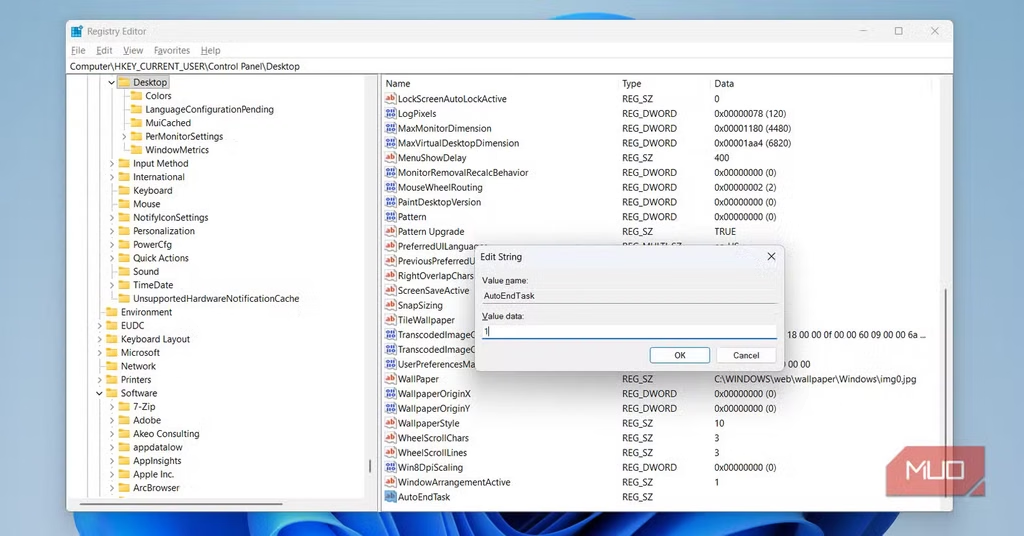
Back up the Registry, or at least set a system restore point, before making this change. It only affects the signed-in account, which makes it a good fit for a shared computer where one person wants touch off and another wants it on.
What if your laptop has a BIOS option?
A handful of laptops, notably some Dell 2-in-1 and touch-enabled models, let you turn the touch screen off in the BIOS or UEFI setup, the firmware that runs before Windows even loads. On these machines, restart the computer, press F2 repeatedly while it boots to reach setup, then look under Advanced, then Display, for a Touchscreen setting and switch it to Disabled. Because the setting lives in firmware rather than inside Windows, it survives driver updates, Windows reinstalls, and even a factory reset, which makes it the most permanent of the four methods. Most other manufacturers don’t offer this option in their BIOS menus, so check your own laptop rather than assuming it will be there.
Touch screen or touchpad: which one do you actually want off?
It’s worth pausing here, since the two get mixed up often. The touch screen is the display itself responding to a finger or stylus. The touchpad is the flat panel below the keyboard that moves the mouse cursor. Every laptop has a touchpad; only some have a touch screen. If stray clicks are coming from your palm resting near the keyboard while you type, you want the touchpad, and that’s turned off through Settings, then Bluetooth & devices, then Touchpad, not through any of the steps above.
What if Device Manager doesn’t show a touch screen entry?
On a small number of machines, especially older Surface devices, the entry appears under a different name, such as Intel Precise Touch and Stylus, rather than HID-compliant touch screen. Check the whole Human Interface Devices list for anything with “touch” in the name. If nothing turns up at all, your model may not expose a separate touch driver, and the Registry method above becomes the more reliable route. Updating the touch driver first, through Device Manager’s Update driver option, also clears up cases where the device is missing because of a driver fault rather than because the hardware genuinely isn’t there.
Does the touch screen come back on after a Windows update?
Usually not. A Device Manager or Registry change survives routine updates in most cases. A major feature update, the kind that reinstalls large parts of Windows, occasionally resets a disabled driver back to its default state. If touch starts working again after one of those larger updates, repeat whichever method you used the first time. The BIOS method is the one exception. Because it happens outside Windows entirely, it isn’t touched by any Windows update, large or small.
How do you turn the touch screen back on?
Reverse whichever method you used. In Device Manager, right-click the same HID-compliant touch screen entry and choose Enable device. In PowerShell, run the same command with Enable-PnpDevice instead of Disable-PnpDevice. In the Registry, set TouchGate back to 1. In BIOS, return to the same Touchscreen setting and switch it to Enabled. Each takes about the same amount of time as disabling it did.
When does it actually make sense to turn off the touch screen?
A few situations come up again and again. Cleaning the screen is one: wiping the display with a cloth registers as touch input and can open apps or move the cursor while you’re just trying to clean it. Gaming and video playback are others, since a touch screen that registers accidental taps mid-match or mid-movie is more annoying than useful. People who dock their laptop and work from an external monitor often turn it off simply because their fingers never touch the built-in display anyway. And if the screen has started registering phantom taps on its own, usually from a moisture problem or a failing digitizer, disabling it through Device Manager stops the ghost input until you can get it looked at.
Frequently asked questions
Does disabling the touch screen slow down my laptop or save battery?
Not in any way you’d notice. The touch digitizer draws a small amount of power, so turning it off saves a little battery, but it won’t affect performance.
Will disabling the touch screen also disable the stylus or pen?
Often, yes, since many laptops route pen input through the same HID-compliant touch screen driver. If your pen stops working too, re-enable the device and look for a separate pen or stylus entry instead.
Can I turn off just part of the screen instead of the whole thing?
No, Windows doesn’t offer partial touch control. Disabling the driver turns off touch input across the entire display, not a specific region or app.
Does this work the same way on a tablet as on a laptop?
Yes. Windows tablets use the same HID-compliant touch screen driver, so Device Manager, PowerShell, and Registry methods all work the same way. Just connect a mouse or keyboard first, since disabling touch removes your main way to navigate.
Is there a way to turn off the touch screen from Settings directly?
No. Windows doesn’t put a touch screen toggle in the Settings app on Windows 10 or 11. Device Manager, PowerShell, the Registry, and BIOS, where available, are the only routes.
Conclusion
Turning off a touch screen on Windows takes one visit to Device Manager, and reversing it takes exactly as long. PowerShell and the Registry give you the same result through a script or a saved setting, and a BIOS option on some Dell machines makes the change stick through updates and reinstalls. Pick the method that matches how long you want touch turned off, disable the right device the first time, and your laptop will behave exactly like a non-touch model until you decide to switch it back on.
Recommended Articles:
How Many Watts Does a Laptop Use? Real Numbers by Type and Task
White Spot on Laptop Screen: What It Is and How to Fix It
How Is a Laptop Screen Size Measured? (And Why It Matters)