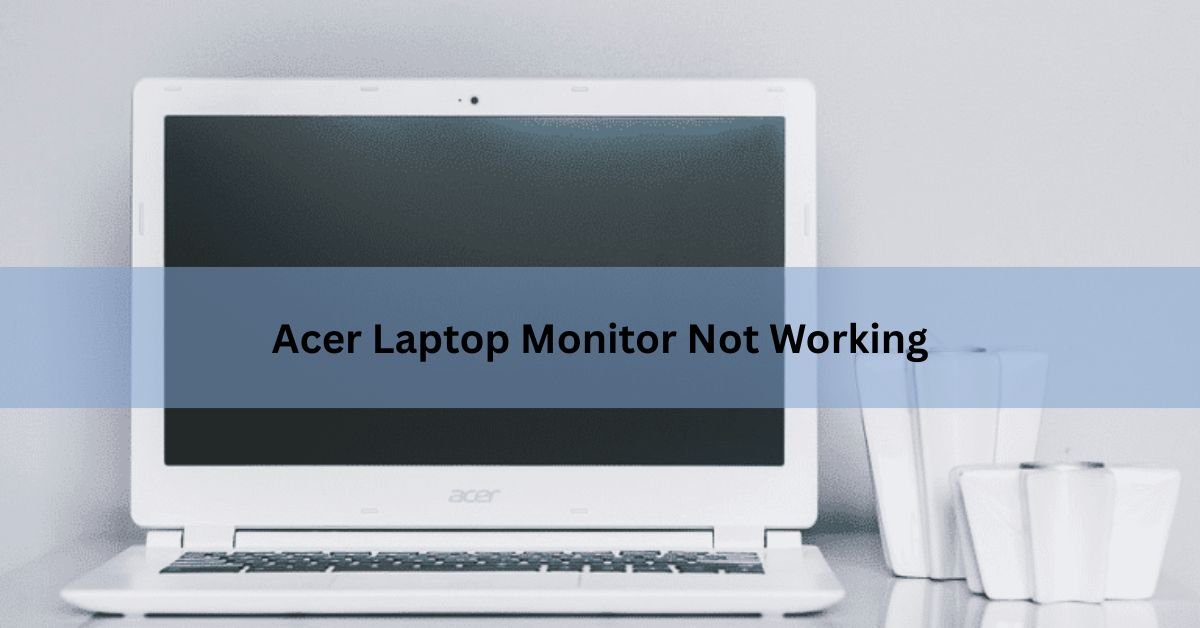
When an Acer laptop screen stops working, the most likely culprits are a drained or disconnected power source, a crashed graphics driver, a loose ribbon cable behind the screen, or a Windows problem that launched on startup. Run through the steps below in order. Most people find the fix within the first three.
Before anything else, check two quick things that are easy to overlook.
First, check these two things
Check that the laptop actually has power. Look for a charging indicator light on the side or front edge. If there is no light at all, the laptop may not be receiving charge — try a different wall outlet and, if possible, a different charging cable. A fully dead battery can look identical to a dead screen.
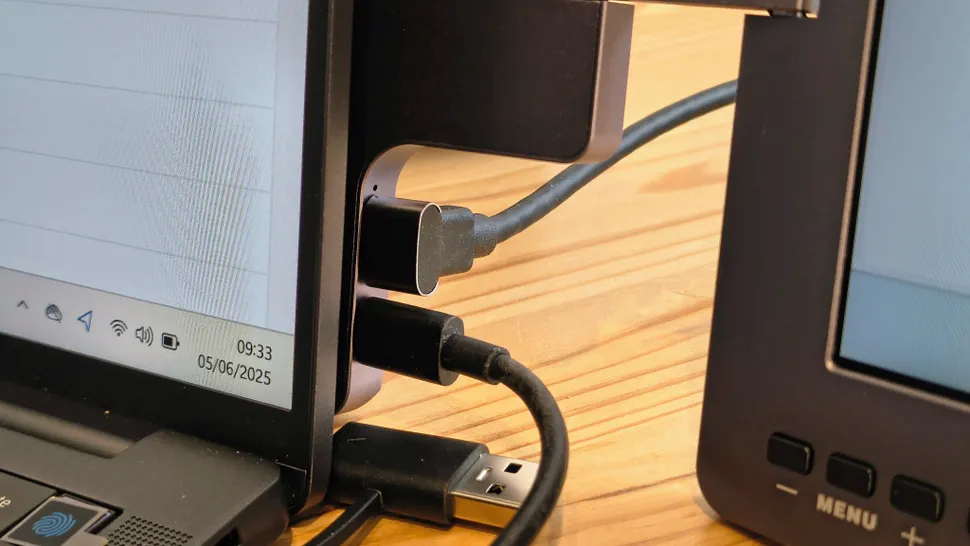
Then check the brightness. It sounds obvious, but the screen brightness on Acer laptops can be set to zero, which looks like a black screen. Hold Fn and press the brightness-up key (usually one of the F-keys with a sun icon) several times. On most Acer Aspire and Swift models, that’s Fn + F6.
Quick tip: if you can faintly see your desktop when you shine a flashlight directly at the screen, the backlight has failed but the panel is fine. That is a hardware repair — skip ahead to the last section.
Also disconnect every USB device, external hard drive, and second monitor. A faulty peripheral or an accidental dual-display setting can leave the built-in screen dark while everything runs on the other output.
Run the external monitor test — it tells you everything
This single test separates software problems from hardware problems, which decides your entire path forward.
Plug an HDMI cable into your Acer laptop and connect it to a TV or monitor. Turn on the external display and press Fn + F5 (or Fn + F4 on some models) to cycle through display output modes until you see the image appear on the external screen.
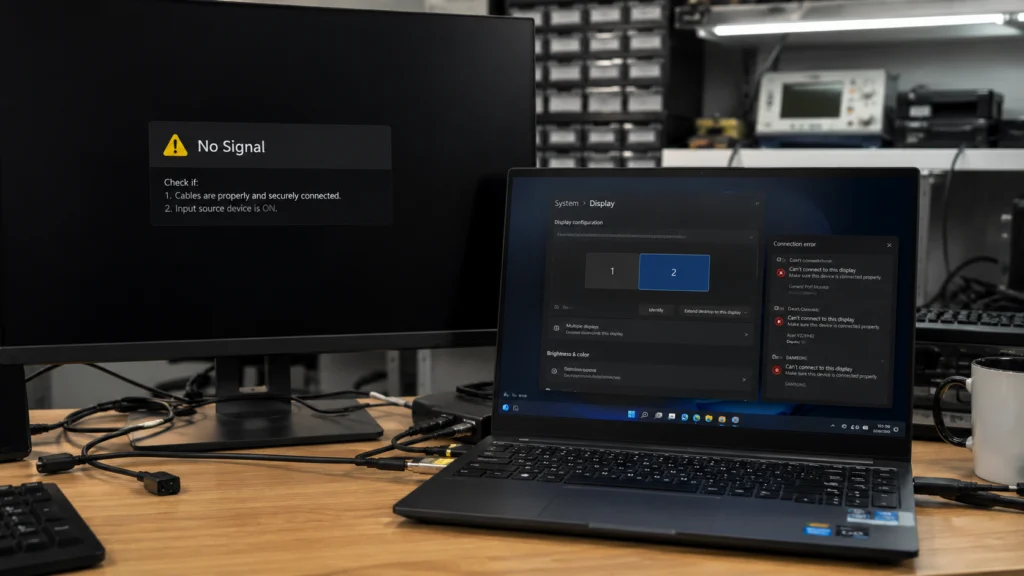
If the external monitor shows your desktop: the screen panel, its backlight, or its ribbon cable is the likely problem, not Windows or the graphics chip. The laptop itself is working. Jump to the hardware and repair section below.
If the external monitor also shows nothing: the problem is in Windows, the graphics driver, the RAM, or the BIOS. Keep reading from the next section.
If you don’t have an HDMI cable handy, a USB-C to HDMI adapter works too, provided your Acer model has a USB-C port with display output (most models released since 2019 do).
Fix it in Windows: drivers, Safe Mode, and display settings
If the external monitor test confirmed a software issue, try these fixes in order.
Power-reset first. Hold the power button for 15 to 20 seconds until the laptop shuts off completely. Unplug the charger, then hold the power button for another 30 seconds to drain any residual charge. Plug back in and start up. This clears minor firmware glitches that lock the display.
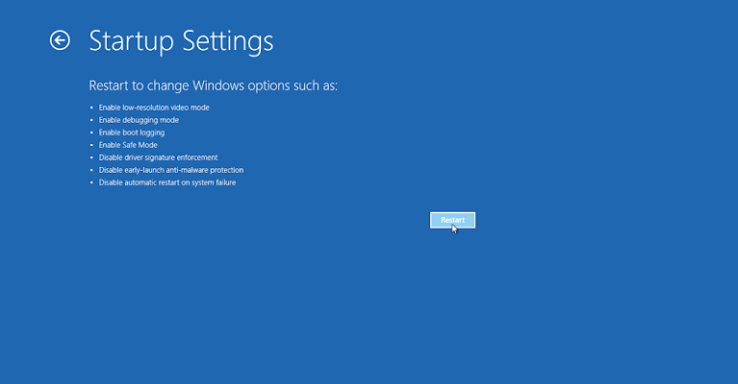
Boot into Safe Mode. Restart the laptop and press F8 repeatedly right after the Acer logo appears. Choose “Safe Mode” from the menu. Safe Mode loads Windows without third-party drivers. If the screen works in Safe Mode, a driver or startup program is causing the black screen in normal mode.
Update or roll back the graphics driver. In Safe Mode, right-click the Start button and choose Device Manager. Expand “Display adapters,” right-click your graphics card (Intel UHD, NVIDIA, or AMD depending on your model), and choose Update driver. If a Windows update recently caused the problem, choose Properties, go to the Driver tab, and click Roll Back Driver instead.
For the most reliable driver, download it directly from the manufacturer’s page for your chip. Acer’s own support page at acer.com/support/drivers-and-manuals lets you enter your serial number and download drivers matched to your exact model.
Check display output mode. Press Windows + P to open the projection menu. If the setting is stuck on “Second screen only,” the built-in display will stay blank. Switch it to “PC screen only” or “Duplicate” and the built-in screen should come back on.
Restart Windows Explorer. If you see a cursor but nothing else, Windows Explorer may have crashed. Press Ctrl + Alt + Delete, open Task Manager, find “Windows Explorer” in the list, right-click it, and choose Restart. This often brings the desktop back immediately.
What if the screen flickers or goes dim instead of black?
Flickering and dimness usually mean something different from a full black screen, and they point to different fixes.
A screen that flickers more when you tilt the lid at different angles almost always has a loose or damaged ribbon cable at the hinge. The cable runs through the hinge and can fray or pull loose over time, especially on laptops that are opened and closed thousands of times. Avoid forcing the lid angle and get the cable checked by a technician.
Flickering that appears only after Windows has loaded (not during the Acer logo screen) is usually driver or software related. Open Task Manager with Ctrl + Alt + Delete and watch whether Task Manager itself flickers. If it does, the problem is likely a faulty graphics driver or hardware. If only the desktop behind Task Manager flickers, a third-party app is probably the culprit — a screen recorder, Discord overlay, or similar program running in the background.
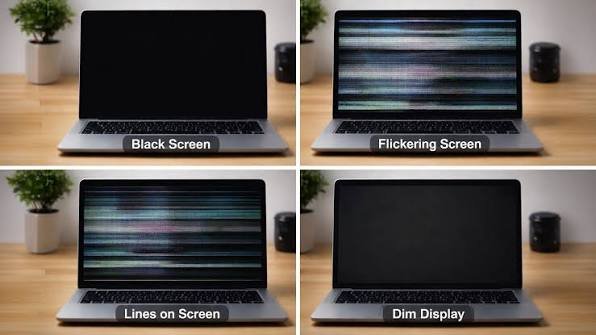
A screen that looks dim even at full brightness may have adaptive brightness turned on. Go to Settings, then System, then Display, and scroll down to look for “Change brightness automatically when lighting changes” — turn it off. On battery, Windows can also cap brightness through power settings; plugging in the charger is a fast test.
Microsoft’s own screen flickering troubleshooter walks through the same driver and refresh rate checks in a guided format, which can be useful if you’re not sure which driver is installed.
Harder fixes: BIOS, RAM, and Windows repair
If Safe Mode, driver updates, and the basic fixes above haven’t worked, try these.
1. Reseat the RAM. A loose memory stick is a surprisingly common cause of a black screen on Acer laptops. Shut down, unplug everything, open the bottom panel (a set of small Phillips screws), locate the RAM sticks, press the side clips to release each one, then seat it firmly back in until you hear a click. Restart and test.
2. Reset BIOS to defaults. At startup, press F2 repeatedly to enter BIOS setup. Once inside, look for an option called “Load Optimized Defaults” or “Load Setup Defaults” and confirm. Exit and save. Incorrect BIOS settings after a power outage or update can prevent the display from initializing.
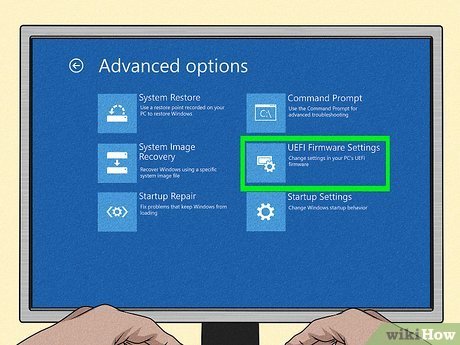
3. Run Windows Startup Repair. On startup, press F8 or hold Shift while clicking Restart to reach the recovery menu. Go to Troubleshoot, then Advanced Options, then Startup Repair. Windows will scan for boot file errors and repair them automatically.
4. Uninstall recent Windows updates. From the same recovery menu, go to Troubleshoot, Advanced Options, and Uninstall Updates. Removing the most recent cumulative update has fixed display issues on several Acer Aspire and Nitro models, especially after updates pushed in late 2024 and early 2025.
When to take it in for repair
If the external monitor shows a working image but the built-in screen stays dead, something physical has failed. The three most common culprits at that point are the LCD panel itself, the backlight, or the ribbon cable.
A trained technician can confirm which one within a few minutes and give you a repair quote. Screen replacements for most Acer Aspire and Swift models typically cost between $80 and $200 in parts, depending on the panel size and type, plus labor. Acer Nitro and Predator gaming models can run higher because of their higher-refresh-rate panels.
If your laptop is still under Acer’s standard one-year limited warranty, contact Acer support before opening it yourself. Physical repairs carried out by non-authorized technicians void the warranty, so it is worth checking your purchase date first. Acer’s warranty covers manufacturing defects in materials and workmanship, but not accidental damage like a cracked screen from a drop.
You can check your warranty status and find authorized service locations through Acer’s support page.
If the laptop is out of warranty and the screen repair quote approaches the cost of a new budget model, it may be worth comparing prices before committing. A laptop with a fully working motherboard, SSD, and RAM is still a functional machine — the screen is often the cheapest component to replace independently.
Frequently asked questions
Why is my Acer laptop screen black but the blue power light is on?
The laptop is on, but something is stopping the display from showing. The most common causes are a crashed graphics driver, Windows loading to a second monitor, or the Explorer.exe process failing. Try Fn + F5 to switch display modes, or press Ctrl + Alt + Delete and restart Windows Explorer from Task Manager.
Why does my Acer screen flicker when I move the lid?
This almost always means the ribbon cable that runs through the hinge has become loose or frayed. The cable flexes every time you open or close the lid and eventually wears out, especially on older machines. A technician can reseat or replace it, usually in under an hour.
Can a Windows update cause an Acer screen to stop working?
Yes. Certain cumulative updates, particularly those released in late 2024 and early 2025, corrupted display drivers or boot configuration data on some Acer models. Booting into recovery mode and uninstalling the most recent update usually resolves it.
How do I fix an Acer laptop screen that is too dim to see?
First press Fn + the brightness-up key several times. If that doesn’t help, go to Settings, then System, then Display, and disable adaptive brightness. On battery, also switch to a balanced or high-performance power plan, since battery-saver mode can cap brightness heavily.
Is it worth replacing an Acer laptop screen, or should I just buy a new laptop?
If the rest of the laptop works, a screen replacement is almost always worth it. Most Acer screens cost $50 to $150 in parts, and a skilled repair takes under an hour. It only stops making sense if the motherboard, battery, and keyboard are also failing.
Conclusion
Start with the external monitor test. That single step tells you whether the problem is in Windows or in the physical screen, and it keeps you from wasting time on the wrong fixes. Most software-related black screens come down to a crashed graphics driver or a misconfigured display output mode, both of which take a few minutes to resolve. If the built-in screen is dead but the external monitor works, the ribbon cable or panel has most likely failed that’s a hardware job, but a straightforward one for any experienced repair shop.
Related Post:\