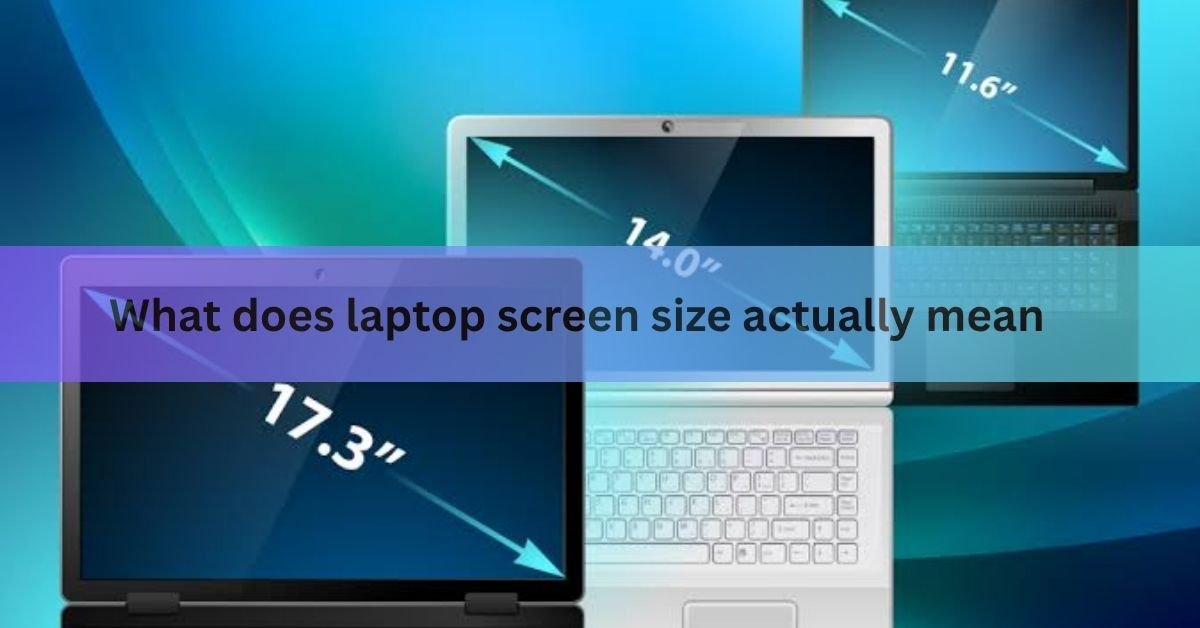
Laptop screen size is the length of a straight line drawn from one corner of the display to the corner diagonally across from it. It is given in inches almost everywhere, including the US, the UK, and most of the world.
The number describes only the lit area where your picture shows. It does not describe the width of the laptop, the size of the lid, or the number of pixels. Two laptops can have the same 15.6-inch screen yet sit in very different bodies, because one may have thin edges and the other thick ones.
| Quick definition: Screen size is the diagonal of the viewable display, measured in inches. The bezel, the frame, and the rest of the laptop are not part of it. |
How do you measure a laptop screen step by step?
Grab a tape measure or a ruler and follow these steps. A soft tape measure is easiest, but a ruler works if the screen is small enough.
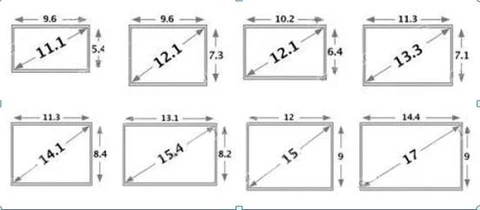
- Open the laptop and turn it on, or at least make the screen light up, so you can clearly see where the picture ends and the black border begins.
- Place the start of your tape at the bottom-left corner of the lit screen, right where the image starts, not where the plastic frame starts.
- Stretch the tape straight up to the top-right corner of the lit screen. Keep the line tight and diagonal.
- Read the number where the tape meets that opposite corner. That figure, in inches, is your screen size.
- Round to the nearest common size. A reading near 15.5 to 15.6 inches is a 15.6-inch screen.
If your tape only shows centimeters, divide by 2.54 to get inches. For example, 39.6 cm divided by 2.54 is 15.6 inches.
| Common mistake: Starting the tape at the edge of the laptop body instead of the edge of the picture. The bezel can add up to an inch, which throws the whole measurement off. |
Common laptop screen sizes
Most laptops cluster around a handful of sizes. If your measurement lands close to one of these, that is almost certainly your size. Here is a quick guide to what each size suits.
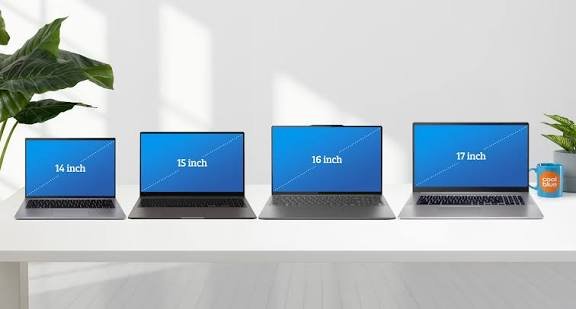
| Screen size | Best for | Trade-off |
| 11 to 12 inch | Maximum portability, travel, light browsing | Cramped for long work sessions |
| 13.3 inch | A light all-rounder you carry every day | Less room for side-by-side windows |
| 14 inch | The sweet spot: portable but still roomy | Slightly heavier than a 13-inch |
| 15.6 inch | Everyday home use, multitasking, media | Bulkier in a bag |
| 16 to 17.3 inch | Gaming, video editing, desktop replacement | Heavy and harder to carry around |
A small heads-up on odd numbers. Apple lists sizes like 13.6 or 14.2 inches, and a few makers round in their own way, so your tape might read a hair off the label. That is normal and nothing is wrong with your screen.
How to find your screen size without measuring
You can skip the ruler entirely. The fastest route is to find your exact model, then look up its size. Your laptop tells you the model in a few clicks, and the maker publishes the screen size for every model.
Check the model name first
Many laptops put the size right in the name. An HP Laptop 15 or a Dell Inspiron 14 is telling you it is a 15-inch or 14-inch screen. Look at the sticker on the bottom of the laptop, the original box, or your receipt.
On Windows
Windows usually shows resolution, not the inch size, so you use it to grab your model and then search.
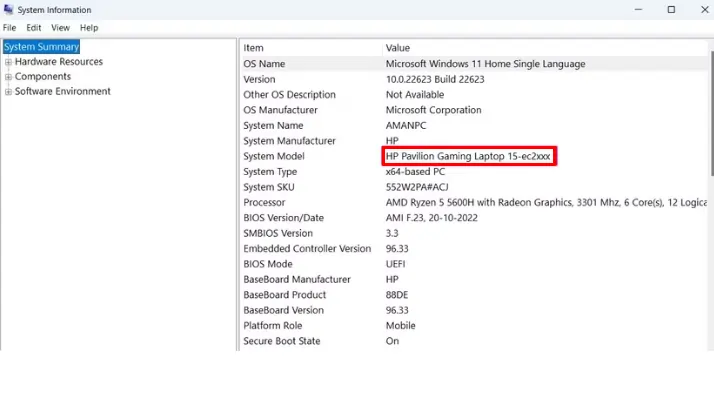
- Press the Windows key and R together, type msinfo32, and press Enter.
- Find the System Model line, for example Dell XPS 13 9310.
- Type that model plus the words screen size into a search engine. The maker’s spec page gives you the exact figure, such as a 13.4-inch display.
On a Mac
Apple makes this easy because the model name often includes the size. Click the Apple menu in the top-left, then About This Mac. You may see something like MacBook Air 15-inch, M3, 2024, which tells you the size straight away. If it shows only the chip and year, click More Info to see the full model details.
When in doubt, the maker’s own spec page is the source of truth. You can check the display details on HP’s laptop size guide or search your model on the manufacturer’s support site for the line that lists the diagonal in inches.
| Tip: If your laptop has had its screen replaced, trust a physical measurement over the spec sheet. A repair shop may have fitted a panel of a slightly different size. |
Screen size vs resolution: what is the difference?
Screen size and resolution are two different things, and mixing them up causes a lot of confusion. Size is the physical diagonal in inches. Resolution is how many tiny dots, called pixels, make up the picture, written as something like 1920 x 1080.
A bigger screen does not always mean a sharper one. A 14-inch laptop with a high 2880 x 1800 resolution can look crisper than a 15.6-inch laptop stuck at 1366 x 768, even though the second screen is physically larger. Sharpness comes from packing more pixels into each inch, not from raw size.
So when you shop, treat them as separate boxes to tick. Size decides how much you can fit on screen and how heavy the laptop is. Resolution decides how sharp text and images look. You want both to match how you plan to use the machine.
| Screen size | Resolution |
| Physical diagonal of the display | Number of pixels in the picture |
| Measured in inches | Counted in pixels (e.g. 1920 x 1080) |
| Affects how much fits and how portable it is | Affects how sharp everything looks |
Measuring the whole laptop for a sleeve or case
If you are buying a sleeve or bag, the screen size alone is not enough. The case has to fit the whole closed laptop, and two laptops with the same screen can have very different bodies. For that you need three more measurements, taken with the lid shut.
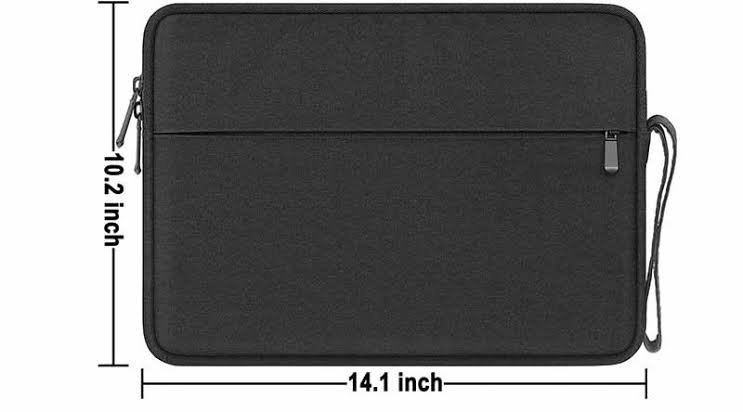
- Width: the distance across the front edge, left to right.
- Depth: from the front edge to the back hinge.
- Thickness: the height of the laptop at its thickest point, lid closed.
Once you have those, add about half an inch of room to each one so the laptop slides in without a fight. The screen size on the case label is only a rough guide, because a slim-bezel 15.6-inch laptop can be smaller all round than an older 14-inch one.
It helps to write the numbers down in both inches and centimeters, since many bags from Europe and Asia list their inside space in centimeters. For more on safe handling and the official specs of your exact model, the Microsoft support pages are a reliable place to confirm device details before you buy.
Frequently asked questions
Do you measure a laptop screen with or without the bezel?
Without the bezel. Measure only the lit display area, corner to corner. The plastic frame around the screen is not counted and can add up to an inch if you include it by mistake.
How do I know my laptop screen size without a ruler?
Find your model in your system info. On Windows, press Windows plus R, type msinfo32, and note the system model. Search that model with the words screen size to get the exact figure from the maker.
Is a 15.6-inch laptop measured across or diagonally?
Diagonally. The 15.6 inches is the straight line from the bottom corner to the opposite top corner of the screen, not the width across the bottom, which is shorter.
Does screen resolution change the screen size?
No. Resolution is the number of pixels, like 1920 x 1080, and is separate from the physical size. A 15.6-inch screen can come in several resolutions while staying the same physical size.
Why does my measurement not exactly match the label?
Small gaps are normal. Some makers round their sizes, and Apple uses figures like 13.6 or 14.2 inches. As long as you are within a fraction of an inch of a standard size, your screen is fine.
Conclusion
To measure a laptop screen, run a tape from one corner of the lit display to the opposite corner and read the result in inches, leaving the bezel out. A good result lands within a fraction of a standard size like 13.3, 14, or 15.6 inches. If you would rather skip the ruler, look up your model in your system info and check the maker’s spec page. For a case, measure the closed laptop’s width, depth, and thickness too.
Reletad Post
Acer Laptop Screen Not Working? Fix It Step by Step
How to Connect a Canon Printer to a Laptop
Can You Bring a Laptop on a Plane? Yes — Here’s What to Know
Acer Laptop Won’t Turn On? Here’s How to Fix It (Step by Step)