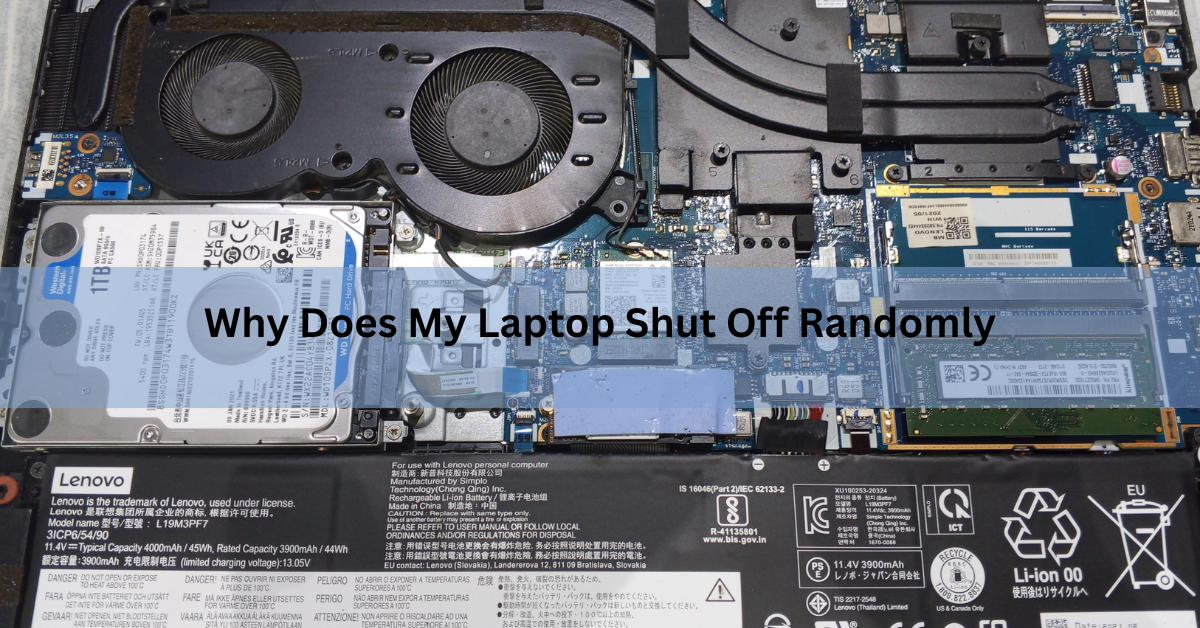
A laptop that shuts off on its own is almost always doing one of two things: protecting itself from heat, or losing power because something in the power chain is failing. The good news is that a sudden power-off is rarely a mystery. It follows a pattern, and once you spot the pattern, the cause usually points to itself.
This guide walks through the five things that make a laptop cut out without warning, how to tell them apart, and the exact steps to fix each one. Work through it in order and you can usually stop the shutdowns without opening the machine or buying a single part.
The short answer
Your laptop shuts off by itself because it either gets too hot or loses steady power. When the processor passes its safe temperature limit, the laptop powers off instantly to avoid damage. When a worn battery, a faulty charger, or a loose power port can no longer deliver steady voltage, the machine simply goes dark. Bad memory can trigger the same thing at any moment.
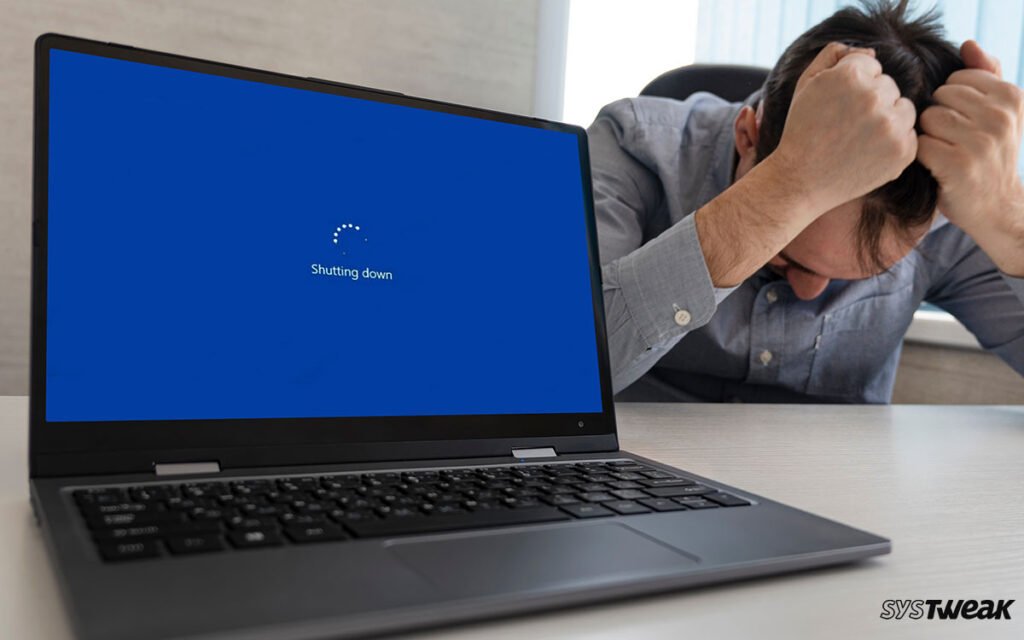
The single most useful clue is timing. A laptop that dies under load points to heat. One that dies only on battery points to the battery. One that dies at random, even while idle, points to memory.
First, read the pattern
Before you change anything, notice when the shutdowns happen. That one detail narrows the cause faster than any tool. Use this table to match what you see to where you should look first.
| What you notice | Most likely cause | First thing to check |
|---|---|---|
| Dies during games, video calls, or rendering | Overheating | CPU temperature under load |
| Dies only on battery, fine when plugged in | Worn battery | Battery report |
| Dies only when charging or moving the cable | Charger or DC-in port | Swap the charger |
| Dies at any time, even idle or during a memory test | Bad RAM | Memory diagnostic |
| Restarts after a driver or Windows update | Driver conflict | Event Viewer, then roll back |
Keep your answer in mind as you read the sections below. Fix the one cause your pattern points to, then test, rather than trying everything at once.
Cause 1: Overheating
Heat is the most common reason a laptop shuts off with no warning. Every laptop has a built-in safety cutoff. When the processor gets too hot, the machine powers off in an instant to protect the chips inside. For most processors that limit sits around 100°C, so a hard shutdown is a safety feature, not a crash.
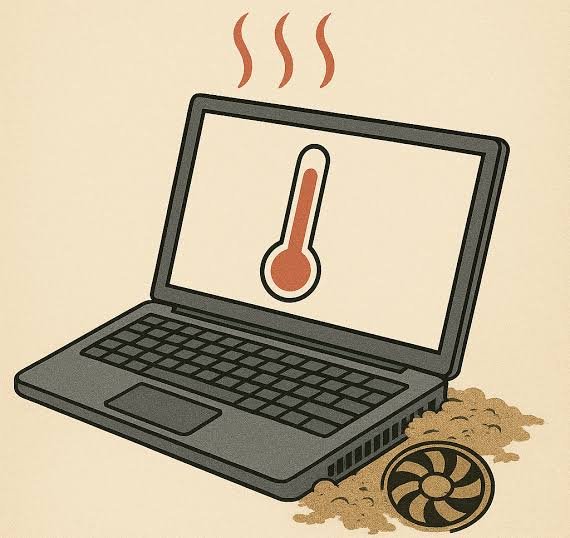
The tell-tale sign is that it happens under load. If the fans roar and then the screen goes black during a game, a video call, or video editing, but the laptop is fine for light web browsing, heat is almost certainly the culprit. A laptop that will not restart until it cools down is an even stronger clue.
How to confirm and fix it
- Check the temperature. Install a free monitor like HWMonitor or Core Temp and watch the CPU reading. At idle a healthy processor sits around 35–50°C. Under load it should stay below about 85°C. Readings near 90–100°C mean it is overheating.
- Give it air. Use it on a hard, flat surface, never a bed, blanket, or lap, so the vents stay clear. Soft surfaces block airflow and trap heat fast.
- Find the hungry app. Press Ctrl + Shift + Esc to open Task Manager and click the CPU column to sort. If one app is pinning the processor, close it and see if temperatures drop.
- Clear the dust. Power down, then use short bursts of compressed air to blow dust out of the vents. Hold the fan blades still so they do not spin. Clogged vents are the number one cause of slow, creeping heat.
- Consider fresh thermal paste. On a laptop more than two or three years old, the paste between the processor and heatsink dries out and can raise temperatures by 10–20°C. Replacing it restores heat transfer, but it means opening the machine, so it is a job for a confident DIYer or a repair shop.
Cause 2: A worn-out or failing battery
If your laptop dies only on battery but runs fine plugged in, the battery is the prime suspect. Laptop batteries are consumable. They lose capacity with every charge, and an aging one can suddenly fail to hold voltage, so the machine cuts out even when the meter still shows charge left.
Windows has a built-in report that turns this guesswork into numbers. Open Command Prompt and type powercfg /batteryreport, then press Enter. Windows saves an HTML file and tells you where. Open it and compare two figures: Design Capacity (what the battery held when new) and Full Charge Capacity (what it holds now).
Divide the second by the first to get your battery health. Above 80% after a couple of years is fine. According to Dell’s battery report guide, a full charge capacity below 40% of the design capacity means the battery is badly degraded and should be replaced. A cycle count in the many hundreds points the same way.
A quick test: if the shutdowns stop entirely while the charger is plugged in, and the battery report shows heavy wear, a new battery will very likely fix the problem.
Cause 3: A bad charger or charging port
When the shutdowns happen while charging, or when you nudge the cable, the charger or the port it plugs into is the likely fault. A failing charger can deliver uneven voltage under load. A damaged cable or a loose DC-in port can break contact for a split second, and the laptop reads that as a total loss of power and shuts down.
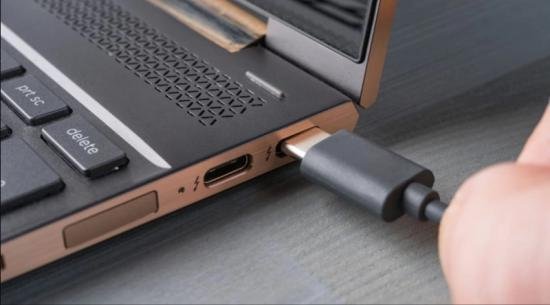
To narrow it down:
- Swap in a known-good charger of the same wattage and voltage. If the shutdowns stop, the old charger was the problem.
- Check the cable for kinks, fraying, or a hot spot near the plug, and make sure the connector seats firmly.
- Underpowered chargers matter too. A replacement rated below what your laptop needs may fail to keep up during heavy use, especially while gaming and charging at once.
If a good charger fixes it, you are done cheaply. If the port itself feels loose or wobbly, that is a physical repair worth handing to a technician.
Cause 4: Faulty RAM
Bad memory causes the trickiest kind of shutdown: the truly random one. Unlike heat or power faults, a failing RAM stick can crash the machine at any time, at idle, under load, or even during a memory test. The system may restart instead of fully powering off. If your laptop dies with no pattern at all, test the memory.
Windows includes a free checker. Type Windows Memory Diagnostic into the Start menu, choose to restart and check, and let it run before Windows loads. It takes 15–30 minutes. For a deeper test, MemTest86 boots from a USB stick and can run overnight, catching errors the built-in tool misses.
If either tool reports errors and your laptop has two sticks, you can sometimes narrow it to one by testing them one at a time. A confirmed bad stick needs replacing.
Cause 5: Driver conflicts and Windows settings
Sometimes the hardware is fine and software is pulling the trigger. An outdated or clashing driver, especially for the graphics chip or chipset, can crash the system in a way that looks like a random power-off. Shutdowns that started right after an update, or that line up with a specific action like waking from sleep or plugging in a device, point here.
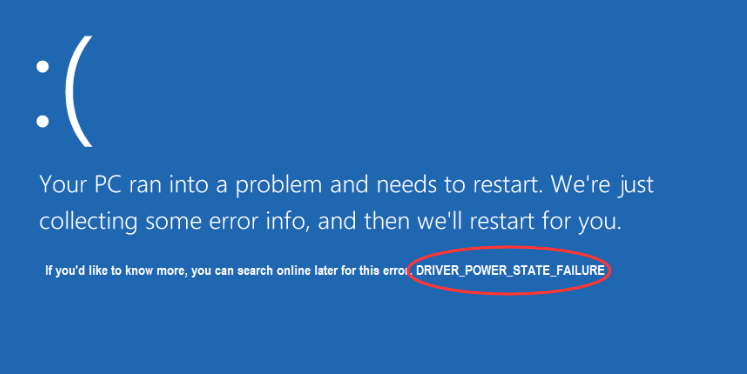
Three settings and checks are worth a look:
- Update your drivers from your laptop maker’s support site, not just Windows Update, which sometimes installs generic drivers that clash with the ones built for your model.
- Turn off Fast Startup. This feature skips a full shutdown to boot faster, and it can leave the system in an unstable state. Find it under Power Options, in the settings for what the power button does.
- Run a virus scan. Malware can force shutdowns, so a clean scan rules out one more cause.
If a recent driver is to blame, rolling it back to the previous version through Device Manager often settles things down.
How to read the clues in Event Viewer
Windows keeps a log of every unexpected shutdown, and it can tell you a lot. Press Windows + R, type eventvwr.msc, and press Enter. Open Windows Logs, then System, and look for a critical entry from Kernel-Power, Event ID 41. That entry appears whenever the machine restarts without shutting down cleanly.
The event itself is a symptom, not the cause, but the details narrow it down. As Microsoft’s guidance on Event ID 41 explains, click the Details tab and check the BugcheckCode. A non-zero code usually means a system crash, so focus on drivers and memory. A code of zero often points to power being cut abruptly, which sends you back to heat, the battery, or the charger.
Also note the exact time of each Event 41, then scan for other errors just before it. Those neighboring entries are frequently the real trail to follow.
When to stop and get it repaired
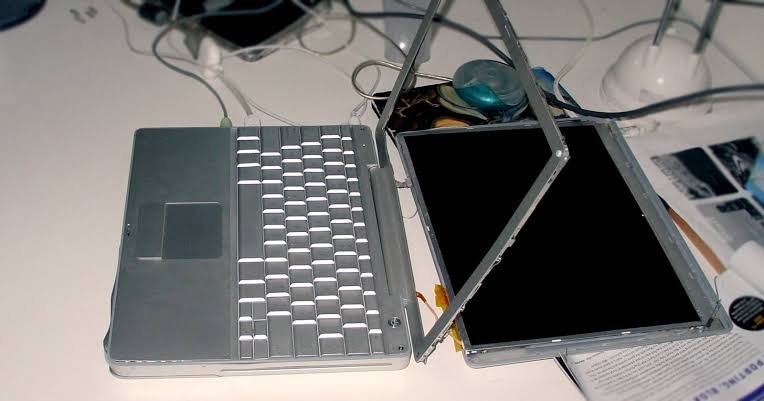
Most random shutdowns are fixable at home, but a few signs mean it is time for a professional. If you have cleaned the vents, confirmed healthy temperatures, ruled out the battery and charger, and passed a memory test, yet the shutdowns continue, the fault likely sits deeper on the motherboard.
Hand it over when:
- The laptop shuts down even at normal temperatures and on a known-good charger.
- The battery is visibly swollen or the case is bulging. Stop using it right away and treat it as a safety issue.
- The charging port feels loose, or reassembly involves fragile clips and ribbon cables you are not comfortable with.
A shop can test temperatures, voltages, memory, and connections properly, which saves you from swapping parts on a hunch.
Frequently asked questions
Can a random shutdown damage my laptop or files?
The shutdown itself is a safety response, so it protects the hardware. But a sudden power-off can corrupt whatever files were open at the time. Back up your data regularly, and treat repeated shutdowns as a problem to fix, not ignore.
Why does my laptop only shut off when it’s unplugged?
That usually means the battery can no longer hold steady voltage. Run powercfg /batteryreport and compare the design capacity to the full charge capacity. Heavy wear there points to a battery that needs replacing.
Is it overheating or a power problem?
Watch when it happens. Dying under heavy load, with loud fans and a hot chassis, means heat. Dying at random or only on battery means power. A temperature monitor and the battery report confirm which one it is.
What temperature is too hot for a laptop?
At idle, 35–50°C is normal. Under load it should stay below about 85°C. Readings near 90–100°C are too hot and will trigger the safety shutdown. That is when cleaning the vents or repasting helps.
How do I find out what caused the shutdown?
Open Event Viewer, go to Windows Logs then System, and find the Kernel-Power Event ID 41 entry. Check its BugcheckCode and the errors logged just before it to trace whether the cause was a crash or lost power.
Conclusion
A laptop that shuts off randomly is almost always managing heat or losing steady power, and the moment it dies tells you which. Match the pattern to the cause, then fix that one thing: clear the vents for heat, check the battery report for power on battery, swap the charger for charging faults, and run a memory test for shutdowns with no pattern. Work through them in order and a stable, quiet laptop is usually a short session away.
Recommended Articles:
Can I Bring a Laptop on a Plane? The Rules, Made Simple
How to Optimize Your Gaming Laptop for 4K (Without Buying a New One)
How Many Watts Does a Laptop Use? Real Numbers by Type and Task
Heat Damage to a Laptop Screen: What It Looks Like and What to Do