
You can find your laptop’s age in about a minute. On Windows, check the BIOS release date or the date Windows was first installed. On a Mac, the model year shows right under About This Mac. For the exact build date, look up the serial number on the maker’s website. None of this needs extra software.
Below are the quick methods, step by step, plus a bit on which date actually tells you how old the machine is. Because these dates can point at slightly different things, it helps to check two of them and compare.
What’s the quickest way to check?
The single fastest check depends on your machine. On Windows, open the BIOS date. On a Mac, open About This Mac. Both take seconds and give you a solid ballpark.
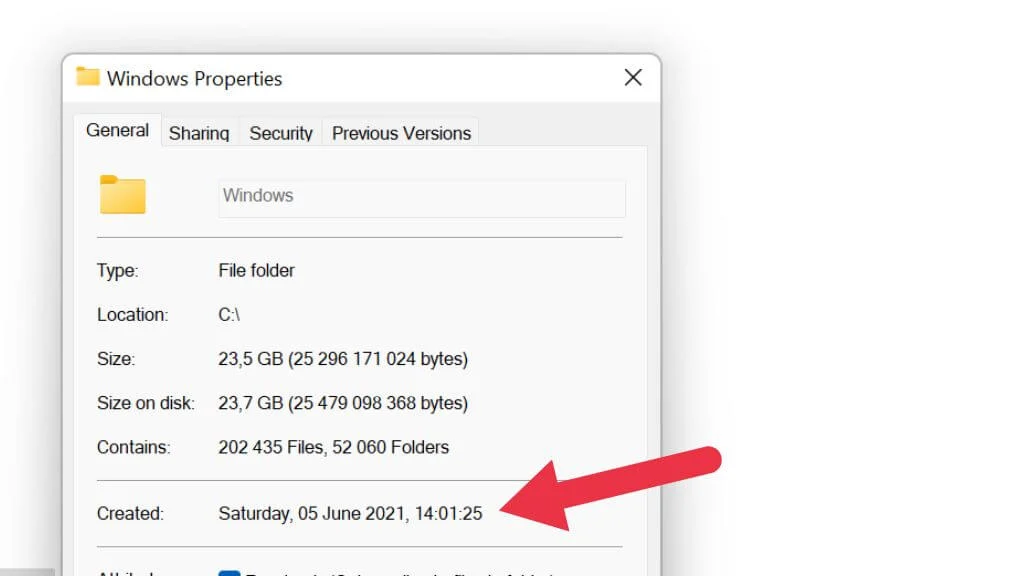
Quick answer: BIOS date on Windows, model year on Mac. The serial number gives you the exact factory date.
Check the BIOS date (Windows)
The BIOS is the small bit of firmware that starts your computer before Windows loads. Its release date is usually set close to when the laptop was built, so it’s a good first clue to the age.
- Press the Windows key + R to open the Run box.
- Type msinfo32 and press Enter.
- In the System Information window, look at the BIOS Version/Date line.
The date next to that line is roughly when your laptop’s firmware shipped. A BIOS date of June 2022, for example, points to a machine built around mid-2022. One caveat: if someone updated the BIOS later, this date shifts forward, so treat it as a strong hint rather than proof.
Check the Windows install date
If Windows has only ever been set up once on your laptop, the original install date is often the closest thing to a first-use date. It usually matches when the machine was first switched on and set up.
- Press the Windows key + R, type cmd, and press Enter.
- Type systeminfo and press Enter, then wait for the list to finish.
- Scroll up to the Original Install Date line.
That date is when Windows was first installed. If the laptop was reset or Windows was reinstalled, this shows the newer date instead, not the true age. So a very recent install date on an obviously worn laptop is a sign the system was wiped at some point.
Look up the serial number
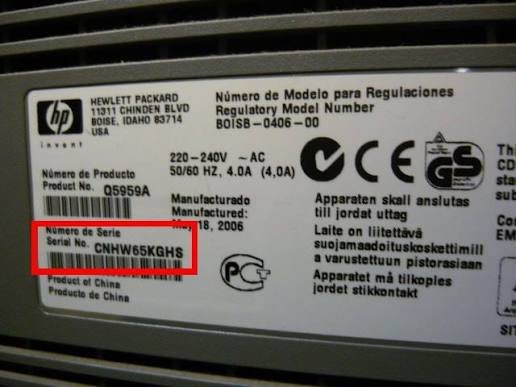
The serial number is the most exact route. Every laptop has one, and the maker can tie it to the precise date the unit left the factory. You can read the serial straight from Windows.
Older Windows versions used the wmic bios get serialnumber command. Microsoft has been removing WMIC, and on newer Windows 11 builds (24H2 and later) it no longer works by default. Use PowerShell instead.
- Right-click the Start button and choose Terminal or Windows PowerShell.
- Type this and press Enter: Get-CimInstance -ClassName Win32_BIOS
- Read the SerialNumber shown in the output.
Once you have the serial, type it into your maker’s support site. HP, Dell, Lenovo, ASUS, and Acer all have a warranty or product page that shows the build date. Lenovo owners can use the Lenovo warranty lookup, which even detects your serial automatically and lists the date of manufacture.
If the command returns something like “To Be Filled By OEM,” your maker simply didn’t store the serial in firmware. In that case, flip the laptop over and read it off the sticker on the underside.
How old is my Mac?
On a Mac, the model year is built right into the system, so you don’t need any command line.
- Click the Apple menu in the top-left corner.
- Choose About This Mac.
- Read the model name and year at the top, such as MacBook Air (M2, 2022).
Note that the model year is when Apple released that model, not always the day you bought yours. For the exact purchase and coverage date of your specific machine, copy the serial from that same window and enter it on Apple’s Check Coverage page. It shows the estimated purchase date and warranty status.
One thing to know: on Macs made from about 2021 onward, Apple switched to randomized serial numbers, so you can no longer decode the year from the digits themselves. The coverage tool is the reliable way to get the date.
No software: stickers and hardware clues
If the laptop won’t turn on, or you just want a fast physical check, the machine itself carries plenty of clues.
- Underside sticker: many laptops print a manufacture date or a serial that decodes to one.
- Original box and receipt: the barcode label and invoice both date the purchase.
- Ports: USB-C and HDMI point to a newer machine; VGA or only USB-A suggests an older one.
- Processor: search the CPU model (say, Intel Core i5-8250U). Its release year sets the earliest the laptop could exist.
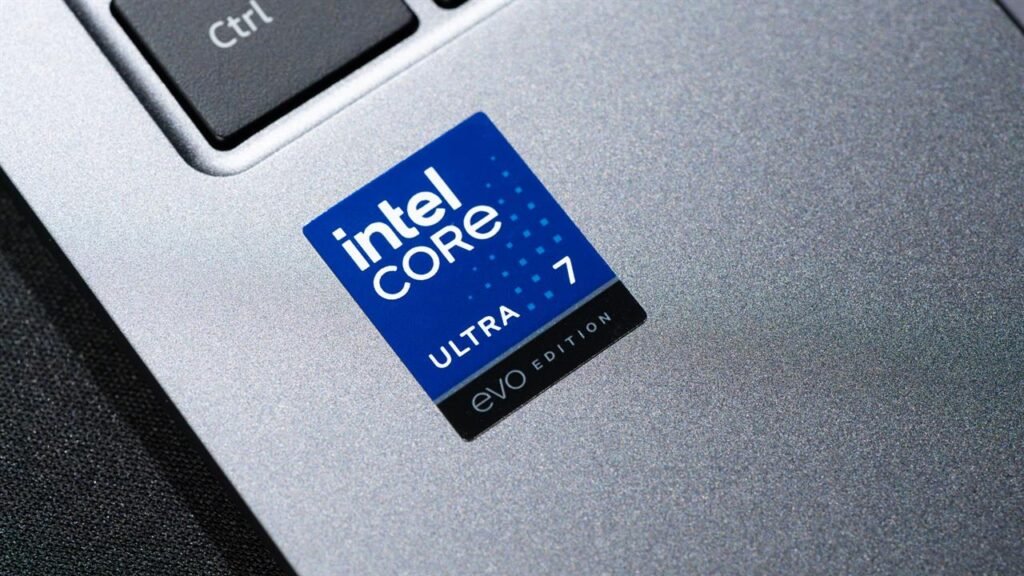
The processor trick is handy because a chip can’t be older than its launch. An 8th-gen Intel chip, for instance, first shipped in late 2017, so a laptop using it is 2017 or newer.
Which date actually tells you the age?
These methods answer slightly different questions, so it helps to know what each one means.
| What you check | What it tells you |
|---|---|
| Serial number | The exact date the unit was made at the factory. Most precise. |
| BIOS date | Roughly when the firmware shipped, close to the build date, unless updated later. |
| Windows install date | When the system was first set up, unless it was reinstalled or reset. |
| Mac model year | The year Apple released that model, a good ballpark for the machine. |
| Processor release | The earliest possible age. The laptop can’t predate its chip. |
For a confident answer, cross-check two of these. If the serial says 2021 and the BIOS date agrees, you’re on solid ground. If they disagree, the serial wins for manufacture date, while the install date better reflects when the laptop actually started its life with a user.
How power-on hours reveal true use
Age in years is one thing; how hard the laptop has worked is another. A three-year-old machine that ran all day every day is more worn than a five-year-old one used on weekends. The drive’s power-on hours tell that story.
Free tools like CrystalDiskInfo read the SMART data from your drive and show total power-on hours. As a rough guide, steady daily use adds up to roughly 2,000 hours a year. So a two-year-old laptop showing around 4,000 hours is normal, while 15,000 hours on a supposedly “lightly used” machine is a red flag. This matters most when buying second-hand, where the seller’s word and the drive’s history should line up.
Frequently asked questions
Can I find my laptop’s age without turning it on?
Yes. Flip it over and read the manufacture date or serial number from the underside sticker, then look the serial up on the maker’s website. The original box, receipt, or invoice also date the purchase.
Why does the wmic command not work anymore?
Microsoft is removing WMIC from Windows. On Windows 11 builds 24H2 and later it’s disabled by default. Use PowerShell instead: Get-CimInstance -ClassName Win32_BIOS returns the same serial number.
Is the BIOS date the same as the purchase date?
Not exactly. The BIOS date is roughly when the firmware shipped, usually close to the build date. Your purchase date is often a few weeks or months later, once the laptop reached a store and sold.
How long does a laptop usually last?
Most laptops give solid service for three to five years. Heavy daily use wears them faster, while light use can stretch a machine to seven years or more, especially with an SSD and enough memory.
How do I know if a used laptop is really as old as the seller claims?
Check the serial number’s manufacture date and compare it with the drive’s power-on hours using a free tool like CrystalDiskInfo. If a “lightly used” laptop shows very high hours, the story doesn’t add up.
Conclusion
Finding your laptop’s age is quick: check the BIOS date or Windows install date on a PC, or the model year under About This Mac on a Mac, then confirm the exact factory date with the serial number on the maker’s site. A good result is two dates that agree within a few months. If they don’t, trust the serial for build date and the install date for when the machine first went into use.
Recommended Articles:
Acer Laptop Screen Not Working? Fix It Step by Step
Can I Charge My Laptop With a Phone Charger?
White Spot on Laptop Screen: What It Is and How to Fix It
3.5 mm Jack Not Working on Laptop? Here’s How to Fix It
How to Remove a Stripped Screw From a Laptop (Without Wrecking It)