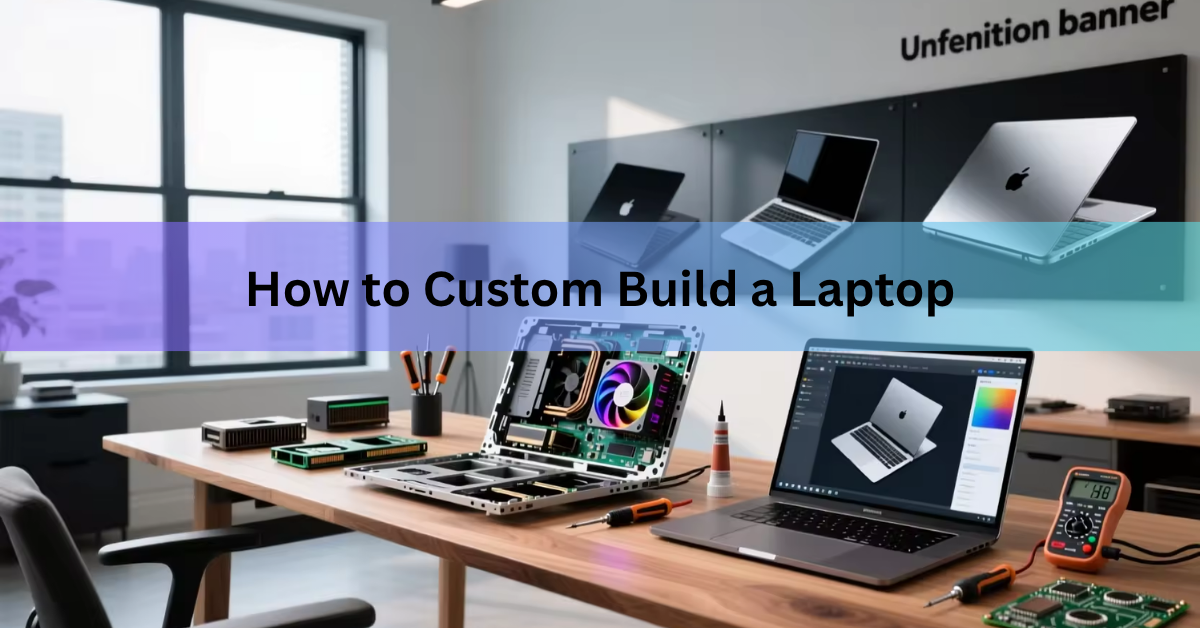
You can custom build a laptop in three ways: configure one to order on a maker’s website, upgrade the laptop you already own, or buy a modular laptop and put it together yourself. What you can’t do is buy a case, a motherboard, and a screen from three different companies and screw them together the way you would with a desktop. Laptop parts are shaped for one specific model, so “custom” always means choosing the parts that are open to choice inside a design that already exists.
That’s not a bad thing. The parts that matter most to how a laptop feels (processor, memory, storage, graphics, screen, ports) are exactly the ones you get to pick. This guide walks through all three routes, what you can change on each, what it costs in 2026, and how to decide which one fits you.
What does it mean to custom build a laptop?
A custom laptop is one where you chose the key parts instead of taking a fixed shelf model. There are three real ways to get there, and they suit different people.
Configure to order. You go to a brand’s website, pick a base model, and choose the processor, memory, storage, graphics, and screen from drop-down menus. The factory builds it and ships it. This is what most people mean by a custom laptop, and it’s the easiest route.
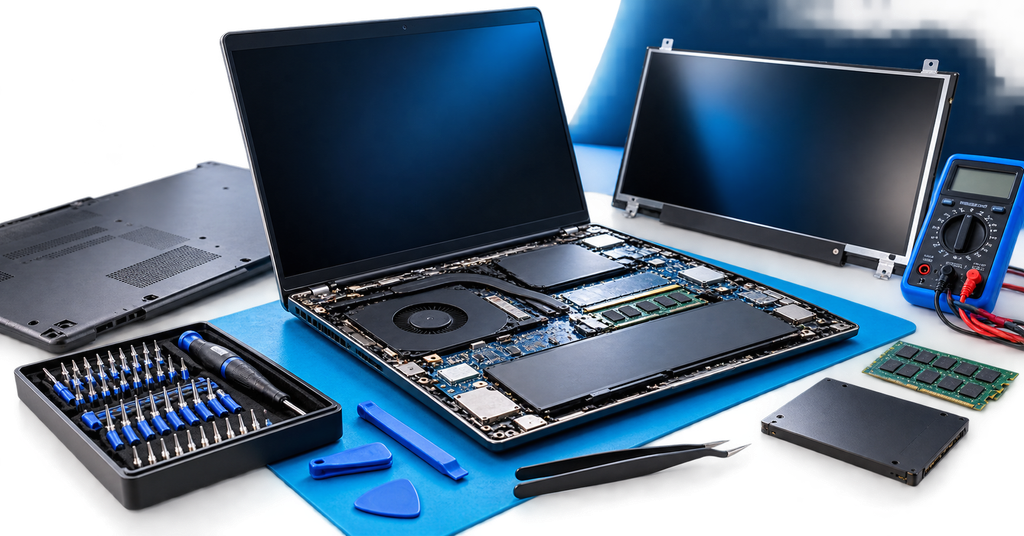
Upgrade what you own. You open the laptop you already have and swap in more memory, a bigger or faster SSD, a newer Wi-Fi card, or a fresh battery. It’s the cheapest route by far, and it takes a screwdriver and about 20 minutes.
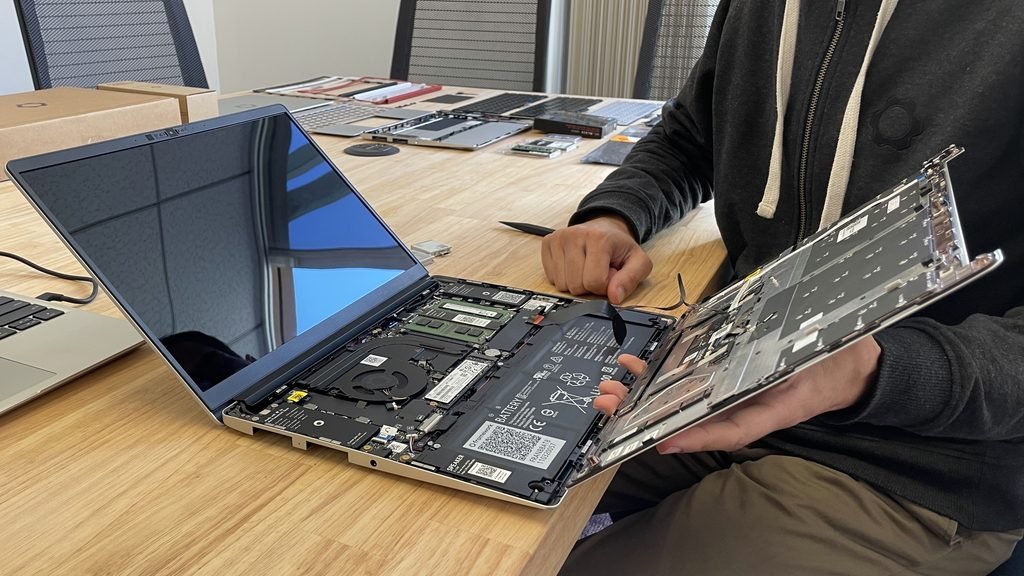
Assemble a modular laptop. You order a laptop designed to be built by the owner, such as a Framework Laptop DIY Edition or a barebones Clevo shell sold through a reseller, then fit the memory, storage, and sometimes the graphics module yourself. This is the closest a laptop gets to a desktop build.
| Route | Skill needed | Typical cost | Best for |
| Configure to order | None | Same as a shelf model, plus upgrade fees | Most buyers who want the right specs with full warranty |
| Upgrade what you own | Basic (one screwdriver) | $30 to $200 for RAM or an SSD | Anyone whose laptop is slow but otherwise fine |
| Assemble a modular laptop | Basic to moderate | $549 to $2,500 depending on model | People who want to upgrade parts for years |
The rest of this guide takes each route in turn. If you only want the quick answer: configure to order if you’re buying new and want zero fuss, upgrade if your current laptop just needs more memory or storage, and go modular if you want a machine you can keep improving.
How do you configure a laptop to order?
You pick a base model on the maker’s site, click “Customize” or “Build your own,” and work through the menus in order: processor, graphics, memory, storage, screen, then extras. Dell, Lenovo, HP, and the gaming brands (ASUS, MSI, Razer) all work this way, as do specialist builders that sell Clevo and Sager chassis. The menus differ a little, but the decisions are the same.
- Decide the job first. Write down what the laptop has to do: office work and browsing, programming, photo and video editing, 3D or CAD, or gaming. Every later choice follows from this, and it stops you paying for parts you’ll never use.
- Choose the base model by size and weight. The chassis sets the screen size, the ports, the keyboard, and roughly how much cooling the laptop has. A 13 or 14 inch machine is easy to carry; a 16 inch machine has room for a stronger graphics chip and runs cooler under load. You can’t change this later, so get it right.
- Pick the processor. For office work, browsing, and school, the base processor in a current line is enough. Move up one step for programming, heavy multitasking, or editing. The top chip in a range often costs a lot for a small gain, so spend that money on memory or the screen instead.
- Decide whether you need dedicated graphics. Integrated graphics (built into the processor) now handle video, light photo editing, and older games well. You only need a separate graphics chip, such as an NVIDIA RTX 5070, for current AAA games, 3D rendering, video effects, or local AI work.
- Choose the memory, and check whether it’s soldered. 16 GB is the sensible floor in 2026. 32 GB is right for editing, gaming, and large codebases. The key question is whether the memory sits in slots (SO-DIMM or the newer LPCAMM2 module) or is soldered to the board. If it’s soldered, you can never add more, so order what you’ll need in three years, not today.
- Set the storage. 512 GB covers general use. Go to 1 TB or more for games, video, or big photo libraries. Storage is the one part that’s almost always a user-replaceable M.2 stick, so it’s safe to order the smaller size and add a second drive later if the laptop has a spare slot.
- Pick the screen. Resolution, refresh rate, brightness, and panel type (IPS or OLED) all live here. For colour work, an OLED or a high-colour-accuracy IPS panel matters more than the processor. For gaming, a 144 Hz or faster refresh rate is the upgrade you’ll notice.
- Add the extras you’ll actually use. Keyboard layout and backlighting, operating system edition, a longer warranty, and accidental-damage cover. Skip pre-installed software bundles.
- Review the price against a pre-built model. Before you check out, compare your build with the nearest fixed configuration. Makers sometimes price a ready-made model below a custom one with the same parts. Also check the delivery estimate: a custom order usually takes one to three weeks longer than a model in stock.
Tip: Open the configurator in two browser tabs. Build your ideal spec in one and the cheapest acceptable spec in the other. The gap between them shows exactly what each upgrade costs, and it’s often much more than the part would cost on its own.
How do you customize a laptop you already own?
You can upgrade the memory, the storage, the Wi-Fi card, and the battery on most laptops that are a few years old, and on many new ones. The first job is to find out which of those four your model allows, because the answer changes from one laptop to the next even within the same brand.
The fastest check is the Crucial Advisor tool. Enter the maker and exact model number (it’s on a sticker underneath the laptop or in the system information screen) and it tells you whether the memory is slotted or soldered, the maximum it supports, and which SSD sizes fit. Your laptop’s own service manual, available on the maker’s support site, gives the same information plus the screw locations.
Memory
makes the biggest difference if your laptop has 8 GB and you keep seeing the disk at 100 percent in Task Manager. That happens when Windows runs out of memory and starts using the SSD instead. Laptop memory comes in three forms: SO-DIMM sticks that clip into slots, LPCAMM2 modules that are held by three screws, and soldered chips that can’t be changed. Both of the first two are user-upgradeable. Framework’s Intel-based Laptop 13 Pro and Lenovo’s 2026 ThinkPad T series use LPCAMM2, while most thin budget laptops and every MacBook use soldered memory.
Storage
is the easiest swap. Nearly every laptop made since about 2018 uses an M.2 NVMe SSD, and many 16 inch models have a second slot free. You unscrew one screw, slide the old drive out, and slide the new one in. If you’re replacing the main drive, clone it first with the free software most SSD makers provide, or do a clean install of Windows or Linux.
Wi-Fi and battery
are the two upgrades people forget. A Wi-Fi 6E or Wi-Fi 7 card costs about $20 to $30 and fits the same M.2 2230 slot as the old one. A new battery brings an old laptop back to a full day’s use, and the maker’s own replacement is usually worth the small premium over a generic cell.
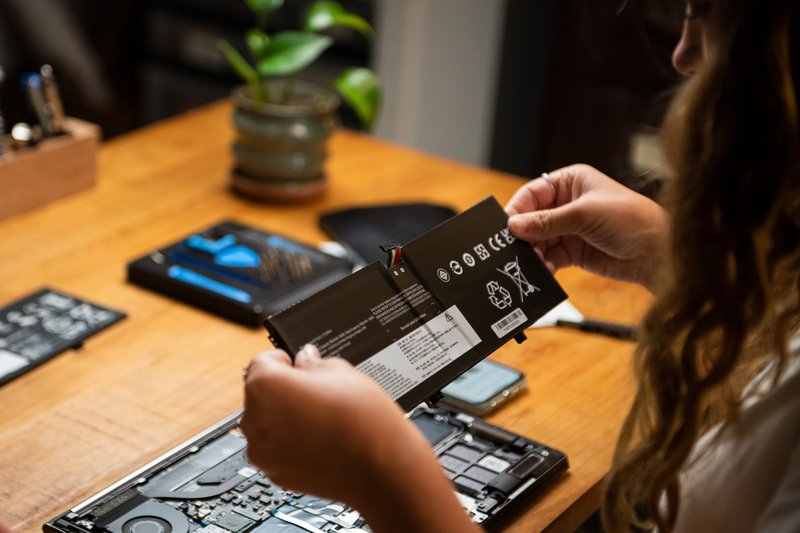
A few practical points before you open the case. Unplug the charger and, where possible, disconnect the battery inside first. Work on a hard surface and touch something metal to discharge static. Keep the screws in order, because many laptops use two or three lengths and a long screw in a short hole can crack the board. Opening a laptop doesn’t void the warranty in most regions, but damage you cause isn’t covered, so go slowly the first time.
How do you build a modular laptop yourself?
You order a laptop sold as a kit, then fit the memory, storage, and ports yourself with one screwdriver. Framework is the main company doing this, and its own guide to building a customizable laptop walks through each menu in its configurator. The build takes 10 to 20 minutes, and installing the operating system takes another 10 to 20.
Framework sells four laptops, all in a DIY Edition that ships without memory, storage, or an operating system unless you add them. Current starting prices in US dollars are:
- Framework Laptop 12, a 12.2 inch touchscreen convertible, from $549 with a 13th Gen Core i3.
- Framework Laptop 13, the 13.5 inch productivity model, from $769 with a previous-generation Ryzen 5 or $899 with a Ryzen AI 300 chip.
- Framework Laptop 13 Pro, a 2026 overhaul with a full CNC chassis, haptic touchpad, and a choice of Intel Core Ultra Series 3 or AMD Ryzen AI 300.
- Framework Laptop 16, the gaming and workstation model with swappable graphics, from just under $2,000 with Radeon RX 7700S graphics or about $2,200 with an NVIDIA RTX 5070.
The parts you choose are the same ones a configure-to-order site offers, but you buy them as loose modules and can replace each one later. The Laptop 13 and 16 have two DDR5 SO-DIMM slots for up to 96 GB of memory. The Intel version of the 13 Pro uses LPCAMM2 for up to 64 GB, which is faster and more efficient but harder to find in stock. Storage is a standard M.2 2280 slot, with a second 2230 slot on the 16, so any NVMe drive you already own will work.
Ports are the part people enjoy most. Instead of fixed sockets, the laptop has four or six bays that take small Expansion Cards: USB-C, USB-A, HDMI, DisplayPort, Ethernet, SD, and even 250 GB or 1 TB storage cards. You decide which ports you want and which side they go on, and you can change your mind for a few dollars later.
The bigger payoff comes years in. The mainboard itself is a module, so when a faster processor generation arrives you can swap the board and keep the screen, keyboard, battery, and case. On the Laptop 16 the graphics module swaps the same way. Nothing else on the market lets you do that.
The other modular route is a barebones chassis. Clevo makes laptop shells with the screen, keyboard, battery, and motherboard already in place, and resellers such as Sager, XOTIC PC, and Eluktronics sell them with your choice of processor, memory, and storage. Some models have a socketed desktop-class processor you can change yourself. These are heavier, louder, and built for raw performance rather than battery life, but they can be configured more deeply than any mainstream brand allows.
One thing a modular laptop can’t do: let you mix parts from different makers. A Framework mainboard only fits a Framework case, and a Clevo board only fits its own shell. The freedom is in swapping modules within one system, not in building from scratch.
What is worth paying extra for, and where can you save?
Spend on the parts you can’t change later and save on the parts you can. That one rule sorts almost every decision in a configurator.
The parts locked in for the life of the laptop are the screen, the chassis and cooling, the processor on most machines, and the memory whenever it’s soldered. Put your money there. A better panel changes every hour you spend with the laptop, and doubling soldered memory at order time costs far less than replacing the whole machine in two years.
The parts you can change later are storage, the Wi-Fi card, the battery, and memory when it’s in slots. Order the smallest sensible option and upgrade yourself when you need to. Makers often charge $100 or more to step from 512 GB to 1 TB, while a good 1 TB NVMe drive sells for well under that on its own.
The operating system is another quiet saving. A DIY Edition or barebones laptop ships without one, so you can use a Windows licence you already own or install a free Linux distribution such as Ubuntu or Fedora. That alone can take $100 to $200 off a build.
Finally, be honest about the top processor and graphics tiers. The highest chip in a range often adds a few hundred dollars for a gain you’d only notice in benchmarks. Unless your work is rendering, simulation, or competitive gaming, the step below it is the better buy.
Frequently asked questions
Can you build a laptop from scratch like a desktop?
No. Laptop motherboards, screens, and cases are made for one specific model, and no standard lets you mix them across brands. The closest options are a Framework DIY Edition or a barebones Clevo chassis, where you fit the memory, storage, and sometimes the graphics module yourself.
Is it cheaper to custom build a laptop or buy one?
Upgrading a laptop you own is the cheapest option by far. For a new machine, a DIY Edition can cost less than a pre-built one if you bring your own SSD, memory, or operating system licence. A configure-to-order build often costs slightly more than the nearest fixed model.
How do I know if my laptop’s RAM can be upgraded?
Enter your exact model into the Crucial Advisor tool or open the service manual on the maker’s support site. Memory in SO-DIMM slots or an LPCAMM2 module can be upgraded; soldered memory cannot. Most thin budget laptops and all MacBooks use soldered memory.
How much RAM should I choose for a custom laptop in 2026?
16 GB is the floor for general use, and 32 GB is right for gaming, photo and video editing, or large programming projects. If the memory is soldered, buy the amount you’ll need in three years, because you can’t add more later.
How long does it take to assemble a Framework Laptop?
About 10 to 20 minutes to fit the memory, SSD, and Expansion Cards and power it on, then another 10 to 20 minutes to install Windows or Linux. The only tool you need is the screwdriver that comes in the box.
Conclusion
To custom build a laptop, pick one of three routes: configure a model to order on the maker’s site, upgrade the memory, storage, Wi-Fi, or battery in the laptop you own, or assemble a modular laptop such as a Framework DIY Edition. Decide the job first, spend on the parts you can’t change later (screen, chassis, soldered memory), and save on the ones you can. A good result is a laptop that does your work without lag today and still has an upgrade path in three years.
Recommended Articles:
Can You Connect a Firestick to a Laptop?
What Is eMMC in a Laptop? A Plain-English Guide to Budget Storage
How to Choose a Notebook: Size, Paper, Ruling, and Binding
Does a Laptop Have a Lithium Battery? What’s Inside and Why It Matter
How Many Watts Does a Laptop Use? Real Numbers by Type and Task