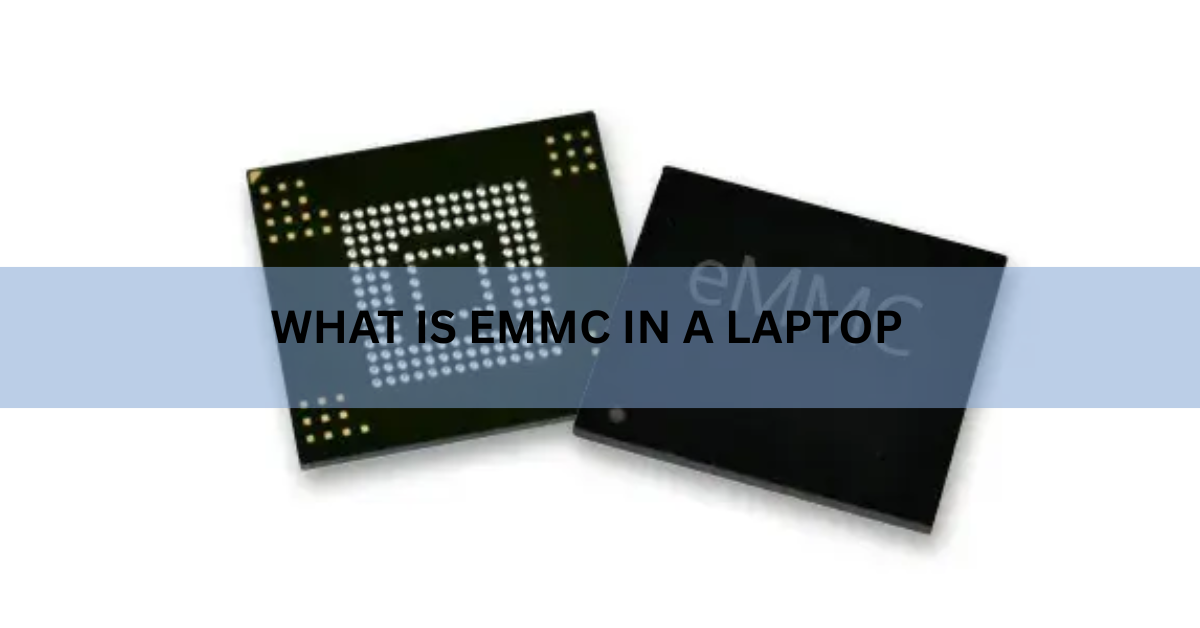
eMMC is a small storage chip soldered directly onto a laptop’s motherboard. The name stands for embedded MultiMediaCard, and it holds your operating system, apps, and files, the same job an SSD or hard drive does. You will see it almost only in budget laptops and Chromebooks, because it is cheap, tiny, and sips very little power.
The catch is speed. eMMC is slower than a solid state drive, so a cheap laptop can feel sluggish even with a decent processor. Whether that matters depends entirely on what you do with the machine. Here is what eMMC is, how it stacks up against an SSD, and when it is the right pick.
How does eMMC storage work?
eMMC packs two things into one tiny chip: NAND flash memory, which actually stores your data, and a small controller that manages where that data goes. This is the same kind of flash memory used in SD cards, USB sticks, and SSDs, just packaged differently.
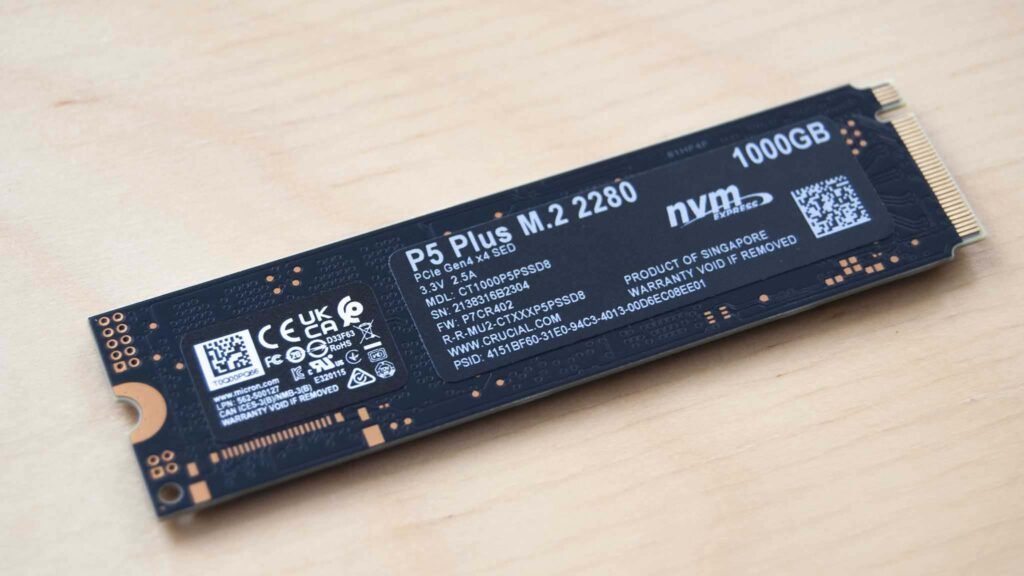
The whole thing sits in a chip smaller than a postage stamp, soldered onto the board. Because the controller is built in, your laptop’s processor does not have to micromanage the storage. It hands data to the chip, and the chip’s controller handles the details like error correction and spreading writes across the memory.
That built-in controller is also where eMMC shows its limits. It is a simple one, with a single lane to move data in and out. An SSD, by contrast, uses a more capable controller and several lanes at once, which is a big part of why it feels so much faster.
eMMC vs SSD: how they compare
Both eMMC and SSDs are built on flash memory, so at a glance they sound similar. In daily use they behave very differently. An SSD reads and writes far faster, comes in bigger sizes, and can usually be swapped out later. eMMC wins only on price and power draw.
| Feature | eMMC | SSD (SATA / NVMe) |
|---|---|---|
| Read speed | About 200 to 400 MB/s | 500 to 600 MB/s (SATA), 3,500 to 7,000+ MB/s (NVMe) |
| Typical size | 32, 64, 128, or 256 GB | 128 GB up to several TB |
| How it attaches | Soldered to the board | Slot-mounted, usually removable |
| Upgrade later? | No | Usually yes |
| Price | Cheapest | Higher, more per GB |
| Best for | Browsing, streaming, light work | Multitasking, big files, everyday speed |
The short version: an SSD is faster and more flexible, while eMMC is cheaper and locked in. For a machine you will lean on all day, the SSD gap is worth paying for. For a light second laptop, eMMC can hold its own.
How fast is eMMC, really?
Most eMMC storage reads at roughly 200 to 400 MB/s and writes quite a bit slower than that. The newer eMMC 5.1 standard sits near the top of that range, around 250 to 400 MB/s for reads. That is enough for opening a browser, streaming video, or editing a document.
A SATA SSD reaches about 500 to 600 MB/s, and an NVMe drive can exceed 3,500 MB/s, with the fastest modern drives pushing past 7,000 MB/s. So even a basic SSD moves data well over twice as fast as eMMC, and a good NVMe drive is roughly ten times quicker.
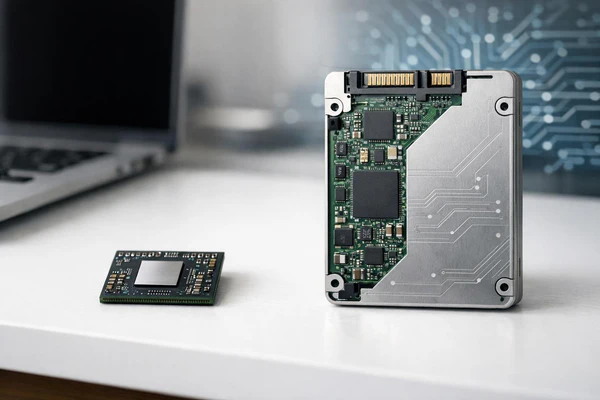
Where you feel it most: booting up, opening several apps at once, installing updates, and copying large files. On eMMC these moments drag; on an SSD they are near-instant.
Numbers aside, the real tell is how a laptop feels when you push it. Open a handful of browser tabs, a video call, and a document at the same time and an eMMC machine starts to stutter. For one task at a time it holds up fine.
Can you upgrade or replace eMMC?
In almost all cases, no. eMMC is soldered onto the motherboard, so it is not a part you can pull out and swap the way you can with most SSDs. What you buy is what you keep for the life of the laptop.
You are not completely stuck, though. You can add space in a few ways:
- A microSD card, if the laptop has a slot. This is the easiest add-on for photos, media, and backups.
- A USB flash drive or external SSD for extra files or to move data between machines.
- Cloud storage, which many Chromebooks and budget Windows laptops lean on by design.
This is why storage size matters so much when you buy. A 64 GB eMMC laptop fills up fast once Windows and updates take their share, so aim for 128 GB or more, or plan to offload files to a card or the cloud from day one.
Who should buy an eMMC laptop?
eMMC makes sense when your needs are light and your budget is tight. These laptops start very cheap, often between about $180 and $380, and the storage keeps that price down. The trade-off in speed only bites when you ask the machine to do a lot at once.

An eMMC laptop is a good fit if you mostly:
- Browse the web, check email, and use social media.
- Stream video and music.
- Write documents or work in Google Docs and light office apps.
- Want a cheap, light second machine or a first laptop for a child or student.
Look for an SSD instead if you keep many tabs and apps open together, edit photos or video, play games, work with large files, or simply want the snappiest experience your money can buy. In those cases the extra spend pays off every single day.
Rule of thumb: if the laptop is for browsing and streaming, eMMC is fine. If it is your main workhorse, get an SSD.
One nice middle ground exists too. Some budget laptops pair a small SSD for the operating system with eMMC or a card for bulk storage, giving you a bit of speed where it counts and cheap space for everything else.
How to check if a laptop uses eMMC
The spec sheet usually spells it out. Storage listed as “eMMC” or “embedded storage,” often at 32, 64, or 128 GB, is the giveaway. Anything labeled SSD, NVMe, or PCIe is the faster kind. If a cheap laptop lists storage in those small, round numbers and stays quiet about the type, it is very likely eMMC.
On a Windows laptop you already own, open Task Manager, go to the Performance tab, and click Disk to see the drive listed. You can also confirm the exact type on the maker’s own product page. For the technical background of the standard itself, the JEDEC eMMC standard is the primary source, and it is worth a look if you want the specifics behind the speed grades.
Frequently asked questions
Is eMMC storage good or bad?
Neither on its own. eMMC is good for light, single-task use like browsing and streaming on a cheap laptop. It feels slow when you multitask or move large files, so it is a poor fit for a main workhorse machine.
Is eMMC faster than a hard drive?
Yes. eMMC is generally faster than a spinning hard drive and uses less power, but it is much slower than any SSD. In speed terms it sits between an old hard drive and a modern SSD.
How much eMMC storage do I need?
Aim for 128 GB if you can. A 64 GB laptop fills up quickly once the operating system and updates take their space, so you will likely need a microSD card or cloud storage to go with it.
Can I replace eMMC with an SSD?
Almost never. eMMC is soldered to the motherboard, so it cannot be removed. If you want SSD speed, you need to buy a laptop that ships with an SSD rather than upgrade later.
Is eMMC good for gaming?
Not really. Games load slowly and modern titles need far more space than eMMC laptops offer. For gaming, choose a laptop with a larger, faster NVMe SSD instead.
Conclusion
eMMC is cheap storage soldered into budget laptops and Chromebooks. It is slower than an SSD and cannot be upgraded, but it handles browsing, streaming, and light office work without complaint. Buy an eMMC laptop if your needs are simple and your budget is tight, ideally with 128 GB or more. If it will be your main machine, step up to an SSD. A good result is a laptop that feels quick enough for what you actually do with it.
Recommended Articles:
How to Reset an Acer Laptop (Factory Reset, Step by Step)
eMMC vs SSD: The Real Speed Difference in a Laptop
White Spot on Laptop Screen: What It Is and How to Fix It
What does laptop screen size actually mean?