To select a desktop computer, decide what you’ll use it for, pick the type (tower, mini PC, or all-in-one), and match four specs to that job: processor, memory (RAM), storage, and graphics. For most people in 2026, that means an Intel Core Ultra 5 or AMD Ryzen 5 processor, 16GB of RAM, a 1TB solid-state drive, and the graphics built into the processor. Gamers and video editors should step up to 32GB of RAM and a separate graphics card.
Make these choices in order. Each one narrows the next, so you end up comparing a handful of models instead of hundreds.
Getting the specs right the first time matters more than usual this year. Memory, storage, and graphics card prices climbed sharply through 2026, so fixing a weak desktop later costs more than it used to.
Step 1: Decide what the computer is for
The job decides the parts. A desktop for email and streaming needs very different hardware from one that edits 4K video, and paying for power you won’t use is the easiest way to overspend.
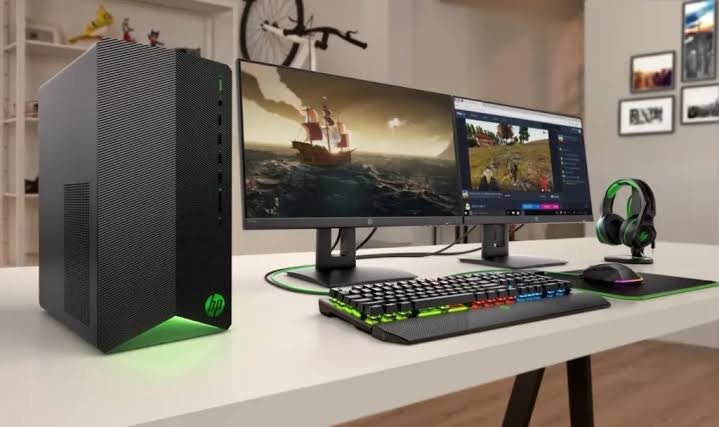
Most buyers fit one of four groups: everyday use (browsing, email, schoolwork, video calls, office apps), creative work (photos, video, music), gaming, and heavy professional work like 3D rendering or running AI models locally. For gaming, your monitor matters most, since 1080p, 1440p, and 4K screens need very different hardware.
Next, look up the system requirements for the most demanding app or game you plan to run. Aim for the recommended specs, not the minimum. Minimum specs describe a computer that barely copes.
Then think a few years ahead. If you might start gaming or editing video later, buy a tower with the space and power for a graphics card, and add the card when you need it.
Step 2: Pick the type of desktop that fits your space
Desktops come in three main shapes. Each one trades size against power and upgrade options.
| Type | Best for | Trade-offs |
|---|---|---|
| Tower | Gaming, creative work, and anyone who wants to upgrade later | Takes up space; monitor, keyboard, and mouse are usually extra |
| Mini PC | Everyday use and small home offices | Most can’t fit a graphics card; few internal upgrades |
| All-in-one | A tidy desk with the screen and computer in one unit | Costs more for the same specs; hard to repair or upgrade |
Towers give you the most performance for the money. Small form factor towers take less space but are often too tight for a full-size graphics card.
Mini PCs fit in one hand, run quietly, and use little power. All-in-ones set up in minutes, but the screen and computer are one unit, so a fault in either leaves you without both during repairs.
If you choose a tower or a mini PC, add a monitor, keyboard, and mouse to your budget.
Step 3: Choose Windows or Mac
Pick the operating system that your software and your other devices already use. Windows runs the widest range of programs and nearly every PC game, and Windows desktops come in every size and price.
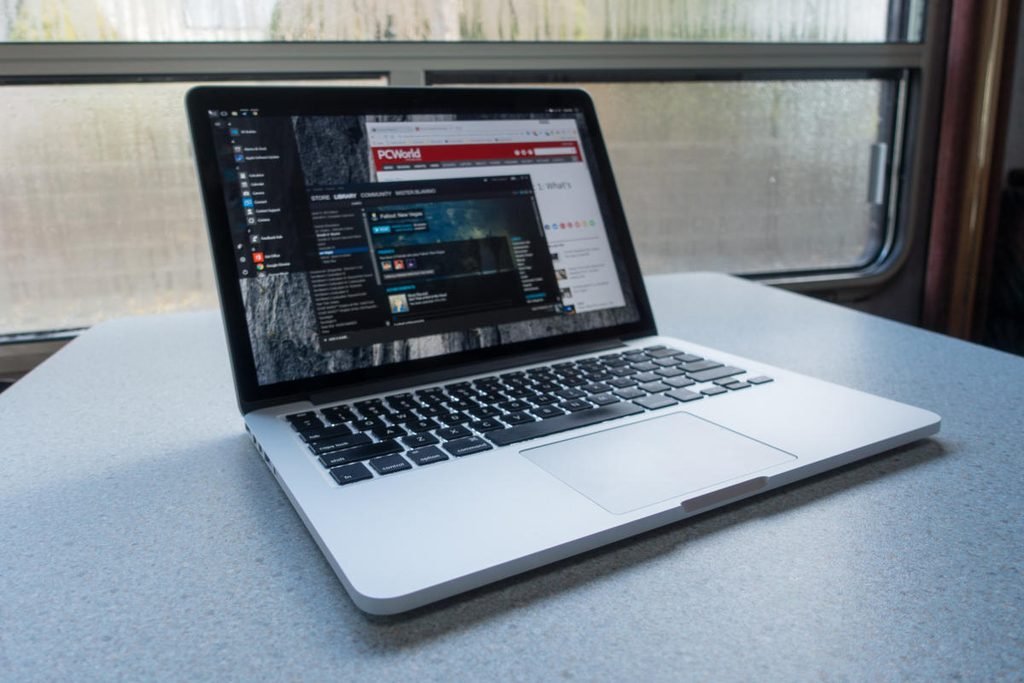
A Mac makes the most sense if you already own an iPhone, since messages, photos, and files move between the two with little setup. Apple’s Mac mini starts at $899 with 16GB of memory and 256GB of storage. Apple doesn’t offer memory or storage upgrades after you buy a Mac, so choose the amounts you’ll need for the next several years at checkout.
A Chromebox running ChromeOS is a low-cost, simple option if nearly everything you do happens in a web browser.
Replacing a Windows 10 PC? Windows 10 no longer gets regular updates, but in the US, home users enrolled in Microsoft’s extended security updates keep receiving security fixes until October 12, 2027. If your old computer still works, you have time to choose carefully.
Step 4: Match the processor to the work
Pick the processor tier that fits your heaviest task. The processor (CPU) is the chip that runs your programs, and it sets how fast the whole computer feels. Intel labels its chips Core 3, 5, 7, or 9 (sometimes written as Core i5 or Core Ultra 5), and AMD uses Ryzen 3, 5, 7, or 9. A higher number means more power and a higher price.
For most people, the 5 tier is the best value. A Core Ultra 5 or Ryzen 5 handles office work, heavy browsing, photo editing, and most games with ease. Step up to a 7 for regular video editing or high-end gaming. Save the 9 tier for work that keeps the processor busy for hours, like rendering video or 3D scenes.
Generation matters as much as tier. A new 5-tier chip can match or beat a 7-tier chip from a few years ago, so compare chips from the same generation. Current desktop chips include Intel’s Core Ultra 200 series and AMD’s Ryzen 9000 and Ryzen AI 400 series. Many budget desktops use older chip designs, which are fine for everyday work but should cost less.
Letters at the end of a model name matter too. On Intel chips, an F means no built-in graphics, so the computer must have a separate graphics card. A K means you can overclock the chip (run it faster than its rated speed), which most people never do. On AMD chips, a G means stronger built-in graphics, and X3D means extra on-chip cache memory that speeds up games. X3D chips such as the Ryzen 7 9800X3D are among the fastest processors for gaming.
Step 5: Get enough memory (RAM)
Get 16GB of RAM for everyday use and 32GB for gaming or video editing. RAM is the computer’s short-term workspace. It holds the apps, browser tabs, and files you have open right now, and when it fills up, everything slows down.
Don’t go below 16GB in a Windows desktop in 2026, because 8GB gets tight once a few apps and a video call are open. That amount covers office work and light photo editing. Heavy multitasking also calls for 32GB, and 3D work, long video projects, or running AI models locally call for 64GB or more.
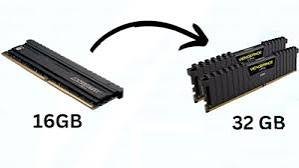
Check how the memory is installed, too. Two matching sticks run in dual-channel mode, which is faster than one stick of the same size, especially with built-in graphics. Also look for free slots. Many towers have four, while compact desktops often have two.
Tip: A memory spec written as “16GB (1 x 16GB)” means one stick. The computer will work, but the same 16GB split across two sticks performs better.
Memory is also where 2026 prices hurt most. A 32GB kit of DDR5, the current desktop memory standard, costs around $400 at US retailers in September 2026, roughly two to four times its price in October 2025. You can still add memory to most towers later, but it’s no longer a cheap fix, so buy the amount you’ll need from the start.
Step 6: Choose fast storage with room to grow
Buy a desktop with a solid-state drive (SSD), and skip any model with only a traditional hard drive. An SSD has no moving parts, so the computer starts in seconds and apps open quickly. Look for an NVMe SSD, which is many times faster than an older SATA SSD.
A 512GB drive works for light use if your photos and files live in the cloud. A 1TB drive suits most people. Gamers and video editors should get 2TB or more, because one large game can take over 100GB.
A spare M.2 slot (the connector NVMe drives use) lets you add a second drive later without replacing the first. External drives also work well for backups and big photo or video libraries.
Step 7: Decide if you need a graphics card
You only need a separate graphics card for modern games, frequent video editing, 3D work, or running AI tools on the computer itself. The graphics built into today’s processors handle office work, 4K streaming, video calls, several monitors, and simple or older games.
If you do need a card, match it to your monitor. An NVIDIA GeForce RTX 5060 or AMD Radeon RX 9060 XT suits 1080p gaming. An RTX 5070 or RX 9070 XT suits 1440p. For 4K, look at an RTX 5080 or higher.
Check the video memory (VRAM), the card’s own memory for textures and effects. Some newer games need more than 8GB at higher settings, so a 16GB card stays useful longer. Cards cost well above their launch prices in 2026: an RTX 5060 Ti 16GB that sold for about $400 in late 2025 went for over $700 by August 2026.
Cards also need enough power. NVIDIA’s RTX 5070, for example, needs a 650-watt power supply for the whole system. If you plan to add or upgrade a card later, check the desktop’s power supply wattage before you buy.
What specs do you need for your use?
Use this table as a starting point. Budgets are rough US prices for the computer alone in late 2026, without a monitor.
| Use | Processor | RAM | Storage | Graphics | Rough budget |
|---|---|---|---|---|---|
| Everyday: web, email, office, school | Core Ultra 5 or Ryzen 5 | 16GB | 512GB to 1TB SSD | Built-in | $500 to $900 |
| Photo editing and light video | Core Ultra 7 or Ryzen 7 | 32GB | 1TB to 2TB SSD | Built-in or entry card | $1,000 to $1,700 |
| 1080p gaming | Core Ultra 5 or Ryzen 5 | 16GB to 32GB | 1TB SSD | RTX 5060 or RX 9060 XT | $1,000 to $1,400 |
| 1440p gaming | Core Ultra 7 or Ryzen 7 X3D | 32GB | 1TB to 2TB SSD | RTX 5070 or RX 9070 XT | $1,500 to $2,300 |
| Pro video, 3D, local AI | Core Ultra 9 or Ryzen 9 | 64GB | 2TB+ SSD | RTX 5080 or higher | $3,000 and up |
Key takeaway: Put your money into the part your work leans on. For gaming, that’s the graphics card. For photo and video work, it’s memory and the processor. For everyday use, the basics are enough.
Should you buy prebuilt or build your own?
For most people, prebuilt is the better choice in 2026. Large PC makers buy memory and storage in bulk on long-term contracts, so a prebuilt desktop often costs the same as, or less than, the same parts bought separately. You also get one warranty and one company to call if something goes wrong.
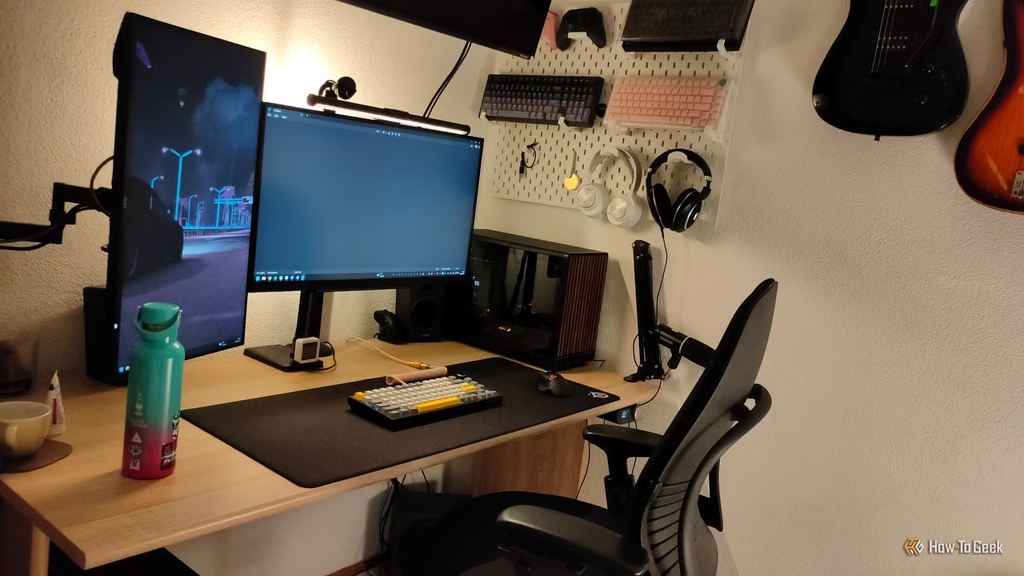
Building your own still makes sense if you enjoy the process and want to pick every part, including the power supply, cooling, and case. That control usually makes future upgrades easier. Plan on an afternoon or more for a first build, plus time to install Windows and drivers.
There’s a middle path, too: many system builders let you pick parts online, then assemble and test the computer for you.
Do you need an AI PC?
No, not for most people. Microsoft’s Copilot assistant works on any Windows 11 computer, and popular AI tools like chatbots and image generators run in the cloud.
Extra AI features in Windows, such as improved search and Click to Do, need a Copilot+ PC. The Copilot+ PC requirements include an NPU (a chip built for AI tasks) rated at 40 or more TOPS (trillion operations per second). They also call for at least 16GB of memory and a 256GB SSD. Among desktop processors, AMD’s Ryzen AI 400 series meets that bar, and some mini PCs qualify because they use laptop chips. Towers built on Intel Core Ultra 200S or AMD Ryzen 9000 chips don’t.
If you want to run AI models on the computer itself, a graphics card with plenty of video memory helps far more than an NPU.
What to look for before you buy
Look past the headline specs before you pay. These details separate a well-built desktop from one that cuts corners:
- Power supply: the wattage, and ideally the brand and an 80 Plus efficiency rating (Gold is a good sign). If the power supply isn’t named, ask the seller before you buy.
- Memory: two sticks instead of one, plus at least one free slot.
- Storage: an NVMe SSD, ideally with the brand or model named.
- Upgrade room: a spare M.2 slot, space for a graphics card, and standard parts rather than custom ones only the maker sells.
- Ports: enough USB-A ports for the devices you own, at least one fast USB-C port (USB4 or Thunderbolt is best), and video outputs that match your monitors.
- Networking: an Ethernet port, plus Wi-Fi 6E or Wi-Fi 7 if you’ll connect wirelessly.
- Warranty and returns: most consumer desktops come with one year of coverage. Check whether repairs happen by mail or at your home, and how long the return window lasts.
Frequently asked questions
How much should I spend on a desktop computer?
About $500 to $900 buys a capable everyday desktop in late 2026. Plan on $1,000 to $1,400 for 1080p gaming, $1,500 to $2,300 for 1440p gaming, and $3,000 or more for professional video, 3D, or AI work. Add the cost of a monitor if you need one.
Is 16GB of RAM enough for a desktop?
Yes, for browsing, office work, streaming, and light photo editing. Choose 32GB for gaming, video editing, or heavy multitasking. Make sure the 16GB comes as two sticks, and look for free slots in case you need more later.
Is a desktop better than a laptop?
For the same money, a desktop usually gives you more performance, room for a larger monitor and full-size keyboard, and easier repairs and upgrades. A laptop is the better pick only if you need to carry your computer with you.
How long does a desktop computer last?
A well-chosen desktop usually stays useful for five years or more. Towers last longest, since you can add memory, a bigger SSD, or a new graphics card as your needs change. Buying enough RAM and storage up front helps any desktop age well.
Is a refurbished desktop worth buying?
Yes, for everyday use, if you check three things: it runs Windows 11 (most Intel 8th-generation and AMD Ryzen 2000-series chips and newer do), it has an SSD, and the seller includes a warranty. Former business desktops often sell for a fraction of their original price.
Conclusion
Selecting a desktop computer gets simple when you work in order: define the job, pick the type, choose Windows or Mac, then match the processor, memory, storage, and graphics to that job. For most people, a Core Ultra 5 or Ryzen 5, 16GB of RAM, and a 1TB SSD hit the target. Gaming and video work call for 32GB and a graphics card. A good result handles everything you do today, leaves room to grow, and doesn’t charge you for power you’ll never use.
Recommended Articles:
How to Link Two Laptops Together: Every Method That Actually Works
Which Statement Is True About Laptops? The Answer, Explained
Where Is the Microphone on a Laptop? The Exact Spot and How to Find Yours