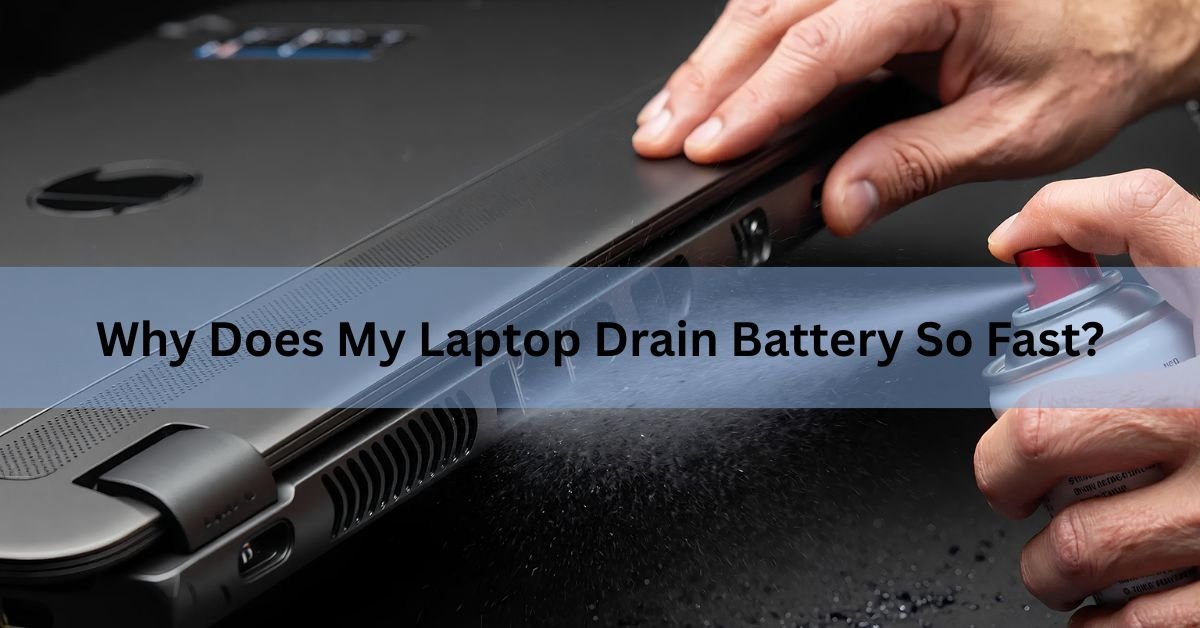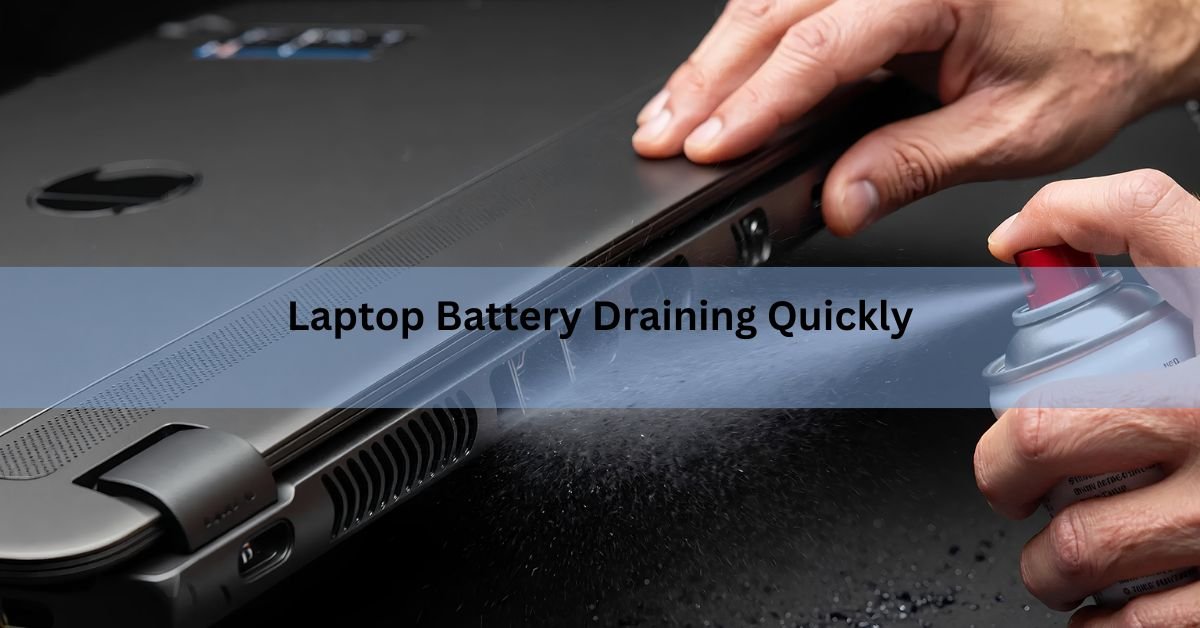
Your laptop battery drains quickly for a few common reasons: the screen is too bright, the power mode is set for speed instead of battery life, and apps you forgot about are running in the background. Heat makes all of it worse. And if your laptop is a few years old, the battery itself has simply worn down and holds less charge than it did when new.
The good news is that most fast-draining laptops are fixable in a few minutes with the right settings. The rest of the time, the battery has aged out, and this guide will help you tell which situation you’re in.
Sudden drain or slow decline? Start here
Before you change anything, it’s worth noticing which kind of problem you have, because they have different fixes.
Sudden drain means the laptop was fine last week and now dies in a couple of hours. That almost always points to something you can change: a new app running in the background, a Windows update installing, a power setting that got switched, or a device left plugged in. These are quick to fix.
Slow decline means the battery has been creeping down for months. When your laptop was new it ran for eight hours, now it barely makes three, and the drop happened gradually. That’s the battery aging, and no setting will fully bring it back. The health check later in this guide will confirm it.
Most people have a mix of both, some worn battery and some fixable settings. So it’s worth doing the quick wins first, since they cost nothing, and then checking the battery to see what’s left.
The quick wins that fix most cases
Before you worry that something is broken, try the changes below. They solve the majority of fast-drain complaints, and none of them takes more than a minute.
| What to change | Roughly how much it helps | Where to find it |
|---|---|---|
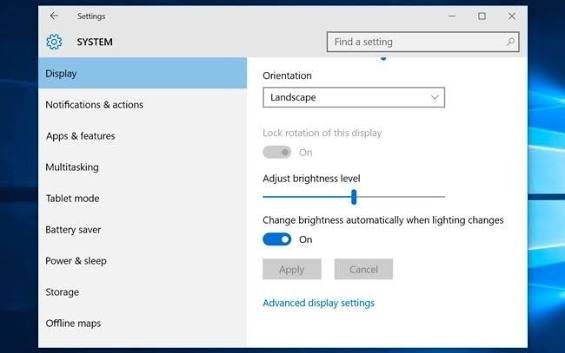
| Screen brightness | Large. The screen is usually the single biggest power draw. | Brightness keys, or Settings > System > Display |
| Power mode / battery saver | Medium to large on demanding tasks. | Settings > System > Power & battery (Win); Battery in System Settings (Mac) |
| Refresh rate (120Hz to 60Hz) | Medium on high-refresh screens. | Settings > System > Display > Advanced display |
| Background apps | Medium. A few hidden apps can eat hours. | Battery usage list (Win); Activity Monitor > Energy (Mac) |
| Keyboard backlight, Bluetooth, extra devices | Small each, but they add up. | Function keys, quick settings, unplug accessories |
Work down the list from the top. Brightness and power mode alone often add an hour or more of runtime. If your laptop still dies fast after all of these, the problem is likely the battery itself, which the health check further down will confirm.
What’s really eating your battery?
Once the quick wins are done, it helps to understand where the power actually goes. Five things account for almost all of it.
The screen
The display is the biggest power user on nearly every laptop. Running it at full brightness all day is the fastest way to flatten a battery. Dropping to around 50 to 60 percent is usually plenty indoors, and you’ll feel the difference in runtime right away.
Newer laptops often ship with 120Hz or 144Hz screens that refresh the image more times per second. It looks smooth, but it costs power. If you’re mostly typing, reading, or browsing, drop the refresh rate to 60Hz in your display settings and save it for gaming or video.
The power mode
Both Windows and macOS let you pick how hard the laptop pushes its processor. High-performance mode runs the chip faster, gets hotter, and burns through charge. For everyday work, a balanced or battery-saver setting cuts drain with almost no change you’ll notice while typing or browsing.
On Windows, open Settings, then System, then Power & battery, and set the power mode to Balanced or Best power efficiency instead of Best performance. You can also turn on Battery saver, which dims the screen a little and pauses some background activity when the charge runs low. On a Mac, open System Settings, then Battery, and switch the energy mode to Low Power when you’re away from a charger. Save the performance modes for the moments you actually need them, like exporting video or gaming, and switch back afterward.
Background apps
Apps you didn’t open can quietly run the whole time your laptop is on: updaters, cloud sync, chat clients, and heavy browser tabs are the usual suspects. Each one keeps the processor busy and the battery draining.
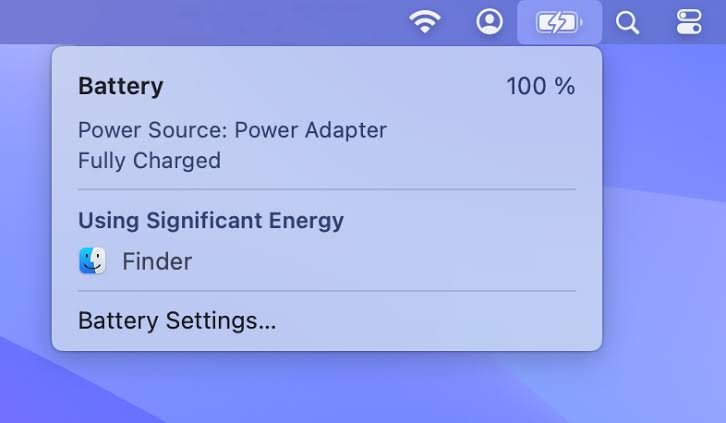
On Windows, open Settings, then System, then Power & battery, and look at the battery usage list. It shows exactly which apps are pulling the most power. On a Mac, open Activity Monitor and check the Energy tab, or click the battery icon in the menu bar to see apps using significant energy. Close anything you’re not actually using.
It’s also worth checking what launches automatically when the laptop turns on. Every startup program sits in memory and uses power from the moment you log in, whether you open it or not, and over months these pile up as you install software. On Windows, open Task Manager and click the Startup apps tab, then disable anything you don’t need running at boot. On a Mac, go to System Settings, then General, then Login Items, and remove the extras. Turning off a handful of startup apps you never actually use can quietly give back a chunk of runtime.
Connected devices and radios
A plugged-in mouse, external drive, phone, or USB hub all draw power from the laptop, even when you’re not using them. So do Wi-Fi and Bluetooth when they’re switched on with nothing connected. Unplug accessories you don’t need and turn off Bluetooth when you’re not pairing anything. Individually these are small savings, but together they add up over a work day.
Heat
Heat is the quiet villain here. A hot laptop makes the fans spin harder, which uses power, and high temperatures also age the battery faster over time. Try to keep the laptop on a hard, flat surface so air can move underneath, not on a bed or cushion that blocks the vents. Working in a cooler room, ideally below about 25 degrees Celsius, helps both runtime and long-term battery health.
Rule of thumb: if the fixes above buy back most of your runtime, your settings were the problem. If they barely help, the battery has probably aged, and the health check below will show it.
Is it the battery itself? How to check its health
Settings explain sudden drain. Age explains slow, steady decline. A laptop battery is a consumable part, like tires or brake pads: it wears out with use and holds less charge every year. The two numbers that tell you where yours stands are its current capacity compared with its original design capacity, and its cycle count, which is how many full charge-and-discharge cycles it has been through.
A cycle isn’t one plug-in. Using 60 percent one day and 40 percent the next adds up to a single cycle. Here’s how to see both numbers.
On Windows
- Type cmd in the Start menu, then open Command Prompt.
- Type powercfg /batteryreport and press Enter.
- Windows saves an HTML file and shows you the path, usually in your user folder. Open it in your browser.
- Find the Installed batteries section. Compare Full Charge Capacity with Design Capacity, and note the cycle count if it’s listed.
For the exact syntax and options, Microsoft’s powercfg command reference is the official source.
On a Mac
- Hold the Option key and click the Apple menu, then choose System Information.
- Under Hardware, click Power.
- Read the Cycle Count and the battery condition. You can also see maximum capacity under Battery in System Settings.
How to read the numbers
The single most useful figure is your current capacity as a percentage of the original design capacity. Above roughly 80 percent is generally healthy. Between 60 and 80 percent means real wear, and you’ll notice shorter runtime. Below 60 percent, most people replace the battery to get their portability back.
Cycle count adds context. Most mainstream Windows laptop batteries are designed for about 300 to 500 cycles before capacity drops to around 80 percent of new. Some premium laptops are rated higher.
Apple rates modern MacBook batteries for 1,000 cycles, and lists the limit for each model on its battery cycle count support page. Reaching that number doesn’t mean the battery dies. It means the battery is now expected to hold about 80 percent of its original charge.
Read the two figures together. A battery at 500 cycles that was kept between 20 and 80 percent can be healthier than one at 300 cycles that got drained to zero and charged to full every day. Capacity tells you how much damage the use caused; cycle count tells you how much use there was.
Habits that keep a laptop battery healthy
You can’t stop a battery from aging, but a few simple habits slow it down and stretch out the years of good runtime.
- Keep the charge in the middle. Aim to stay between about 20 and 80 percent rather than always sitting at 100 or running down to zero. Sustained full charge and deep drains both add wear.
- Don’t leave it plugged in at 100 percent for days. If your laptop has a charge-limit or conservation setting (many Lenovo, Dell, and HP models do), turning it on caps charging around 80 percent and helps.
- Keep it cool. Heat is the main accelerant of battery aging, so avoid direct sun, hot cars, and blocked vents.
- Update your system. Firmware and driver updates often improve power management, which can quietly buy back runtime.
- Unplug what you don’t need. Fewer connected devices means less constant drain.
None of these will resurrect a worn-out battery, but on a healthy one they can be the difference between three good years and five.
When it’s time to replace the battery
Replace the battery when it can no longer hold enough charge for the way you actually use the laptop. The clearest signals are a full-charge capacity that has dropped below about 60 percent of design, runtime that has fallen to a fraction of what you got when the laptop was new, or a battery that drains oddly fast even after every setting above is dialed in. A macOS message that says Service Recommended, or a battery that visibly swells, both mean replace it soon.
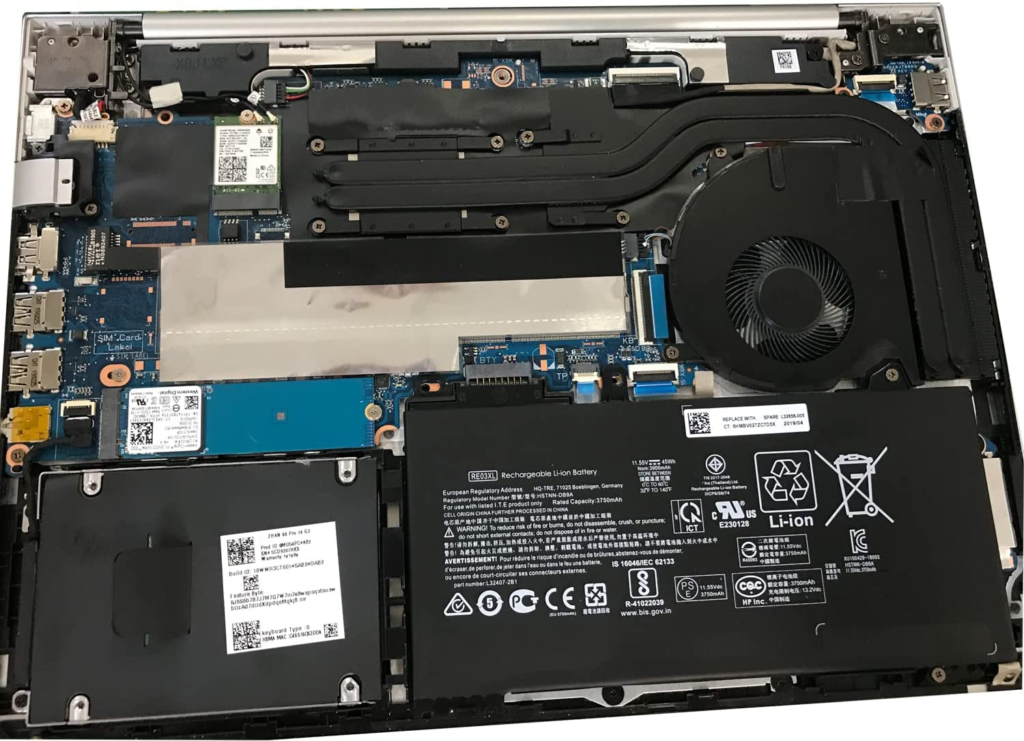
Whether you can do it yourself depends on the laptop. Some models still have a battery that pops out with a couple of tabs, which makes a swap cheap and quick. Many newer and thinner laptops have the battery glued or sealed inside, and those need a professional or a service center. If the laptop is only a few weeks old and already dying fast, that’s not normal wear, and you should contact the seller or manufacturer about a replacement under warranty.
There’s also the question of whether a new battery is worth it. On a laptop that’s still fast enough for what you do, a battery swap is usually far cheaper than a new machine and buys you years more use. On a laptop that’s already slow and several generations old, the money may be better spent toward a replacement. A rough test: if everything except the battery still meets your needs, replace the battery; if the whole machine is frustrating you, the battery isn’t the real problem.
One more thing to rule out first. A laptop that won’t hold charge sometimes has a failing charger or a loose port, not a dead battery. If the charge level jumps around, or the laptop only charges when the cable sits at a certain angle, test with a known-good charger before you spend anything on a battery.
Frequently asked questions
Why does my laptop battery drain even when it’s off or asleep?
Some drain in sleep is normal because the laptop keeps a little power flowing to memory and to features like fast wake. Heavy overnight loss usually points to a connected device, an app blocking sleep, or a fast-startup setting. Fully shutting down instead of sleeping stops most of it.
How long should a laptop battery last on a full charge?
Most modern laptops are built for roughly 8 to 10 hours of light use, less when gaming, editing video, or running many apps. If yours dies in two or three hours doing simple tasks, either your settings need adjusting or the battery has worn down.
Does leaving my laptop plugged in all the time ruin the battery?
Sitting at 100 percent for long stretches does add wear over time. Most current laptops manage this reasonably well, and many offer a charge-limit setting that caps charging around 80 percent. Using that, or unplugging once it’s full, helps the battery last longer.
What is a good battery cycle count?
Lower is better, but the number only matters against the rating. Many Windows laptops are rated for 300 to 500 cycles; MacBooks for 1,000. A battery near its rating still works, it just holds around 80 percent of its original charge. Pair the cycle count with capacity for the real picture.
Can a virus or malware cause fast battery drain?
Yes. Malware can run hidden processes that keep the processor busy and drain the battery, often alongside a hot, loud laptop. If the battery usage list shows an unfamiliar app working hard, run a trusted security scan and remove anything it flags.
This article is for general guidance. Battery behavior varies by laptop model, so check your manufacturer’s support pages for anything specific to your device.
Conclusion
A laptop battery that drains quickly usually comes down to two things: settings or age. Start with the quick wins, lower the brightness, switch to a battery-friendly power mode, and close background apps, and see how much runtime comes back. If it barely improves, run the battery health check and compare your current capacity with the original. Above 80 percent, keep using it with good habits. Below 60 percent, plan a replacement. Knowing which camp you’re in is the whole answer.
Recommended Articles:
How to Remove a Stripped Screw From a Laptop (Without Wrecking It)
3.5 mm Jack Not Working on Laptop? Here’s How to Fix It
RTX 5050 Laptop vs RTX 4070 Laptop: Which One Should You Buy?
How Many Laptops Can You Bring on a Plane?