If your Acer laptop won’t switch on, the most likely cause is a stuck power state, not a dead machine. Unplug the charger, hold the power button for 30 seconds to drain leftover charge, plug the charger back in, and press power again. That simple power reset revives most Acer laptops that seem dead. If it doesn’t, a small battery reset pinhole on the bottom of many Acer models is the next fix. This applies across the range, Aspire, Swift, Nitro, Spin, and Predator, though the exact buttons and lights vary a little by model. Below is the full path, from the fastest thing to try to the point where you should stop and get it repaired. Work down it in order, because the early fixes are free, safe, and solve the large majority of cases.
Quick version: power reset first (hold power 30 seconds unplugged), then the battery pinhole reset, then check the charger and port. Work down the list in order and stop as soon as it turns on.
What to try first: the 30-second power reset
Start here every time. A power reset (also called a power drain) clears any electrical charge trapped inside the laptop that can block it from starting. Acer’s own steps are short and safe to do on any model.
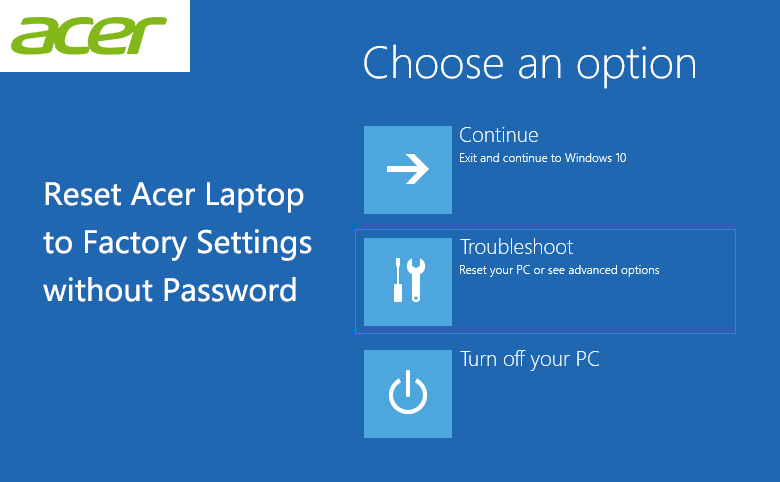
- Shut the laptop down fully if it shows any sign of life. If it’s already dead, that’s fine.
- Unplug the AC adapter and remove any USB drives, docks, hubs, or an external monitor.
- Press and hold the power button for a full 30 seconds. Counting out loud helps you not cut it short.
- Plug the AC adapter back in.
- Press the power button once and watch for a light, a fan spin, or the Acer logo.
You can read Acer’s version of this on their official power reset guide. Extra peripherals matter more than people expect. A USB device that draws too much power, or one the laptop wrongly treats as a boot drive, can stall the whole startup, so keep everything unplugged while you test.
Use the battery reset pinhole
If the power reset did nothing, look for a tiny hole on the bottom of the laptop, usually marked with a small battery icon. This is a hardware reset button. Pressing it briefly disconnects the internal battery and resets the power circuit, which can clear a battery that has locked itself into a protective state. Many Acer models made since around 2018 have one, including Aspire, Swift, and Spin laptops.
- Unplug the charger and flip the laptop over onto a soft, non-metal surface.
- Find the small pinhole with the battery symbol. Do not poke random holes; the speaker and screw holes are not it.
- Straighten a paperclip and push it gently into the hole until you feel a slight click, which is the button.
- Hold it down for about 30 seconds, then remove the paperclip.
- Plug the charger in first, then watch the charging light. Wait for it to become steady before you press power.
Not every Acer has a pinhole. Nitro and Predator gaming models usually skip it. If yours has no hole, the 30-second power button hold from Step 1 does the same job for a sealed battery.
Check the charger, the port, and the wall outlet
No power at all often comes down to the power supply, not the laptop. Work through the chain from the wall to the laptop.
- Try a different wall socket. Skip power strips and extension leads for now and plug straight into the wall.
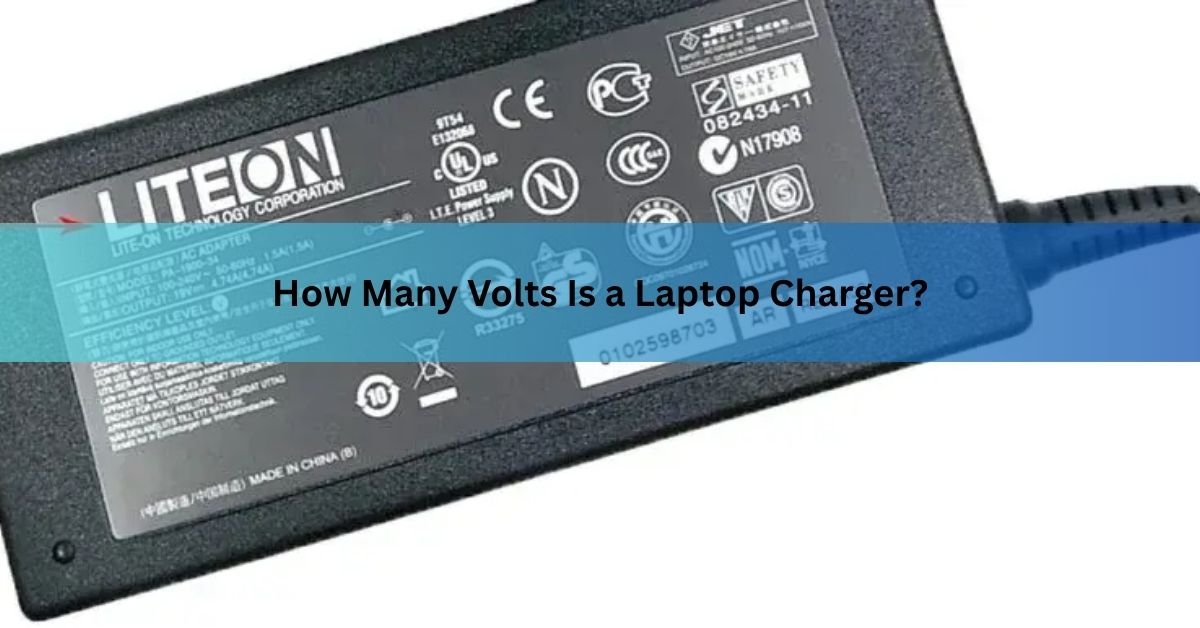
- Use the original Acer adapter. A third-party charger with the wrong rating may not deliver enough power to boot.
- Look at the charger LED. A steady light usually means the battery is seen. A blinking light often means the charge is too low to start, so leave it plugged in for 30 to 60 minutes and try again.
- Check the cable and connector. Look for frayed wire, bent pins, or a loose plug. Push the connector in firmly; some Acer ports need a solid click to charge.
- Clear the charging port. Lint or dust packed into the port can block a good connection. A gentle blast of air helps.
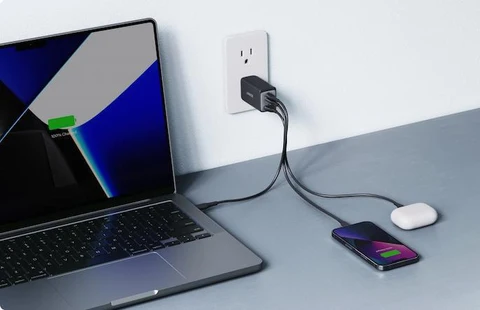
If the charger LED never lights on any outlet, and a known-good adapter of the same rating also does nothing, the charger or the port is your problem and the rest of the steps won’t help until that’s sorted.
Could it be overheating?
If the laptop was working hard right before it died, gaming, video editing, lots of browser tabs, heat may have tripped a safety shutoff. Acer laptops cut power to protect the chips when they get too hot, and the machine can then refuse to start again until it cools down.
- Let it cool for 15 to 30 minutes. Move it off any soft surface like a bed or sofa, which blocks the vents, and set it on a hard, flat desk.
- Check the vents. Dust packed into the vents and fan traps heat inside. A short blast of compressed air through the side and rear vents clears most of it.
- Listen to the fan. A fan that clicks, grinds, or makes no sound at all when you try to start the laptop may be failing, and a dead fan will keep triggering the heat cutoff.
Once the laptop is cool and the vents are clear, plug it in and try again. If it starts now but shuts off again quickly under load, the cooling system needs attention, which usually means a fan replacement or fresh thermal paste.
Read the light: what the LEDs are telling you
The little indicator lights are the fastest clue to what’s wrong. Match what you see to the table, then jump to the section it points you to.
| What you see | What it usually means |
|---|---|
| No lights at all | No power reaching the board. Focus on the charger, port, and outlet checks above. |
| Steady blue or white light, black screen | The laptop has power but isn’t displaying. Try the screen and RAM steps below. |
| Steady orange or amber light | The battery is charging. Let it charge, then try to power on. |
| Blinking orange or amber | Charge is too low, or the battery is failing. Leave it charging, then reset the battery. |
| Light for a few seconds, then off | A stuck power state or a hardware fault. Do the power reset and pinhole reset first. |
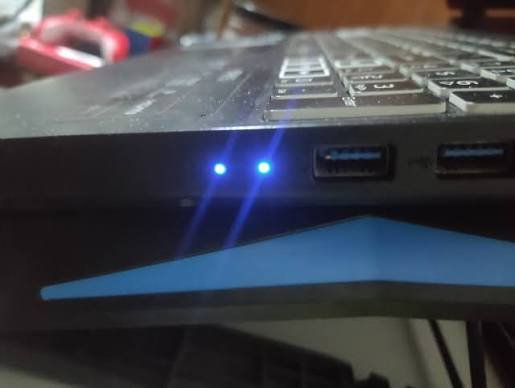
A light on its own does not mean the laptop is healthy. It only tells you power is present. The screen, memory, and battery still have to do their part for a full startup.
A light comes on but the screen stays black
If you get a power light, maybe a fan, but the display stays dark, the laptop may be running while the screen is not. A quick test tells you which.
- Connect an external monitor or a TV using an HDMI cable. If a picture shows up there but not on the laptop screen, the panel or its cable is the fault, not the whole machine.
- Tap the brightness keys. It sounds obvious, but brightness turned to zero looks exactly like a dead screen.
- Listen and feel. A spinning fan and a warm base mean the laptop is powered and working, which points at the display.
- Watch for a brief flicker. If the screen lights up faintly for a second at startup then goes dark, the backlight or its cable may be failing rather than the whole panel.
If the external screen also stays black, the problem is deeper than the display, and reseating the RAM is the next thing to try. A picture on the external monitor is actually good news: it means the laptop’s brain is working fine and you’re only dealing with a screen or cable fault, which is a smaller and cheaper repair.
Reseat the RAM
Loose or poorly seated memory is a classic cause of a laptop that powers on but never shows anything. Reseating the RAM means taking the memory sticks out and pushing them back in firmly. This only applies to models with a removable back panel and RAM slots; sealed thin-and-light laptops have memory soldered down.
- Power off, unplug the charger, and if the battery is removable, take it out.
- Unscrew the back panel or the small RAM access cover.
- Touch a metal surface first to discharge static from your hands.
- Push the small clips on each side of a RAM stick outward so it pops up, then pull it out.
- Line up the notch and press the stick back in until both clips snap shut. Repeat for a second stick if fitted.
- Close it up and try to power on.
If you have two sticks, try starting with just one, then the other. A single failed stick can stop the whole laptop, and this quickly shows if one is the culprit. Acer’s warranty can be affected by opening the case on some models, so if the laptop is new, check that before you unscrew anything.
Reset the BIOS with the CMOS battery
If the laptop powers on but hangs before Windows loads, or turns on and off in a loop, corrupted BIOS settings can be the cause. The BIOS is the low-level firmware that starts the hardware before Windows. It’s kept alive by a small coin-shaped CMOS battery inside, and removing that battery briefly wipes the settings back to default. This is a more advanced step, so only try it if you’re comfortable opening the case and the laptop is out of warranty.
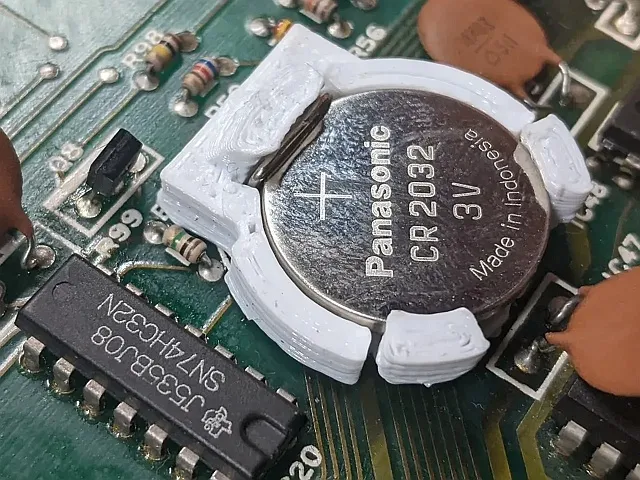
- Power off, unplug the charger, and remove the main battery if it’s removable.
- Open the back panel and find the CMOS battery, a flat silver coin cell, often near the memory or under the drive.
- Gently pop it out, wait about five minutes, then put it back with the plus side facing up.
- Reassemble, plug in, and power on. You may need to set the date and time again, which is normal after a CMOS reset.
On some Acer models the coin cell sits in a sealed capsule with two wires and isn’t meant to be removed easily. If yours looks like that, leave it alone and let a technician handle the BIOS reset.
When the battery is the problem
Batteries wear out, and they don’t always fail in a slow, predictable way. A bad battery can cause a no-power problem outright.
- Try running on the charger alone. On models with a removable battery, take the battery out, plug in the charger, and power on. Most Acer laptops will boot without the battery. If it starts, the battery is your issue.
- Look for swelling. A puffed-up battery pushes on the case from inside and can make the trackpad or keyboard feel raised or stiff. A swollen battery should be replaced promptly and not used.
- Match the age to the symptoms. A laptop three or more years old that suddenly won’t hold power, or shows a blinking charge light, is often telling you the battery has reached the end of its life.
For the internal checks and battery replacement details, iFixit’s Acer troubleshooting page walks through what a failing battery looks like and how to swap it out safely.
When to stop and get it repaired
Some faults are beyond a home fix, and pushing further risks making things worse. Book a repair, or use your warranty, when any of these are true.
- You’ve done the power reset, the pinhole reset, and the charger checks, and there is still no sign of life.
- An external monitor also shows nothing, which points at the motherboard or a deeper hardware fault.
- The battery looks swollen, or you smell or see any sign of leaking or scorching.
- The laptop is still under warranty. Opening the case yourself can void it, so let Acer handle it.
- You hear repeated beeps at startup, which are error codes that usually mean a hardware component has failed.
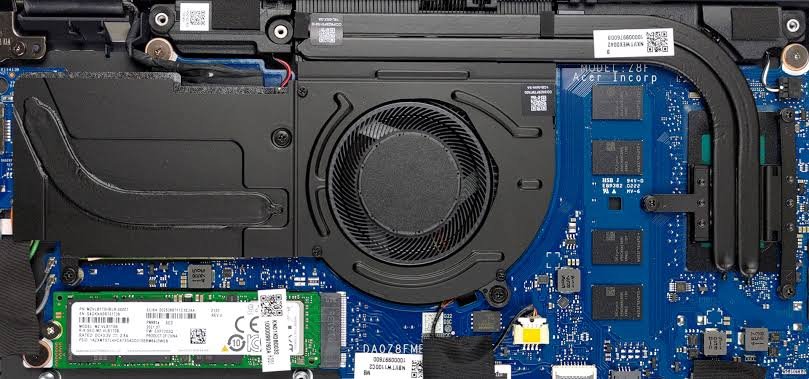
If your data matters and the laptop won’t start, a repair shop can often pull files off the drive even when the machine itself is dead, so ask about data recovery when you book it in.
Frequently asked questions
Where is the battery reset pinhole on my Acer laptop?
It’s a tiny hole on the bottom of the laptop, usually marked with a small battery icon. Aspire, Swift, and Spin models often have one; Nitro and Predator laptops usually don’t.
My Acer laptop has a blue light but won’t turn on. What do I do?
A blue or white light means power is present but the laptop isn’t booting. Do a power reset, then a pinhole reset, then test the screen with an external monitor to rule out a dead display.
How long should I hold the power button to reset an Acer laptop?
Hold it for 30 seconds while the laptop is unplugged. This drains leftover charge and clears a stuck power state, which is Acer’s recommended first fix for a laptop that won’t start.
Why does my Acer laptop only turn on for a second then shut off?
That points to a stuck power state or a failing battery. Do the power reset and pinhole reset first. If it keeps happening, test on the charger with the battery removed.
Will opening my Acer laptop to reseat the RAM void the warranty?
On some models it can. If your laptop is still under warranty and nothing simpler has worked, contact Acer support first rather than unscrewing the back panel yourself.
Conclusion
An Acer laptop that won’t switch on is usually stuck, not broken. Start with the 30-second power reset, then the battery pinhole reset, then check the charger, port, and outlet. Use the indicator lights to point you to the right next step, and reseat the RAM or test without the battery if a light shows but nothing boots. A good result is the Acer logo appearing again. If nothing works after all of this, it’s time for a repair.
Recommended Articles:
How to Freeze a Screen on a Laptop: Every Method That Works
How to Reset an Acer Laptop (Factory Reset, Step by Step)
Why Does My Laptop Shut Off Randomly? Causes and Fixes
Can I Bring a Laptop on a Plane? The Rules, Made Simple
How to Remove a Stripped Screw From a Laptop (Without Wrecking It)