You can tell your CPU is overheating when the computer slows down under load, the fans stay loud, the case or laptop gets very hot, and the PC freezes or shuts itself off. A temperature reading confirms it. If the reading sits at or near the chip’s limit during normal work, often 95 to 100°C (203 to 212°F) on modern processors, the CPU is running too hot.
There is a catch. A hot CPU is not always a problem, and some chips are built to run at 95°C under heavy load. So you need two things: the warning signs, and a real temperature reading judged against your own chip’s limit. This guide covers both, then shows you how to find the cause and cool the processor down.
What are the signs of an overheating CPU?
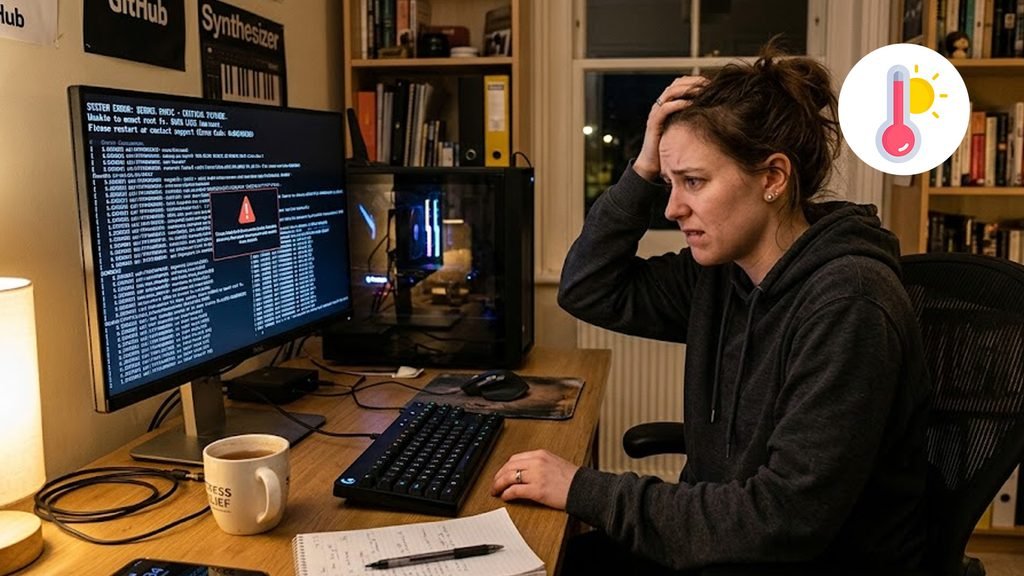
The most common signs are slowdowns, loud fans, random crashes, and a hot case. One sign alone can have other causes, but two or three together point to heat.
- Slowdowns under load. Games stutter, video exports crawl, and apps lag once the PC has been busy for a few minutes. The chip is lowering its own speed to cool down, which is called thermal throttling.
- Fans that run loud or never settle. Fans speed up to push heat away. If they roar at idle, or stay fast long after a heavy task ends, the cooling system is struggling.
- Freezes, blue screens, and restarts. A chip that gets too hot can make the whole system unstable.
- Sudden shutdowns. If slowing down is not enough to keep the chip safe, the processor shuts the system off on its own to prevent damage.
- Heat you can feel. A laptop keyboard, the bottom panel, or the exhaust vent that is too hot to touch comfortably is a warning. Touch alone is not proof, though, because other parts also give off heat.
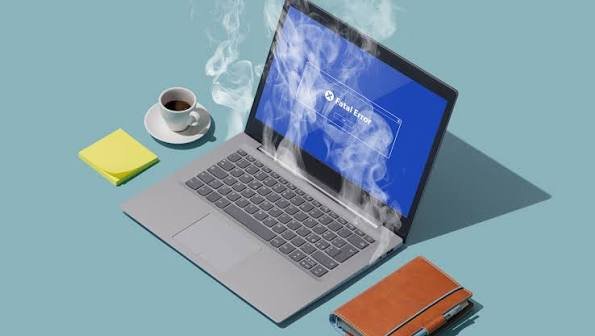
Pay attention to timing. Heat problems show up after the PC has worked hard for a while, and they ease once the load ends or the machine cools. A crash in the first seconds after startup usually points somewhere else.
What temperature is too hot for a CPU?
For most processors, 30 to 50°C at idle and 60 to 80°C under load are normal. Temperatures above 90°C for long stretches are too hot for most chips, and so is any temperature that makes the chip slow itself down.
| Situation | Typical range | What it means |
| Idle (desktop, nothing running) | 30 to 50°C (86 to 122°F) | Normal |
| Light use (web, documents) | 40 to 65°C (104 to 149°F) | Normal |
| Heavy load (games, rendering) | 60 to 80°C (140 to 176°F) | Normal to warm |
| Sustained 80 to 90°C | 176 to 194°F | Hot. Worth checking dust and fans |
| At the chip’s limit (often 95 to 100°C) | 203 to 212°F | Too hot, unless the chip is built to run there |
Every chip has a ceiling called Tjunction max, or Tjmax. It is the highest temperature the chip allows before it cuts power to cool itself. If throttling cannot hold the temperature down, the processor shuts the system off. Intel’s page on processor temperature explains this, and you can look up the exact limit for your Intel model by its processor number.
Chips differ, so check yours. AMD Ryzen 7000 desktop processors are built to reach 95°C under heavy load, because their power system keeps raising speed until it meets that temperature. A reading of 95°C during a render on one of those chips is normal design. The same reading while the PC sits idle is not.
Laptops run hotter than desktops because their cooling systems are small. Judge a laptop against its own limit, and watch for slowdowns instead of fixing on a single number.
Quick rule: A CPU is overheating when it sits at its limit and slows down, or when it runs hot while doing almost nothing.
How do you check your CPU temperature?
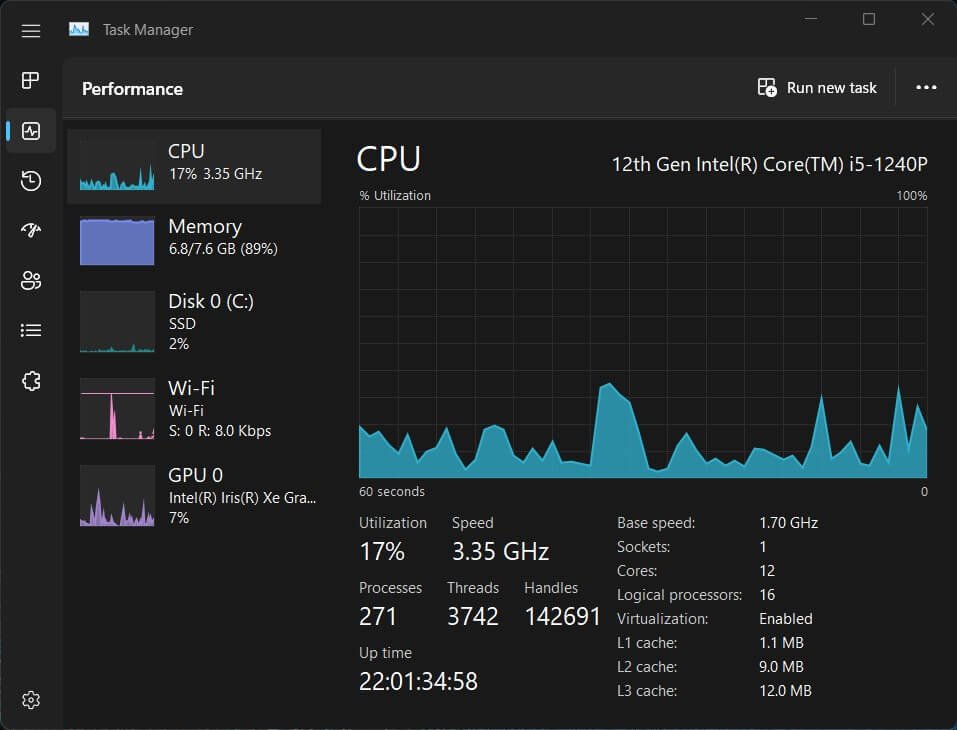
Use a free monitoring tool. Windows has no built-in CPU temperature display, and Task Manager shows usage and speed but not heat. Skip registry tweaks and scripts that try to add a CPU temperature to Task Manager, because that setting does not exist.
Two tools do the job well. HWiNFO is the most complete and shows many sensors. Core Temp is a lighter option that shows only CPU temperatures, which suits beginners. Here is how to read the temperature in HWiNFO.
- Install HWiNFO, open it, and tick Sensors-only before you press Start.
- Scroll to the CPU section. On Intel systems, look for CPU Package. On AMD systems, look for CPU (Tctl/Tdie).
- Read the Current, Minimum, Maximum, and Average columns. The Maximum column is handy after a hard task, since it shows the hottest moment.
- Keep the window open while you work so you can watch the numbers change.
You can also read a temperature in the BIOS or UEFI screen before Windows starts. That reading only shows how the CPU behaves at rest, so it cannot tell you what happens under load.
Expect small differences between tools. Sensors sit in different spots, and each program may report a slightly different value, so compare numbers from the same tool over time. Also write down your idle and load temperatures while the PC is healthy. That baseline makes any later rise easy to see.
How do you test if your CPU overheats under load?
Watch the temperature and the clock speed together while the PC does hard work for 10 to 15 minutes. A short spike means little. The level the temperature settles at after several minutes tells you the truth.
- Close extra apps and note the idle temperature in your sensor tool.
- Start a heavy but normal task, such as a game, a video export, or a free CPU stress test.
- Watch the CPU temperature, the core clock speed, and the CPU usage for 10 to 15 minutes.
- Stop the test early if the temperature stays pinned at the limit while the clock speed falls, or if the PC starts to act strangely.
- Check the Maximum column when you finish and compare it to your chip’s limit.
A quick jump in temperature when a heavy task begins is normal for modern chips. They push to full speed fast, so the temperature can climb within seconds. What matters is the level it holds afterward. A healthy cooler lets the temperature level off with speed intact. A weak one lets it hit the ceiling while speed drops.
What is thermal throttling, and how do you spot it?
Thermal throttling is when the CPU lowers its own power and speed to stay under its temperature limit. You can spot it when the clock speed drops while the temperature sits at the ceiling.
Here is how it looks in a monitoring tool. At the start of a heavy task, the clock speed is high. A few minutes in, the temperature reaches its limit and the clock speed sinks below where it began. Some tools also show a throttling flag that switches to Yes. You feel the same thing as lag, because the chip is doing less work per second.
Throttling is a safety feature, not a fault in itself. If it happens only in extreme conditions, such as a very hot room, you may not need to do anything. If it happens during ordinary work, the cooling needs attention, and fixing it gives the speed back.
How can you tell if the CPU is the part that is overheating?
Check the CPU Package or Tctl/Tdie reading in your sensor tool at the moment the symptoms appear. If that number is low while the PC lags or stutters, heat from the CPU is not the cause.
Slowdowns and crashes have other sources. The graphics card can run hot, and so can the drive. A full drive, too little RAM, or a stuck background app can also make a PC crawl. Open Task Manager and look at the Performance tab. If CPU usage and speed look normal and the CPU temperature is modest, look at the other parts.
For graphics, Task Manager can show the GPU temperature on some systems when the graphics driver supplies it. That gives you a quick way to compare the two chips during the same game or task.
What causes a CPU to overheat?
Most overheating comes from a cooling problem, not from the chip itself. The usual causes are these.
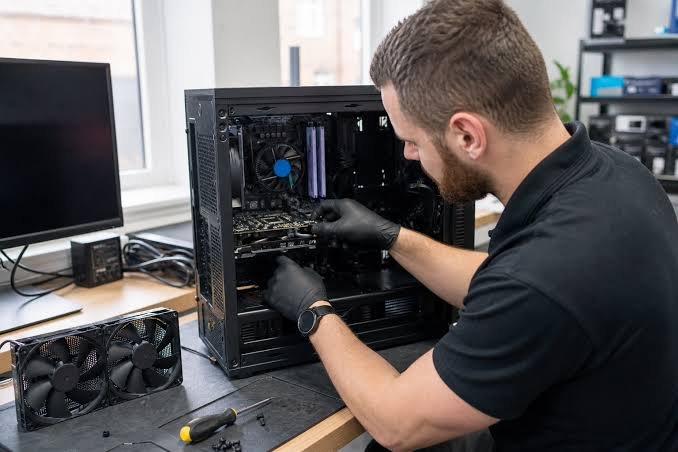
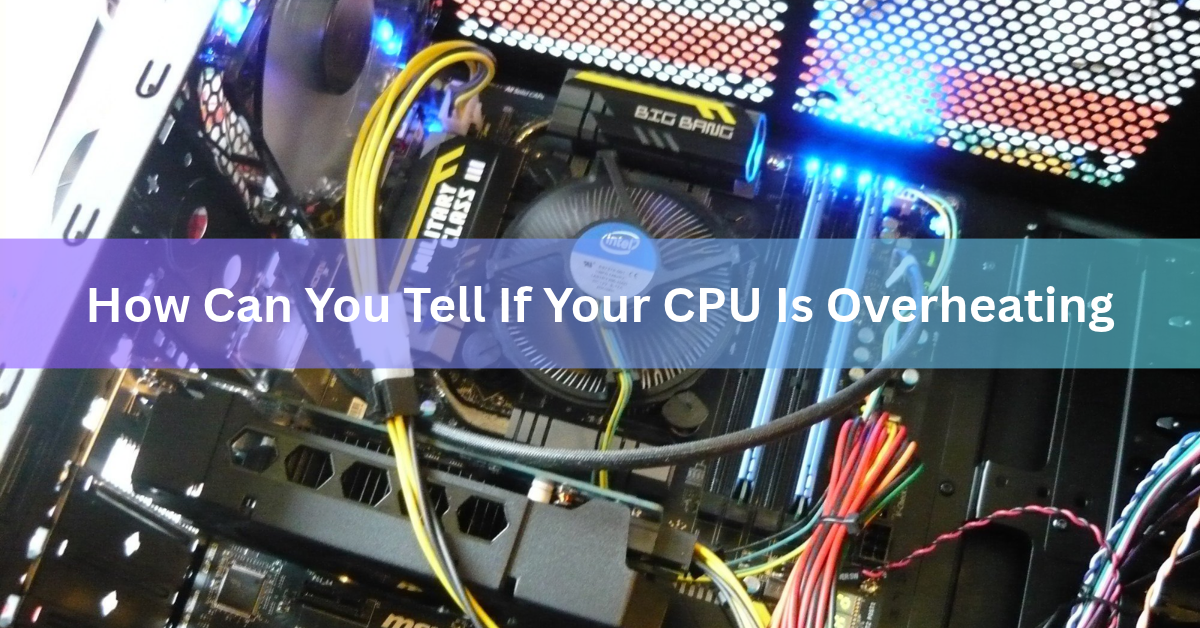
- Dust. Dust clogs fans, heatsinks, and vents, which blocks airflow.
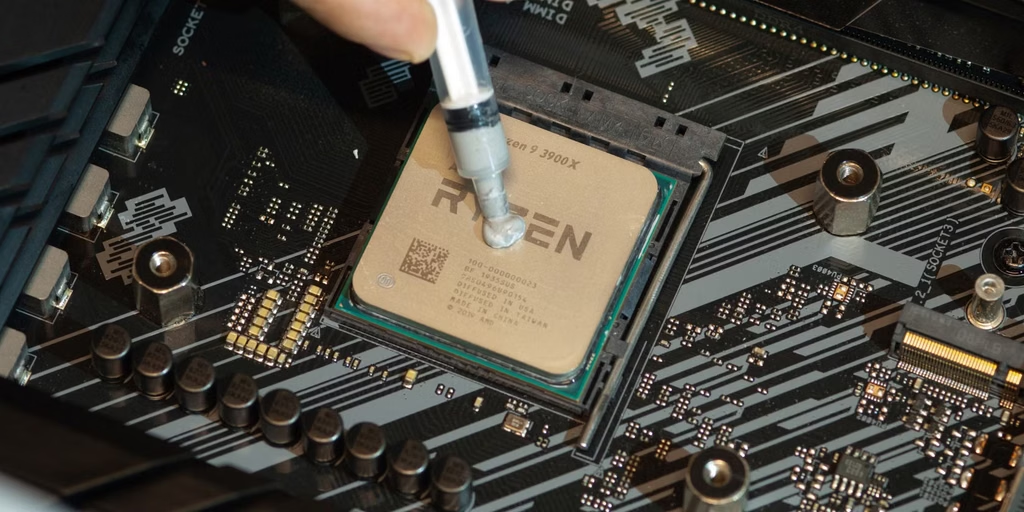
- Dried thermal paste. This paste fills tiny gaps between the CPU and its cooler. Over the years it dries out and carries heat less well.
- A weak or failing fan or pump. A fan that spins slowly, wobbles, or stops cannot move enough air.
- Poor airflow. A crowded case, blocked vents, or a laptop on a bed or sofa traps hot air.
- A hot room. The cooler can only lower the chip to a point above the air temperature around it.
- Heavy background load. A runaway app or process can keep the CPU busy even when you are doing nothing.
- A loose cooler or an overclock. A cooler that is not mounted firmly, or settings that push the chip past its default power, both raise temperatures.
How do you cool down an overheating CPU?
Start with the free fixes, then move on to the ones that need tools.
- Find what is using the CPU. Open Task Manager with Ctrl, Shift, and Esc, click the Processes tab, and sort by CPU. Close or remove anything that is working hard for no reason.
- Clean out the dust. Shut the PC down and unplug it. Use compressed air on the vents, fans, and heatsink. Hold fan blades still while you spray, so they do not spin too fast.
- Check that every fan spins. Look at the CPU fan, case fans, and any radiator fans. Replace one that is slow, noisy, or stopped.
- Improve airflow. On a desktop, leave space around the case and tidy loose cables. On a laptop, use a hard, flat surface or a stand, and keep the vents clear.
- Lower the power mode. In Windows 11, open Settings, then System, then Power & battery, and choose a more balanced power mode. The chip will draw less power and make less heat.
- Replace the thermal paste. If cleaning does not help, remove the cooler, wipe off the old paste, add a fresh pea-sized dot, and reattach the cooler. This often lowers temperatures by several degrees. On a laptop, check the warranty first and take care, or ask a repair shop.
- Upgrade the cooler or undo the overclock. A larger air cooler or a liquid cooler can help a desktop that still runs hot. Returning overclock settings to default also cuts heat.
After each fix, run the same load test again and compare the numbers. That way you learn which change worked.
How is CPU overheating different on a laptop?
A laptop has the same warning signs, but less room to hide the heat. The chip sits close to the keyboard and the bottom panel, and the cooler is thin, so heat shows up in your lap and under your hands first.
Fans that speed up quickly, a hot underside, and slowdowns during long tasks are the usual clues. Slowdowns that appear only after a long task often mean the laptop is throttling. Keep the vents clear, and never use the laptop on a bed, a pillow, or a thick blanket. A hard desk or a stand with open space under the machine helps the fans pull in cool air.
Dust is a bigger problem in a laptop, because its cooling fins are narrow and clog fast. If cleaning the outside vents does not help, a repair shop can open the case, clean the cooler, and renew the thermal paste. Check the warranty before you open it yourself.
How can you keep your CPU from overheating in the future?
A little routine care keeps temperatures steady. Clean the dust every few months, more often in a dusty room or a home with pets. Keep the room reasonably cool, and give the PC space to breathe instead of pushing it into a closed cabinet or a tight desk corner.
Run your sensor tool for a few minutes after any change, such as a new part, a new game, or a new fan setting. If temperatures jump compared with your baseline, you will catch the problem early. On a desktop, you can also raise the fan speed curve in the BIOS or a fan-control tool, which trades a little noise for lower heat.
Finally, leave overclock settings alone unless your cooler can handle the extra heat. Every extra watt the chip draws turns into heat that the cooler has to remove.
Is an overheating CPU dangerous?
It is rarely an instant danger, because the chip protects itself. It first slows down, and if that fails, it shuts the system off to prevent permanent damage. The real costs are a slow computer, crashes, and lost unsaved work.

Running hot for months also adds wear, so it is worth fixing even if the PC still works. Treat a shutdown as a signal to find the cause, and do not keep restarting the machine and carrying on.
When should you get help from a technician?
Get help if the temperature stays high after cleaning and fresh paste, or if the PC keeps shutting down even during light use. Also stop and call for help if a fan or pump does not spin at all, you smell burning, or you see damage inside the case.
A sealed laptop you would rather not open is another good reason. A repair shop can clean the cooler and renew the paste safely.
Frequently asked questions
What is a safe CPU temperature while gaming?
Most CPUs stay between 60 and 80°C while gaming, and that is normal. Up to about 90°C can be fine on some chips. Check your model’s limit, and treat a temperature stuck at the limit with falling speed as a problem.
Can an overheating CPU damage my computer?
Sudden damage is rare. The chip first slows itself down, then shuts the system off if heat keeps rising. Still, repeated shutdowns and long periods of heat are worth fixing, because they cause crashes and extra wear.
Why does my CPU get hot when the PC is idle?
A background process is the most likely cause, so check Task Manager first. Dust, dried thermal paste, a failing fan, or a hot room can also push idle temperatures up. Clean the PC and test again.
How often should I clean my PC to prevent overheating?
Clean the dust every few months, more often in dusty rooms or with pets. Thermal paste lasts for years, so replace it only when temperatures climb even after cleaning and the fans are working.
Can I check my CPU temperature in Task Manager?
No. Windows Task Manager shows CPU usage and speed, but it has no CPU temperature field. Use a free tool such as HWiNFO or Core Temp, or look in the BIOS before Windows starts.
Conclusion
Your CPU is overheating when it slows down, the fans stay loud, and the PC freezes or shuts off, and a monitoring tool shows temperatures at your chip’s limit. Check with a free sensor tool, compare the reading to your model’s Tjmax, and watch for falling clock speeds. Then clean the dust, check the fans, and refresh the thermal paste. A good result is a steady temperature with full speed.
Recommended Articles:
Is a Gaming Laptop Worth It in 2026?
Is a 2-in-1 Laptop Worth It? Who Should Buy One and Who Should Skip It
How to Get More Storage on an HP Laptop
Yes, You Can Turn Off a Touch Screen on Windows (Here’s How)