If your Wacom Cintiq 22HD won’t connect to a laptop, the problem is almost always the video link. The 22HD sends its picture over DVI, and most laptops made in the last several years have no DVI port. So you need the right adapter to carry that signal, plus the USB cable for the pen and the power adapter for the screen. Get those three things right and it works.
The other thing worth knowing early: the screen and the pen are two separate connections. One can work while the other is dead. That’s why this guide fixes them one at a time. Start at the top and stop as soon as the Cintiq comes to life.
Why won’t the Cintiq 22HD connect to a laptop?
The 22HD (model DTK-2200) came out in 2012, and it shows in the ports. It uses three cables that all run through a ring on the back of the stand: a DVI-D video cable, a USB-A cable, and its own power adapter. The DVI cable carries the image. The USB cable carries the pen and the buttons. The power adapter runs the display itself.
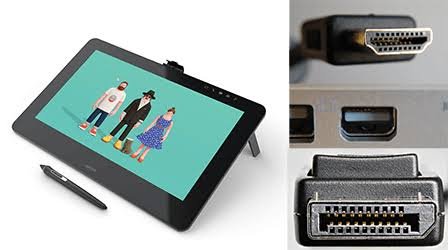
A modern laptop usually has HDMI or USB-C, not DVI. That mismatch is the number one reason the Cintiq seems dead on arrival. The fix is an adapter that turns your laptop’s video output into DVI, but not just any adapter, which is the part most people get wrong. More on that below.
Quick gut check: if the power LED glows orange, the screen has power but is not getting a video signal. That points you straight at the video cable or adapter, not the pen.
Start here: power, cables, and the input
Before buying anything, rule out the simple stuff. These checks take two minutes and solve a surprising number of cases.
- Confirm power. Plug in the 22HD’s own power adapter and press the power button. The power LED should light up. If it stays dark, try a different outlet, then suspect the power adapter or cable.
- Reseat every cable. Push the DVI, USB, and power connectors fully in at both ends. The DVI plug has two thumbscrews. Hand-tighten them, because a loose DVI connection drops the signal in and out.
- Use a real port, not a hub. Plug the USB cable straight into the laptop, not through a cheap USB hub or a daisy-chain of dongles. Hubs often can’t feed the Cintiq enough steady power or data.
- Power on in the right order. Turn the Cintiq on first, then start the laptop. Never plug or unplug the video cable while either device is running, because that can damage the screen or the laptop’s graphics chip.
If the power LED is on but the screen is still blank, the picture is not reaching the display. That is the video problem, and it is the most common one.
The real problem for most laptops: the DVI video link
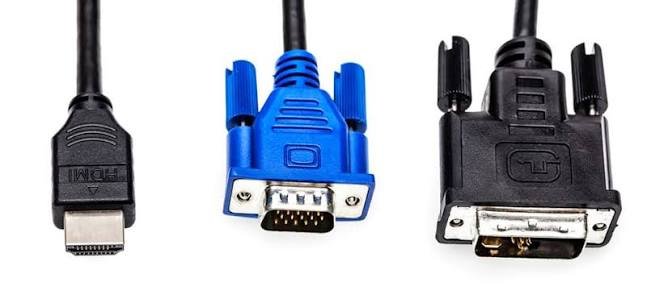
Here is the heart of it. The 22HD wants a DVI signal. Your laptop almost certainly outputs HDMI, DisplayPort, or USB-C. You need an adapter to bridge that gap, and the adapter has to be the active kind.
An active adapter has a small chip inside that rebuilds the video signal into proper DVI. A passive adapter just rewires the pins and hopes the source can output DVI-style signaling on its own. Many laptops can’t, especially over USB-C. That’s why a cheap passive dongle gives you flicker, a brief flash, or no signal at all, while an active one just works.
Match the adapter to your laptop’s port: an active HDMI-to-DVI adapter, an active DisplayPort-to-DVI adapter, or a USB-C multiport hub with a video output rated for an external monitor. Whatever you pick, make sure it supports 1920 x 1080, which is the 22HD’s native resolution.
Which adapter actually works
This is the single decision that fixes most no-signal cases, so it’s worth getting right the first time.
| Adapter type | Works with the 22HD? | Why |
| Active DVI adapter | Yes | It rebuilds the signal so the display reads it cleanly at 1920 x 1080. |
| Passive DVI adapter | Often no | It just passes the signal through and can drop out or flicker. |
| USB-C multiport hub | Yes, if it has video out | Pick one rated for an external monitor, not a basic charging dongle. |
If you switch laptops often or want fewer loose parts, a docking station tends to hold the connection more steadily than a stack of dongles. It costs more, but for daily use it pays off.
Fix the video: getting an image on the screen
Once the right cable and adapter are in place, the image should appear. If it still doesn’t, the laptop may not be sending its picture to the Cintiq yet. Wacom’s no-image troubleshooting guide walks through the same display steps if you want the official version.
- Open display settings. On Windows, right-click the desktop and choose Display Settings. On a Mac, open System Settings and go to Displays.
- Detect the screen. On Windows, click Detect. On a Mac, hold Option to reveal the Detect Displays button. This nudges the laptop to find the Cintiq.
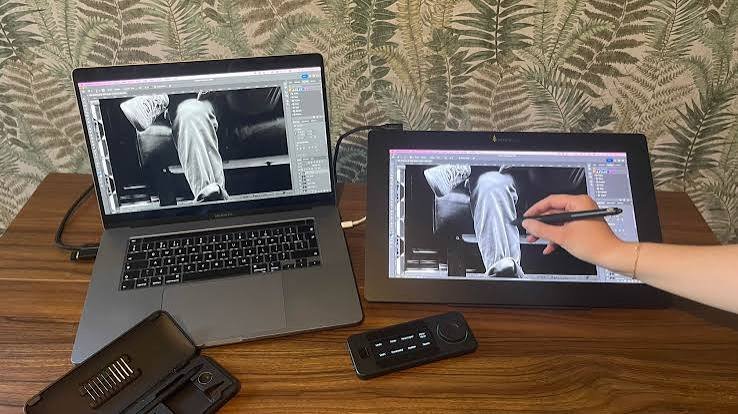
- Extend, don’t mirror. Set the displays to Extend (Windows) or uncheck Mirror Displays (Mac). The Cintiq should appear as a second screen.
- Set the resolution. Select the Cintiq and set it to 1920 x 1080, or whatever the menu marks as Recommended or Best for display.
If you can drag your mouse onto the Cintiq and click things, but the surface stays black, you almost always have a cable, adapter, or refresh-rate issue, not a software one. Swap the adapter for a direct test if you can.
Seeing artifacts or a strange jitter after the image appears? That usually means the cable or adapter can’t hold the set refresh rate. Drop the refresh rate to 60Hz in display settings, or try a better-quality cable.
Fix the pen: screen works but the pen doesn’t
If the picture is fine but the pen does nothing, that’s the USB side, not the video side. The two are independent, so a working screen tells you nothing about the pen.
Start with the USB cable. A worn or loose USB cable is the most common reason a 22HD shows up as a monitor but not as a tablet. Reseat it, move it to a different USB port directly on the laptop, and if you have a spare cable, swap it in. Replacing the USB cable alone fixes a lot of these cases.
If the cable is solid and the pen still won’t track, the driver is the next suspect. Without the Wacom driver the screen still works as a plain monitor, but the pen, pressure, and buttons won’t. The driver section below sorts that out.
Driver steps that solve most software issues
The Wacom driver controls the pen and the buttons, not the video. So drivers can never be the reason the screen is blank, but they’re often the reason the pen misbehaves. When Windows quietly installs its own generic driver, pressure and buttons tend to stop working.
- Remove the old driver. Uninstall any current Wacom driver, then restart the laptop. A clean slate clears most corrupted-driver problems.
- Install the current driver. Download the latest 22HD driver straight from the official Wacom drivers page and install it. Skip third-party driver sites, which often bundle outdated or wrong files.
- Restart again. Reboot after installing so the driver loads properly, then test the pen.
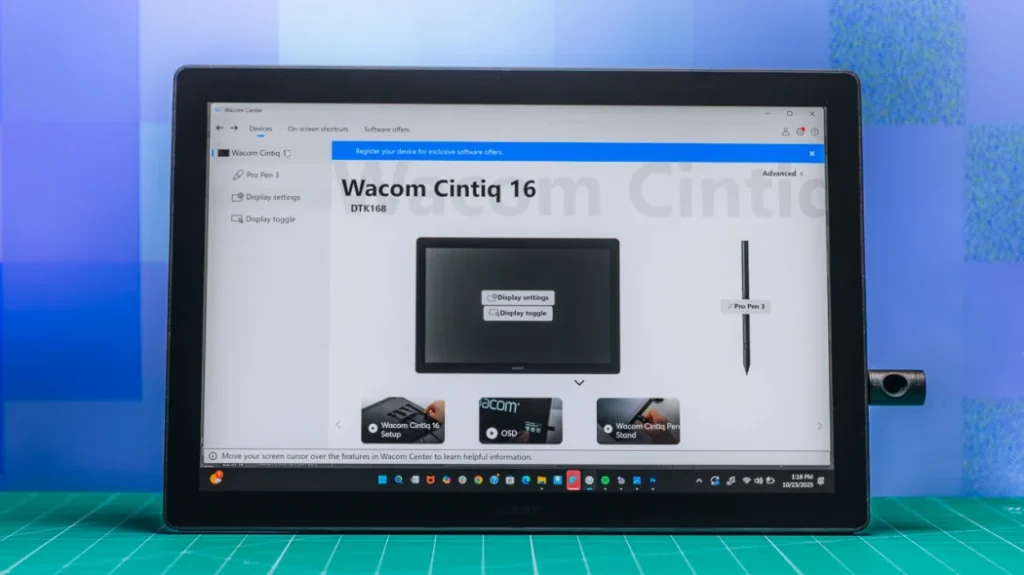
- Check the Wacom Center. Open the Wacom Center (or Wacom Tablet Properties) and confirm the Cintiq 22HD shows up as a connected device. If it’s listed, the pen should respond.
A couple of extras worth a look: security software can sometimes block the Wacom service from starting, so if the pen still won’t work, briefly disable your antivirus and restart the Wacom service to test. And the current driver runs on Windows 11 and 10 and recent macOS, so an older OS isn’t usually the blocker here.
Still nothing? How to tell if it’s the hardware
If you’ve matched the adapter, swapped cables, and reinstalled the driver and the Cintiq still won’t come up, it’s time to find out whether the unit itself is at fault.
The cleanest test is to connect the 22HD to a different computer, ideally one with a real DVI port or a known-good adapter. If it works there, the trouble is with your laptop’s settings or its video output, not the Cintiq. If it fails on every machine, you’re likely looking at a hardware fault in the cable or the display.
On rare laptops, a BIOS setting for USB can block the tablet from being detected. It’s worth a glance if everything else checks out, though it’s an uncommon cause. At that point, gather your details, your laptop model, your operating system version, and the exact adapter you’re using, and contact Wacom support. Having that ready makes the whole thing faster.
Frequently asked questions
Does the Cintiq 22HD work with USB-C or Thunderbolt?
Not directly. The 22HD uses DVI for video and USB-A for the pen. If your laptop only has USB-C, you need an active USB-C adapter or dock with a video output rated for an external monitor, plus a USB connection for the pen.
Why does my Cintiq show as a monitor but the pen won’t work?
Because video and pen are separate connections. A working screen means the DVI side is fine, but the pen runs over USB and needs the Wacom driver. Reseat or replace the USB cable, then reinstall the current driver.
The power light is orange. What does that mean?
Orange means the display has power but isn’t getting a video signal. The picture isn’t reaching it. Check the DVI cable and your adapter first, and test with a different adapter or a direct connection if you can.
Do I need the Wacom driver just to see an image?
No. The screen works as a plain monitor without the driver. You only need the driver for the pen, pressure sensitivity, and the buttons. If the screen is blank, the driver isn’t the cause, so look at the video cable instead.
How do I know if my adapter is the problem?
If you get flicker, a brief flash, or no signal, you likely have a passive adapter. Swap it for an active DVI adapter that supports 1920 x 1080. Testing the Cintiq on a computer with a real DVI port also rules the adapter in or out.
Conclusion
For a Cintiq 22HD that won’t connect to a laptop, fix the video link first: it needs DVI, so pair your laptop with an active DVI adapter that supports 1920 x 1080, plus the USB cable and the power adapter. Treat the screen and pen as separate jobs. A good result is a clean image on the display and a pen that tracks with pressure. If both work after that, you’re done.
Related Post
Acer Laptop Screen Not Working? Fix It Step by Step
How to Connect a Canon Printer to a Laptop
Can You Bring a Laptop on a Plane? Yes — Here’s What to Know
Acer Laptop Won’t Turn On? Here’s How to Fix It (Step by Step)