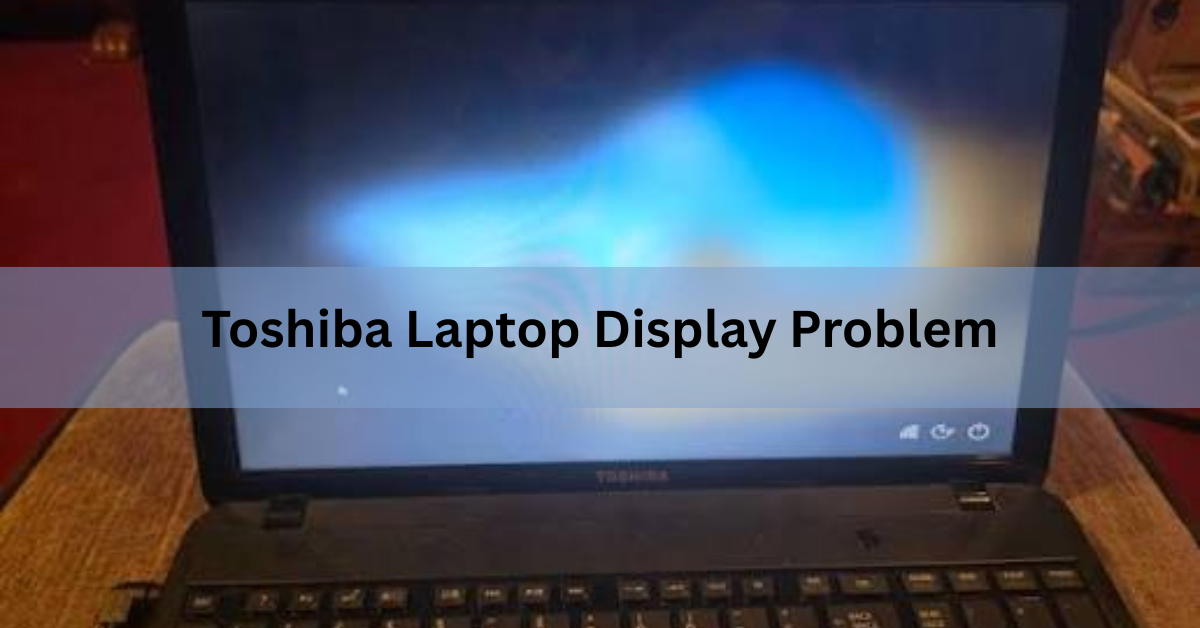
A Toshiba display problem almost always traces back to one of four things: a stuck power state, a graphics driver fault, a loose or worn screen cable, or a failed backlight. You can narrow it to one of those in about two minutes by plugging the laptop into an external monitor. If the second screen shows a picture, the computer is fine and the fault sits in the lid. If both screens stay dark, the problem is deeper, in the memory, the graphics chip or the board.
That single test decides everything else you do, so start there rather than working through a long list of fixes in the hope that one sticks.
What causes a Toshiba laptop display problem?
The cause depends on what you are seeing on the screen and when it happens. A screen that is black from the moment you press power is a different fault from one that goes black after the Windows logo, even though both look like “no display” at a glance.
There is also an age factor worth knowing. Toshiba stopped making laptops on 30 June 2020, when Sharp bought out the last of its stake in the Dynabook business. Every Toshiba-branded machine still in use is at least six years old, and most Satellite models are well past ten. At that age, the failures you see are wear failures: cables that have flexed thousands of times, backlights that have dimmed, solder joints that have been through years of heating and cooling. Software causes still happen, but hardware becomes more likely with every year.
Here is how the symptom maps to the likely cause.
| What you see | Most likely cause |
|---|---|
| Black from the second you press power, no Toshiba logo | Power state, RAM, or graphics hardware |
| Toshiba logo appears, then black | Graphics driver or Windows startup fault |
| Very dim, readable at an angle in bright light | Backlight or inverter failing |
| Flickers, or changes when you move the lid | Screen cable connection |
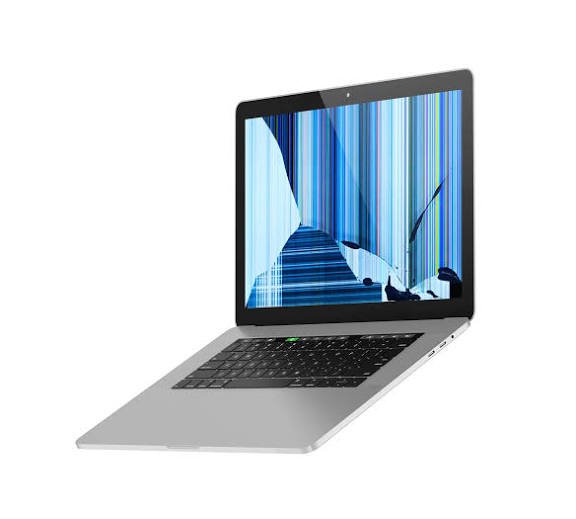
| Lines, blotches, or a cracked look | Damaged LCD panel |
| Colours inverted or washed out | Cable or panel fault |
| Black screen with a visible mouse cursor | Windows shell not loading |
Do not fully trust the mapping yet. It narrows things down, but the external monitor test is what proves it.
First test: is it the screen or the computer?
Connect the laptop to a TV or monitor. Most Toshiba models from the Satellite and Tecra era have an HDMI port, and older ones have a blue 15-pin VGA port. Either works.
- Shut the laptop down completely. Not sleep, not hibernate.
- Plug the cable into the laptop and the monitor, and switch the monitor to that input.
- Turn the monitor on first, then the laptop.
- If nothing shows after 30 seconds, press Fn and F5 together. On most Toshiba models F5 cycles the display output, and the key is often marked with a small twin-monitor icon.
What you get tells you where the fault is.
- External monitor shows the desktop, laptop screen stays black: the fault is in the lid. Screen panel, screen cable, or backlight.
- Both screens stay black: the fault is inside the body. Memory, graphics chip, or board.
- Both screens show the same fault, for example the same flicker or the same colour problem: that points at the graphics chip or its driver, not the panel.
There is a second, quicker check worth running alongside it. Switch the laptop on and immediately tap F2 to open the BIOS setup screen. The BIOS runs before Windows loads and before any driver is involved, so if you get a readable blue setup screen, the panel, the backlight and the graphics chip are all working, and your fault is somewhere in Windows. If the BIOS screen is black too, the problem is hardware.
Listen and look while you do this. A laptop that is genuinely booting will spin its fan for a moment, click the drive, and light the hard drive indicator on the front edge. Silence and a dark indicator suggest the machine is not getting far enough to produce a picture at all, which points back at power, memory, or the board rather than the screen.
Keep the external monitor connected while you work. If the laptop screen is dead, this is the only way to see what you are doing.
Fixes when the external monitor works
The computer runs, so you are dealing with the panel, its cable, or its light source. Work through these in order, cheapest and easiest first.
Check the brightness and the lid switch
Hold Fn and press F6 several times to raise brightness. It sounds too simple, but brightness can drop to zero after a battery change, a driver update, or a knock, and the result looks exactly like a dead screen.
Then look at the lid sensor. Toshiba laptops use a small magnetic switch near the hinge that tells Windows the lid is shut. If it sticks or the magnet has shifted, Windows blanks the screen while the laptop is wide open. Open and close the lid a few times firmly. If the screen flashes on for a moment as you do it, that is your answer, and you can work around it by setting the lid action to “do nothing” in Windows power settings.
Test the backlight
Take the laptop into a dark room, turn it on, and shine a phone torch at the screen at a sharp angle. If you can make out faint windows and icons, the panel is producing an image but nothing is lighting it.
On Toshiba models made before roughly 2010, that usually means the inverter board, a small strip along the bottom edge of the screen that powers the backlight tube. It is one of the cheaper parts to replace. On LED-backlit models, which covers most Satellites from 2010 onward, there is no inverter, so a dead backlight normally means replacing the whole panel.
Reseat the screen cable
If the picture flickers, cuts out, or comes and goes when you tilt the lid, the video cable running through the hinge is the suspect. Years of opening and closing wear the wires where they bend, and the connector at the board end works loose over time.
Reseating it means removing the screen bezel and unplugging then replugging the connector at the panel. It is a fiddly job with plastic clips that snap, so if you are not comfortable inside a laptop, this is the point to hand it to a repair shop. A worn cable is a genuinely common Toshiba fault and the part itself is inexpensive.
Replace the panel
Cracks, dark patches that spread, thick vertical lines, or a screen that looks like a photo negative all point to the LCD panel itself. Panels are not repairable. The replacement part number is printed on a sticker on the back of the panel, which you reach by removing the bezel, and matching that number exactly matters more than matching the laptop model, because Toshiba used several panel suppliers for the same model.
Fixes when both screens are blank
No picture anywhere means the laptop is not producing video at all. Start with the power reset, because it fixes a surprising share of these.

Do a hard power reset
- Unplug the charger and remove the battery if your model has a removable one.
- Hold the power button down for 30 seconds. This drains the residual charge held in the board.
- Put the battery back, plug the charger in, and switch on.
This clears a stuck power state, where the laptop is technically on, fans spinning and lights lit, but the board never completes its startup. Older Toshiba boards are prone to it, and the reset is free.
Reseat the memory
Bad or loose RAM is the classic cause of a laptop that powers up with no display and no logo. Some Toshiba models beep when memory fails; many just sit there in silence.
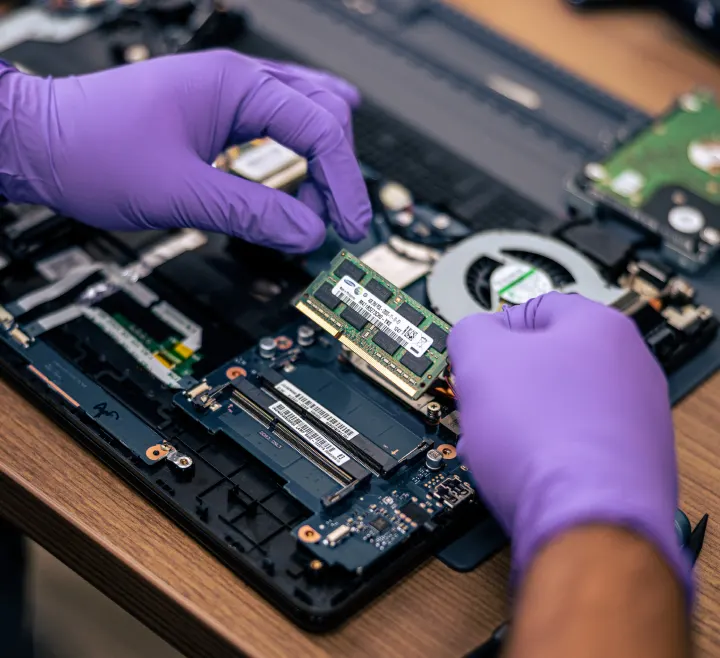
The memory sits under a small panel on the underside, usually held by one or two screws. Power off, remove the battery, push the metal clips at the sides of each module outward, lift the module, and press it back in firmly at an angle until the clips snap. If there are two modules, try starting with only one fitted, then swap to test the other. A dead module shows up straight away.
Update or roll back the graphics driver
If the Toshiba logo appears and the screen goes black after it, or you see a black screen with a working mouse cursor, the fault is on the software side. Windows is running, but the display is not being driven properly.
Restart while holding Shift to get into the recovery menu, then choose Safe Mode. In Safe Mode, Windows uses a basic display driver, so if the picture comes back you have confirmed the driver is at fault. Open Device Manager, expand Display adapters, and either update the driver or roll it back if the problem started right after an update.
Windows will usually find a workable driver on its own for the Intel, AMD and NVIDIA chips in these machines. If you want the original Toshiba version, it is on the Dynabook drivers and software page, where legacy Toshiba models are still listed by model number. Search by model, not serial number.
One thing worth checking on multi-display setups: if a second display adapter is listed and you never use one, disabling it sometimes clears a long black screen at boot.
When it is the graphics chip
If none of that works, and especially if the laptop was running hot or shutting itself down before the screen died, the graphics chip or its solder joints have probably failed. This was a known weak point on Toshiba models with dedicated NVIDIA graphics, including several Satellite A and Qosmio machines.
There is no home fix. Reflow and reball repairs exist, but they are temporary on a machine this old, and board-level repair on a laptop with no parts supply rarely makes financial sense.
Screen shows a picture but it looks wrong
A working screen with a bad picture is usually easier to fix than a black one, because the panel and backlight are clearly alive.
Flickering that changes when you touch or move the lid is a cable problem, handled above. Flickering that stays the same regardless is more likely the refresh rate or the driver. Right-click the desktop, open Display settings, then Advanced display, and check the refresh rate is set to 60Hz, which is what these panels expect.
Washed-out or inverted colours point to the cable or the panel, in that order. A screen that is fine at startup and slowly dims over several minutes is a backlight nearing the end of its life. A picture that does not fill the screen, with black bars around a small image, is a resolution setting rather than a fault, and setting the resolution back to the recommended value fixes it.
Dead pixels are worth mentioning only to say that they do not spread. A single stuck dot is cosmetic. A patch that grows week by week is a panel that is failing.
Should you repair the screen or replace the laptop?
Repair is worth it when the fix is cheap and the rest of the laptop is healthy. It stops being worth it fast on a machine this old.
The practical test is the ratio between what the repair costs and what a used replacement of similar power costs. A cable or inverter is a small spend and usually easy to justify. A full panel replacement on a Satellite is often close to half the price of a working second-hand machine. A motherboard or graphics repair is almost never worth it, because you are paying a large sum to keep a laptop with no manufacturer support, no security updates from Toshiba, and no spare parts pipeline.
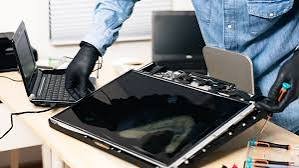
Three other things weigh on the decision. Toshiba driver downloads for legacy models are still available but no longer being added to. Many of these machines cannot run Windows 11, and Windows 10 stopped receiving free security updates in October 2025. And spare parts are now down to whatever is left in third-party stock.
If you do want a repair done properly, Dynabook still runs the old Toshiba service network and lists authorised service providers by location, which is a safer route than a general shop for anything that involves opening the lid.
Whatever you decide, get your files off first. If the screen is dead but the laptop runs, connect an external monitor and copy your data to a USB drive before anyone opens the machine.
Frequently asked questions
Why is my Toshiba laptop screen black but the power light is on?
The laptop is receiving power but not producing an image. Do a hard power reset first, holding the power button for 30 seconds with the charger and battery removed. If that fails, reseat the memory and test with an external monitor.
How do I switch my Toshiba laptop back to its own screen?
Press Fn and F5 together to cycle through display outputs. Keep pressing until the picture returns to the laptop panel. In Windows you can also press the Windows key and P, then choose PC screen only.
Can I still get Toshiba screen replacement parts?
Yes, through third-party parts suppliers rather than Toshiba. Match the panel part number printed on the sticker on the back of the panel, not the laptop model, because the same model shipped with panels from different makers.
Why does my Toshiba screen flicker when I move the lid?
The video cable in the hinge is loose or worn. Years of opening and closing damage the wires where they bend. The cable is inexpensive but replacing it means removing the bezel, so a repair shop is the sensible option.
Is it worth fixing a Toshiba laptop screen in 2026?
For a cable, inverter, or driver fault, yes, since those are cheap fixes. For a full panel or a graphics chip failure, usually not, because the cost approaches what a working used laptop costs and Toshiba no longer supports these models.
Conclusion
Start with the external monitor. If the second screen works, your fault is in the lid, so check brightness, test for a live backlight with a torch, and look at the screen cable before you buy a panel. If both screens stay black, do a hard power reset, reseat the memory, and try Safe Mode to test the graphics driver. A good result is a working picture for the cost of a cable or nothing at all. On a laptop this old, a board-level repair rarely pays for itself.
Recommended Articles:
3.5 mm Jack Not Working on Laptop? Here’s How to Fix It
How to Print Screen on an Acer Laptop (Every Method That Works)
Acer Laptop Won’t Turn On? Here’s How to Fix It (Step by Step)
White Spot on Laptop Screen: What It Is and How to Fix It
What Laptop Screen Pressure Damage Is and How to Deal With It