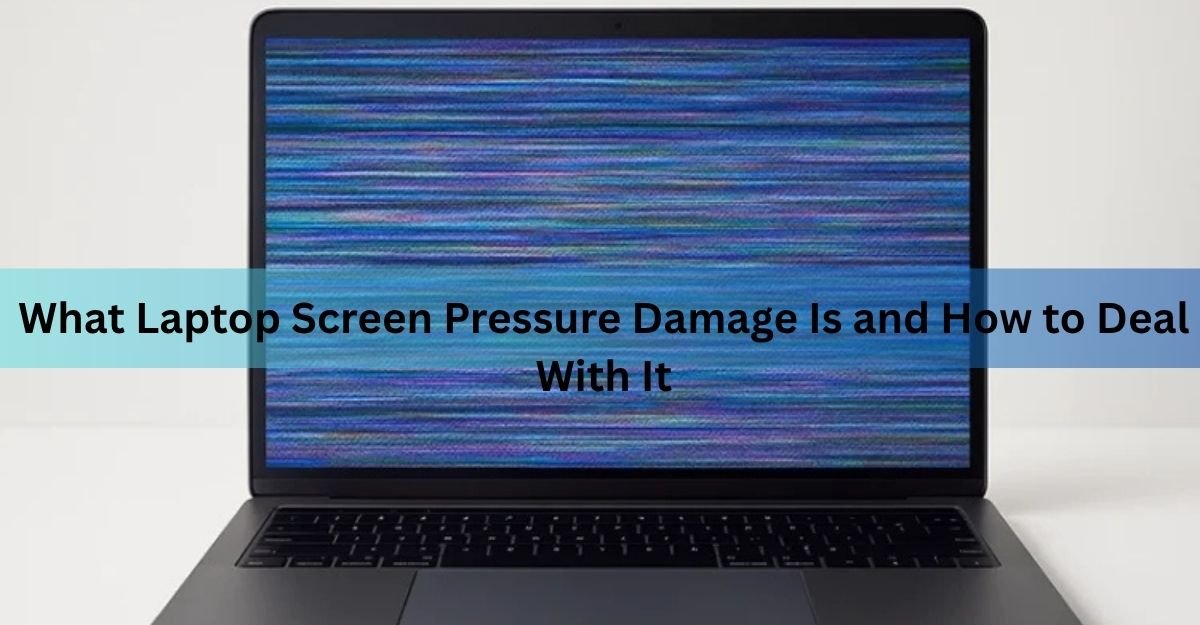
Pressure damage is what happens when something presses hard on your laptop screen and leaves a mark behind: a bright spot, a dark blotch, a cloudy patch, or a small bruise-like stain that stays put no matter what you show on the display. It is physical damage to the layers inside the panel, and in most cases it does not fully heal on its own. The good news is that it rarely spreads across the whole screen, and there are a few things worth trying before you pay for a new panel.
This guide covers what the marks actually are, how to tell pressure damage apart from a stuck pixel or a crack, what you can safely try at home, and what a repair costs if the marks are here to stay.
What causes pressure marks on a laptop screen
Pressure marks come from focused force on the display. Your screen is a stack of very thin layers, and a hard point of contact squeezes those layers out of shape. The most common causes are everyday habits:
- Closing the lid with something on the keyboard, like a pen, earbuds, or a USB stick.
- Stacking a heavy object on a closed laptop, such as a phone, a hardcover book, or another laptop.
- Packing the laptop too tightly in a bag next to a charger, keys, or a camera, so the keyboard presses into the screen during transport.
- Pressing too hard while cleaning the screen, over and over.
- Poking or jabbing the display with a finger or fingernail.
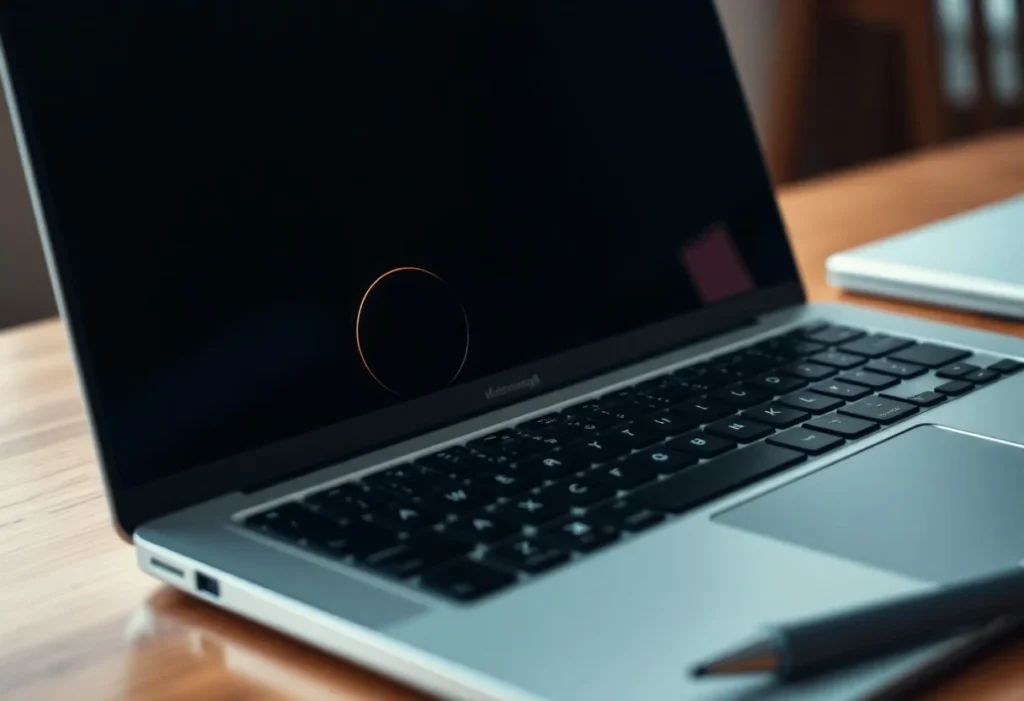
A single firm press can be enough. So can gentle pressure repeated for weeks, which is why bags are such a frequent cause. When a laptop is packed tight, the keys on the keyboard slowly push into the panel every time the bag gets jostled, and the outline of that contact can end up printed on the screen.
What is going on inside the screen
Most laptop screens are LCD panels. Inside, there is a layer of liquid crystal fluid held in a tiny gap between two sheets of glass. That gap is incredibly small, usually only about 3 to 5 microns, which is thinner than a human hair. Microscopic pillars called spacers hold the two glass layers apart and keep that gap even.
When you press too hard, those spacers get crushed or shifted, the gap changes, and the liquid crystal fluid no longer sits the way it should. Light then passes through that spot differently from the area around it, so you see a bright patch, a dark patch, or a colored stain. In bad cases the layers separate or the fluid pools, which shows up as a dark blob or a splotchy bruise. Because you have physically deformed the structure, the mark is usually permanent.
OLED screens, which are common on premium and creator laptops, work differently. Each pixel makes its own light, and there is no backlight or liquid crystal gap. Hard pressure on an OLED can still crush the organic layers and leave a permanent dark or discolored patch, and OLED panels tend to fail more dramatically when they are physically stressed. Either way, the lesson is the same: the screen does not like being pushed.
How to tell pressure damage from a stuck pixel or a crack
Getting the diagnosis right matters, because the fixes are completely different. Clean the screen first with a dry microfiber cloth so you are not chasing a smudge. Then look at the mark against a plain white background, a plain black one, and a solid red or blue one.
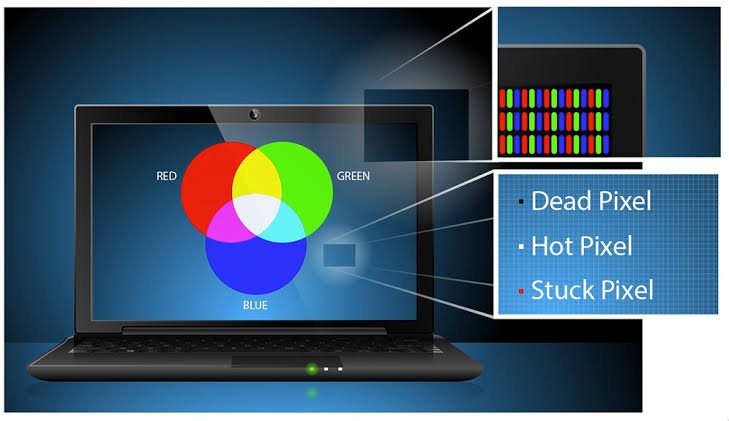
Here is how the common problems compare.
| Problem | What it looks like | Edges & size | Can software help? |
|---|---|---|---|
| Pressure damage | Bright patch, dark blotch, cloudy area, or bruise-like stain | Soft edges, larger than one dot, shifts hue by background | No, it is physical |
| Stuck pixel | A single dot stuck on red, green, or blue | Sharp, exactly one pixel | Often yes |
| Dead pixel | A single dot that stays black | Sharp, exactly one pixel | Rarely |
| Crack | Sharp lines or a spiderweb, often after a drop | Hard lines, can spread | No |
A quick test: if the spot is soft-edged, larger than a single dot, and shifts hue slightly as you cycle through background colors, it is almost certainly pressure damage. A stuck pixel is a sharp, single point of color. A dead pixel is a single point that stays black. A crack shows sharp lines or a spiderweb and usually appears right after a drop.
What you can try at home
Set your expectations first. True pressure damage is a physical change inside the panel, so home methods have a low success rate. They are most likely to help with very fresh, very minor marks, and they are worth a shot only because the alternative is a paid repair. If the mark has been there for weeks, none of this is likely to bring it back.
Try these gentler options first, in order:
- Leave it alone. Turn the laptop off, close it (with nothing on top), and give it several hours or a full day. Minor stress marks sometimes ease on their own as the layers relax. This carries zero risk, so start here.
- Run a pixel-fixing tool. If part of the problem is stuck pixels next to the pressure mark, a browser tool that flashes rapid colors can sometimes wake them up. The free JScreenFix tool runs in your browser with nothing to install; drag its flashing box over the spot and leave it for 10 minutes to an hour. It targets bright stuck pixels, not true pressure blotches or dead pixels, so treat any improvement as a bonus.
- Wipe gently with a barely damp cloth. Moisten a microfiber cloth with distilled water, wring it until it is almost dry, and wipe the area in light circles. This mostly rules out dirt, but do it with almost no pressure.
A note on the “press it back” trick you may come across: pressing on the mark, sometimes with heat from a warm cloth, is risky. Adding more pressure to an already-stressed panel can crush more spacers and make the patch bigger, and heat raises the risk further. If you decide to try any pressure at all, use the pad of a finger through a soft cloth, keep it very light, and stop the moment nothing is improving. For most people the safer move is to skip this one.
Whatever you do, do not press hard, do not use your fingernail, and do not spray liquid straight onto the screen.
When to accept it needs a new panel
If the mark survives a day of rest, a pixel-fixer, and a gentle clean, it is permanent, and the only real fix is a new panel. That is normal for pressure damage. A few signs it is time to stop trying at home: the patch is dark or spreading, it sits over an area you actually need, or you can see the fluid has clearly pooled into a blob. Pressing on any of these will only make it worse.
Before you pay, check two things. First, look at your warranty. Standard warranties cover manufacturing defects, not accidental pressure, so this usually is not covered, but some business laptops from brands like Dell and Lenovo ship with accidental damage protection that might. Second, weigh the repair against the laptop’s value using the 50 percent rule below.
What a screen replacement costs
Replacing a laptop screen in 2026 usually runs somewhere between $70 and $550, and where you land depends mostly on the panel type and your laptop model. A basic 13 to 15 inch LCD from a budget or mid-range Windows laptop is the cheap end. Touchscreens, high-resolution IPS panels, OLED displays, and MacBook screens sit at the top.
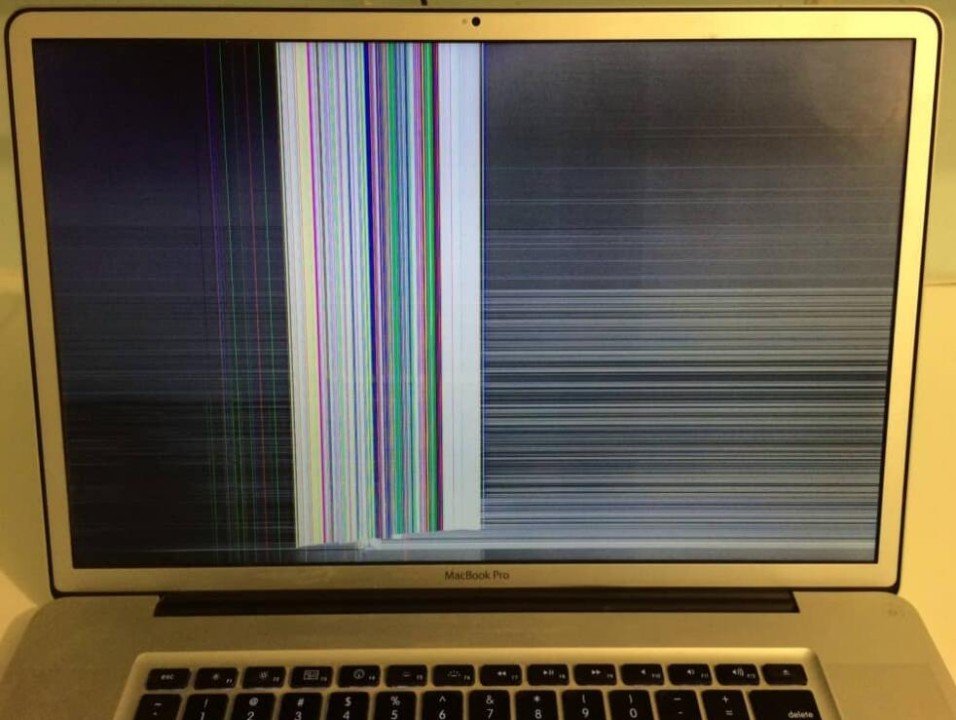
Here is a rough guide to current pricing.
| Screen type / laptop | Panel part alone | Typical total repair |
|---|---|---|
| Budget / mid-range LCD (13–15 in) | $35–$120 | $70–$180 |
| High-res IPS panel | $120–$220 | $120–$250 |
| Touchscreen (fused digitizer) | $120–$220 | $180–$350+ |
| OLED / high-end large panel | $200+ | $300–$500+ |
| MacBook (bonded display) | — | $299–$799 |
Two things push the number up. Touchscreens cost more because the touch layer is often fused to the display, so you replace both together. And on many thin laptops and MacBooks the panel is bonded into the whole lid assembly, which means you are paying for the top half of the laptop, not just the glass.
DIY is possible on some models. Older ThinkPads, standard IdeaPads, and many Acer Aspire and Dell Inspiron machines use panels that unclip fairly easily, and a replacement panel alone often costs $35 to $140. But a bonded or fused display is a different job, and a slip can turn a one-part fix into a two-part one, or crack the new screen during install. If you are not confident, the money you save rarely covers the risk.
A simple rule for repair or replace: if the fix costs more than half of what your laptop is worth today, replacing the whole machine usually makes more sense, especially if it is more than five or six years old. On a newer mid-range laptop, a screen swap is well worth it and can add years of life for a fraction of the price of a new device.
How to stop it happening again
Prevention is easy once you know the cause. A few habits handle almost every case:
- Never put anything on top of a closed laptop, and check the keyboard is clear before you close the lid.
- Carry it in a padded sleeve or a bag with a snug, dedicated compartment, away from chargers, keys, and other hard objects.
- Open and close the lid with both hands near the center, so you are not twisting the panel.
- Clean with a dry or barely damp microfiber cloth and almost no pressure. Spray cleaner on the cloth, never on the screen.
- If your bag is tight, a thin sheet of soft foam between the keyboard and screen adds a cheap buffer for travel.
Frequently asked questions
Can pressure marks on a laptop screen be fixed?
Usually not fully. True pressure damage is a physical change inside the panel, so it is normally permanent. Very fresh, minor marks occasionally fade after resting the laptop, but a lasting mark needs a panel replacement.
Will a pressure mark spread across my whole screen?
Most stay put and stay local. They can grow if the panel keeps getting pressed or stressed, so stop poking the area and avoid packing the laptop tightly. A dark blob that is clearly spreading is a sign to get the panel replaced.
Is it a stuck pixel or pressure damage?
A stuck pixel is a single sharp dot of color you can sometimes fix with a pixel-cycling tool. Pressure damage is a larger, soft-edged patch or bruise that shifts slightly across different background colors and does not respond to software.
Does pressing on the mark to push it back actually work?
Rarely, and it often backfires. Adding pressure to an already-stressed panel can crush more of the internal spacers and enlarge the mark. If you try at all, keep it extremely light through a soft cloth and stop if nothing improves.
Is a screen replacement worth it or should I buy a new laptop?
Use the 50 percent rule. If the repair costs less than half your laptop’s current value, replacing the screen is usually worth it. On older or budget machines where the panel costs almost as much as a new laptop, replacing the device makes more sense.
Conclusion
Pressure damage is a physical dent in your screen’s inner layers, and once a mark has set it is usually permanent. Try the no-risk steps first: rest the laptop for a day, run a browser pixel-fixer, and clean it gently, but skip the hard-press trick, since it tends to make things worse. If the mark stays, price a panel replacement against your laptop’s value using the 50 percent rule. Then protect the new screen with careful handling and a padded bag.
Acer Laptop Screen Not Working? Fix It Step by Step
How to Measure Laptop Dimensions: Full Step-by-Step Guide
Can You Bring a Laptop on a Plane? Yes — Here’s What to Know